
Using My Tools in the Administrator Tools
Explore My Tools to manage resources, classes, and instructional workflows.
- Direct Login & Manual-Rostering
- SSO & Auto-Rostering
- SSO & Manual-Rostering
- PreK-12
- Customer Support
- School Administrator
- Direct Login & Auto-Rostering
- Core
- Intervention
- Supplemental
- AP, Honors & Electives
- Literacy
- Math
- Science
- Social Studies
- Health
- Visual & Performing Arts
- World Languages
- AP Biology
- AP Chemistry
- AP History & Geography
- AP Psychology
- AP Economics
- AP African American Studies
- AP Precalculus
- AP Statistics
- AP Computer Science
- AP Language and Composition
- AP Public Speaking
- AP Music Theory
- 5 Steps to a 5 - AP Test Prep
- Glencoe Health 2022
- Teen Health 2021
- Arrive Math
- Building Blocks 2024
- Building Blocks PreK 2025
- Number Worlds 2024
- SRA Reading Laboratory 2025
- SRA Reading Mastery Transformations
- Achieve3000 Literacy
- Actively Learn
- McGraw Hill Literacy Emerge!
- McGraw Hill Literacy Summit!
- McGraw Hill Literacy Soar!
- Open Court Reading 2025
- Redbird
- StudySync 2021
- ALEKS
- ALEKS Adventure
- CA Reveal Math (K-12)
- Illustrative Math
- Redbird Math
- Reveal Math (K-12)
- Texas Math
- CA Inspire Science 2020
- FL Science 2025 (K-12)
- Inspire Science 2020
- TN Science (K-12)
- TX Science 2025 (K-12)
- CA Impact 2019
- FL Social Studies 2024 (K-12)
- Impact Social Studies
- McGraw Hill Social Studies
- All Sorts 2026 (K-5)
- Asi se Dice 2024
- CTE - Health Science
- CTE - Agriculture
- CTE - Computing and Technology
- CTE - Culinary Arts
- CTE - Early Childhood Education
- CTE - Business, Marketing, and Finance
- CTE - Criminal Justice
- Glencoe Health 2014
- McGraw Hill Health 2014
- 2Inform
- Building Blocks 2015
- Connecting Math Concepts
- Number Worlds 2015
- Corrective Reading
- Early Interventions in Reading
- Spelling Mastery
- WonderWorks 2022 & 2014
- Maravillas 2020 & 2017
- OCR Foundational Skills Kit
- OCR Word Analysis Kit
- Open Court Reading 2016, 2018, 2023
- StudySync 2015 & 2017
- Wonders
- Wonders 2014
- Wonders 2023 2020 2017
- Wonders Balanced Literacy 2016
- Wonders EL 2016
- World of Wonders 2017
- Core Plus Math 2015
- Everyday Mathematics 4 (K-6)
- Glencoe Algebra 1 2014
- Glencoe Algebra 2 2014
- Glencoe Algebra 1 2018
- Glenoce Algebra 2 2018
- Glencoe Math
- Glencoe Geometry 2014
- Glencoe Geometry 2018
- Glencoe Math Course 1
- Glencoe Math Course 2
- Glencoe Math Course 3
- Glencoe Math Accelerated
- McGraw Hill My Math
- McGraw Hill My Math 2013 & 2016
- McGraw Hill My Math 2018
- Pre-Algebra 2012
- Glencoe Science
- Glencoe Science 2017
- Inspire Science 2017
- iScience 2017
- Networks
- Networks 2014 (K-5)
- Networks 2018
- Networks 2014 & 2016
- Music! Its Role
- Spotlight on Music
- Asi se Dice 2016
- Tools & Resources


This feature allows administrators to create custom links which serve as a launch point to other McGraw Hill programs or third-party content providers. For districts that use ALEKS, Redbird, and StudySync® on the Open Learning Platform, links to the administrator role in these programs are automatically configured for you.
Only Organization Administrators can create My Tools links at the organization level, although they will be available to any type of administrator (Organization, Reporting, and Curriculum) on the My Tools page in their account. Access to links within My Tools depends on your own affiliations as an Organization Administrator. Links created by Organization Administrators at the district level will appear on the My Tools page for all administrators in the district. If an Organization Administrator affiliated with one or more schools creates a My Tools link, the link will only appear for administrators at those schools.
Teachers have the ability to create My Tools at the class level. To learn how teachers create My Tools to share with students, see the article: Open Learning Platform - Create and Share My Tools.
In order to create a custom link, the content provider must be LTI® 1.1 compatible and must be a tool (tool provider) and not a platform (tool consumer).
Create a Custom Link
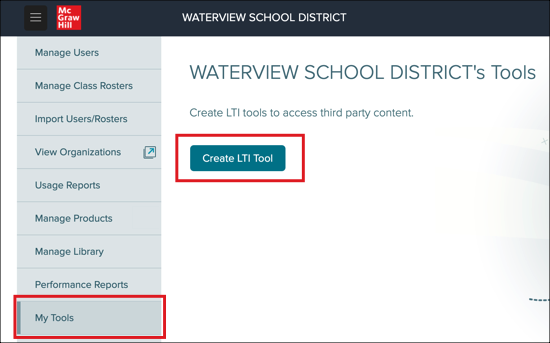
Select My Tools from the left side menu.
Select the Create LTI Tool button.
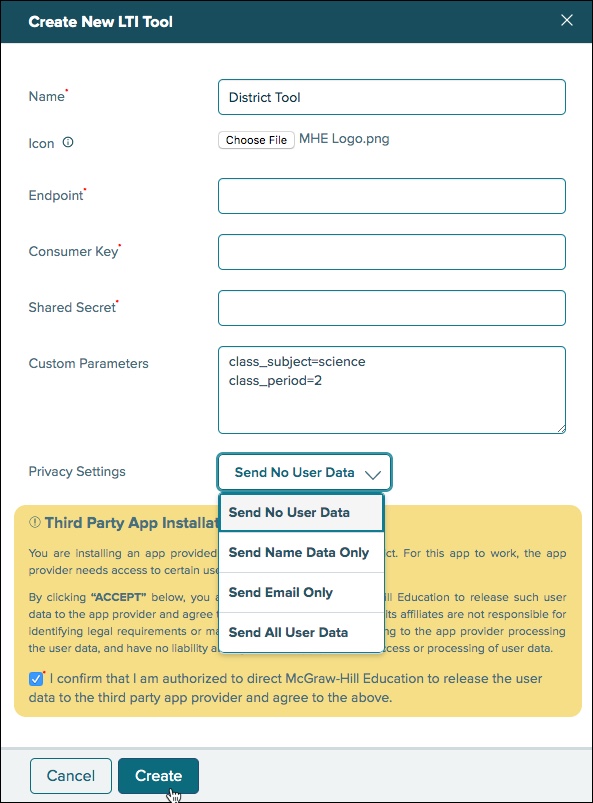
Complete the following required fields:
Name - Provide a name for your link.
Endpoint - The URL where the tool provider is launched from.
Consumer Key - You will need to obtain this from the tool provider. This is the unique identifier used to identify who is launching the tool.
Shared Secret - This value is paired with the consumer key and is used to verify the key is being used by the correct individual.
Third Party App Installation Warning – You must confirm that McGraw Hill is authorized to send user data to the app provider in order to create the link.
Complete any desired optional fields:
Icon - You can upload an image to identify the content provider, if desired.
Custom Parameters - These are values sent to the tool provider when the tool is launched. The tool provider may require some of these parameters in order to handle its business logic.
Privacy Settings - You can dictate what type of user data is sent to the app provider by McGraw Hill.
Click the Create button to create your custom link.
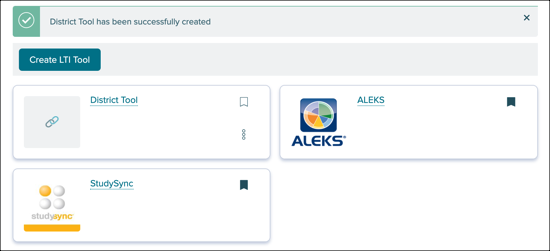
Once saved, your link will appear as a tile on the My Tools page for any administrator(s) affiliated with your organization(s).
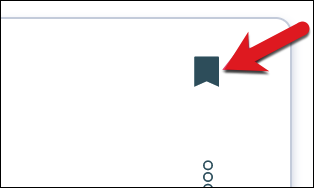
You can favorite a tool by clicking the bookmark icon in the top right of the specific tool.
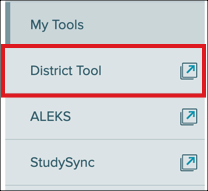
To launch the new tool, you can click on the tile in My Tools, or if you have favorited the tool, you can click on the menu option in the left menu. The tool will launch in a new tab.
