Share Open Learning Assignments and Assessments to Google Classroom™
Learn how to share Open Learning assignments to Google Classroom™ for student access.
- Customer Support
- PreK-12
- Classroom Teacher
- Preschool
- Elementary School
- Middle School
- High School
- Direct Login & Auto-Rostering
- Direct Login & Manual-Rostering
- SSO & Auto-Rostering
- SSO & Manual-Rostering
- Core
- Intervention
- Supplemental
- AP, Honors & Electives
- Career & Technical Education
- Literacy
- Math
- Science
- Social Studies
- Health
- Visual & Performing Arts
- World Languages
- AP Biology
- AP Chemistry
- AP History & Geography
- AP Psychology
- AP Economics
- AP African American Studies
- AP Precalculus
- AP Statistics
- AP Computer Science
- AP Language and Composition
- AP Public Speaking
- AP Music Theory
- 5 Steps to a 5 - AP Test Prep
- Glencoe Health 2022
- Teen Health 2021
- Arrive Math
- Building Blocks 2024
- Building Blocks PreK 2025
- Number Worlds 2024
- SRA Reading Laboratory 2025
- SRA Reading Mastery Transformations
- McGraw Hill Literacy Emerge!
- McGraw Hill Literacy Summit!
- McGraw Hill Literacy Soar!
- Open Court Reading 2025
- CA Reveal Math (K-12)
- Illustrative Math
- Reveal Math (K-12)
- Texas Math
- CA Inspire Science 2020
- FL Science 2025 (K-12)
- Inspire Science 2020
- TN Science (K-12)
- TX Science 2025 (K-12)
- CA Impact 2019
- FL Social Studies 2024 (K-12)
- Impact Social Studies
- McGraw Hill Social Studies
- All Sorts 2026 (K-5)
- Asi se Dice 2024
- CTE - Health Science
- CTE - Computing and Technology
- CTE - Agriculture
- CTE - Culinary Arts
- CTE - Early Childhood Education
- CTE - Criminal Justice
- CTE - Business, Marketing, and Finance
- Level Up K–5
- Level Up 6–8
- Level Up 9–12
- Online Assessments
- Google Classroom™
- Grades & Assignments


To easily share resources to your Google Classroom, you'll first want to pair your McGraw Hill teacher account with your Google account. To do this, follow the steps on the Pair/Unpair Your McGraw Hill Teacher Account with Your Google Account article.
Article Contents
Create a Google Classroom Class
Share Assignments and Assessments to Google Classroom
Create a Google Classroom Class
These steps only need to be followed if you do not have existing classes already in Google Classroom.
- Navigate to Google Classroom.
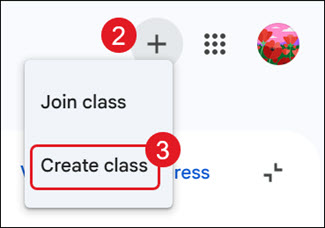
- Click the Create or join a class (plus icon) button.
- Click Create class from the menu.
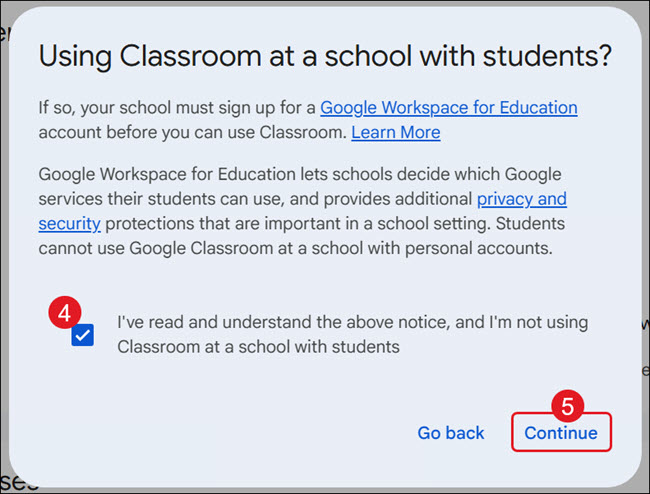
- On the pop-up, check the box indicating that you have read the notice.
- Click the Continue button.
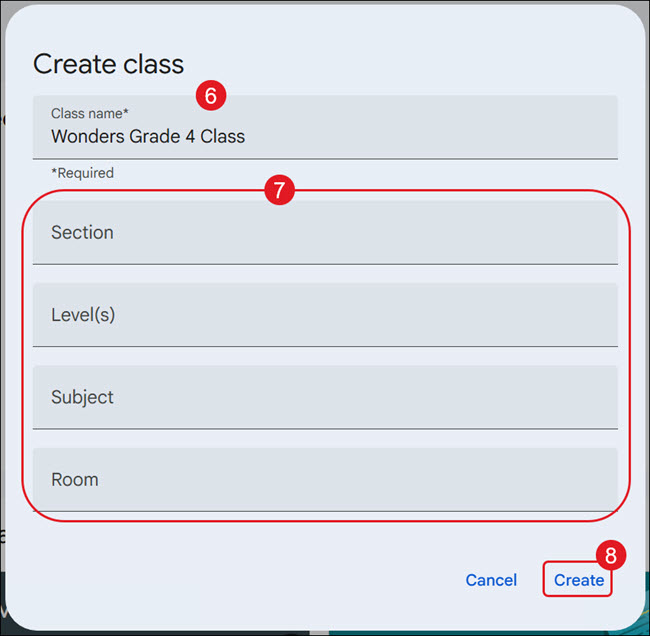
- Enter a Class Name.
- Enter a Section name, Level(s), Subject, and/or Room in the provided fields. These are optional.
- Click the Create button.
Share Assignments and Assessments to Google Classroom
To be able to share assignments to Google Classroom for student completion, you will first have to create the assignment in your McGraw Hill course. See the Create Open Learning Assignments for steps.
When sharing assessments to Google Classroom, you can follow the steps below, or you can select the option in the assessment settings during the assigning process. See the Assign McGraw Hill Assessments article for steps on assigning assessments.
Note: For districts with Assignment Sync and Grade Passback (ASGPB) access, the following steps are different from the ASGPB process. For more information on using ASGPB, see the Assignment Sync and Grade Passback with Google Classroom™ article.
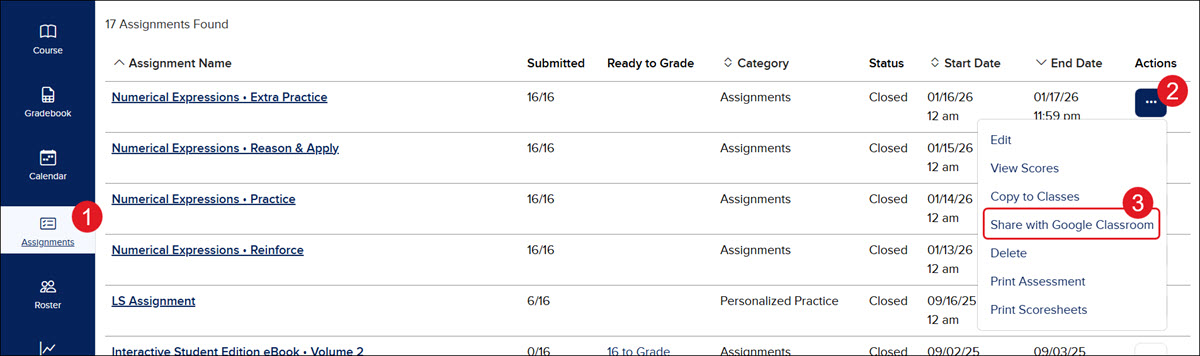
- After creating the assignment, go to the Assignments page.
- Click the Options button in the Actions column for the assignment.
- Click Share with Google Classroom from the menu.
Google Classroom will open in a new browser window.
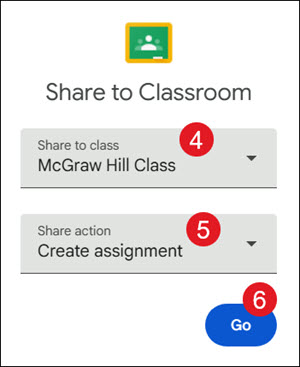
- From the Share to class drop-down, select the class you want to attach the resource to.
- Select a Share action from the drop-down.
- Click the Go button.
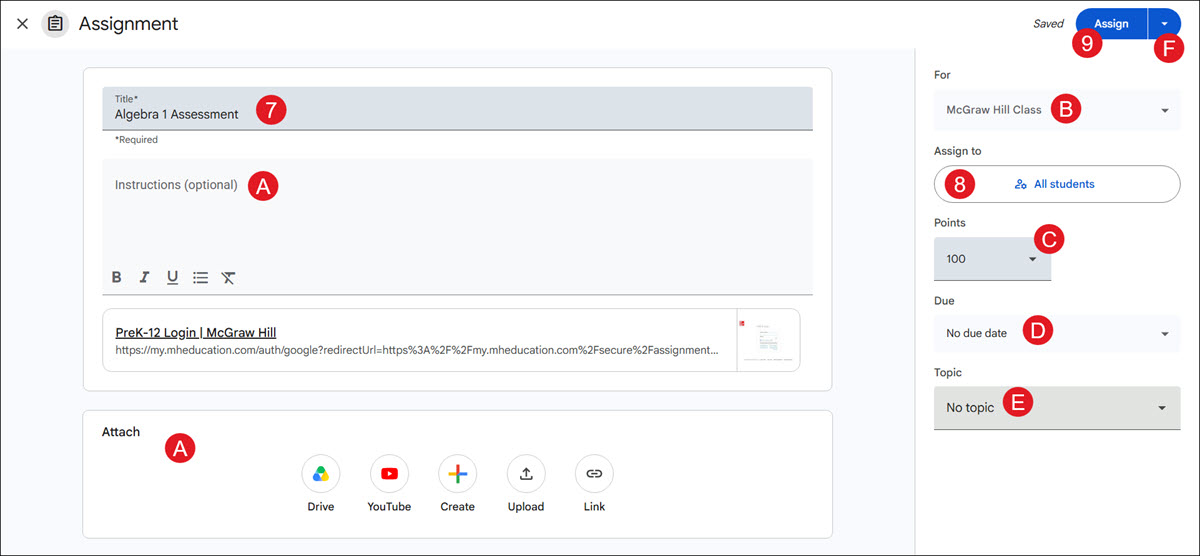
- Enter a Title for the selected action.
A. Enter a Description and add additional attachments, if needed.
B. Click the For drop-down to select additional classes if you want to assign it to multiple classes at once.
- The resource is assigned to All students by default. Click the button to assign it to selected students.
C. If you selected to create an Assignment or Ask question, select the Points from the drop-down for what the assignment is worth.
D. If you selected to create an Assignment or Ask question, select a Due date from the drop-down.
E. Enter a Topic. This is optional.
- Click the Assign button.
F. To schedule the resource for a later date and time, or to save a draft of the post, click the arrow next to the Assign button.