
Open Learning Observational Data Report
Analyze classroom practices using observational data.
- Customer Support
- PreK-12
- Classroom Teacher
- Preschool
- Elementary School
- Middle School
- High School
- Direct Login & Auto-Rostering
- Direct Login & Manual-Rostering
- SSO & Auto-Rostering
- SSO & Manual-Rostering
- Core
- Literacy
- Math
- CA Reveal Math (K-12)
- McGraw Hill Literacy Emerge!
- McGraw Hill Literacy Summit!
- McGraw Hill Literacy Soar!
- Reports & Analytics


View the demo in a separate tab.
View the Spanish version of the demo.
The Observational Data Report is a teacher-facing report designed to provide teachers with centralized access to observational checklist data for personalized learning strategies. While the course app allows teachers to capture student observations through the Observational Checklist tool, this report serves as the dedicated analytics space for teachers to view, analyze, and act on observation-based proficiency insights.
Refresh Frequency: Data is refreshed every 2-3 hours. New observations may take up to three hours to appear in the report after being entered in the course app.
Please note that this data only shows observation-based data and does not include assessment or assignment results data. Please refer to the Activity Performance Report for that report information.
Article Contents
Access Report
- SSO or log in at my.mheducation.com.
- Launch the course.
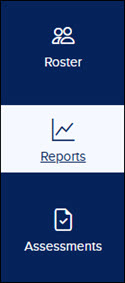
- Click on Reports from the navigation menu.
- Click the Observational Data Report button.
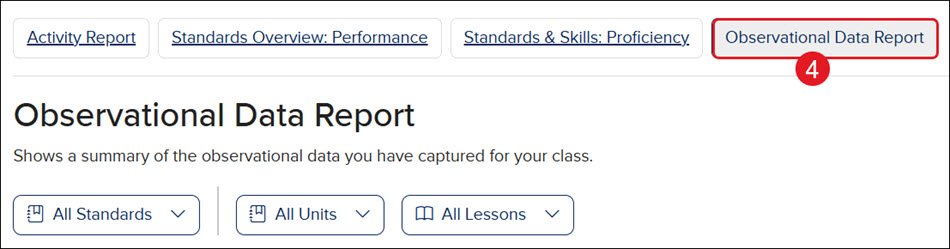
Skills Overview Table
The Skills Overview table displays a comprehensive summary of observational data across all skills, providing teachers with a view of student proficiency across their classes. Teachers can quickly identify which skills have been observed, which need attention, and where observations are taking place within the curriculum.
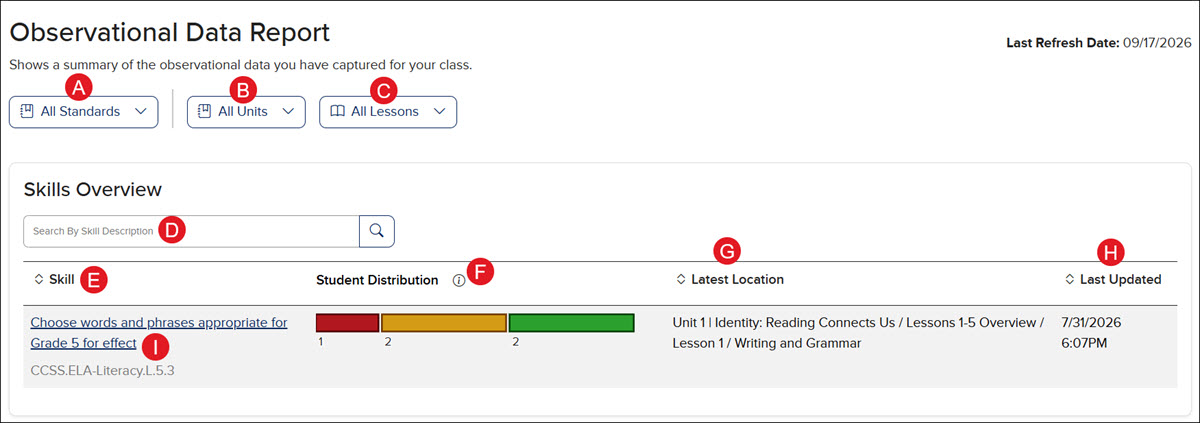
- Standards Filter - Filter by state or national standards.
- Units Filter - Filter by specific curriculum units.
- Lessons Filter - Filter by specific lessons within curriculum units.
- Search by Skill Description Field - Use to quickly find specific skills within the table.
- Skill Column - Provides the skill description and associated standard code.
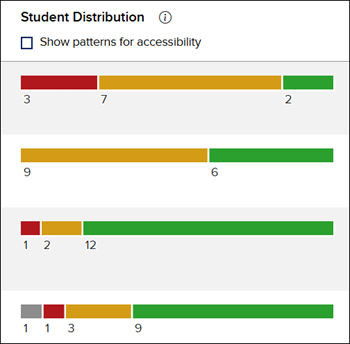
- Student Distribution - Provides a visual distribution bar showing observation status breakdown. The color/pattern order is always left to right.
- Not Observed (Gray): Skill has not yet been observed for the students.
- No (Red): Students do not yet demonstrate the skill.
- Partial (Yellow): Students have partially demonstrated the skill.
- Yes (Green): Students demonstrate proficiency in the skill.
- Last Location - The unit and lesson where the skill was most recently observed.
- Last Updated - Timestamp of the most recent observation for that skill.
- Click on a Skill link to navigate to the Single Skill View.
Single Skill View
The Single Skill View provides a detailed analysis page focused on one specific skill, showing comprehensive student-level data.
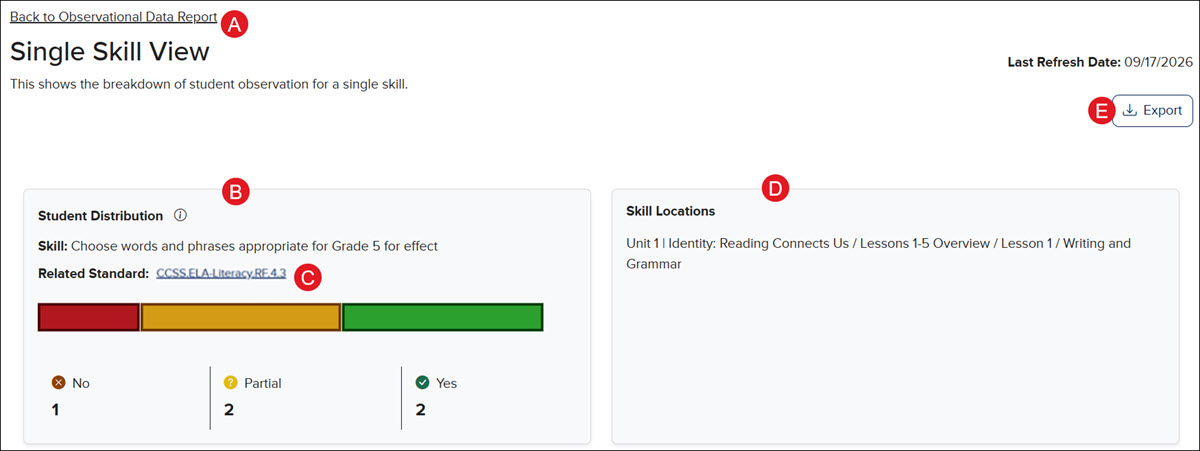
- Click the Back to Observational Data Report link to navigate back to the Skills Overview Table.
- Student Distribution - A larger, more detailed visualization is provided of the four observational statuses for the selected skill.
- Not Observed (Gray): Skill has not yet been observed for the students.
- No (Red): Students do not yet demonstrate the skill.
- Partial (Yellow): Students have partially demonstrated the skill.
- Yes (Green): Students demonstrate proficiency in the skill.
- Related Standard - Click the standard link to view the associated standard for the selected skill.
- Skill Locations - Shows all course locations where a specific skill is taught or can be observed.
- Export - Download a CSV file of the observational data for the selected skill.
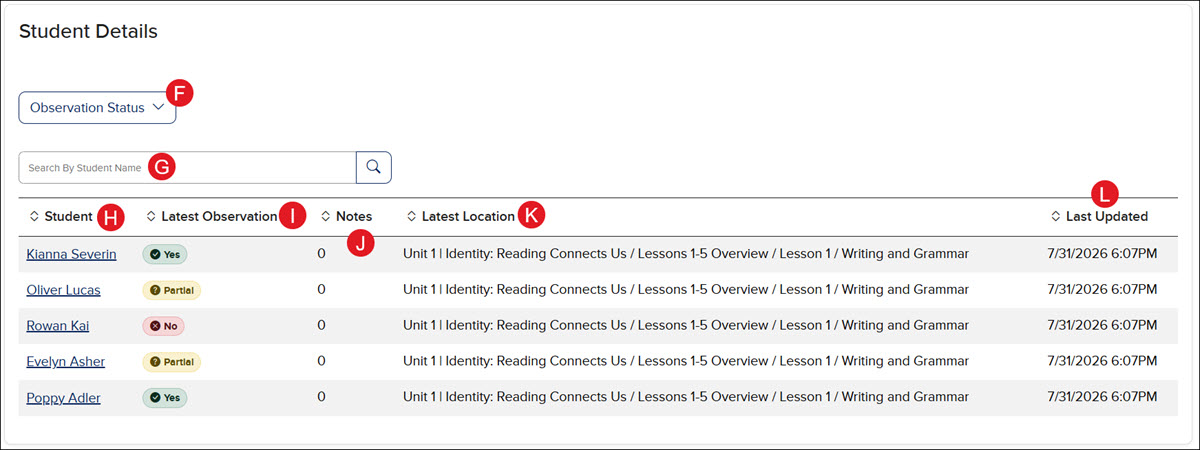
- Observation Status Filter - Filter students by their observation status.
- Search By Student Name Field - Use to locate a specific student.
- Student Column - The list of students assigned to the class roster.
Click on a student name to display a side panel with the complete observation history for a single student on a specific skill.
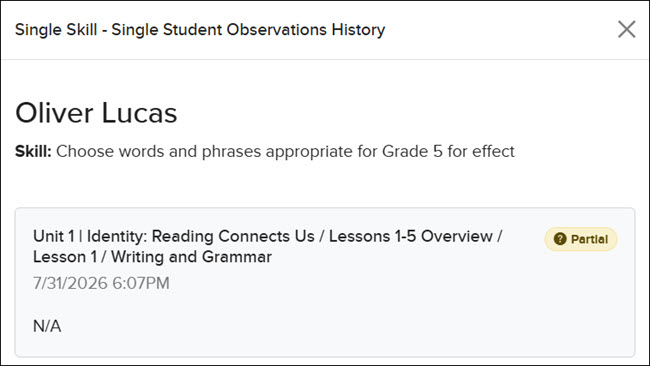
- Latest Observation - The student's observation status (Not Observed, No, Partial, Yes).
- Notes - The number of observation notes entered by the teacher for each student.
- Latest Location - The unit and lesson where the skill was most recently observed.
- Last Updated - Timestamp of the most recent observation for that skill.
