Manage Student Settings for a McGraw Hill Assessment
Explore how to make changes to online test features, including navigation, tools, and scoresheet options.
- Customer Support
- PreK-12
- Classroom Teacher
- School Administrator
- Preschool
- Elementary School
- Middle School
- High School
- Direct Login & Auto-Rostering
- Direct Login & Manual-Rostering
- SSO & Auto-Rostering
- SSO & Manual-Rostering
- Core
- Intervention
- Supplemental
- AP, Honors & Electives
- Career & Technical Education
- Literacy
- Math
- Science
- Social Studies
- Health
- Visual & Performing Arts
- World Languages
- AP Biology
- AP Chemistry
- AP History & Geography
- AP Psychology
- AP Economics
- AP African American Studies
- AP Precalculus
- AP Statistics
- AP Computer Science
- AP Language and Composition
- AP Public Speaking
- AP Music Theory
- 5 Steps to a 5 - AP Test Prep
- Glencoe Health 2022
- Teen Health 2021
- Arrive Math
- Building Blocks 2024
- Building Blocks PreK 2025
- Number Worlds 2024
- SRA Reading Laboratory 2025
- SRA Reading Mastery Transformations
- McGraw Hill Literacy Emerge!
- McGraw Hill Literacy Summit!
- McGraw Hill Literacy Soar!
- Open Court Reading 2025
- CA Reveal Math (K-12)
- Illustrative Math
- Reveal Math (K-12)
- CA Inspire Science 2020
- FL Science 2025 (K-12)
- Inspire Science 2020
- TN Science (K-12)
- TX Science 2025 (K-12)
- CA Impact 2019
- FL Social Studies 2024 (K-12)
- Impact Social Studies
- McGraw Hill Social Studies
- Asi se Dice 2024
- CTE - Business, Marketing, and Finance
- CTE - Health Science
- CTE - Computing and Technology
- CTE - Agriculture
- CTE - Culinary Arts
- CTE - Early Childhood Education
- CTE - Criminal Justice
- Texas Math
- Online Assessments


Article Contents
Student Settings
Online assessments utilize features to assist your students as they complete their test. When assigning the assessment, you can add and remove these features from under the Student Settings section. Keep in mind, these settings cannot be changed once the assessment is assigned. To adjust the Student Settings for the assessment, you will need to reassign the assessment.
Feedback & Resources
The Feedback & Resources section lists all the Learning Aids available for the assessment. To activate the feature, select the check box/radio button to the left of the feature. For the Hints, Examples, and Explanations to be an option, these first have to be added to the questions on the assessment.
Available Features:
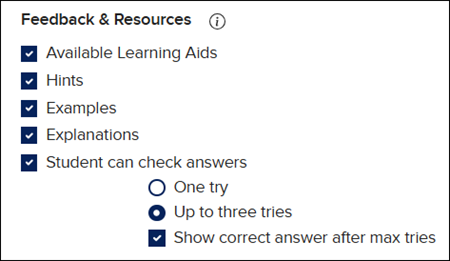
Available Learning Aids - Activates all options in the Feedback & Resources section.
Hints - Provides students with additional information to be able to answer the question. Students will see an option at the bottom of the question to select. It will then provide a pop-up with the hint that was entered for the question.
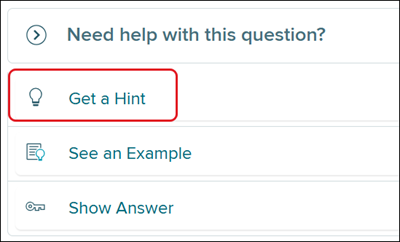
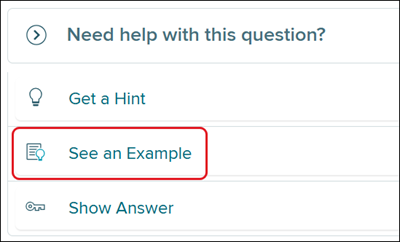
Examples - An example answer provided for the question.
Students will see an option at the bottom of the question to select. It will then provide a pop-up with the example that was entered for the question.
Explanation - A reasoning for the answer given for the question. Students will be provided with an explanation of the correct answer after they answer the question in an assessment.
Student can check answers - Allows students to have one or three extra tries at answering the question with the additional option of showing the student the correct answer after they have completed their maximum amount of tries for the question. Students will have a Check Answers button for each question.

Additional Learning Aids - With some programs, this is an option that allows students extra resources such as videos to help them answer the question.
Student Tools
The Student Tools provide students with extra features to assist with answering the questions on their assessment.
Available Tools:
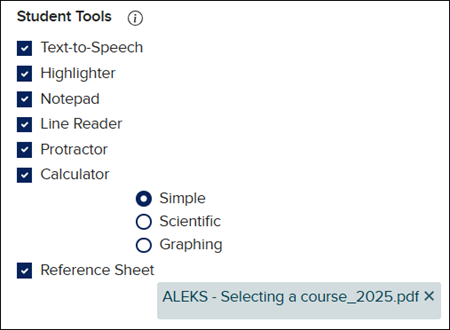
Text-to-Speech - Allows students to have the text on the assessment read aloud to them.

Highlighter - Provides students with a way to mark information, answers, etc. while reading passages and answering questions.

Notepad - Provides students with a note keeping pop-up where they can enter any notes they want to keep throughout the assessment to help them answer questions.

Line Reader - Students are able to use this tool to easily read one line at a time throughout the assessment.

Protractor - Provides students with a protractor to answer certain types of questions.

Calculator - Provides students with a Simple, Scientific, or Graphing calculator.

Reference Sheet - Allows you to add additional documents, links, etc. to assist students with answering their assessment questions.

Display Options
The Display Options give additional options for while the students complete their assessment.
Available Options:
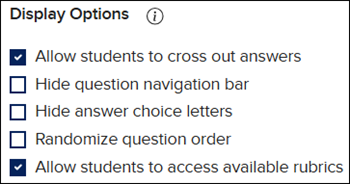
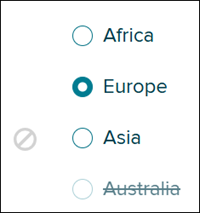
Allow students to cross out answers - Provides the option for students to cross out answer choices to help eliminate options to choose from.
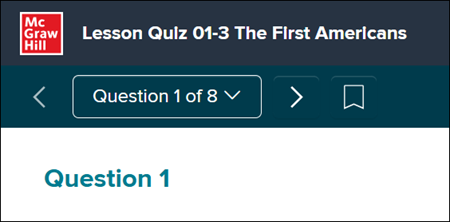
Hide question navigation bar - Removes the ability to navigate back and forth between questions.
Hide answer choice letters - Removes the answer choice letters for multiple choice questions.
Randomize question order - Reorganizes the questions within the assessment so they are in a different order for each student.
Allow students to access available rubrics - If a rubric is attached to the assessment, students are able to access them, which allows them to view the scoring available for the question.