Assign NWEA® MAP® Growth™ Recommendations and View Reports
Discover how to assign NWEA MAP Growth recommendations to help students build prerequisite skills.
- Customer Support
- PreK-12
- Classroom Teacher
- Preschool
- Elementary School
- Middle School
- High School
- Direct Login & Auto-Rostering
- Direct Login & Manual-Rostering
- SSO & Auto-Rostering
- SSO & Manual-Rostering
- Core
- Literacy
- Math
- CA Reveal Math (K-12)
- Reveal Math (K-12)
- SRA Reading Mastery Transformations
- Reports & Analytics
- Grades & Assignments
- NWEA


View the demo in a separate tab.
View the Spanish version of the demo.
Note: This functionality is only available for districts that have completed the setup for MAP Growth™/NWEA integration. For more information on getting this completed for your district, refer to the Implementing the Data Integration with NWEA® Map® Growth™ article.
For information on NWEA MAP Growth™ Reports, refer to the NWEA MAP Growth™ for Teachers Reports article.
Article Contents
View Recommendation Assignment Progress/Scores
The MAP Growth RIT scores on the Performance Report indicate what students know. Based on the most recent MAP Growth assessment, the report also indicates which students may not be ready for your upcoming unit.
Access the Recommendations to identify the course assets (such as adaptive practice or tutorials) covering critical pre-requisite skills before the unit to help students with gaps in their knowledge.
Access Recommendations
1. Click on Reports on the navigation menu.
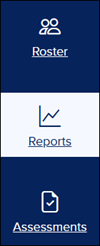
2. Click the Map Growth button.

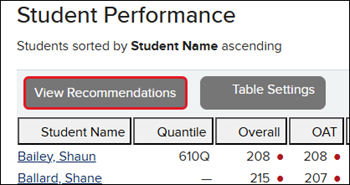
3. On the Class Performance tab, click the View Recommendations button under Student Performance.
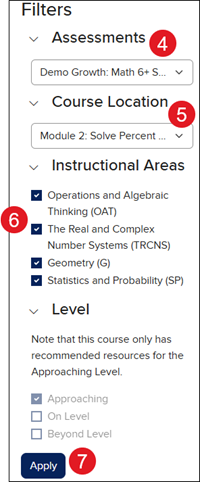
4. Select the Assessment from the drop-down.
5. Select the Course Location.
6. Check the desired Instructional Areas.
7. Click the Apply button.
Assign Recommendations
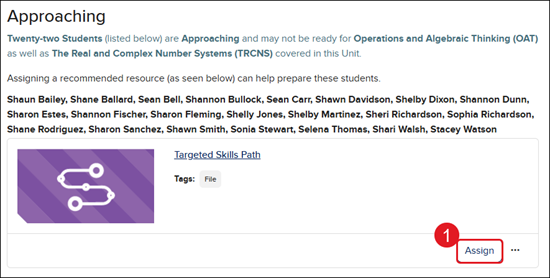
1. Click the Assign button on the resource blade.
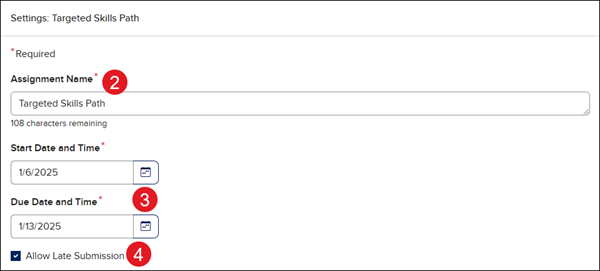
2. Enter an Assignment Name.
3. Select the Start and Due Date and Time.
4. Check/Uncheck Allow Late Submission. This is checked by default.
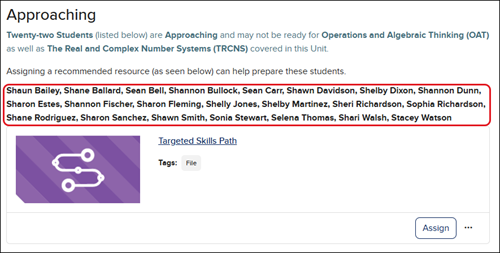
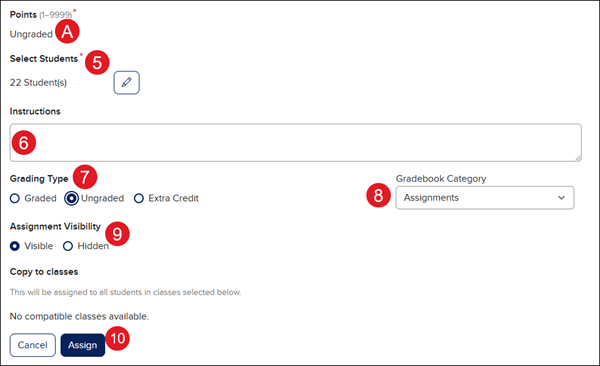
5. The Students listed on the resource blade will automatically be assigned to the resource. If you want to add additional students to the resource assignment, click on the pencil and select the desired students. Make sure to click the Apply button on the Select Students pop-up if changes to the roster are made.
6. Enter any desired Instructions.
7. The Grading Type defaults to Ungraded. If you change the option to Graded, you will need to enter a Points (A) value above.
8. Select the Gradebook Category.
9. Select the Assignment Visibility. If you mark the assignment as Hidden, the students will not be able to access it.
10. Click the Assign button.
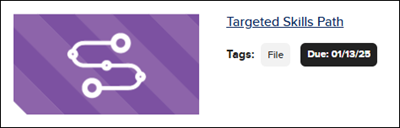
Once the assignment has been created, it appears in the students' Calendars and in their Assignments list. You will see a Due tag on the resource blade as well as see the assignment on the Assignments page.
View Recommendation Assignment Progress/Scores
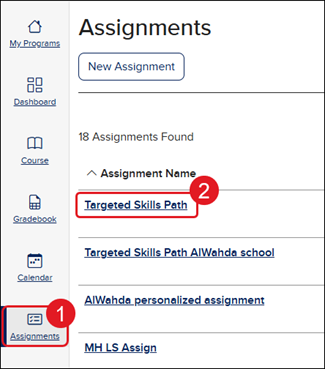
1. Click Assignments from the navigation menu.
2. Click on the Assignment Name.
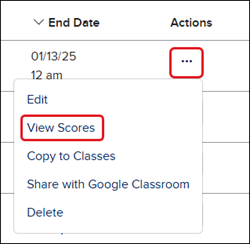
You can also click on the Options button in the Action column and select View Scores from the menu.