
New ALEKS Dashboard Navigation Overview
Navigate the new view of the ALEKS dashboard to access classes, reports, and instructional tools with ease.
- PreK-12
- Customer Support
- Classroom Teacher
- Elementary School
- Middle School
- High School
- Direct Login & Auto-Rostering
- Direct Login & Manual-Rostering
- SSO & Auto-Rostering
- SSO & Manual-Rostering
- Supplemental
- Math
- ALEKS
- Dashboard & Navigation Overview
- Getting Started & Orientation
- Back-to-School Setup


Article Contents
Teacher Dashboard
The teacher dashboard gives a high-level summary for all of the classes and students under the teacher. The data on this dashboard is updated upon page load and refresh.
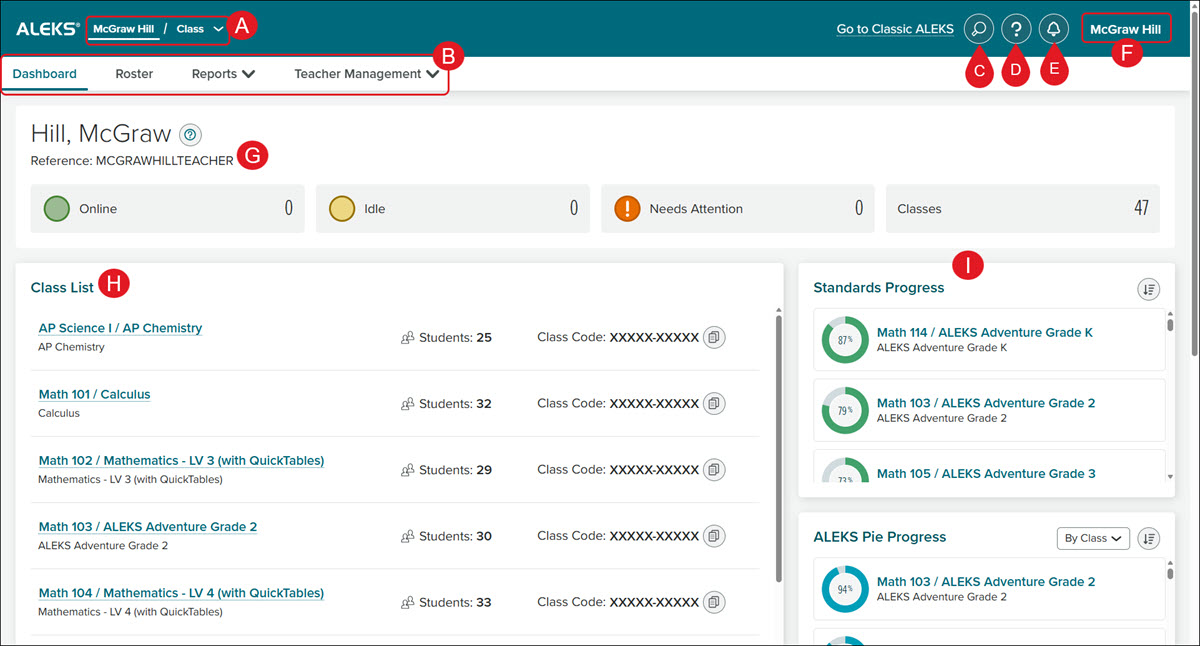
A. Dashboard Views - Switch between dashboards by using the navigation options at the top of the screen:
- Teacher Dashboard – Click your name to view your personal dashboard.
- Class Dashboard – Select a class from the Class drop-down menu.
- Student Dashboard – Select a student from the Student drop-down menu.
B. Dashboard Menus - The menu options available include the Dashboard, Roster, Reports, My Questions, and Teacher Management (account settings)
C. Search - Locate information on classes, students, and assignments.
D. Help - Opens the ALEKS support Help Center panel that includes various Quick Links and access to the ALEKS Community.
E. Communication Center - Access to Announcements and Downloads.
F. Profile Menu - Click on your name to navigate back to the McGraw Hill My Programs page and account settings.
G. Overview - This section shows the teacher's name, as well as the teacher's account name (labeled by: Reference). Each tile within this section shows quick stats about the teacher's classes and students:
- Online: The total number of students within all of the teacher's classes who are currently online, as of the last dashboard page load.
- Idle: The total number of students within all of the teacher's classes who are logged in but have not been active within the last 5 minutes, as of the last dashboard page load.
- Needs Attention: The total number of students within all of the teacher's classes who are currently flagged as needing assistance from the teacher. Students are flagged as Needs Attention when they recently attempted but did not learn a topic.
- Classes: The total number of primary classes and sub-classes the teacher is assigned to.
H. Class List - This section shows the list of the teacher's classes, the number of students enrolled in each class, and the 10-digit class code associated with each class.
I. Additional Dashboard Widgets - These widgets include: Standards Progress, ALEKS Pie Progress, Inactive Students, Activity Time Breakdown, Time and Topic.
- Standards Progress - This widget displays the average Standards progress percentage for each of the teacher's classes, organized by class name and ALEKS course product. Progress data is sorted from highest to lowest percent complete by default, with the option to reverse the sort order.
- ALEKS Pie Progress - This widget displays the average percentage of topics mastered across each of the teacher's classes, organized by class name and ALEKS course product. By default, data is sorted from highest to lowest percent complete by class.
- Inactive Students - This widget displays a list of students across all of the teacher's classes who have not logged in recently. By default, it shows students who have not logged in within the past week.
- Activity Time Breakdown - This widget displays the average percentage of time students across all of the teacher's classes spend in each activity. By default, data reflects student activity over the past 7 days. Selecting the arrow button opens the teacher-level Activity Time Breakdown report page.
- Learning Mode - Any time students spend learning or reviewing topics from their ALEKS pie contributes to this slice.
- Knowledge Check - Any time students spend answering questions in an automatic or scheduled Knowledge Check contributes to this slice.
- Assignment - Any time students spend working on non-adaptive assignments, like Homework, Tests, and Quizzes, contributes to this slice.
- Other - Any time students spend outside of the above activities, like viewing the home page or reports, contributes to this slice.
- Time and Topic - This widget displays the average number of topics attempted versus learned, along with the average time spent on learning activities, across all students in the teacher's classes over a selected time period. By default, data reflects student activity over the past 7 days.
Class Dashboard
The class dashboard gives a high-level summary for all of the students in the selected class. The data on this dashboard is updated upon page load and refresh.
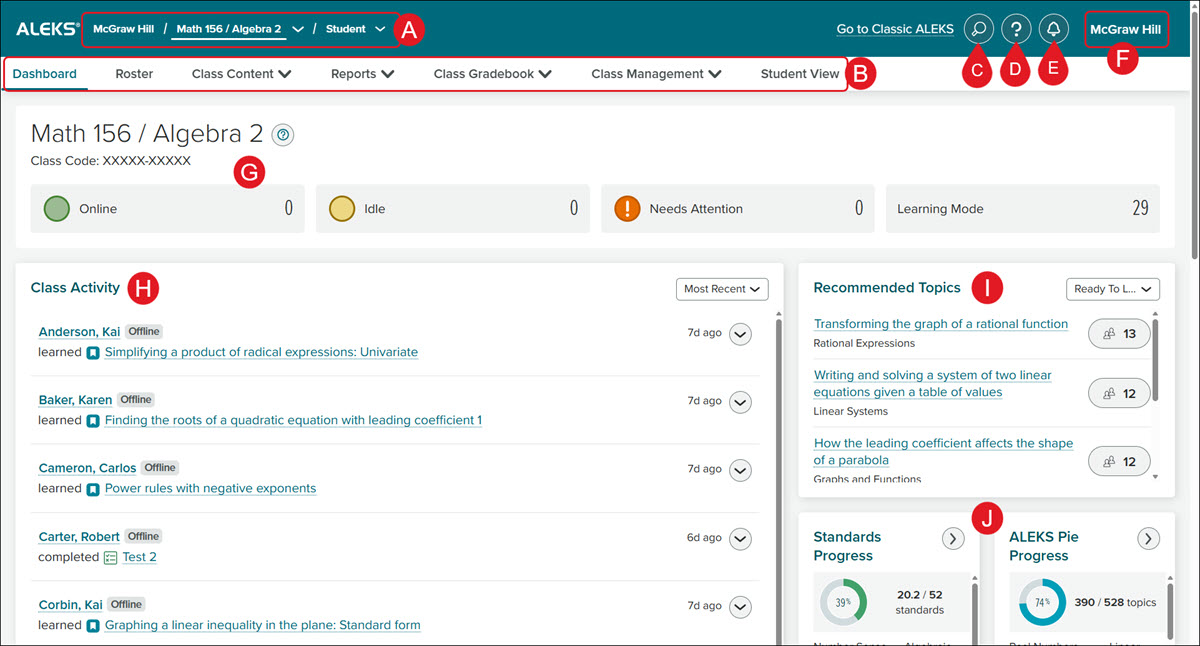
A. Dashboard Views - Switch between dashboards by using the navigation options at the top of the screen:
- Teacher Dashboard – Click your name to view your personal dashboard.
- Class Dashboard – Select a class from the Class drop-down menu.
- Student Dashboard – Select a student from the Student drop-down menu.
B. Dashboard Menus - The menu options available include the Dashboard, Roster, Class Content (ALEKS Pie and Modules, Assignments, My Questions, and Resources), Reports, Class Gradebook, Class Management (class and sharing settings), and Student View.
C. Search - Locate information on classes, students, and assignments.
D. Help - Opens the ALEKS support Help Center panel that includes various Quick Links and access to the ALEKS Community.
E. Communication Center - Access to Announcements and Downloads.
F. Profile Menu - Click on your name to navigate back to the McGraw Hill My Programs page and account settings.
G. Overview - Shows the class name and the 10-digit ALEKS Class Code. The Online, Idle, Needs Attention, Classes, and Learning Mode tiles provide quick stats about the class for each section.
- Online: The total number of students within all of the teacher's classes who are currently online, as of the last dashboard page load.
- Idle: The total number of students within all of the teacher's classes who are logged in but have not been active within the last 5 minutes, as of the last dashboard page load.
- Needs Attention: The total number of students within all of the teacher's classes who are currently flagged as needing assistance from the teacher. Students are flagged as Needs Attention when they recently attempted but did not learn a topic.
H. Class Activity - Shows the list of students in the class and their most recent activity. Selecting the linked student name will load the student dashboard. For students who have multiple recent activities, an arrow button can be selected to expand the next three most recent activities.
I. Recommended Topics - Shows the list of top topics based on student learning.
- Select an option from the drop-down to change the list view from Ready to Learn, Worked On, Attempted, and Needs More Practice.
- Ready to Learn - Topics students have completed the prerequisites for but not yet started working on
- Worked On - Topics students have tried, but have not yet finished learning
- Attempted - Topics students did not learn due to too many incorrect attempts
- Needs More Practice - Topics students are struggling to retain in Progress Knowledge Checks
- Clicking on a topic link opens the Topic Preview pop-up in a new browser window.
- Clicking on the numbered button to the right of each topic opens the list of students who have the selected status for the topic.
J. Additional Dashboard Widgets - These widgets include: Standards Progress, ALEKS Pie Progress, Pie Progress by Student, Assignments, Inactive Students, and Activity Time Breakdown.
- Standards Progress - This widget shows the average Standards progress percent complete in the class, by overall Standards progress and by strand. Selecting the arrow button loads the class-level Standards Report page.
- ALEKS Pie Progress - This widget shows the average percent of topics mastered in the class, by overall progress and by pie slice progress. Selecting the arrow button loads the class-level ALEKS Pie Report page.
- Pie Progress by Student - This widget shows a short list of students with the highest or lowest pie progress percentage. By default, the data in this widget is sorted by highest to lowest percent complete, and can be sorted lowest to highest by selecting the Sort button. Selecting the arrow button loads the class-level Progress Report page.
- Assignments - This widget appears for classes that have assignments created, and shows the most recent and upcoming assignments for the class, including the assignment name, due date, and average score. Selecting the arrow button loads the class-level Assignments page.
- Inactive Students - This widget shows the list of students in the class who have not logged in recently. By default, this list shows all students who have not logged in within the past week. Additionally, this list can show only the students who have not logged in within the past month and within the past year. Selecting the arrow button loads the class-level Roster page.
- Activity Time Breakdown - This widget shows the average percentage spent in each activity based on time spent for all of the students in the class. By default, the average data is based on student activity over the last 7 days (Week). Selecting the arrow button loads the class-level Activity Time Breakdown Report page.
- Learning Mode - Any time students spend learning or reviewing topics from their ALEKS pie contributes to this slice.
- Knowledge Check - Any time students spend answering questions in an automatic or scheduled Knowledge Check contributes to this slice.
- Assignment - Any time students spend working on non-adaptive assignments, like Homework, Tests, and Quizzes, contributes to this slice.
- Other - Any time students spend outside of the above activities, like viewing the home page or reports, contributes to this slice.
Student Dashboard
The student dashboard gives a high-level summary for the selected student. The data on this dashboard is updated upon page load and refresh.
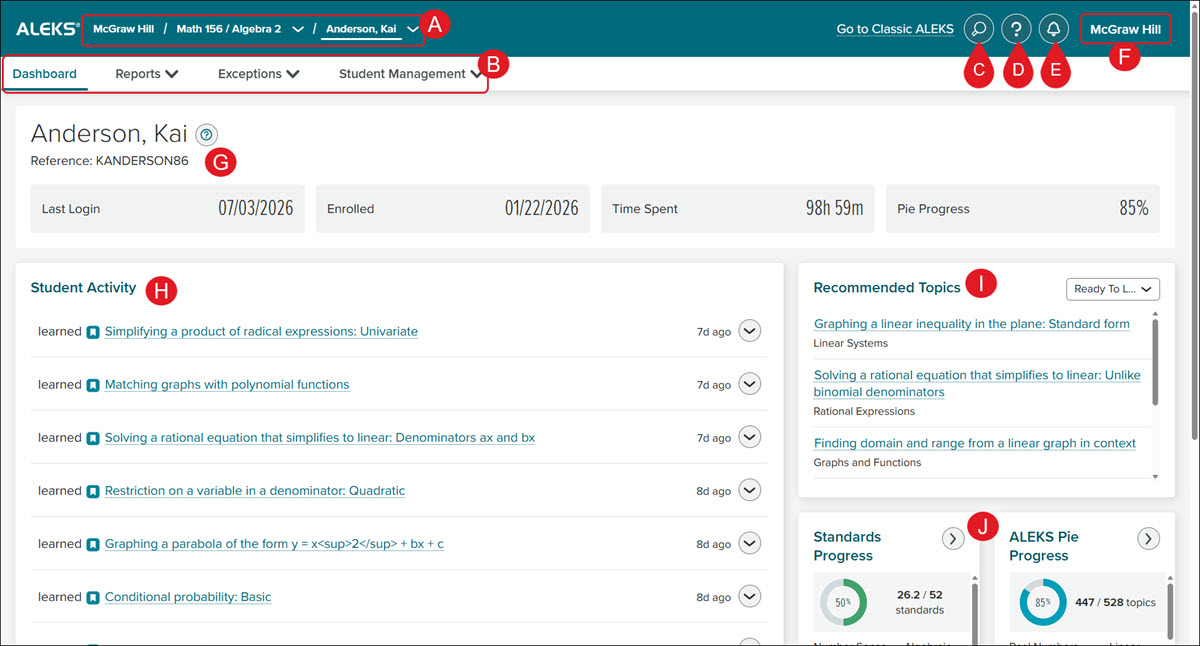
A. Dashboard Views - Switch between dashboards by using the navigation options at the top of the screen:
- Teacher Dashboard – Click your name to view your personal dashboard.
- Class Dashboard – Select a class from the Class drop-down menu.
- Student Dashboard – Select a student from the Student drop-down menu.
B. Dashboard Menus - The menu options available include the Dashboard, Student Gradebook, Reports, Exceptions, and Student Management (settings).
C. Search - Locate information on classes, students, and assignments.
D. Help - Opens the ALEKS support Help Center panel that includes various Quick Links and access to the ALEKS Community.
E. Communication Center - Access to Announcements and Downloads.
F. Profile Menu - Click on your name to navigate back to the McGraw Hill My Programs page and account settings.
G. Overview - This section shows the student name and their reference account name. Each tile within this section shows quick stats about the student:
- Last Login - The date which the student last logged into their ALEKS class.
- Enrolled - The date which the student account was enrolled into the ALEKS class.
- Time Spent - The total time the student has spent working in the ALEKS class.
- Pie Progress - The percentage amount of the ALEKS pie that the student has completed.
H. Student Acitivity - This section shows the list of activities the student has worked on recently. This list is sorted by date of the most recent activity to least recent. Selecting the linked topic name loads the Topic Preview popup. An arrow button is shown for learning mode activities that can be selected to expand the student's answers for the particular topic.
I. Recommended Topics - This section shows the list of the top topics based on student learning. Selecting the topic name opens the Topic Preview popup. The selection in the dropdown can be changed to one of the following categories:
- Ready to Learn - Topics the student has completed the prerequisites for but not yet started working on
- Worked On - Topics the student has tried, but has not yet finished learning
- Attempted - Topics the student did not learn due to too many incorrect attempts
- Needs More Practice - Topics the student is struggling to retain in Progress Knowledge Checks
J. Additional Dashboard Widgets - These widgets include: Standards Progress, ALEKS Pie Progress, and Assignments.
- Standards Progress - This widget shows the Standards progress percent completed by the student, by overall Standards progress and by strand. Selecting the arrow button loads the student-level Standards Report page.
- ALEKS Pie Progress - This widget shows the percentage of topics mastered by the student, by overall progress and by pie slice progress. Selecting the arrow button loads the student-level ALEKS Pie Report page.
- Assignments - This widget appears for classes that have assignments created, and shows the most recent and upcoming assignments for the student, including the assignment name, due date, and average score. Selecting the arrow button loads the student-level Assignments page.
