Enable and Manage the New ALEKS Gradebook
Learn how to enable the new ALEKS view gradebook and view student assignment scores.
- PreK-12
- Customer Support
- Classroom Teacher
- Elementary School
- Middle School
- High School
- Direct Login & Auto-Rostering
- Direct Login & Manual-Rostering
- SSO & Auto-Rostering
- SSO & Manual-Rostering
- Supplemental
- Math
- ALEKS
- Grades & Assignments


Article Contents
Enable and Set Up the Gradebook
Enable and Set Up the Gradebook
1. SSO or sign in at my.mheducation.com.
2. Click on the ALEKS class tile to launch the course.
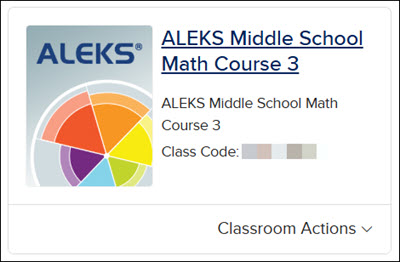
3. Click on Class Gradebook.
4. Select Gradebook Settings from the menu.
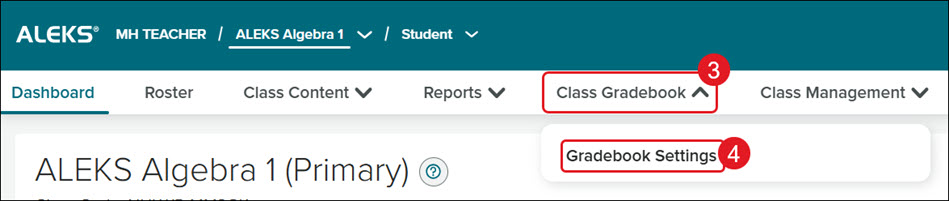
5. Click the Enable Gradebook for This Class button.
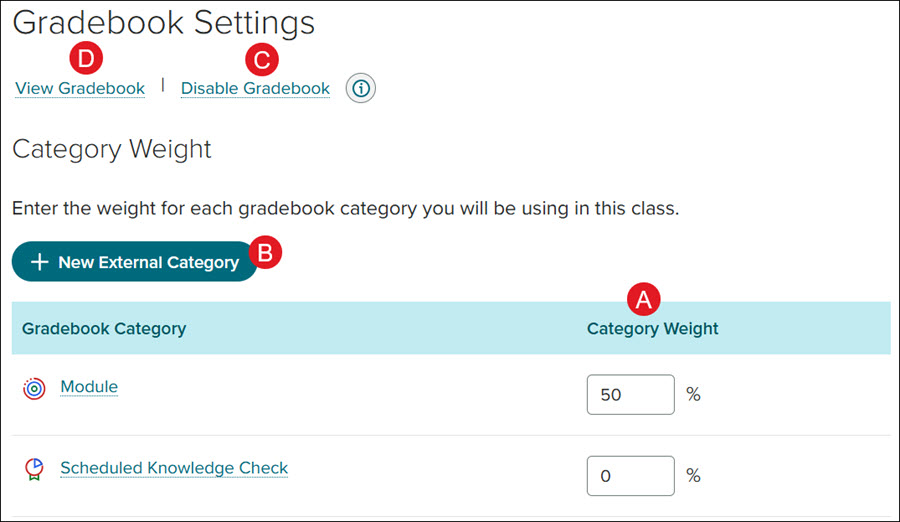
A. Make any preferred changes to the Category Weight column for each Gradebook Category. The total weight percentage cannot exceed 100%.
B. To add additional categories, click the New External Category button.
C. Click the Disable Gradebook link to deactivate the class gradebook.
D. Click the View Gradebook link to navigate to the class gradebook without making any changes to the Gradebook Settings.
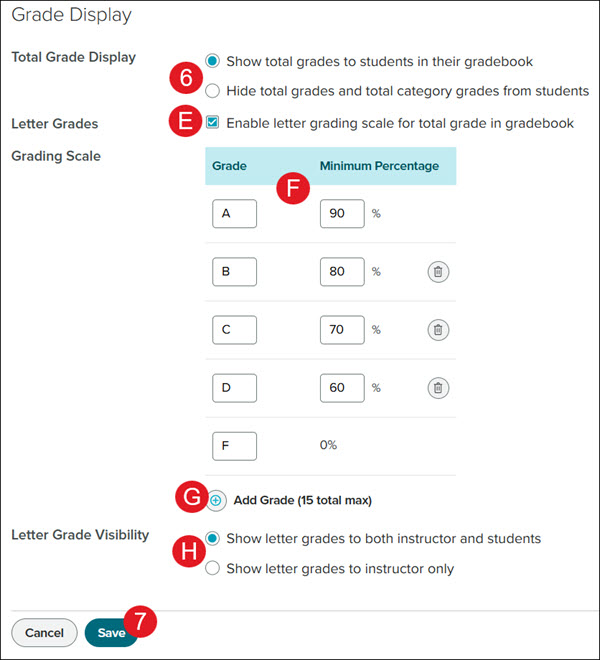
6. Under the Gradebook Weight section, select the preferred Grade Display option for Total Grade Display.
E. Check/uncheck the Letter Grades box if you do/do not want to Enable letter grading scale for total grade in gradebook.
F. If enabled, adjust the Grade and Minimum Percentage fields, if needed.
G. Click the Add Grade to add additional Grade fields.
H. Select the preferred Letter Grade Visibility radio button.
7. Click the Save button.
Class Gradebook
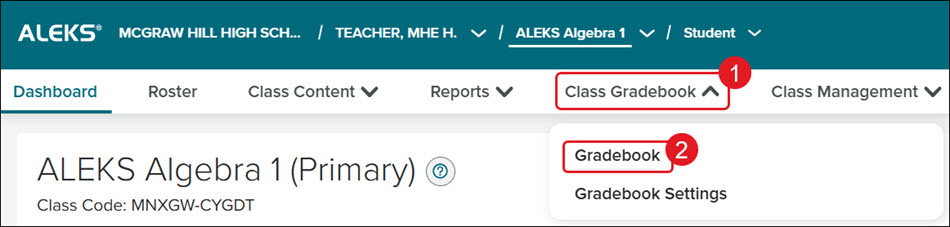
1. From within the ALEKS program, click on Class Gradebook.
2. Click on Gradebook from the menu.
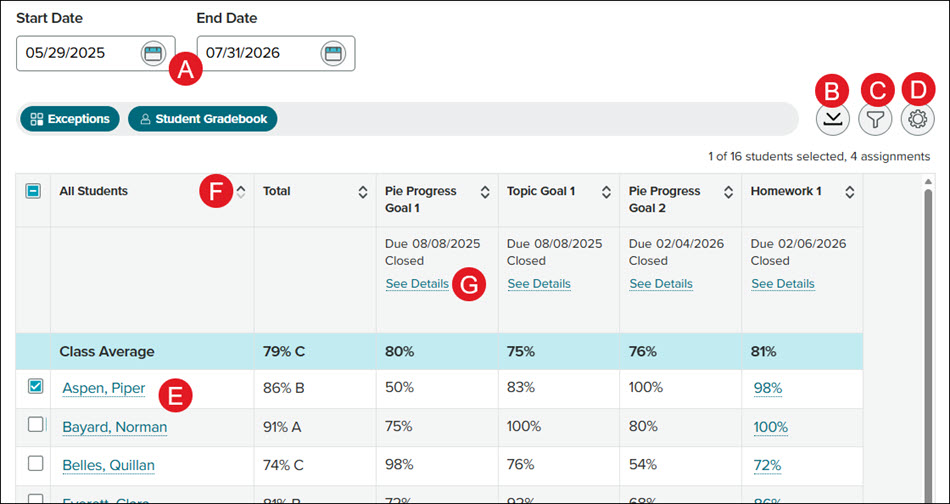
A. Click on the Start and End Date fields to choose a different date range for the gradebook view.
B. Click the Download this table button to save/print the current gradebook view.
C. Click the Filters button to view specific Gradebook Categories.
D. Click the Settings button to make adjustments to the Display Options or Gradebook Settings.
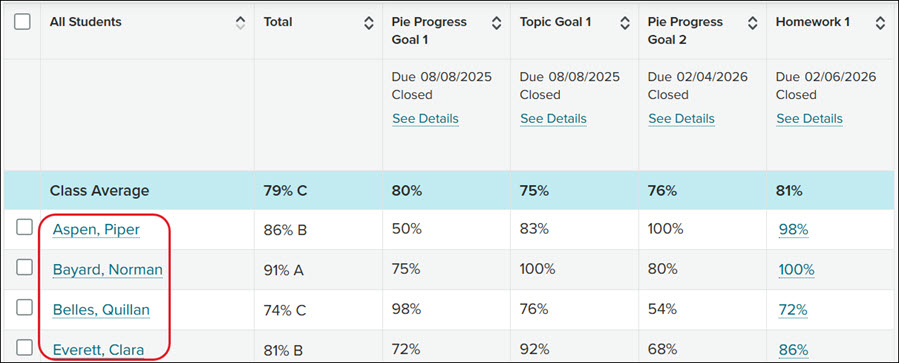
E. Click on a student name or checkmark a student to navigate to the Student Gradebook.
If you checkmark a student, the additional actions - Exceptions and Student Gradebook - become available. If more than one student is checkmarked at a time the only option will be Exceptions.
F. Click on the header arrows to sort the gradebook by that column.
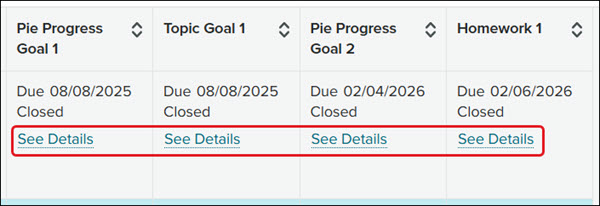
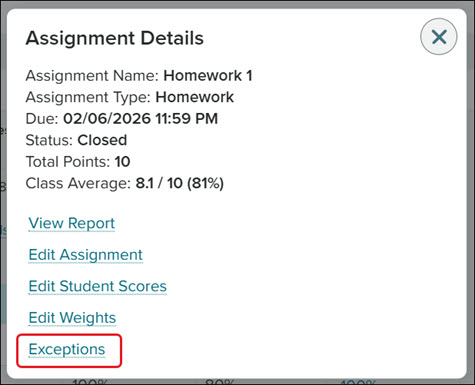
G. Click the See Details link for an assignment to View Report, Edit Assignment, Edit Student Scores, Edit Weights, add Exceptions. Menu options will vary based on the assignment type.
Student Gradebook
1. From within the ALEKS program, select the Class the student is associated with.
2. Select the Student from the drop-down.
3. Click on Student Gradebook.

Another way to access the student gradebook is by clicking on the student's name or checkmarking the student and clicking the Student Gradebook button from the Class Gradebook.
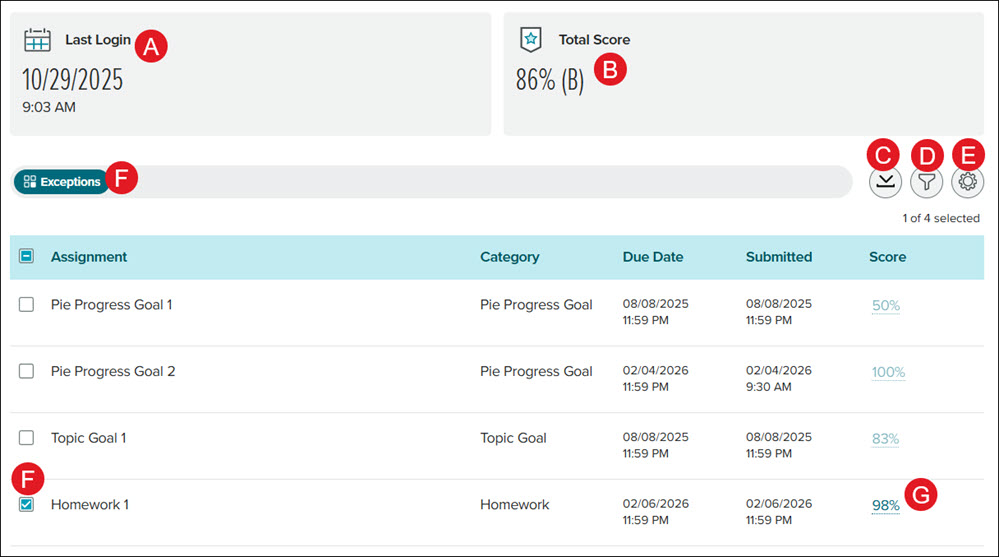
A. The Last Login date and time will show in the top-left tile.
B. The Total Score for all assignments show in the top-right tile.
C. Click the Download this table button to save/print the current gradebook view.
D. Click the Filters button to view specific Gradebook Categories.
E. Click the Settings button to make adjustments to the Display Options.
F. Check the box next to an Assignment for additional available actions such as Exceptions. Additional actions are only available for select assignment types.
G. Click on the link in the Score column to view the assignment report. This option is only available for select assignment types.
Display Settings
The display settings can be adjusted for both the Class and Student Gradebooks.
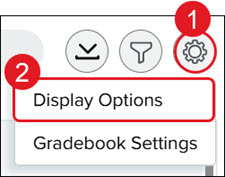
1. From the Class Gradebook and/or Student Gradebook, click the Settings button (gear icon) at the right.
2. Click on Display Options from the menu.
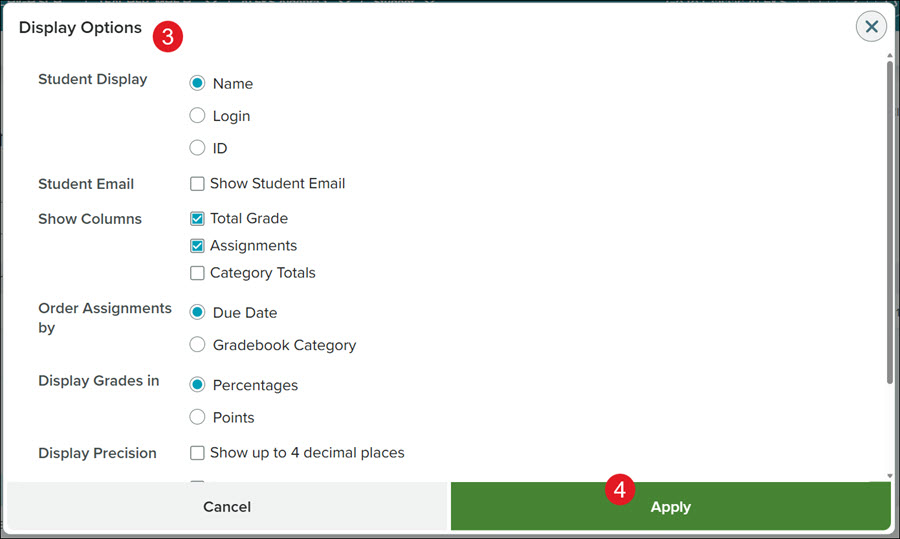
3. Select the radio buttons and check boxes based on your preferred settings. The available settings will vary based on it being the Class or Student Gradebook.
Class Gradebook Options:
- Student Display
- Student Email
- Show Columns
- Order Assignments by
- Display Grades in
- Display Precision
- In-progress Scores
- Unearned Zero Scores
Student Gradebook Options:
- Display Grades in
- Show N/A
- Display Precision
- In-progress Scores
- Unearned Zero Scores
4. Click the Apply button.
Edit Student Scores
Student scores can only be adjusted from the Class Gradebook.
1. From within the ALEKS program, click on Class Gradebook.
2. Click on Gradebook from the menu.
3. Click on the See Details link for the assignment that needs the scores adjusted.
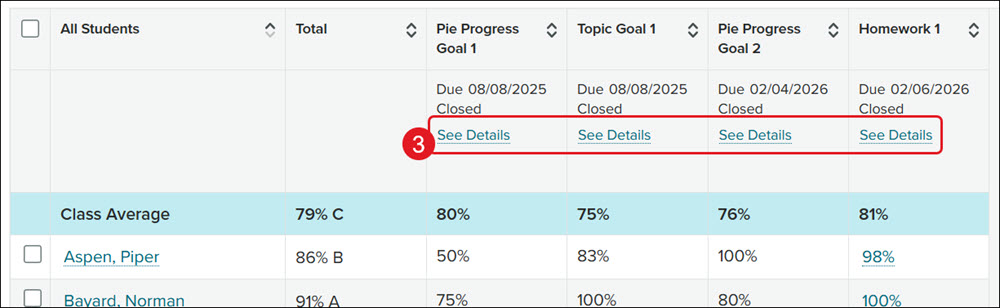
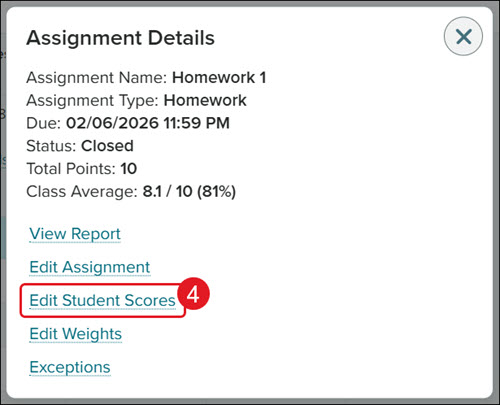
4. On the pop-up, click the Edit Student Scores link.
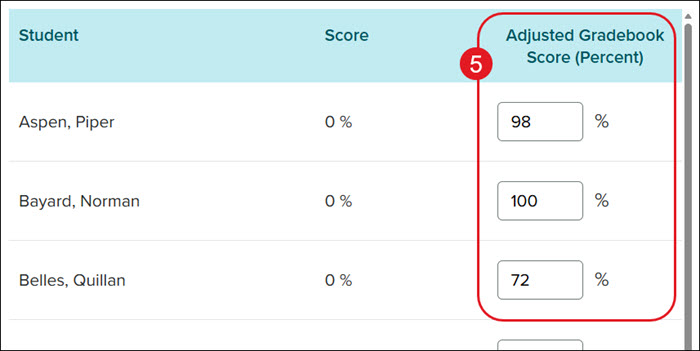
5. In the Adjusted Gradebook Score (Percent) column, enter the new score for the student(s).
6. Click the Save button at the bottom of the page.
Set Exceptions
Exceptions can be set from both the Class Gradebook as well as the Student Gradebook. Setting Exceptions is only available for select assignment types.
From the Class Gradebook:
1. From within the ALEKS program, click on Class Gradebook.
2. Click on Gradebook from the menu.
3. Checkmark a Student and click the Exceptions button.
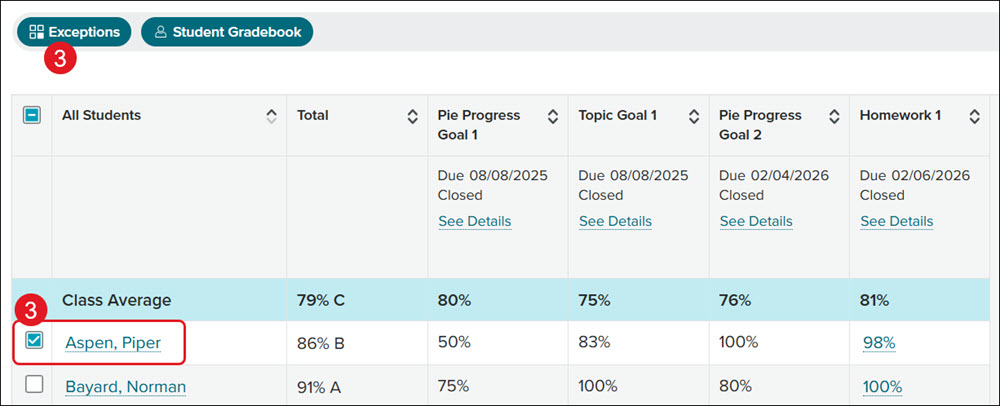
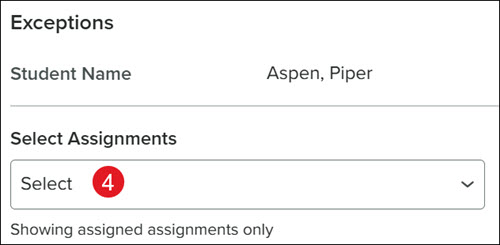
4. Select the Assignment from the drop-down. The only assignments that will show are those that allow exceptions.
Another option is to click on the See Details link under the assignment name and click Exceptions from the pop-up.
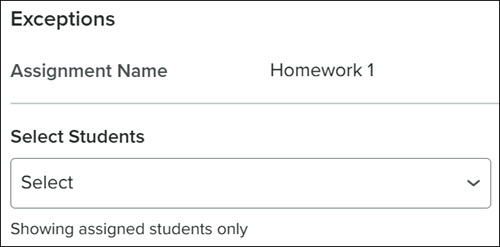
Select the Student(s) from the drop-down.
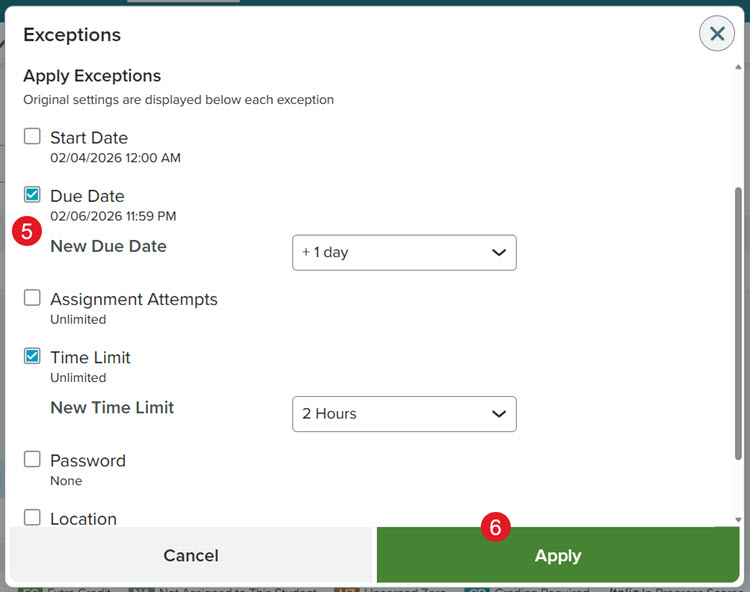
5. On the Exceptions pop-up, check the boxes next to the options you want the student(s) to have for the assignment. Some options will require additional selections.
6. Click the Apply button.
From the Student Gradebook:
1. From within the ALEKS program, select the Class the student is associated with.
2. Select the Student from the drop-down.
3. Click on Student Gradebook.
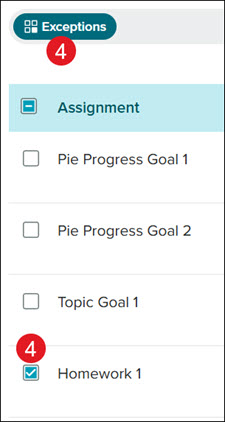
4. Checkmark the Assignment and click the Exceptions button.
5. On the Exceptions pop-up, check the boxes next to the options you want the student to have for the assignment. Some options will require additional selections.
6. Click the Apply button.
Edit Assignment Weights
Assignment Weights can only be adjusted from the Class Gradebook.
1. From within the ALEKS program, click on Class Gradebook.
2. Click on Gradebook from the menu.
3. Click the See Details link for the assignment.
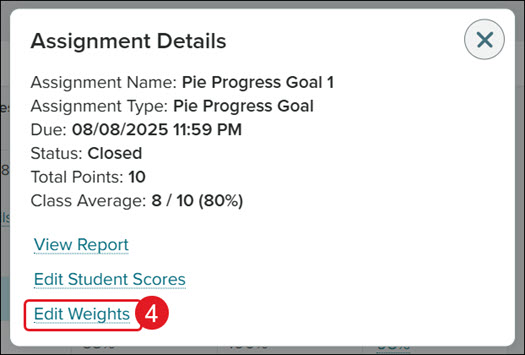
4. Click the Edit Weights link on the Assignment Details pop-up.
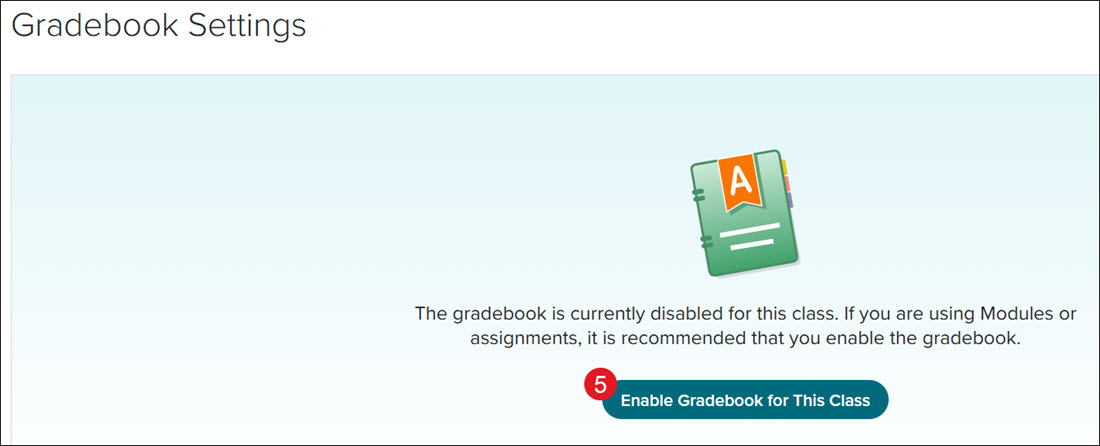
5. Enter the preferred goal weights for each of the points and lowest score(s) fields.
6. Click the Save button.