New ALEKS Adventure Administrator Comprehensive Student Report
Review the ALEKS Comprehensive Student Report to support individualized education planning.
- PreK-12
- Customer Support
- School Administrator
- Elementary School
- Direct Login & Auto-Rostering
- Direct Login & Manual-Rostering
- SSO & Auto-Rostering
- SSO & Manual-Rostering
- Supplemental
- Math
- ALEKS Adventure
- Reports & Analytics


In addition to offering an adaptive, self-paced learning environment that avoids multiple-choice, ALEKS closely monitors each student's daily learning progress. This information can be used to create and maintain comprehensive individualized education plans (IEPs) and to guide effective one-on-one instruction. This report includes tools to support IEPs.
Article Contents
Access Comprehensive Progress Report
Access Comprehensive Progress Report
1. SSO or sign in at my.mheducation.com.
You may need to toggle between roles and organizations to get to your administrator tools.
2. Launch ALEKS from the navigation menu.
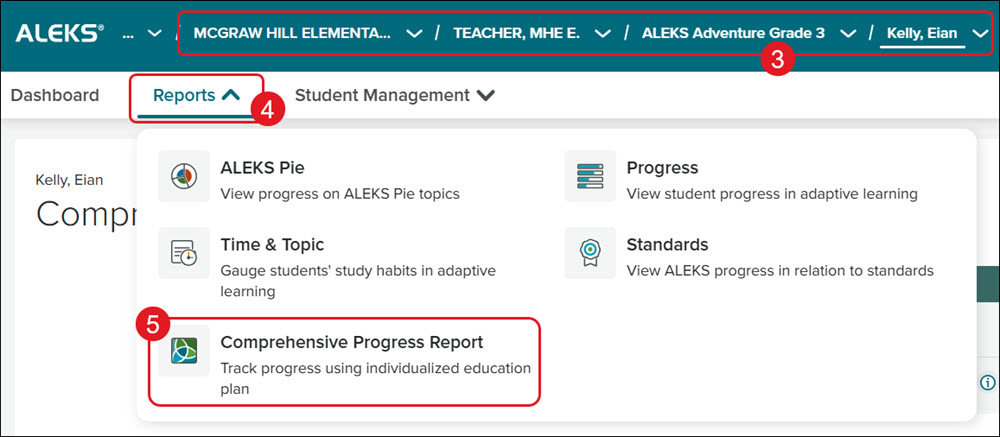
3. Select the School, Teacher, Class, and Student from the drop-downs.
4. Click on Reports.
5. Click Comprehensive Progress Report from the menu.
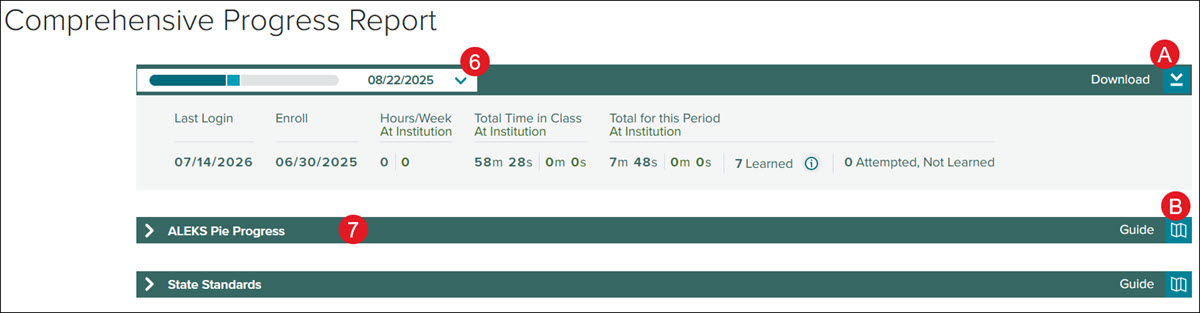
6. Select the date of the Knowledge Check from the drop-down.
7. Click on a blade to expand the section.
A. Click the Download button to download/save the entire report to share with parents.
B. Click the Guide button to view a description of each section of the report.
Report Section Descriptions
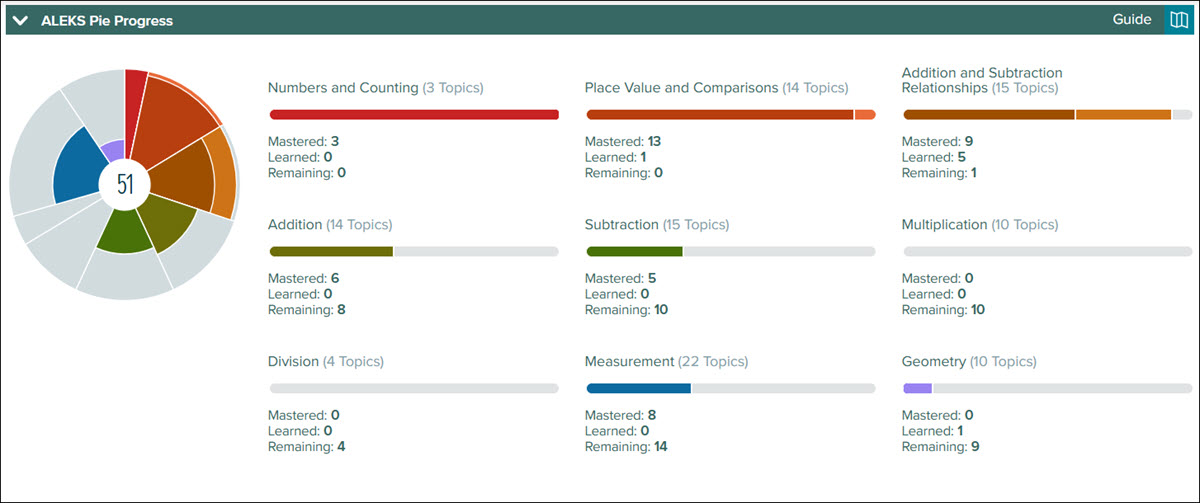
ALEKS Pie Progress
The ALEKS Pie Progress represents the student's individualized learning path through the course material. The darker color represents what the student has mastered, and the lighter color represents what the student has learned. The gray area is the content remaining.
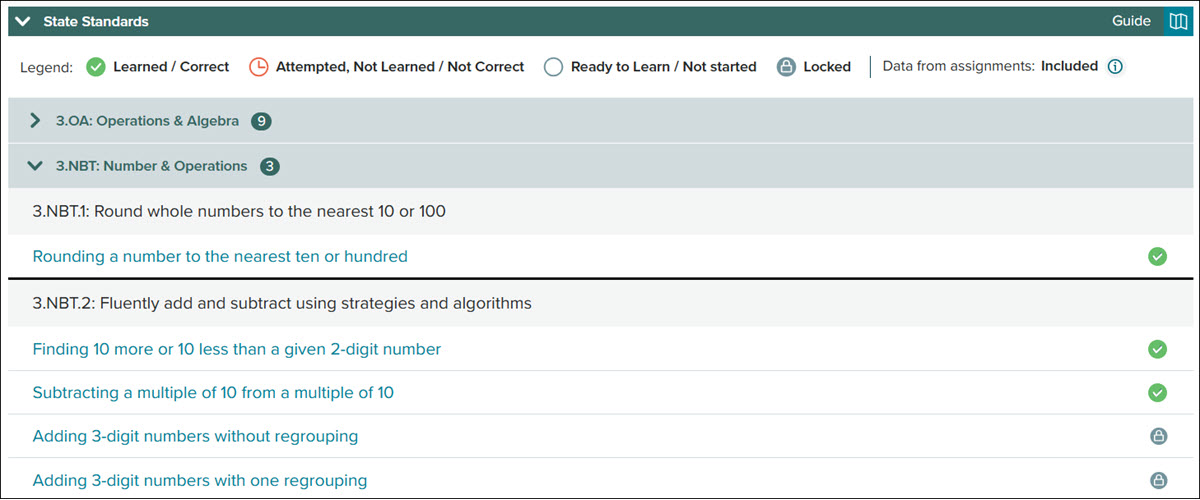
State Standards
Instructors can determine how a student is progressing against individual state or Common Core State Standards. Select the State Standards section to see a detailed breakdown of the student's progress against the standards. Expand any strand to see each standard and the topics the student has learned in their individualized learning path, or answered correctly in an assignment. Also, select a topic to generate a unique instance of the problem with the explanation; these sample problems can be printed for the student's portfolio.
What Student is Ready to Learn
Expand this section to see topics the student is ready to learn. Select a topic to generate a unique instance of the problem with the explanation; these sample problems can be printed for the student's portfolio. Instructors can use the student's list of Ready to Learn topics to guide one-on-one instruction.
- What Student has Not Started - These are topics the student is ready to learn, but has not yet started.
- What Student has Attempted but Not Yet Learned - See topics the student attempted to complete but did not learn while working in Learning Mode. The progress indicator shows the student's current performance on the topic. Instructors can use this list to catch potential weak spots in student knowledge. Selecting a topic generates a unique instance of the problem with the explanation, which can be used to guide one-on-one instruction and keep the student on task.
What Student Needs More Practice On
Expand this section to see the current list of topics where the student did not demonstrate retention when assessed in a Knowledge Check. ALEKS will automatically prioritize these topics in future knowledge checks. Instructors can also use this list to target gaps in knowledge. Selecting a topic generates a sample problem similar to the problem type the student received during the Knowledge Check.
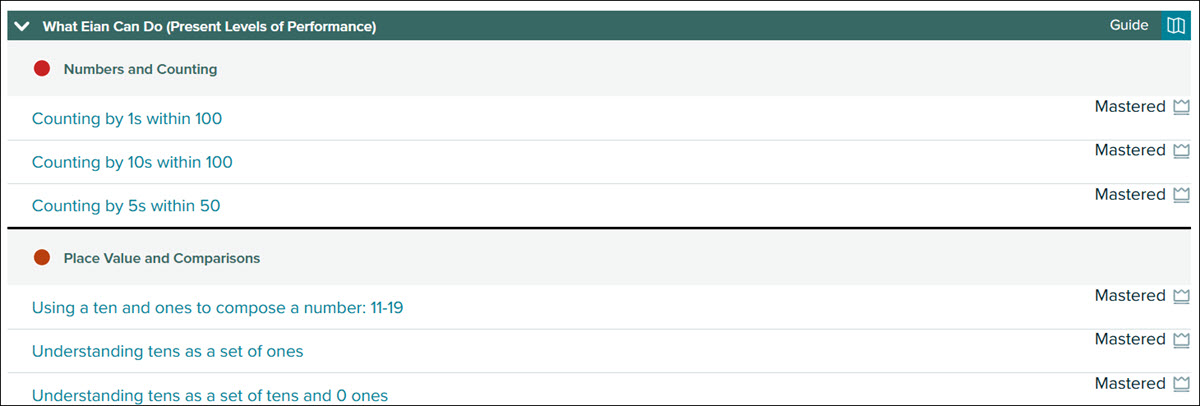
What Student Can Do (Present Levels of Performance)
Expand this section to see topics the student has learned or mastered in the period selected; the report period can be changed by selecting from the drop-down menu at the top of the report. Select a topic to generate a unique instance of the problem and the explanation; these sample problems can be printed for the student's portfolio.
Progress Monitoring
This section includes three components that provide details of the student's progress in ALEKS:

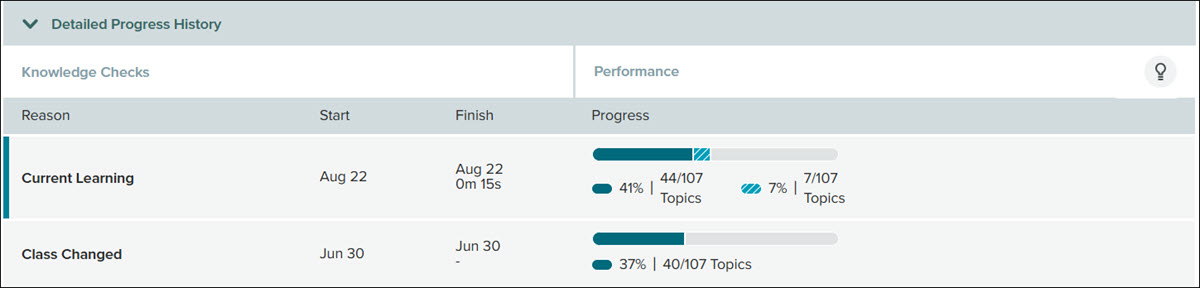
- Detailed Progress History - This section displays the student's progress over time, beginning with the Initial Knowledge Check. The darker color represents what content the student has mastered in a Knowledge Check; the lighter color represents what the student has learned since the previous Knowledge Check, and the gray represents what the student has remaining to learn. The "Percent" or "Topics" button under the Performance column can be selected to change the display of progress data between percentages and the number of topics.
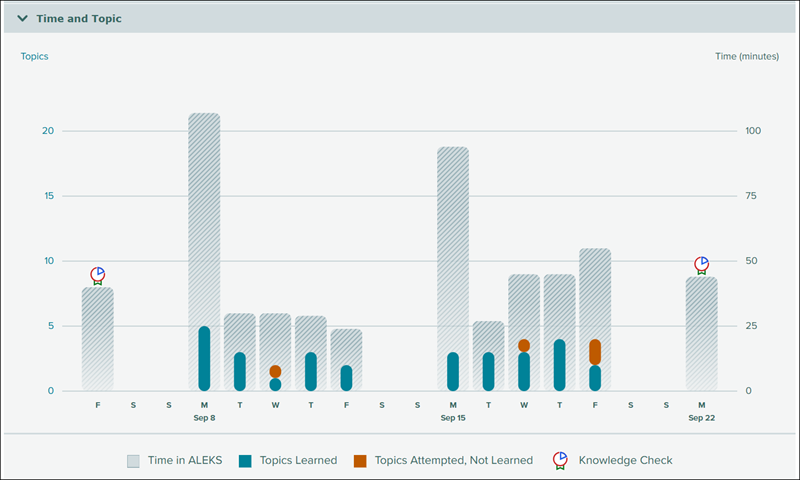
- Time and Topic - This section tracks the student's learning progress and time spent in the program. Additional information about the student's progress can be displayed by hovering over or selecting each bar in the graph.
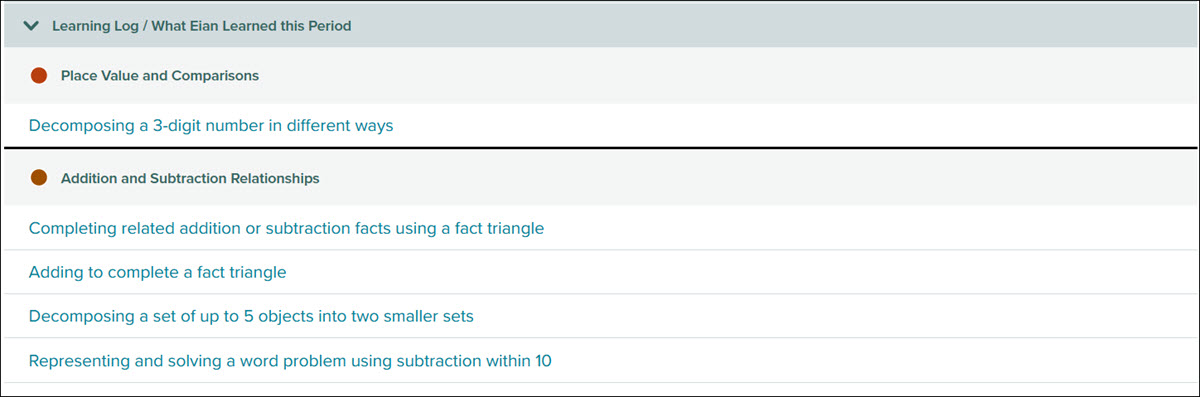
- Learning Log/Recent Student Learning - This section highlights the topics the student learned in the report period. Instructors can use this information to review topics the student has recently learned to further improve retention.