
New ALEKS Adventure Teacher Progress Reports
Set time goals in New ALEKS to encourage consistent student engagement.
- Customer Support
- PreK-12
- Classroom Teacher
- Elementary School
- Direct Login & Auto-Rostering
- Direct Login & Manual-Rostering
- SSO & Auto-Rostering
- SSO & Manual-Rostering
- Supplemental
- Math
- ALEKS Adventure
- Reports & Analytics


View the demo in a separate tab.
View the Spanish version of the demo.
The Progress Report shows overall student progress in the adaptive pathway, Knowledge Checks, and average learning rates. Teachers can use this report to monitor progress and identify students who could benefit from intervention by comparing data points.
Article Contents
Access Progress Report
1. SSO or log in at my.mheducation.com.
2. Launch ALEKS Adventure.
3. Select a Class from the drop-down.
4. Click on Reports.
5. Click on Progress from the menu.
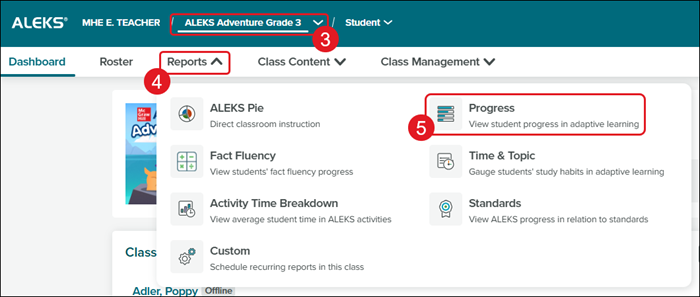
Class Progress Report
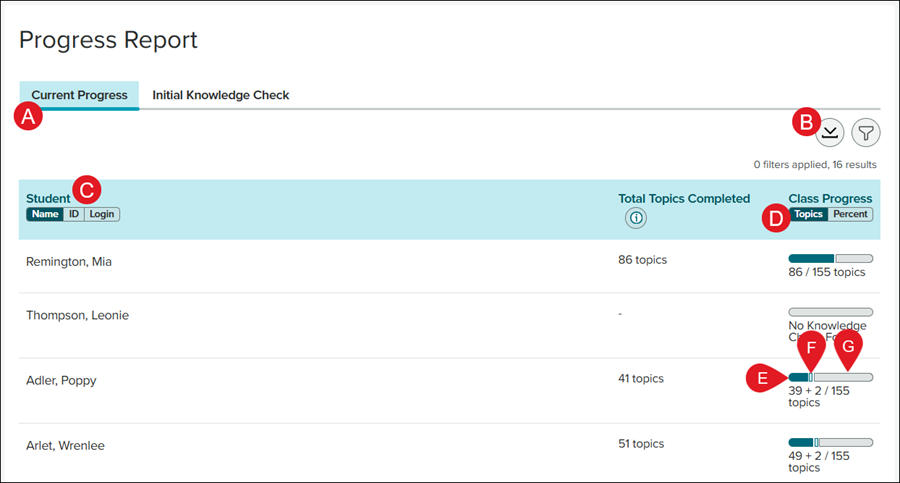
A. The report view defaults to the Current Progress tab.
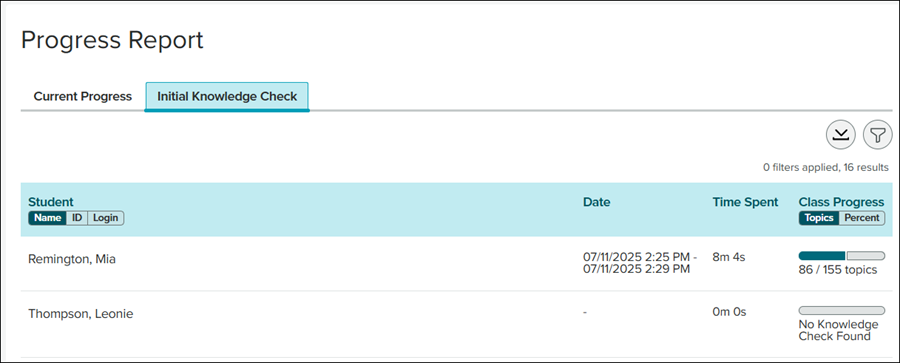
Click the Initial Knowledge Check tab to view the Date and Time Spent in the Initial Knowledge Check for each student.
B. Click the Download icon to download an .xslx file file with the Class Progress by Percent, Class Progress by Topics, and Total Topics Completed information.
C. Click Name, ID, or Login under Student to sort the list by that option.
D. Click Topics or Percent to view the completed topics by that selection.
The Class Progress column is a breakdown of the total topics available and completed in the class for each student.
E. The dark blue portion of the progress bar represents topics mastered after the most recent Knowledge Check.
F. The light blue portion represents topics learned in the adaptive path.
G. The grey portion represents topics remaining that are not learned or mastered.
Student Progress Report
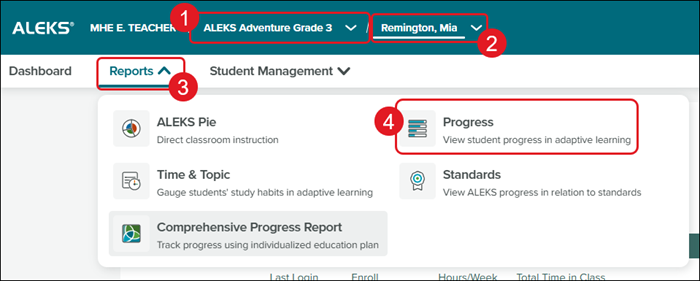
1. Select a Class from the drop-down.
2. Select a Student from the drop-down.
3. Click on Reports.
4. Click on Progress from the menu.
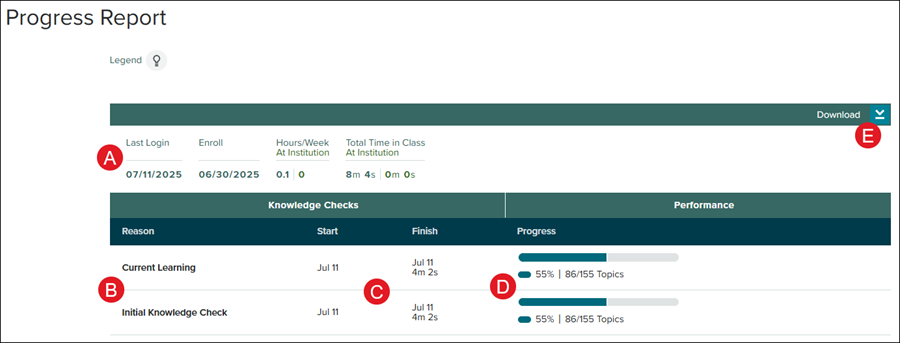
A. The student progress report will show their Last Login date, their Enrollment date, how many Hours/Weeks they've spent in the program, and the Total Time spent in the program for that class.
B. Data will show for their Current Learning, Class Changed (if applicable), and Initial Knowledge Check.
C. The Start and Finish date for the Knowledge Check will be listed for each.
D. The Class Progress column is a breakdown of the total topics available and completed in the class for each student.
The dark blue portion of the progress bar represents topics mastered after the most recent Knowledge Check.
The light blue portion represents topics learned in the adaptive path.
The grey portion represents topics remaining that are not learned or mastered.
E. Click the Download icon to download an .xslx file file with the Class Progress by Percent, Class Progress by Topics, and Total Topics Completed information.
