New ALEKS Adventure Pie Report
View mastery progress using the new ALEKS Adventure interface Pie report.
- Customer Support
- PreK-12
- Classroom Teacher
- Elementary School
- Direct Login & Auto-Rostering
- Direct Login & Manual-Rostering
- SSO & Auto-Rostering
- SSO & Manual-Rostering
- Supplemental
- Math
- ALEKS Adventure
- Reports & Analytics


View the demo in a separate tab.
View the Spanish version of the demo.
The ALEKS Pie Report shows the average rate of learning for a class. With this report, you can view which topics students have mastered or learned, are ready to learn, and the number of remaining topics a student has left.
Note: This report includes data only for students who have completed at least an Initial Knowledge Check.
Article Contents
Access Pie Report
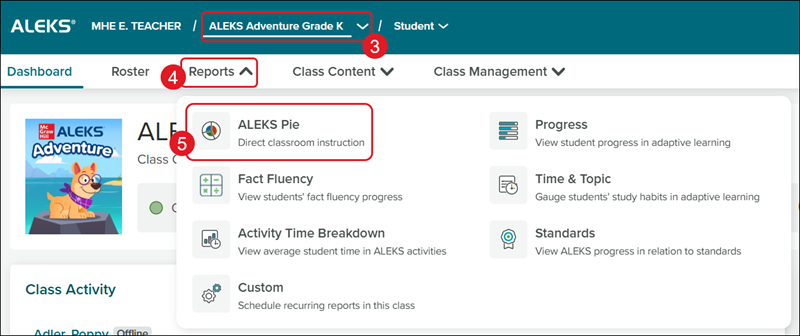
1. SSO or log in at my.mheducation.com.
2. Launch ALEKS Adventure.
3. Select a Class from the drop-down.
4. Click on Reports.
5. Click on ALEKS Pie from the menu.
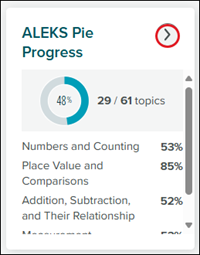
This report can also be accessed by clicking on the arrow button on the ALEKS Pie Progress tile on the ALEKS Dashboard.
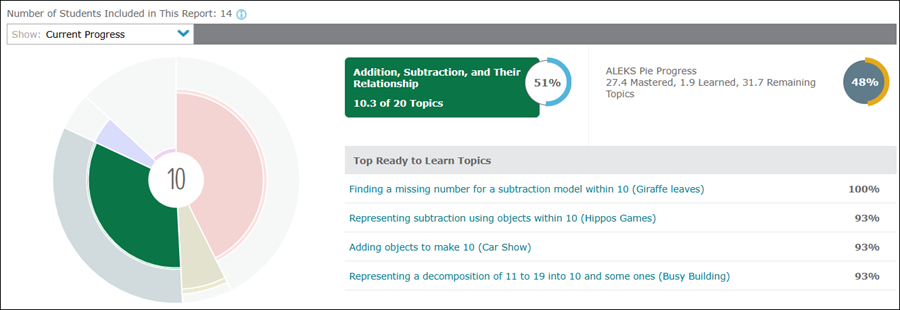
Class Pie Report
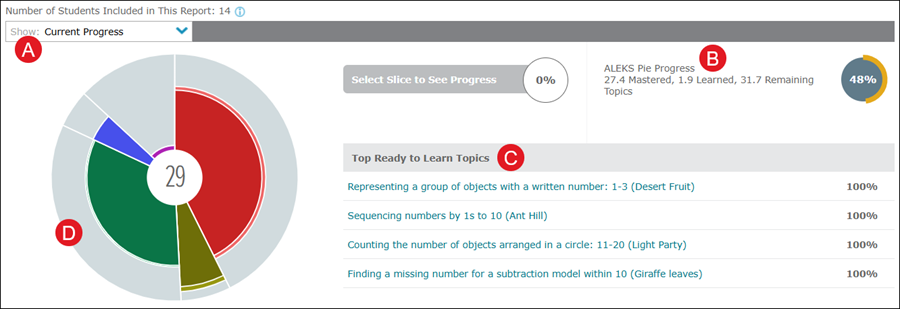
A. The default view of the Pie Report is set to Current Progress. It's designed to give real-time information about what students are ready to learn.
B. The ALEKS Pie Progress section at the top right of this report shows information about your class as a whole.
C. The topics with the highest percentage of students ready to learn are listed next, under Top Ready to Learn Topics.
D. Click on a Pie slice to narrow the report view down to that specific section.
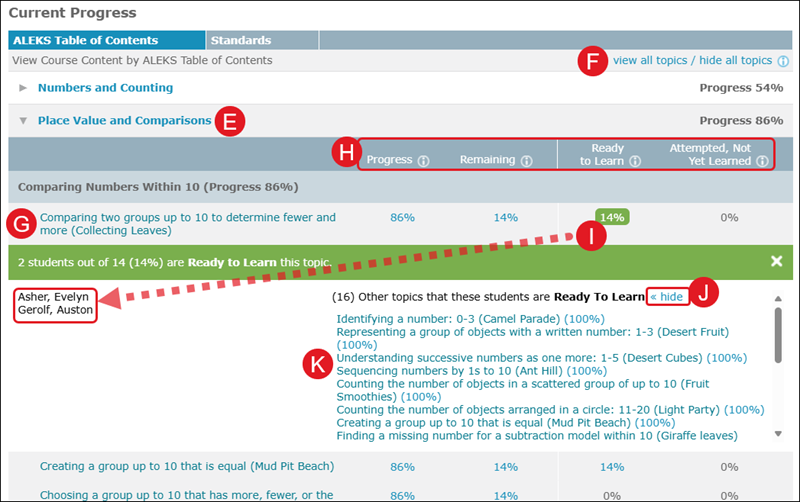
E. Click on a strand to expand the section.
F. Click view all topics/hide all topics to expand/collapse all sections.
G. Select the name of a topic to generate unique sample problems with complete explanations.
H. The four columns provide information about the class:
- Progress - Students who have already learned or mastered the topic.
- Remaining - Those who have not learned the topic yet.
- Ready to Learn - Students who have not learned the topic yet, but who have the prerequisite skills to be successful in learning the topic.
- Attempted, Not Yet Learned - Students who have worked on the topic but have not learned it yet.
I. Click on a percentage to view the students who have Learned, Not Learned, Ready to Learn, or Attempted, but Not Yet Learned that topic.
J. Click show/hide to expand/collapse the list of additional topics the students that are listed to the left are Ready to Learn.
K. Select the name of a topic to generate unique sample problems with complete explanations.
Student Pie Report
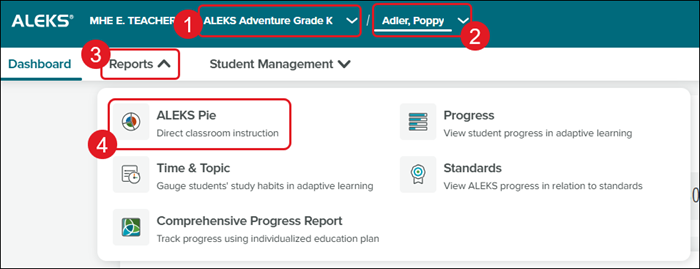
1. Select a Class from the drop-down.
2. Select a Student from the drop-down.
3. Click on Reports.
4. Click on ALEKS Pie from the menu.
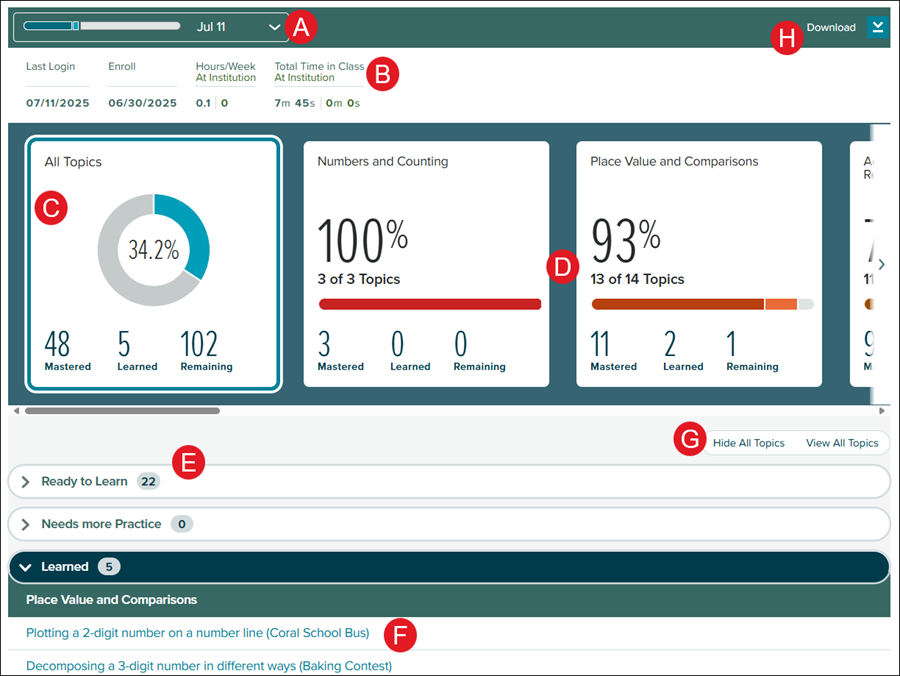
A. Click the arrow to select a specific Knowledge Check to view the report.
B. The report shows the Last Login, the date the student Enrolled in the class, the Hours per Week they spent in the program, and the Total Time spent in the program.
C. The Pie shows Mastered, Learned, and Remaining topics, which are also listed in the table below.
D. The additional tiles are a breakdown per slice in the Pie.
E. Click on a blade to view the list of topics for that section.
- Ready to Learn topics are available to the student in Learning Mode because the student has the necessary prerequisite knowledge to learn these topics.
- Needs more Practice topics are those that the student has attempted but could use more practice to learn.
- Learned means the student has demonstrated an understanding of these topics in Learning Mode but hasn't yet mastered them in an assessment. An upcoming assessment will determine whether each topic becomes Mastered or if the student needs to learn them again.
- Mastered means the student has demonstrated consistent mastery of these topics in the Learning Mode and/or Knowledge Checks.
F. Click on a topic to view an example question.
G. Click the Hide All Topics or View All Topics to expand and collapse all blades at once.
H. Click Download to download a PDF of the current report view.