
New ALEKS Administrator Progress Reports
Learn how to access and view the classic ALEKS administrator progress reports.
- PreK-12
- Customer Support
- School Administrator
- Elementary School
- Middle School
- High School
- Direct Login & Auto-Rostering
- Direct Login & Manual-Rostering
- SSO & Auto-Rostering
- SSO & Manual-Rostering
- Supplemental
- Math
- ALEKS
- Reports & Analytics


The ALEKS Progress Report shows overall student progress in both Learning Mode and Assessment Mode, as well as average learning rates. They can be used to monitor progress and identify students who could benefit from intervention by comparing data points.
Article Contents
Access Progress Report
1. SSO or sign in at my.mheducation.com.
You may need to toggle between roles and organizations to get to your administrator tools.
2. Launch ALEKS from the navigation menu.
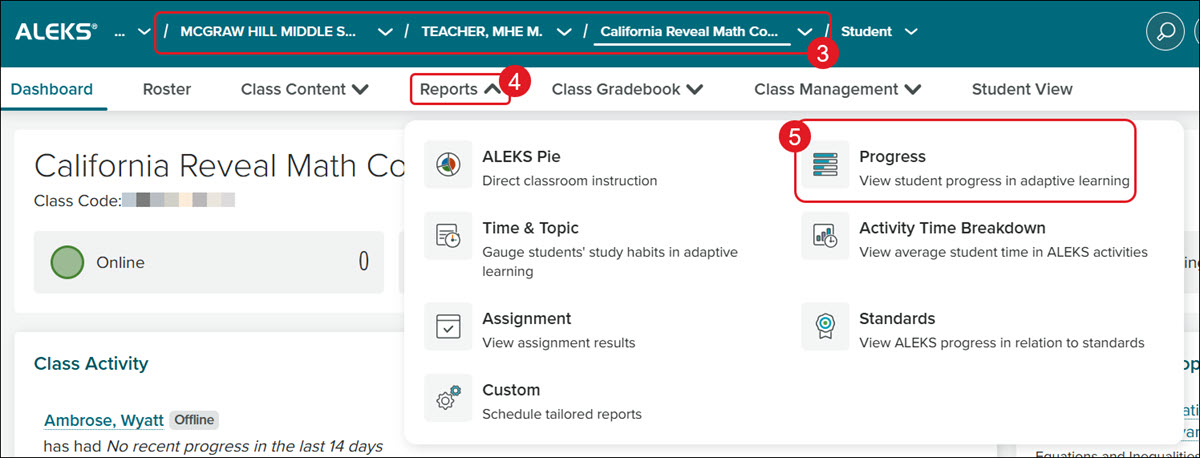
3. Select the School, Teacher, and Class from the drop-downs.
4. Click on Reports.
5. Click Progress from the menu.
Class Progress Report
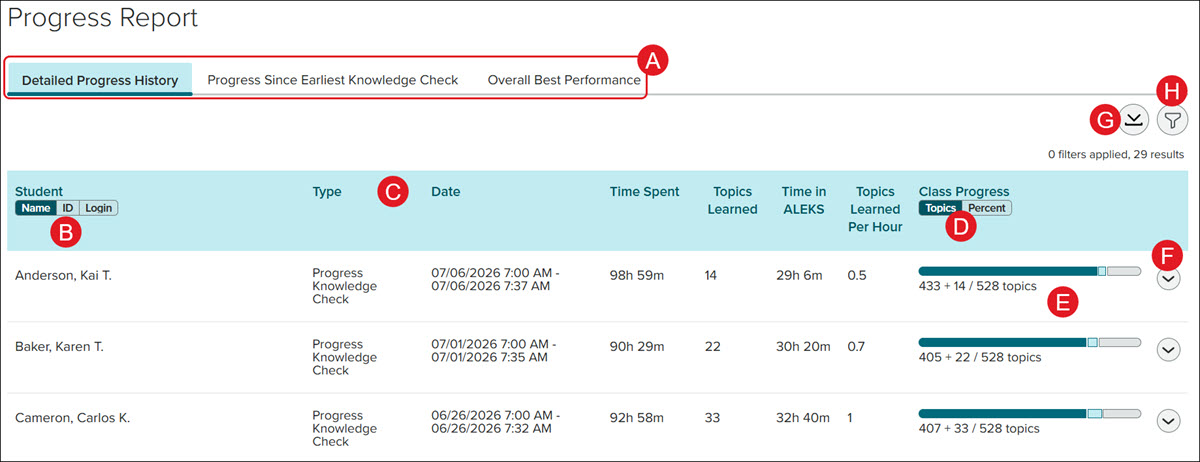
A. Click on the header at the top to toggle between the Detailed Progress History, Progress Since Earliest Knowledge Check, and the Overall Best Performance.
B. Click on Name, ID, or Login to view the Student list by the selected option.
C. Click on a header to reorganize the data by that option.
D. In the Performance column, click Percent or Topics to toggle between the two views.
E. The Performance Bars breakdown what the student has mastered.
- Dark Blue - Content mastered after the most recent Knowledge Check
- Light Blue - Content mastered from an earlier Knowledge Check to the most recent Knowledge Check
- Gray - Content remaining
F. Click the arrow to the right of the Performance Bar to view the list of Knowledge Checks the student has completed.
G. Click the Downloads button to download an .xslx or Example file of the report.
H. Click the Filters button to select a different date range.
Student Progress Report
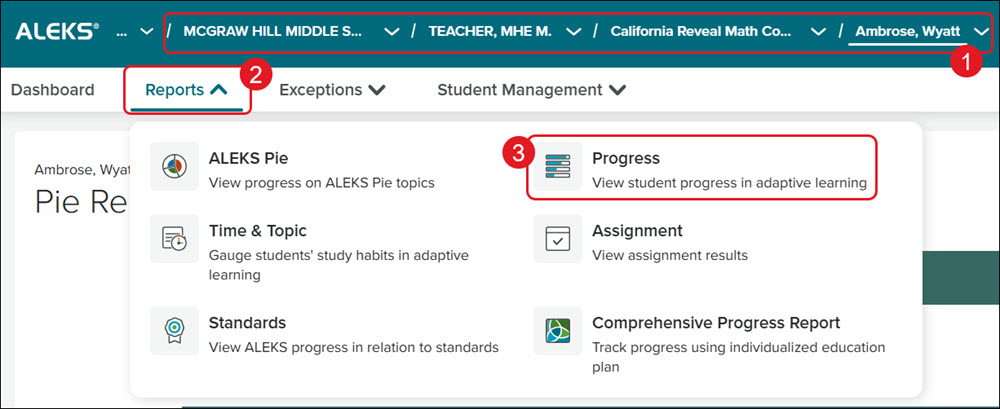
1. Select the School, Teacher, Class, and Student from the drop-downs.
2. Click on Reports.
3. Click Progress on the menu.
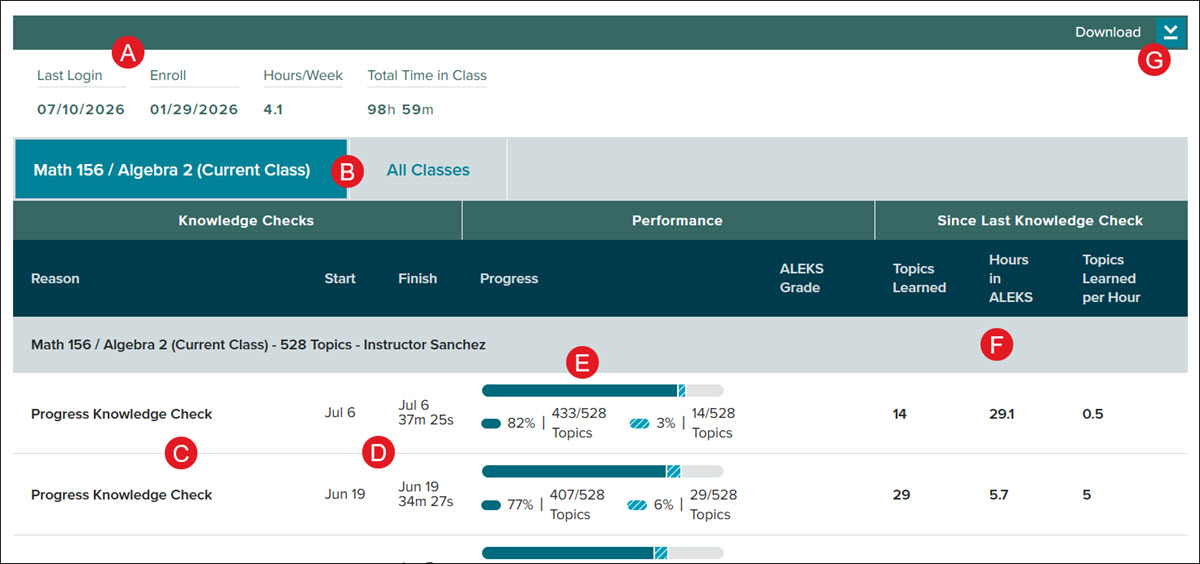
A. The student progress report will show their Last Login date, when they were enrolled in the class, how many hours per week they are in the program, and the total time they have spent in the program for the class.
B. If they are enrolled in more than one ALEKS class, you can toggle between only viewing data for the selected class or viewing combined data for all of the classes they are assigned to.
C. The student's progress report will show data for their Initial Knowledge Check, each of their Progress Knowledge Checks, and any assessments they've completed.
D. The date the student started and finished the Knowledge Check or Assessment will be listed for each.
E. The Performance Bars breakdown what the student has mastered.
- Dark Blue - content mastered based on the Knowledge Check
- Striped Blue - progress the student has made in Learning Mode
- Gray - content remaining
F. The three far-right columns represent the Topics Learned, Hours spent within ALEKS, and the Topics Learned per Hour.
G. Click the Download button to download a PDF copy of the student report.
