
Navigating the Open Learning Course Resources Page
Access all resources available with your Open Learning course.
Tags
- Customer Support
- PreK-12
- Classroom Teacher
- Preschool
- Elementary School
- Middle School
- High School
- Direct Login & Auto-Rostering
- Direct Login & Manual-Rostering
- SSO & Auto-Rostering
- SSO & Manual-Rostering
- Core
- Intervention
- Supplemental
- AP, Honors & Electives
- Career & Technical Education
- Literacy
- Math
- Science
- Social Studies
- Health
- Visual & Performing Arts
- World Languages
- AP Biology
- AP Chemistry
- AP History & Geography
- AP Psychology
- AP Economics
- AP African American Studies
- AP Precalculus
- AP Statistics
- AP Computer Science
- AP Language and Composition
- AP Public Speaking
- AP Music Theory
- 5 Steps to a 5 - AP Test Prep
- Glencoe Health 2022
- Teen Health 2021
- Arrive Math
- Building Blocks 2024
- Building Blocks PreK 2025
- Number Worlds 2024
- SRA Reading Laboratory 2025
- SRA Reading Mastery Transformations
- McGraw Hill Literacy Emerge!
- McGraw Hill Literacy Summit!
- McGraw Hill Literacy Soar!
- Open Court Reading 2025
- CA Reveal Math (K-12)
- Illustrative Math
- Reveal Math (K-12)
- Texas Math
- CA Inspire Science 2020
- FL Science 2025 (K-12)
- Inspire Science 2020
- TN Science (K-12)
- TX Science 2025 (K-12)
- CA Impact 2019
- FL Social Studies 2024 (K-12)
- Impact Social Studies
- McGraw Hill Social Studies
- Asi se Dice 2024
- CTE - Business, Marketing, and Finance
- CTE - Health Science
- CTE - Computing and Technology
- CTE - Agriculture
- CTE - Culinary Arts
- CTE - Early Childhood Education
- CTE - Criminal Justice
- Level Up K–5
- Level Up 6–8
- Level Up 9–12
- Dashboard & Navigation Overview
- Tools & Resources


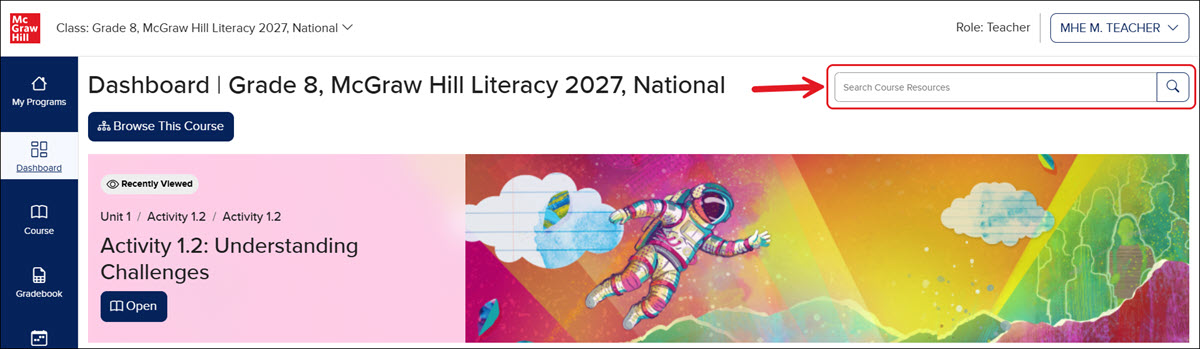
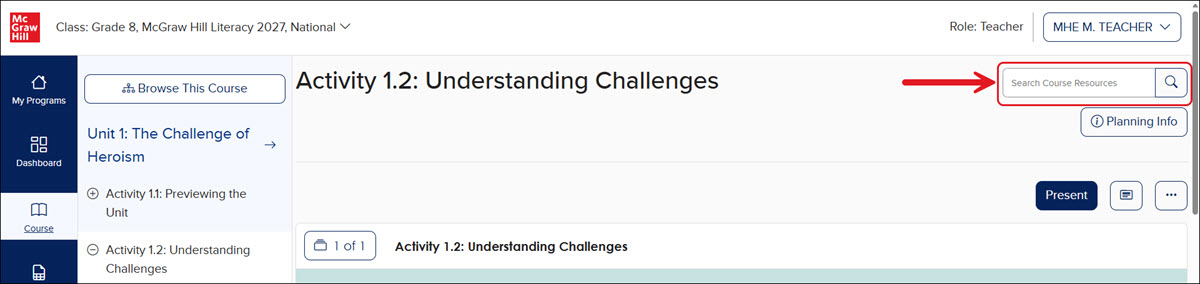
The Course Resources page can be accessed from the Dashboard and the Course page by entering keywords into the Search Course Resources field and/or clicking the magnifying glass located to the right of the field.
From Dashboard
From Course
Course Resources Page
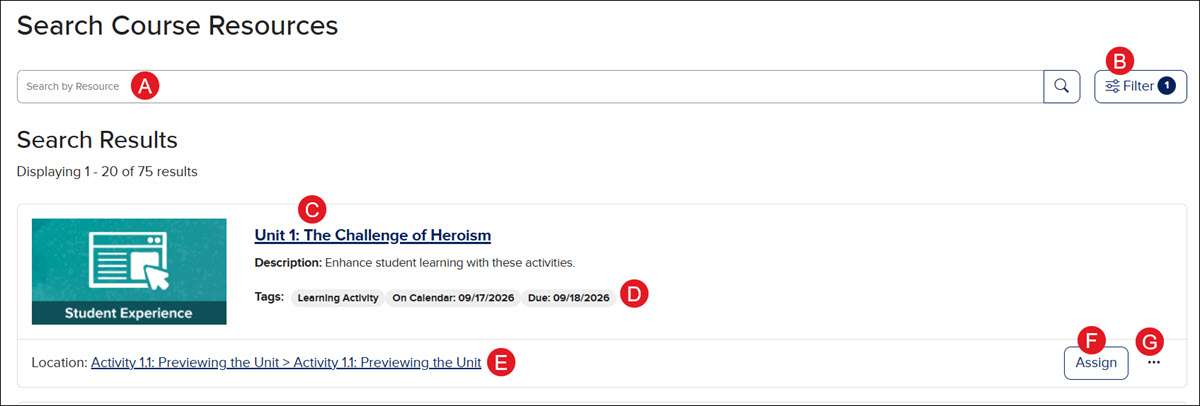
- Enter a keyword or title in the Search by Resource field to locate a specific resource or resource type.
- * Use the Filters to narrow down the list of available resources. The filters range from Course Location, Standards, Languages, Instructional Types, Resource Type, and Lexile Level Range.
*These options will vary by course.
- Click on a resource title to open it.
- The associated Tags indicate the resource type, whether it is teacher-only, any assigned dates if the resource has been assigned, and the dates it was added to the course calendar.
- Clicking the Location link will take you to the lesson on the Course page.
- Click the Assign button to make an assignment for the students to complete. This option is not available for all resources.
- * Click the Options menu icon to Copy Teacher Link, Add to Calendar, Unassign (if assigned), View Results, Show/Hide from Students, and access to Notes.
*These options will vary by course and resource.
