Create or Delete McGraw Hill Assessment Rubrics
Overview of how teachers create and select rubrics for assessments to score specific question types.
- Customer Support
- Middle School
- High School
- SSO & Auto-Rostering
- PreK-12
- All Sorts 2026 (K-5)
- Supplemental
- Visual & Performing Arts
- Health
- Literacy
- Social Studies
- Core
- AP, Honors & Electives
- SSO & Manual-Rostering
- Direct Login & Manual-Rostering
- Classroom Teacher
- Elementary School
- World Languages
- Math
- Intervention
- Direct Login & Auto-Rostering
- Science
- Preschool
- AP Biology
- AP Chemistry
- AP History & Geography
- AP Psychology
- AP Economics
- AP African American Studies
- AP Precalculus
- AP Statistics
- AP Computer Science
- AP Language and Composition
- AP Public Speaking
- AP Music Theory
- 5 Steps to a 5 - AP Test Prep
- Glencoe Health 2022
- Teen Health 2021
- Arrive Math
- Building Blocks 2024
- Building Blocks PreK 2025
- Number Worlds 2024
- SRA Reading Laboratory 2025
- SRA Reading Mastery Transformations
- McGraw Hill Literacy Emerge!
- McGraw Hill Literacy Summit!
- McGraw Hill Literacy Soar!
- Open Court Reading 2025
- CA Reveal Math (K-12)
- Illustrative Math
- Reveal Math (K-12)
- Texas Math
- CA Inspire Science 2020
- FL Science 2025 (K-12)
- Inspire Science 2020
- TN Science (K-12)
- TX Science 2025 (K-12)
- CA Impact 2019
- FL Social Studies 2024 (K-12)
- Impact Social Studies
- McGraw Hill Social Studies
- Asi se Dice 2024
- CTE - Health Science
- CTE - Agriculture
- CTE - Computing and Technology
- CTE - Culinary Arts
- CTE - Early Childhood Education
- CTE - Business, Marketing, and Finance
- CTE - Criminal Justice
- Online Assessments


This article walks teachers through creating and selecting rubrics for certain question types.
For a full page view of the demo, click here.
This is not an option for all question types. Refer to the MH Assess - Question Types article for more information on the different options available.
To create a rubric, you will need to do so while creating or editing a question. For in-depth steps on creating and editing questions, refer to the MH Assess - Create and Edit Questions article.
Article Contents
Create Rubric
1. Launch your course.
2. Click on Assessments from the navigation menu.
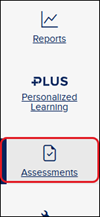
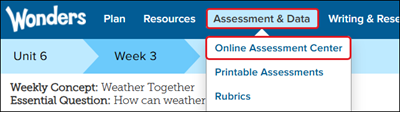
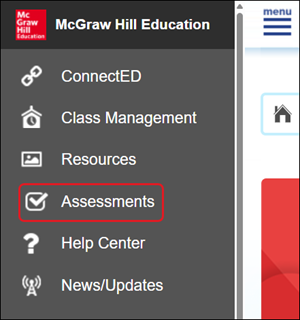
For certain programs, you will need to click on Assess, Assessment, or Online Assessment Center.

3. Create a new question or edit an existing question.
4. Scroll to the bottom of the question page.
5. Click the +Add link for Rubric. If you do not see this link this is not an option for the question type selected.
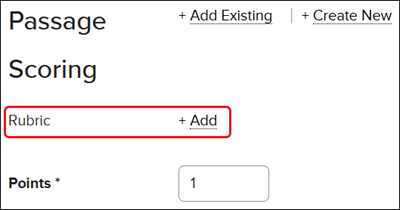
6. On the Select Rubric pop-up, click the New Rubric button.
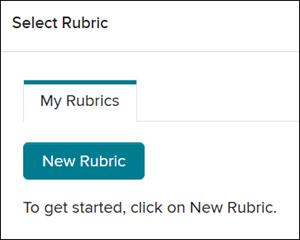
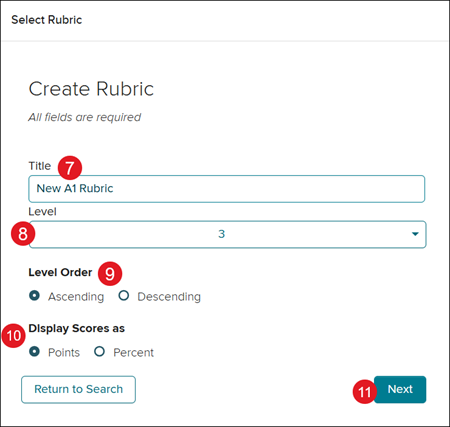
7. Enter a Title.
8. Select a Level from the drop-down.
9. Select the radio button for the preferred Level Order.
10. Select the preferred radio button for Display Scores as.
11. Click the Next button.
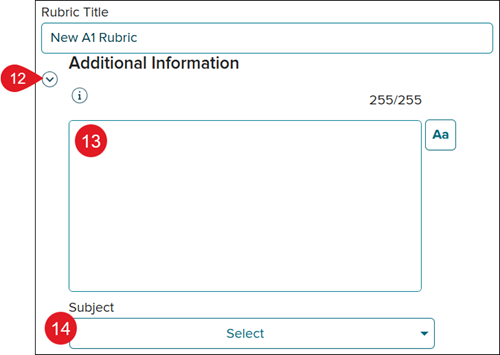
12. Click the arrow next to Additional Information to expand the section.
13. Enter a description of the rubric and any additional information you want included.
14. Select a Subject from the drop-down.
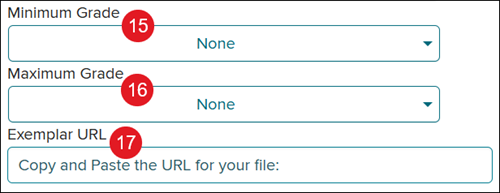
15. Select a Minimum Grade from the drop-down.
16. Select the Maximum Grade from the drop-down.
17. Enter an Exemplar URL.
18. To the right of Performance Rating/Scale Labels, click the Edit button.

19. Click in the Level fields and make any preferred changes then click the Done button. This is optional.

20. Click the Edit button under Category.
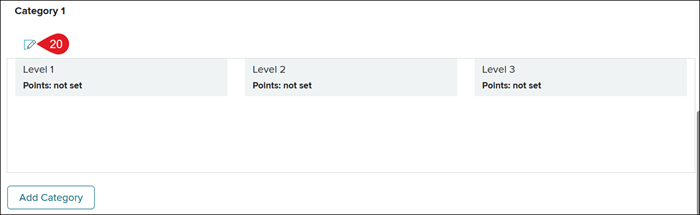
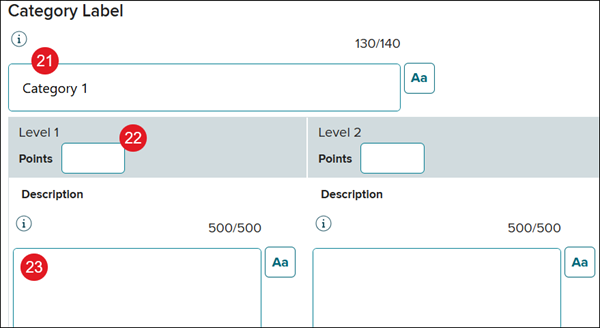
21. Enter a Category title. This is optional.
22. Enter the Points/Percentage for each Level.
23. Enter a Description for each Level.
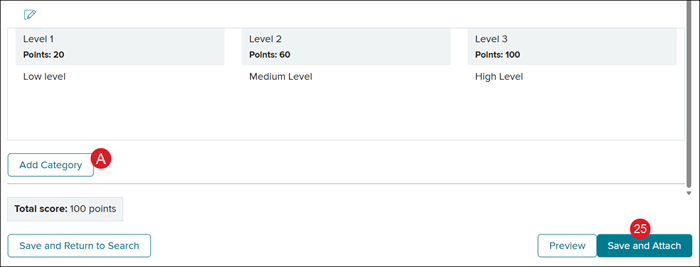
24. Click the Done button once all information is entered.
A. Click the Add Category button to add additional categories to the rubric.
25. Click the Save and Attach button to attach the rubric to the question.
Clicking the Save and Return to Search button brings you back to Select Rubric pop-up.
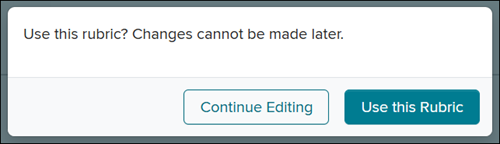
26. On the pop-up, click the Use this Rubric button. Keep in mind, once the rubric is created there is not a way to make edits.
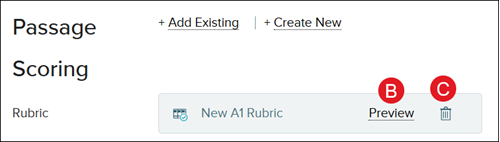
The rubric will show attached to the question beside Rubric.
B. Click Preview to view the rubric.
C. Click the trash can icon to remove the rubric from the question.
Select Rubric
1. Launch your course.
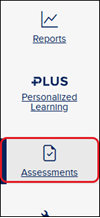
2. Click on Assessments from the navigation menu.
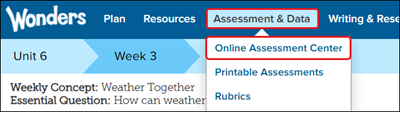
For certain programs, you will need to click on Assess, Assessment, or Online Assessment Center.

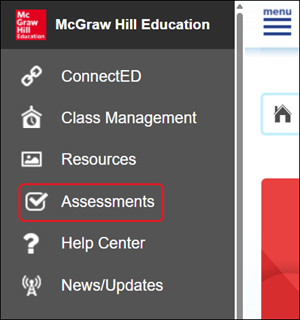
3. Create a new question or edit an existing question.
4. Scroll to the bottom of the question page.
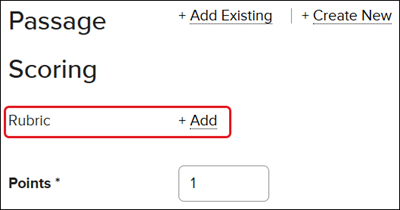
5. Click the +Add link for Rubric. If you do not see this link this is not an option for the question type selected.
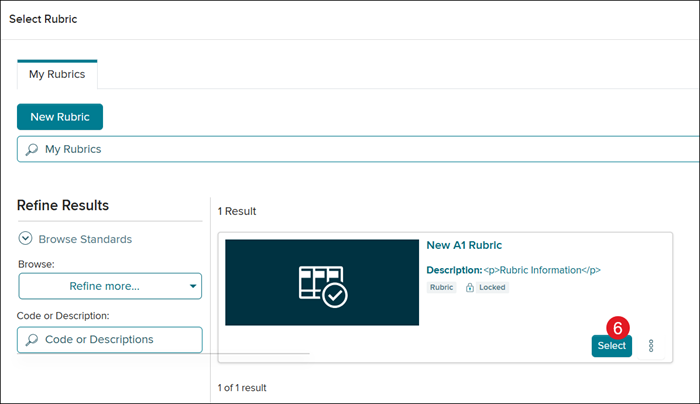
6. On the Select Rubric pop-up, click the Select button to attach the rubric to the question.
Use the available filters and search field to locate the preferred rubric.
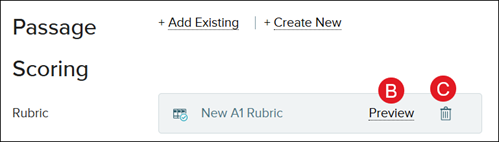
The rubric will show attached to the question beside Rubric.
B. Click Preview to view the rubric.
C. Click the trash can icon to remove the rubric from the question.
Duplicate Rubric
1. Launch your course.
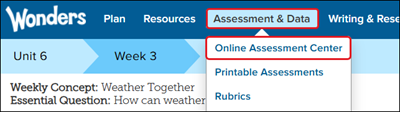
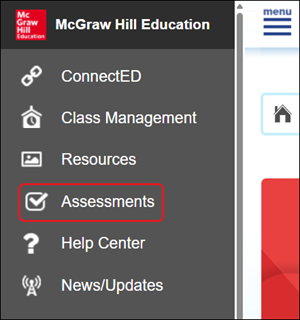
2. Click on Assessments from the navigation menu.
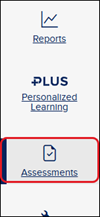
For certain programs, you will need to click on Assess, Assessment, or Online Assessment Center.

3. Create a new question or edit an existing question.
4. Scroll to the bottom of the question page.
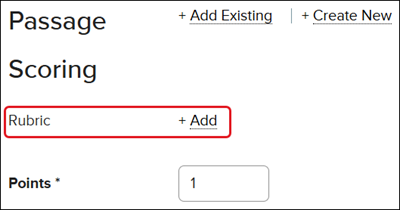
5. Click the +Add link for Rubric. If you do not see this link this is not an option for the question type selected.
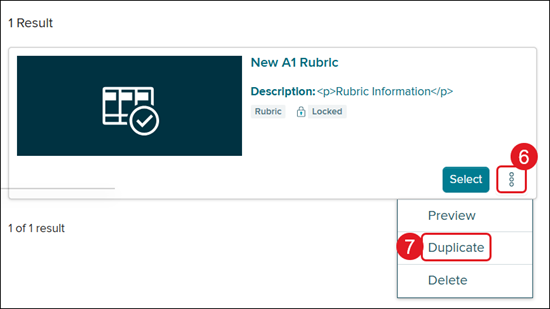
6. Click the Options menu icon on the rubric you want to copy.
7. Click Duplicate from the menu.
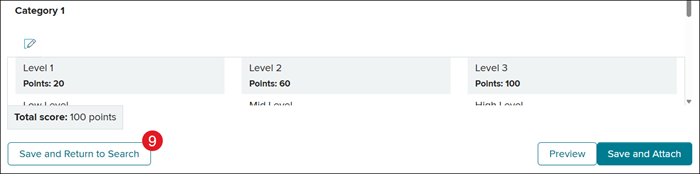
8. Make any desired changes.
9. Click the Save and Return to Search button.
Delete Rubric
1. Launch your course.
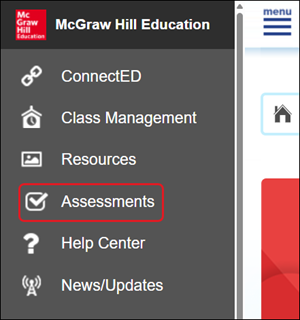
2. Click on Assessments from the navigation menu.
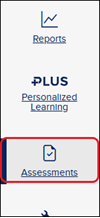
For certain programs, you will need to click on Assess, Assessment, or Online Assessment Center.

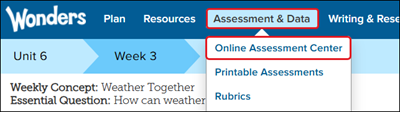
3. Create a new question or edit an existing question.
4. Scroll to the bottom of the question page.
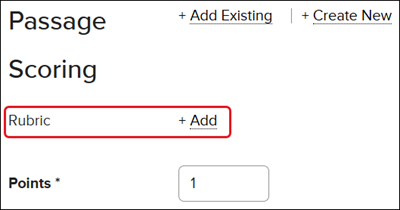
5. Click the +Add link for Rubric. If you do not see this link this is not an option for the question type selected.
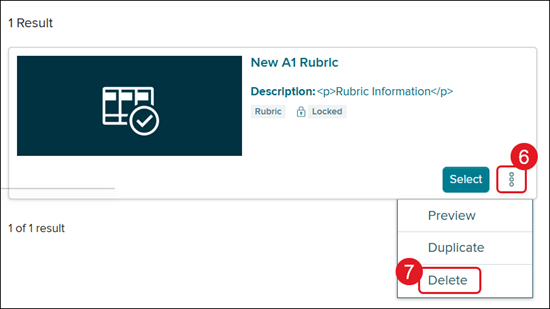
6. Click the Options menu icon on the rubric you want to copy.
7. Click Delete from the menu.
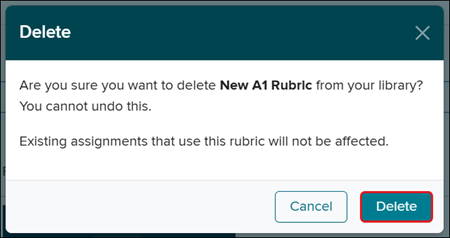
8. On the Delete pop-up, click the Delete button to confirm.