View K-12 Connect® Student Performance Reports
Review the Connect® Student Performance Report for individual student progress.
- Customer Support
- PreK-12
- Classroom Teacher
- High School
- Direct Login & Auto-Rostering
- Direct Login & Manual-Rostering
- SSO & Auto-Rostering
- SSO & Manual-Rostering
- AP, Honors & Electives
- AP Connect
- Grades & Assignments
- Reports & Analytics


The Student Performance report helps teachers focus on a student’s progress across their assignments. Teachers can view assignments that have been submitted and any assignments the student currently has in progress to be able to provide guidance or feedback during or after an assignment.
Article Contents
Access the Student Performance Report
View Student Performance Report
Access the Student Performance Report
1. Click on the course name.
2. Click on View Reports from the navigation menu.
3. On the Assignment Results tile, click the View Report button.
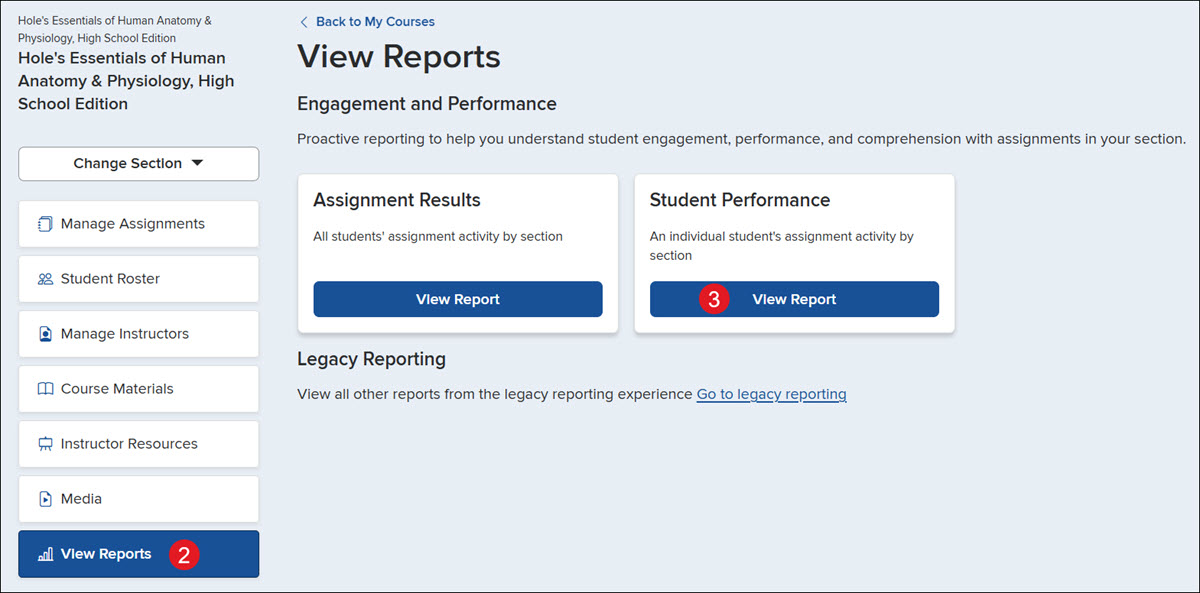
It can also be accessed by clicking on the student name from the Assignment Results report.
View Student Performance Report
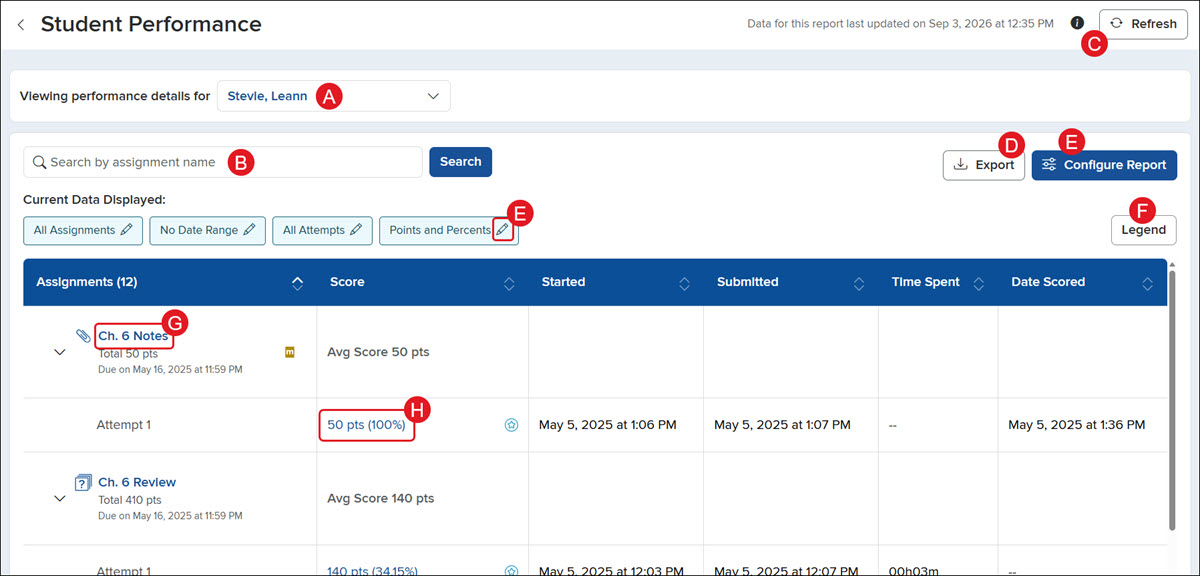
A. Navigate between student performance detail views by selecting the student from the drop-down.
B. Search for a specific assignment by entering its name in the Search field.
C. Click the Refresh button to view the most up-to-date version of the report.
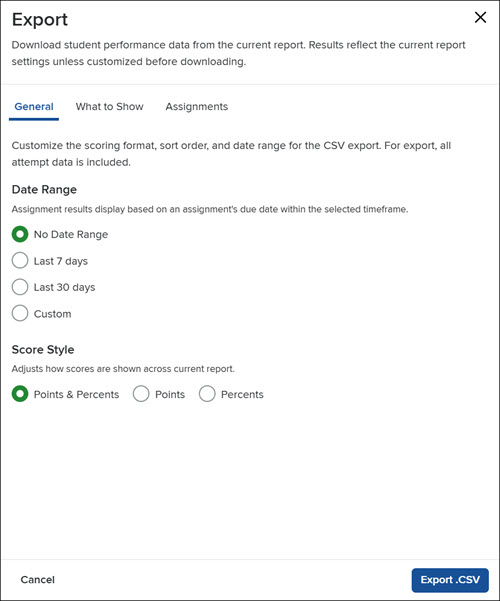
D. Click the Export button to download a CSV file of the report.
On the Export panel, select the General information, What to Show, and Assignments you want to include in the export, and then click the Export .CSV button at the bottom.
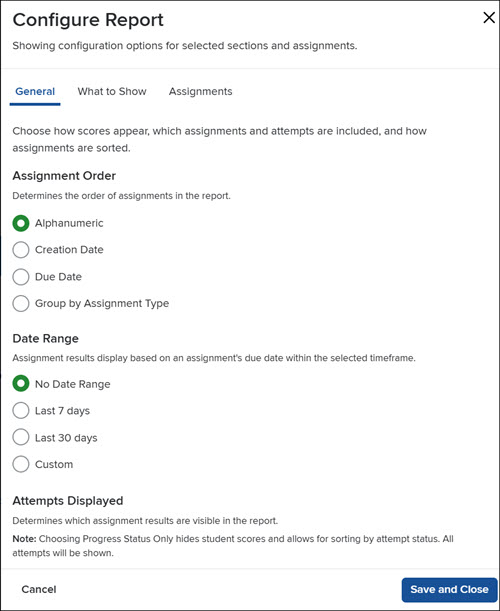
E. Click the Configure Report button or the pencil icon on one of the Current Data Displayed options to make changes to the filters.
On the Configure Report panel, select the General information, What to Show, and Assignments you want to view, and then click the Save and Close button at the bottom.
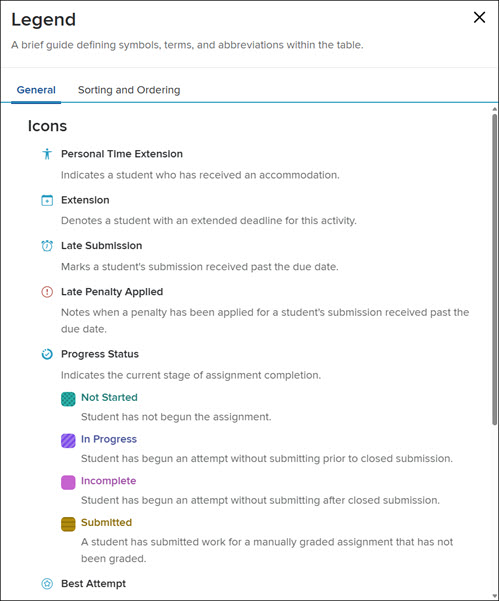
F. Click the Legend button to view what each of the different symbols/icons mean in the report.
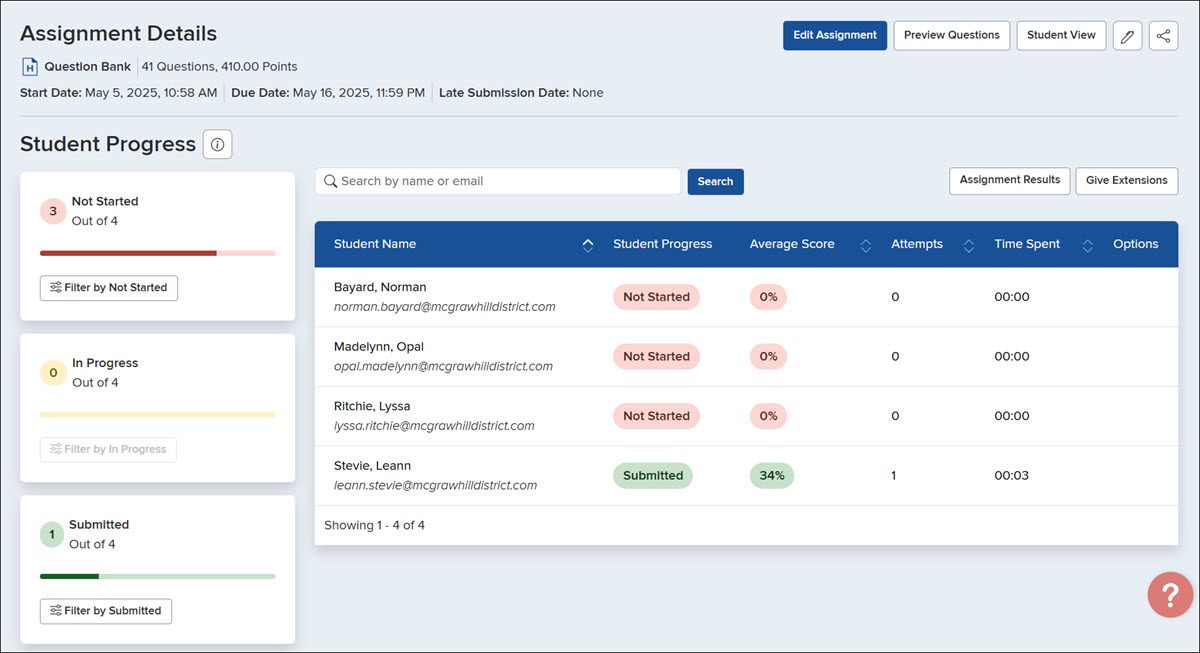
G. Click on an Assignment name to view the Assignment Details page.
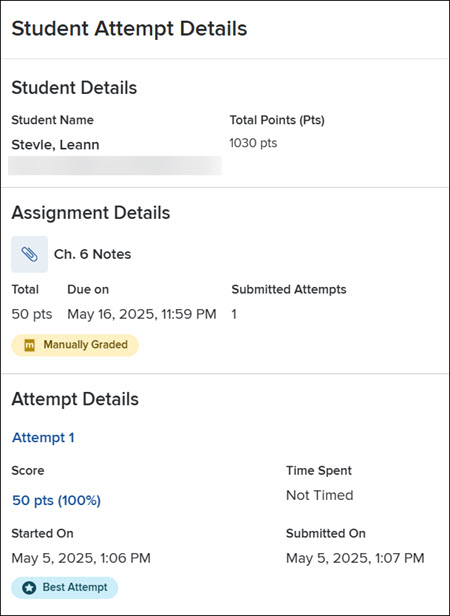
H. Click on an assignment score to open the Student Attempt Details panel.
This panel displays the student's name, total class points, assignment name, and assignment point value, along with the due date and number of submitted attempts. The lower section provides a detailed breakdown of each attempt, including the student's score, time spent, and the start and submission timestamps.