K-12 Connect® Teacher Assignment Results Report
View assignment results reports in Connect® to analyze student scores and outcomes.
- Customer Support
- PreK-12
- Classroom Teacher
- High School
- Direct Login & Auto-Rostering
- Direct Login & Manual-Rostering
- SSO & Auto-Rostering
- SSO & Manual-Rostering
- AP, Honors & Electives
- AP Connect
- Grades & Assignments
- Reports & Analytics


The Assignment Results report provides access to an aggregate of student scores on the assignments you’ve created. Assignment results provide a list of all students, in one or more sections of your course, and their corresponding scores on all or selected assignments. The assignment results report can be exported to Excel for further management outside of Connect.
Article Contents
Access Assignment Results Report
Class Assignment Results Report
Access Assignment Results Report
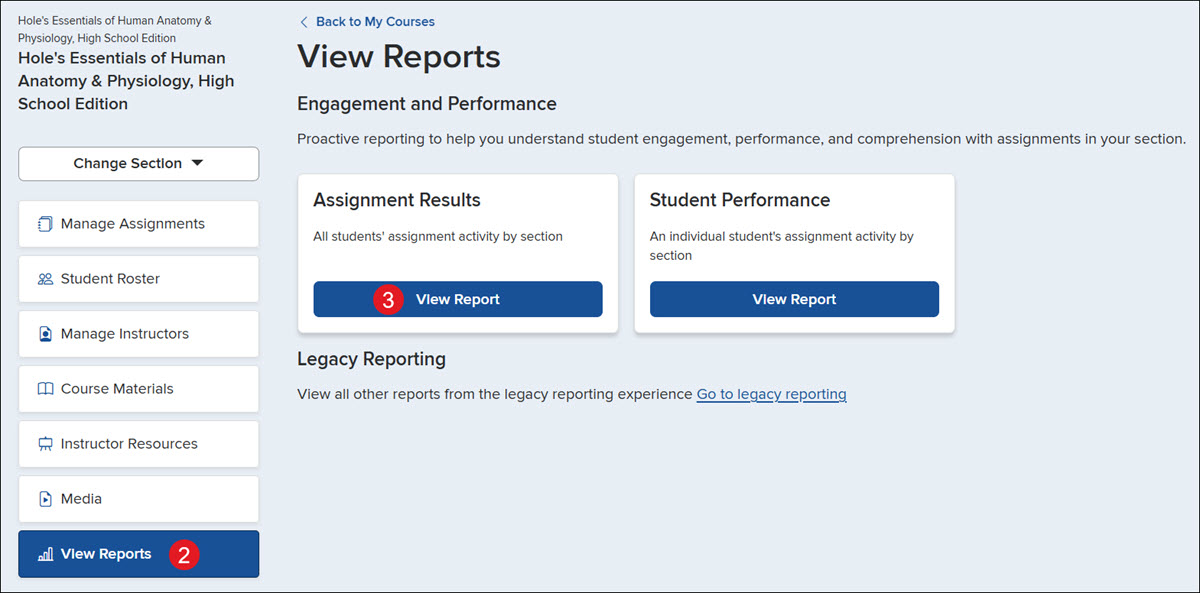
1. Click on the course name.
2. Click on View Reports from the navigation menu.
3. On the Assignment Results tile, click the View Report button.
Class Assignment Results Report
The assignment results report will display a list of your students in the first column and a subsequent column for each assignment with corresponding student scores.
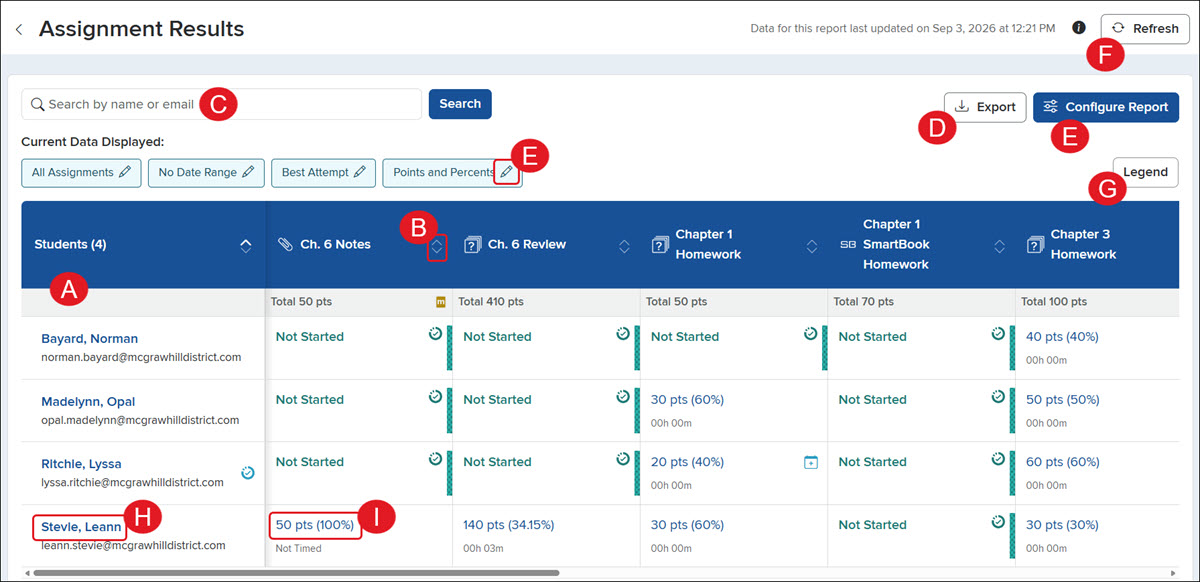
A. All Students assigned to the assignment will be listed in the far-left column of the report.
B. Click the up/down arrows on a column to sort the data by that option.
C. Enter a name or email address in the Search field to locate a specific student.
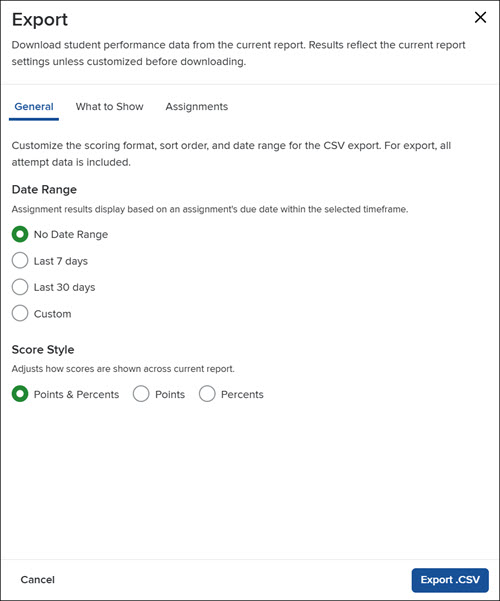
D. Click the Export button to download a CSV file of the report.
On the Export panel, select the General information, What to Show, and Assignments you want to include in the export, and then click the Export .CSV button at the bottom.
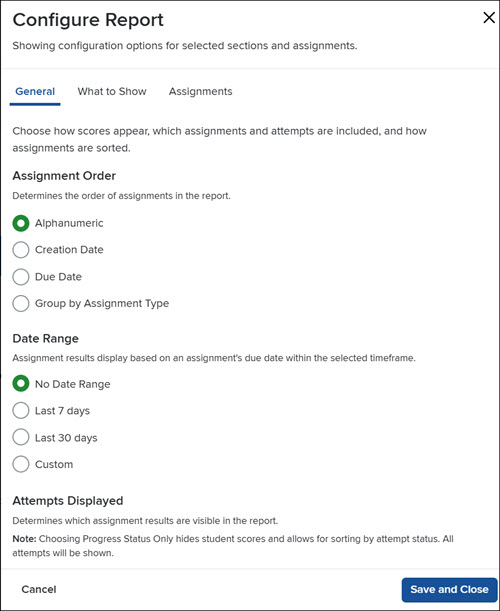
E. Click the Configure Report button or the pencil icon on one of the Current Data Displayed options to make changes to the filters.
On the Configure Report panel, select the General information, What to Show, and Assignments you want to view, and then click the Save and Close button at the bottom.
F. Click the Refresh button to view the most up-to-date version of the report.
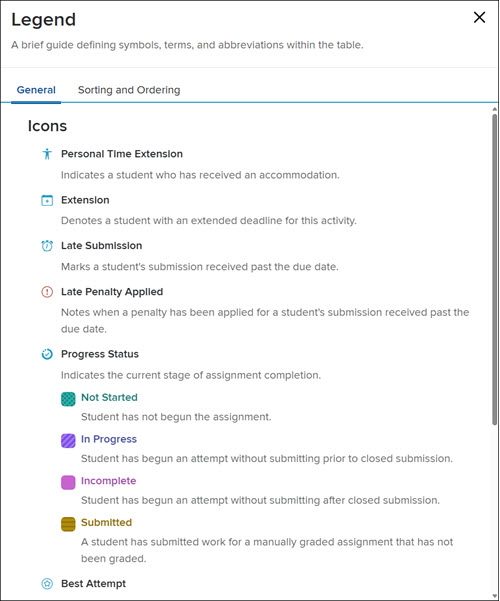
G. Click the Legend button to view what each of the different symbols/icons mean in the report.
H. Click on a Student name to navigate to the Student Performance report.
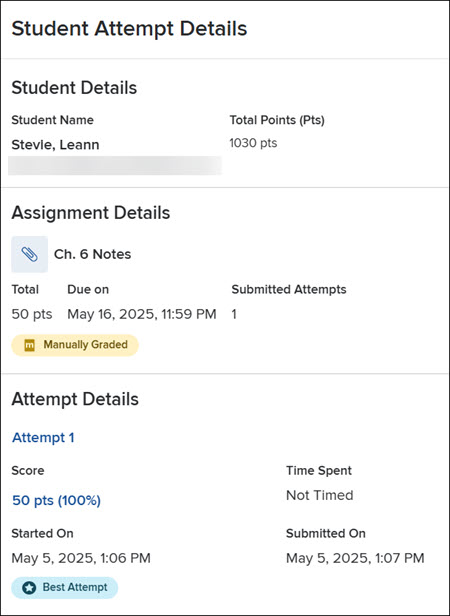
I. Click on an assignment score to open the Student Attempt Details panel.
This panel displays the student's name, total class points, assignment name, and assignment point value, along with the due date and number of submitted attempts. The lower section provides a detailed breakdown of each attempt, including the student's score, time spent, and the start and submission timestamps.