Navigating the K-12 Connect® Student Dashboard
Navigate the Connect® student dashboard to find assignments, access course materials, view due dates, and check progress.
- Customer Support
- PreK-12
- School Student
- School Parent
- High School
- Direct Login & Auto-Rostering
- Direct Login & Manual-Rostering
- SSO & Auto-Rostering
- SSO & Manual-Rostering
- AP, Honors & Electives
- AP Connect
- Dashboard & Navigation Overview
- Getting Started & Orientation


Dashboard
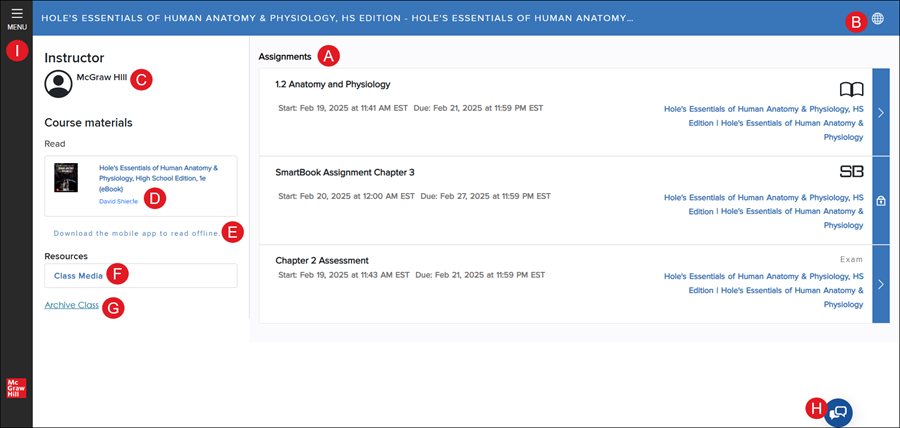
A. Assignments - Any assignments that have been given by your teacher, current and future, will be listed on your student dashboard as soon as you sign in.
B. Language - Click on the icon to toggle between English and Spanish.
C. Instructor - The teacher's name for the selected course.
D. Course Materials - Click on the link in the Read box to access our course eBook.
E. Mobile App - Click the link to navigate to the ReadAnywhere® Mobile App download page. The app will allow you to access your course offline.
F. Resources - Click on the links available to access additional course resources.
G. Archive Class - If you no longer need access to the course, click the Archive Class link.
H. Chat - Click the chat icon to speak with the Higher Education support team. If you are a K-12 student, you should contact our DTS Support team for assistance.
I. Menu - Click the menu to expand and collapse the dashboard menu panel.
Menu
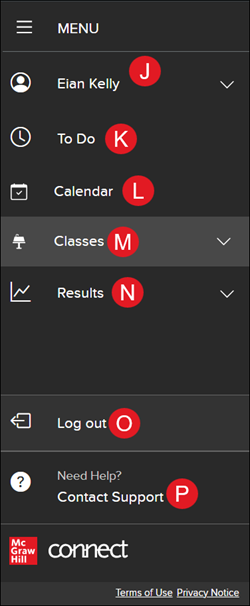
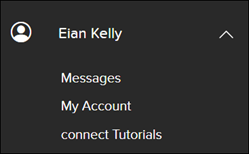
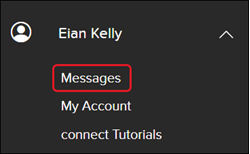
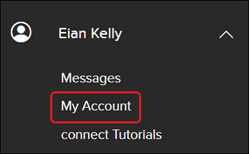
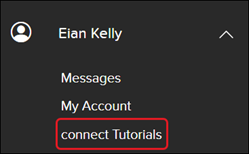
J. Student Name - Click on your name in the menu to access your messages, account, and Connect tutorials.
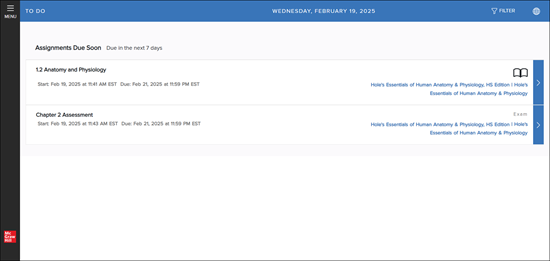
K. To Do - Click on this option to access all of your current assignments. This list will not include any assignments that are scheduled with future start dates.
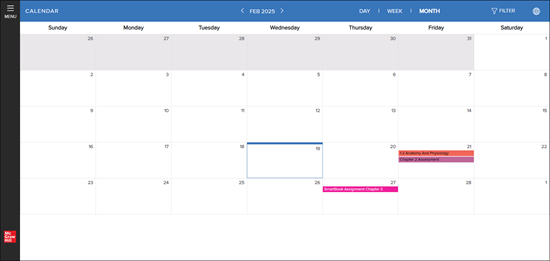
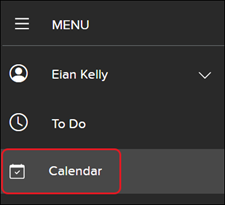
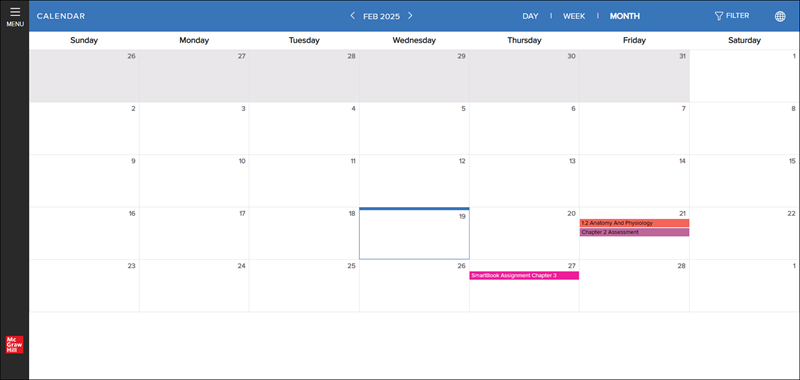
L. Calendar - Click to access your monthly calendar to view the dates your assignments are due.
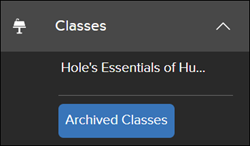
M. Classes - Click the drop-down and select a class to navigate between the classes you are assigned to.
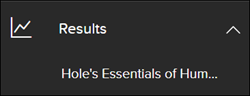
N. Results - Click the drop-down and select a class to navigate to your grades for the course.
O. Log out - Click to the log out link to sign out of your student account.
P. Contact Support - Click on the contact support link to navigate to the Higher Education contact page. If you are a K-12 student, you should contact our DTS Support team for assistance.
Messages
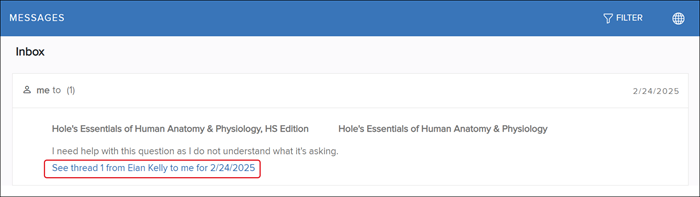
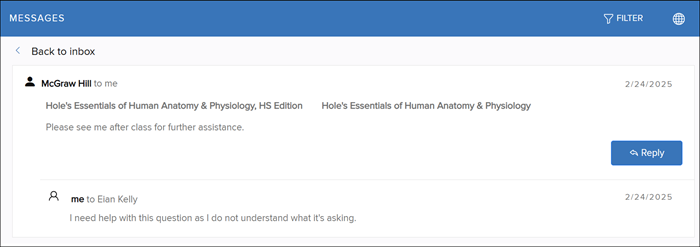
Click on the Messages option under your name drop-down to access any system messages that have been received or responses from your instructor for any questions you have reached out to your teacher about through the "Ask the Instructor" feature in assignments.
Click on the Thread link to view and respond to any messages.
Click the Reply button to respond to the message.
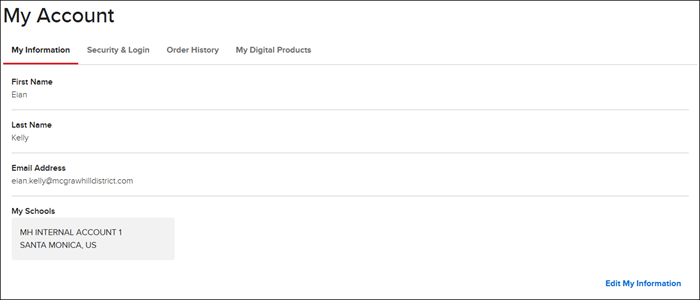
My Account
Clicking on the My Account option under your name drop-down will allow you to edit your account information, reset your current password, view your order history, and view any digital products you have purchased.
Connect Tutorial
Clicking on the connect Tutorials option under your name drop-down will navigate you to the Higher Education help site. If you are a K-12 student, you will want to visit our PreK-12 DTS help site for additional assistance.
Calendar
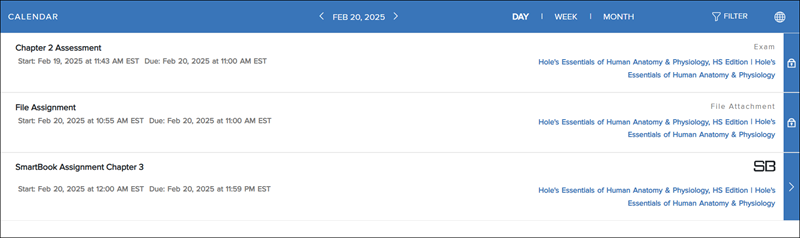
Click on Calendar from the menu to see your assignments in day, week, or monthly view.
Click on the Day option, or when in Week or Monthly view, click on the day to view and access any assignments due for that day.
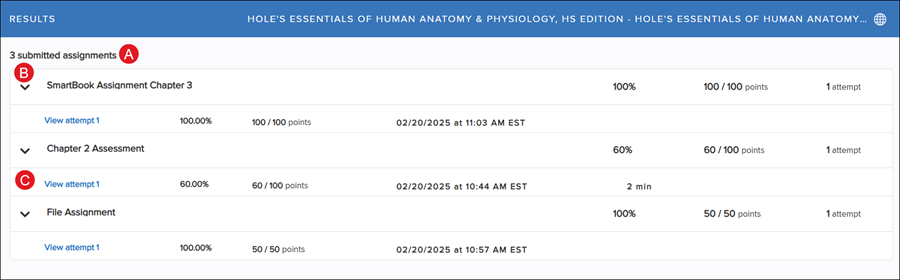
Results
To view the results of your completed assignments, from the Menu, click on the Results option and select your class.
A. The list of Results will show any assignments that you have completed.
B. Click the arrow next to the assignment name to expand the section.
C. Each expanded section will show how many attempts were done for each assignment, the percentage received, the total number of points received and how many each assignment is worth, the time and date of completion, and with some assignment types - how many minutes it took to complete the assignment.