Message Your K-12 Connect® Teacher While Completing Assignments
Use the Ask Your Instructor option to message your teacher about assignments, access issues, or course questions.
- AP Connect
- SSO & Manual-Rostering
- Customer Support
- Grades & Assignments
- Direct Login & Auto-Rostering
- School Student
- Middle School
- Direct Login & Manual-Rostering
- High School
- AP, Honors & Electives
- School Parent
- SSO & Auto-Rostering
- PreK-12


For a full page view of the demo, click here.
For a Spanish version of the demo, click here.
When completing an assignment or assessment, there is an Ask Your Instructor option that you can use. If you do not see this as an option within your assignment, this means your teacher did not activate the feature.
Article Contents
Send a Message
1. Launch your assignment.
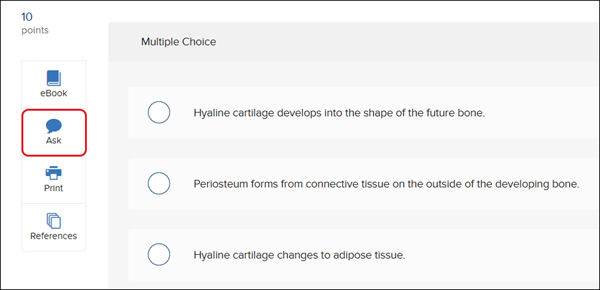
2. Click the Ask icon to the right of the question.
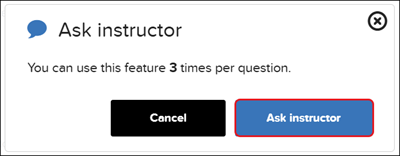
3. On the Ask instructor pop-up, click the Ask instructor button.
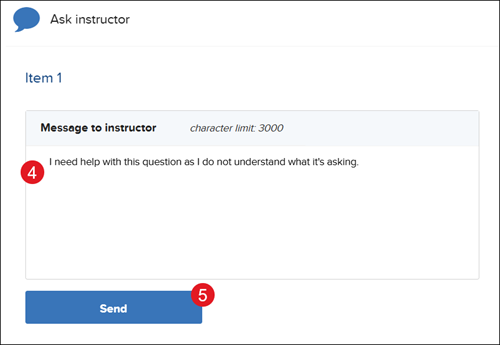
4. On the Ask instructor panel, enter your question in the Message to instructor text box.
5. Click the Send button.
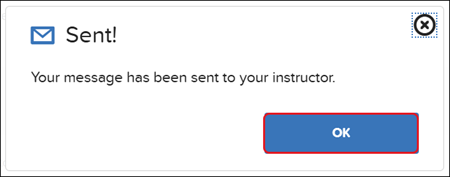
6. You will then receive a pop-up informing you that your message has been sent. Click the OK button.
Access Messages
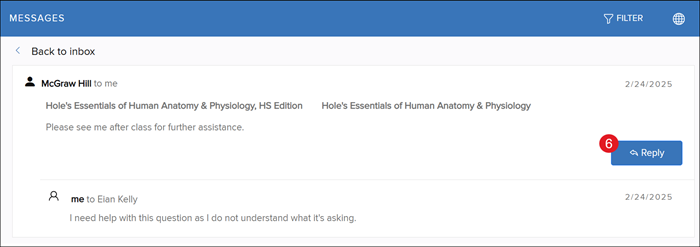
To see any messages you have sent through Ask Your Instructor and to view any responses from your teacher:
1. If you're currently in an assignment, Save and Exit.
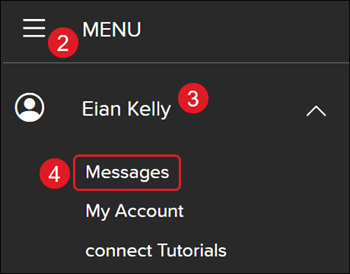
2. Click Menu on your homepage.
3. Click on your name to expand the additional menu.
4. Click Messages.
5. Click the Thread link to send and view any responses.
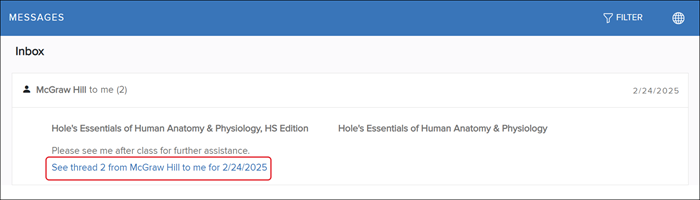
6. Click the Reply button to send a return message.