Create, Duplicate, Delete, or Archive a K-12 Connect® Course
Learn how to easily manage your Connect courses.
- Customer Support
- PreK-12
- Classroom Teacher
- High School
- Direct Login & Auto-Rostering
- Direct Login & Manual-Rostering
- SSO & Auto-Rostering
- SSO & Manual-Rostering
- AP, Honors & Electives
- AP Connect
- Class Management
- Getting Started & Orientation
- Back-to-School Setup


View the demo in a separate tab.
View the Spanish version of the demo.
If a teacher does not yet have a Connect account, they should fill out the Connect AP*/Honors, Electives, and Custom Publications Teacher Resource Activation form.
Keep in mind that if you already have a course created for the material you're using for your class, but have multiple classes using the same content, you can create additional sections under the same course instead of creating a new course for each class. Refer to the Add, Duplicate, Delete, or Archive a K-12 Connect® Section article for more information.
Article Contents
Create a New Course
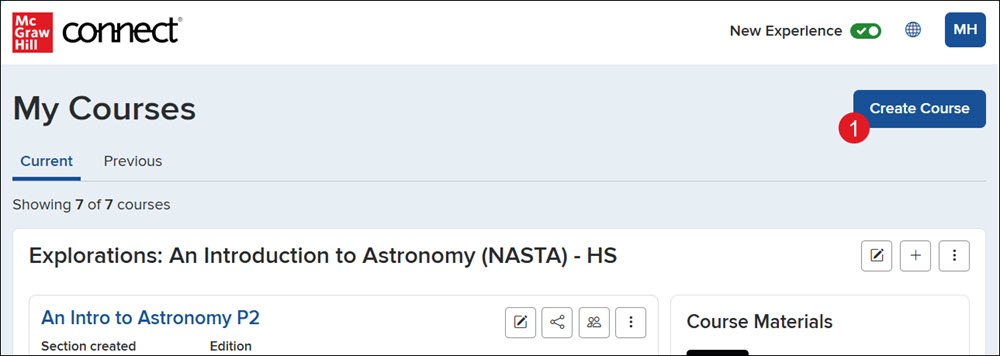
1. Click the Create Course button.
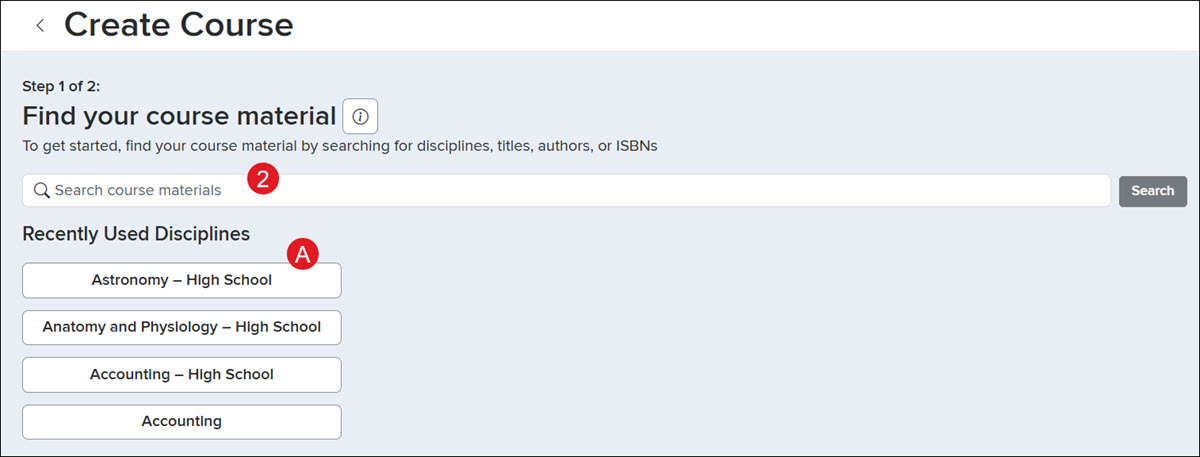
2. Search by discipline, title, author, or ISBN for the course you need.
A. You can also select an option from the Recently used disciplines list.
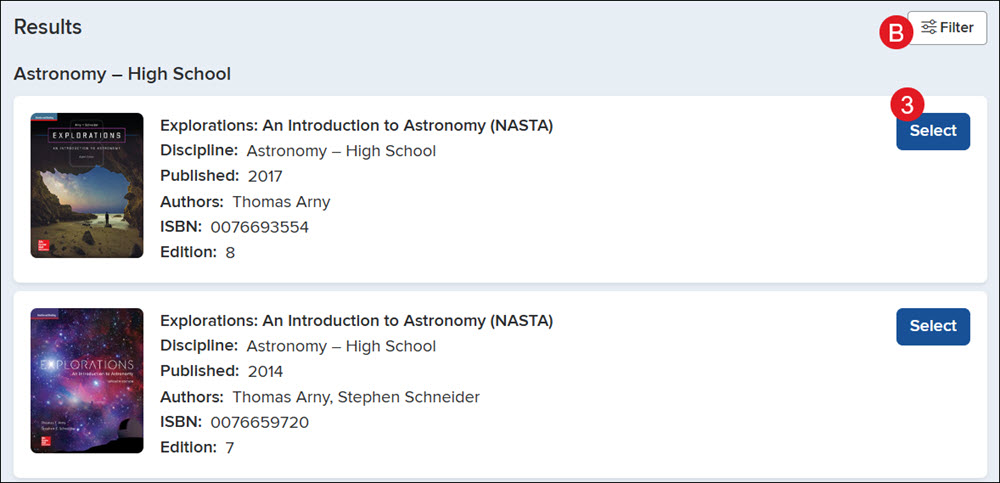
3. Click the Select button on the course.
B. If there are multiple results, you can Filter them by Discipline, Author, and Publication year.
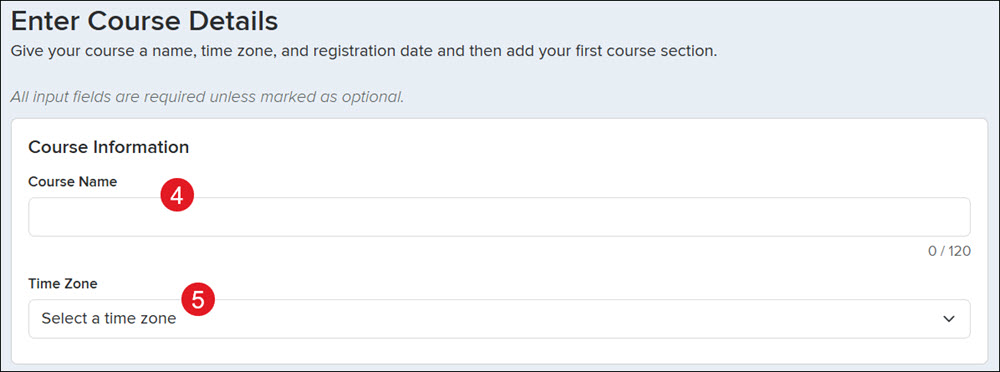
4. Enter a Course Name.
5. Select the correct Time Zone from the drop-down.
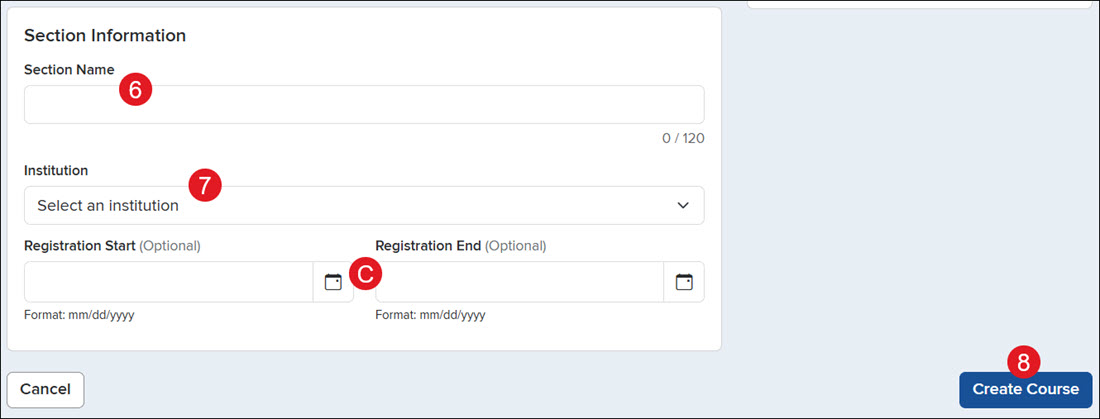
6. Enter a Section Name.
7. Select the correct Institution from the drop-down.
C. Set a Registration Start and End date. This is optional. Students will only be able to register for this section during those set dates.
8. Click the Create Course button.
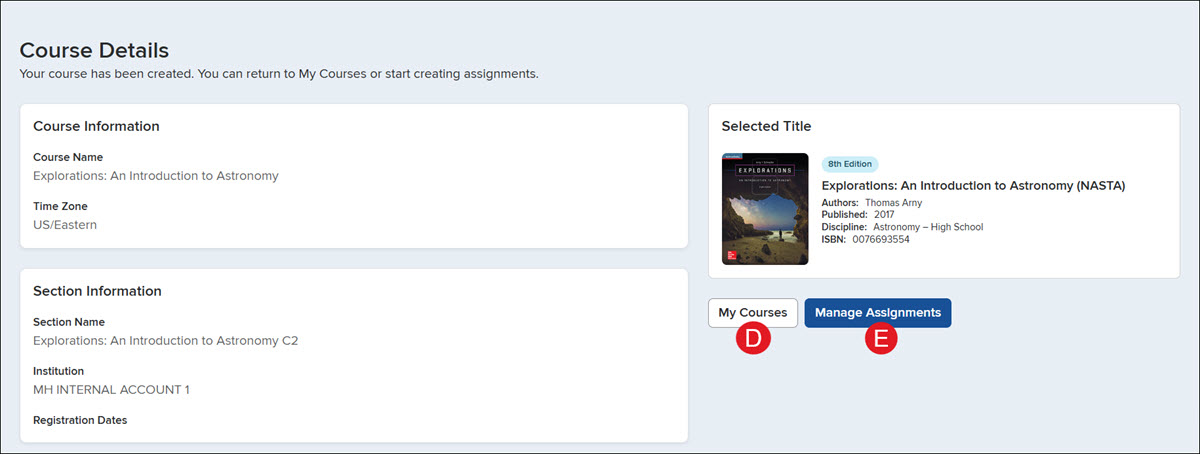
The page will then load to the Course Details page with the Selected Title, Course Information, and Section Information.
D. Click the My Courses button to navigate back to your main course page.
E. Click the Manage Assignments button to create new assignments for the section.
Duplicate a Course
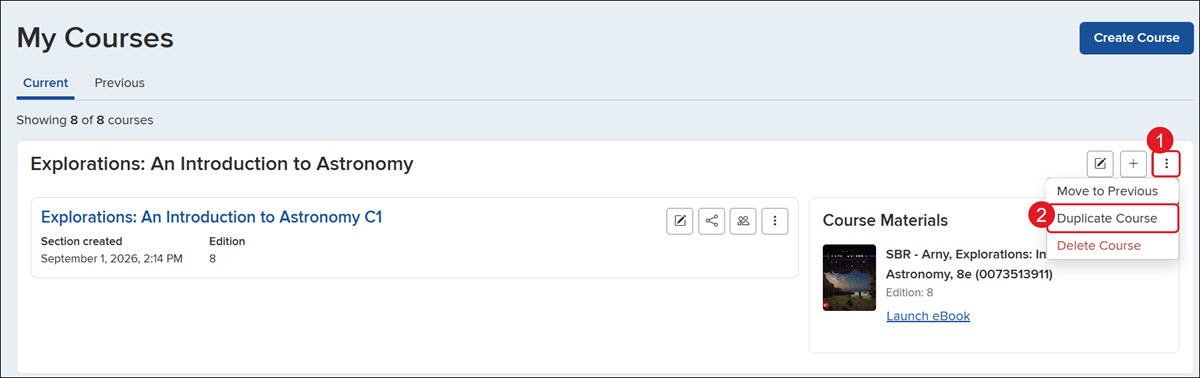
1. On your My Courses page, click the Options button to the right of the course name.
2. Click Duplicate Course on the menu.
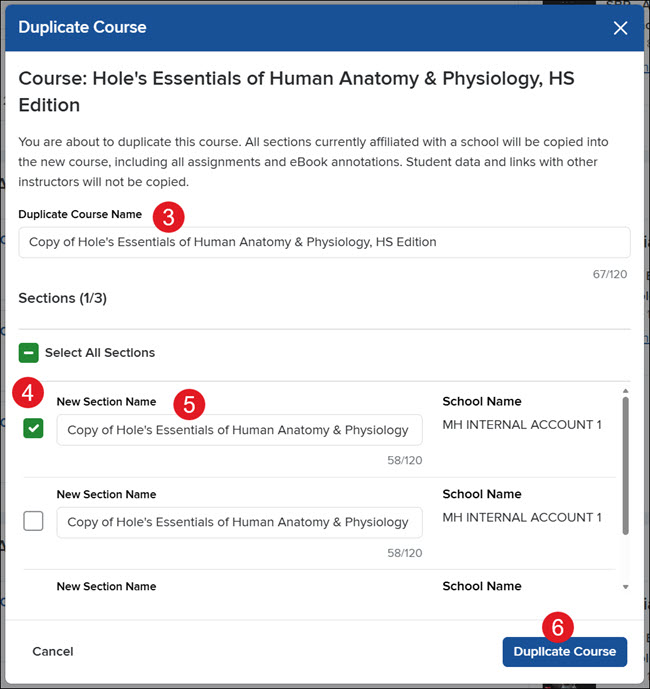
3. Enter a Duplicate Course Name.
4. Select the Sections you want to create copies of.
5. Enter a New Section Name.
6. Click the Duplicate Course button.
Delete a Course
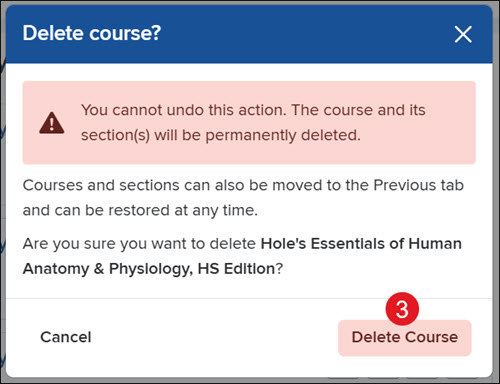
Keep in mind that deleting a course will remove it permanently from your account, and it cannot be undone. It will also remove all the associated sections. We recommend archiving the course instead.
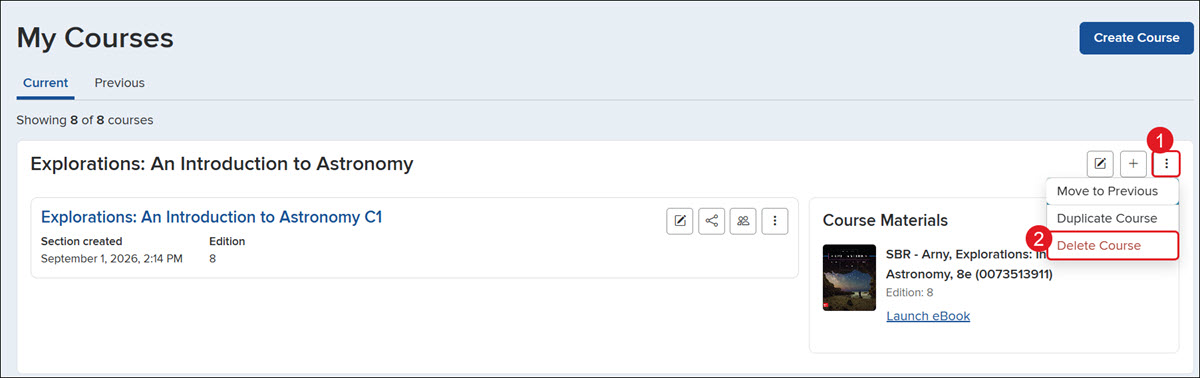
1. On your My Courses page, click the Options button to the right of the course name.
2. Click Delete Course on the menu.
3. On the pop-up, click the Delete Course button.
Archive a Course (Move to Previous)
Moving courses to Previous means that you are archiving the class, and it can no longer be accessed by students.
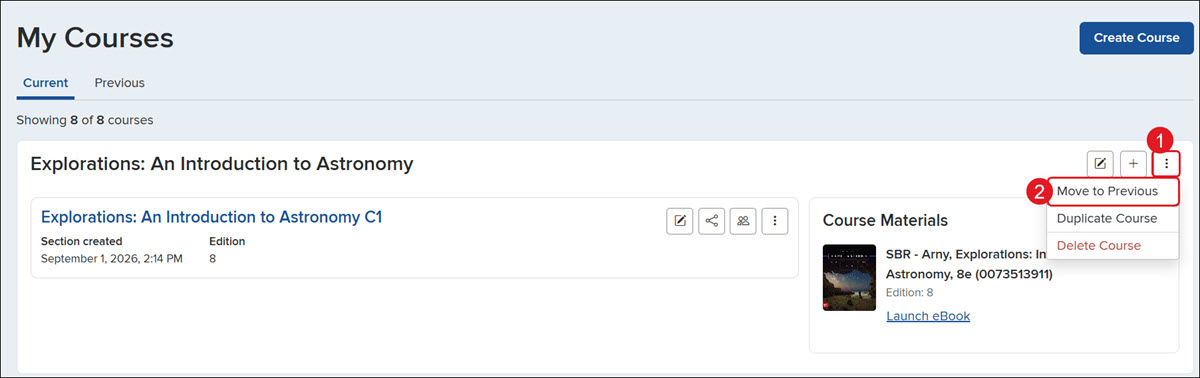
1. On your My Courses page, click the Options button to the right of the course name.
2. Click Move to Previous on the menu.
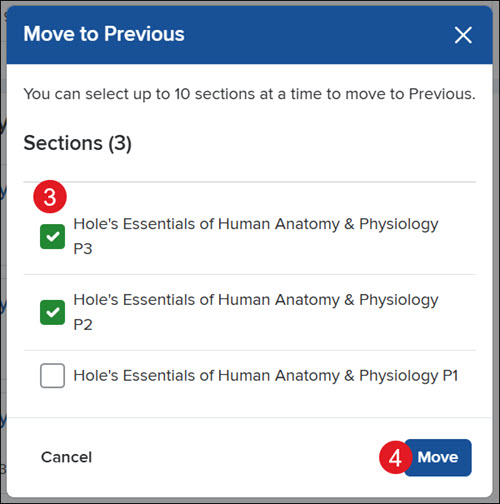
3. Check the Sections you want to archive.
4. Click the Move button.
Unarchive a Course (Move to Current)
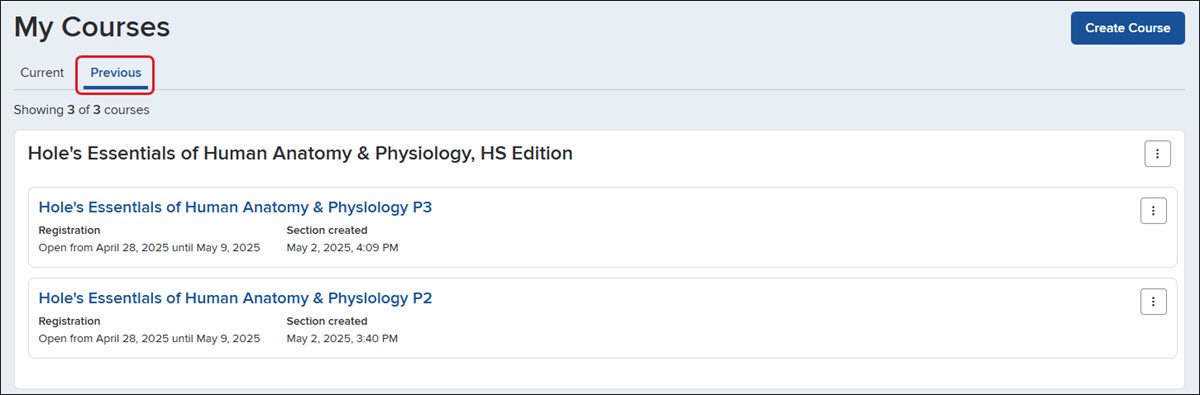
Click the Previous tab to view all the courses that have been archived.
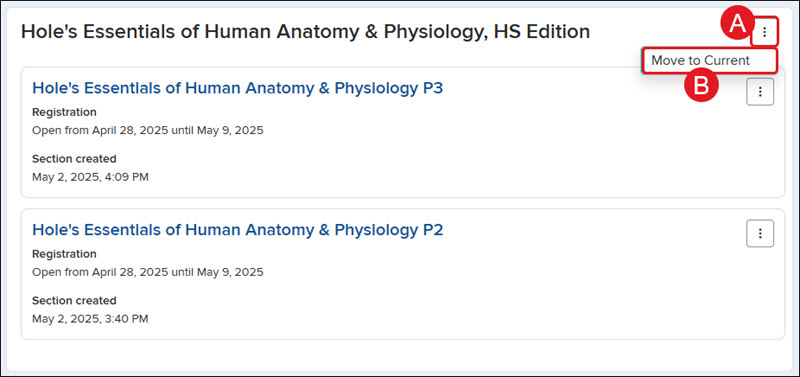
To move all sections for a course, click the Options button (A) to the right of the course name and click Move to Current (B) from the menu.
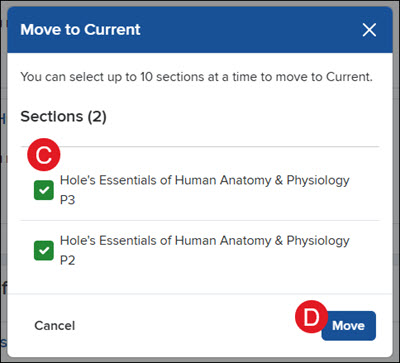
On the pop-up, check the Sections (C) you want to move to current and click the Move (D) button.
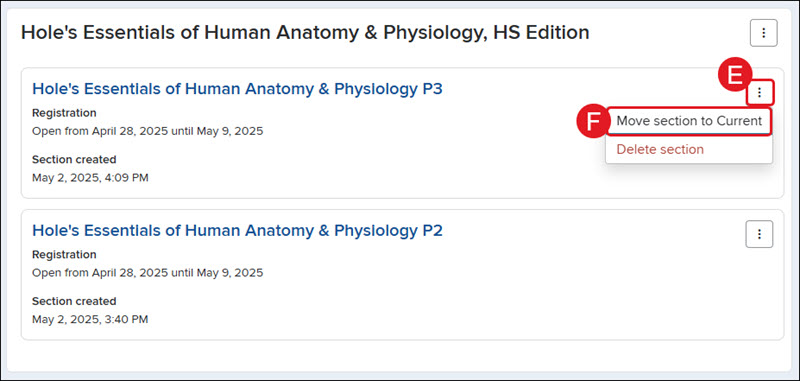
To move a specific section, click the Options button (E) to the right of the section name and click Move section to Current (F) from the menu.
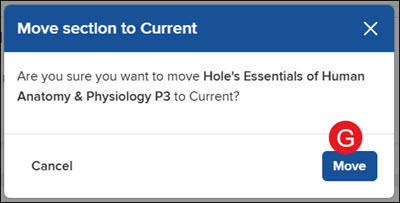
On the pop-up, click the Move button (G) to confirm.