
Update Existing User Accounts Using Administrator Import Process
Learn how to update existing student and teacher accounts using the administrator importing tool.
- PreK-12
- Customer Support
- Direct Login & Manual-Rostering
- SSO & Manual-Rostering
- Preschool
- Elementary School
- Middle School
- High School
- Core
- Intervention
- Supplemental
- AP, Honors & Electives
- Literacy
- Math
- Science
- Social Studies
- Health
- Visual & Performing Arts
- World Languages
- AP Biology
- AP Chemistry
- AP History & Geography
- AP Psychology
- AP Economics
- AP African American Studies
- AP Precalculus
- AP Statistics
- AP Computer Science
- AP Language and Composition
- AP Public Speaking
- AP Music Theory
- 5 Steps to a 5 - AP Test Prep
- Glencoe Health 2022
- Teen Health 2021
- Arrive Math
- Building Blocks 2024
- Building Blocks PreK 2025
- Number Worlds 2024
- SRA Reading Laboratory 2025
- SRA Reading Mastery Transformations
- Achieve3000 Literacy
- Actively Learn
- McGraw Hill Literacy Emerge!
- McGraw Hill Literacy Summit!
- McGraw Hill Literacy Soar!
- Open Court Reading 2025
- Redbird
- StudySync 2021
- ALEKS
- ALEKS Adventure
- CA Reveal Math (K-12)
- Illustrative Math
- Redbird Math
- Texas Math
- CA Inspire Science 2020
- FL Science 2025 (K-12)
- Inspire Science 2020
- TN Science (K-12)
- TX Science 2025 (K-12)
- CA Impact 2019
- FL Social Studies 2024 (K-12)
- Impact Social Studies
- McGraw Hill Social Studies
- All Sorts 2026 (K-5)
- Asi se Dice 2024
- CTE - Health Science
- CTE - Agriculture
- CTE - Computing and Technology
- CTE - Culinary Arts
- CTE - Early Childhood Education
- CTE - Business, Marketing, and Finance
- CTE - Criminal Justice
- Glencoe Health 2014
- McGraw Hill Health 2014
- 2Inform
- Building Blocks 2015
- Connecting Math Concepts
- Number Worlds 2015
- Corrective Reading
- Early Interventions in Reading
- Spelling Mastery
- WonderWorks 2022 & 2014
- Maravillas 2020 & 2017
- OCR Foundational Skills Kit
- OCR Word Analysis Kit
- Open Court Reading 2016, 2018, 2023
- StudySync 2015 & 2017
- Wonders
- Wonders 2014
- Wonders 2023 2020 2017
- Wonders Balanced Literacy 2016
- Wonders EL 2016
- World of Wonders 2017
- Core Plus Math 2015
- Everyday Mathematics 4 (K-6)
- Glencoe Algebra 1 2014
- Glencoe Algebra 2 2014
- Glencoe Algebra 1 2018
- Glenoce Algebra 2 2018
- Glencoe Math
- Glencoe Geometry 2014
- Glencoe Geometry 2018
- Glencoe Math Course 1
- Glencoe Math Course 2
- Glencoe Math Course 3
- Glencoe Math Accelerated
- McGraw Hill My Math
- McGraw Hill My Math 2013 & 2016
- McGraw Hill My Math 2018
- Pre-Algebra 2012
- Glencoe Science
- Glencoe Science 2017
- Inspire Science 2017
- iScience 2017
- Networks
- Networks 2014 (K-5)
- Networks 2018
- Networks 2014 & 2016
- Music! Its Role
- Spotlight on Music
- Asi se Dice 2016
- User Management
- Account Management


For a full page view of the demo.
For a Spanish version of the demo.
Using the Import Users/Rosters bulk import process does not allow you to remove students, teachers, or classes from the organization account. For steps on dropping staff from the organization account, refer to the Manage Users for Manual Rostering Districts article. For steps on archiving classes, refer to the Archive Classes as an Administrator article.
To ensure you are completing each field correctly, we recommend having the Administrator Import Users/Rosters Template Instructions opened as well.
If you need to move students between schools, refer to the Move Students Between Schools for Manual Rostering Districts article.
Article Contents
Access Import Users/Rosters
1. Log into your Organization Administrator account.
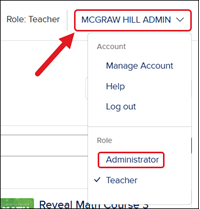
Note: If you have both the Teacher and Administrator roles, you'll need to switch to your Administrator role on your Profile menu to access the Admin Tools. For steps on toggling between roles, refer to the How to Access Roles, Organizations, and Profile Setting article.
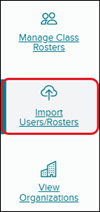
2. Click on Import Users/Rosters from the navigation menu.
3. Click on the Select School drop-down and select the school you want to complete the import for.

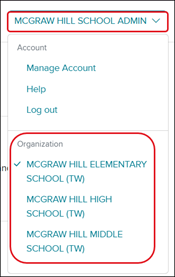
If you are a School Organization Administrator, you will need to select the school you want to complete the import for from your Profile menu in the Organization section.
Update Existing User Accounts
1. Download the Export Teachers & Students file.
This file lists all teacher and student accounts associated with the school you selected.

2. On the Export Teachers & Students file, you can make changes to the following:
- User ID
- Role
- First Name
- Last Name
- Grade Level
- Username
- Password
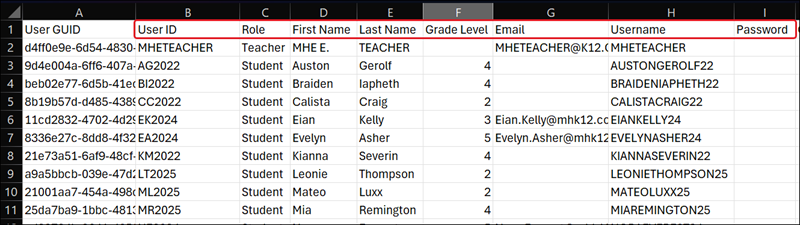
DO NOT make changes or delete the User GUID. This will cause errors when you go to upload the updated file.
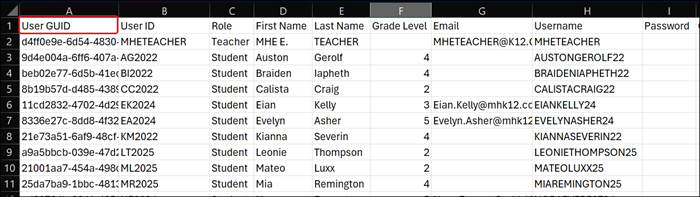
3. Save your user file somewhere easy to locate on your device.
Upload Users/Rosters File
1. On the Import Users/Rosters page, click the Choose File button and select the completed copy of the template from your device.
2. Click the Upload button.
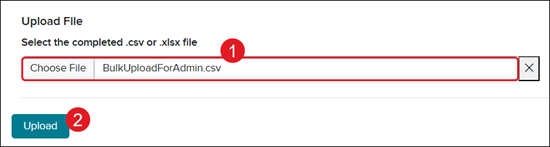
The page will automatically navigate to the Upload History page. Depending on how large the file is, the time will vary on the upload process.
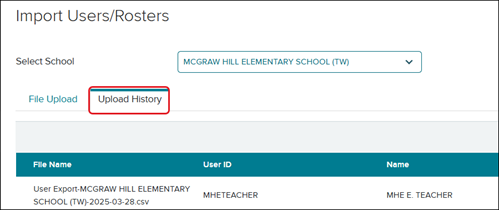
The Status of your import shows its current stage of processing:
Queued means that the import will be processed as soon as possible but has not started yet.
In Progress means that the import has started processing
To check the status of your import, click the Refresh button at the top-right.
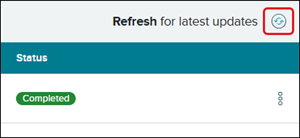
Once the status changes to Completed, your file has finished processing. If you see Completed with Errors in the Status column, this means a portion of your file was unable to process some of the entered data.
You can click the Actions icon to download the Uploaded File, Completed File, or Error File.
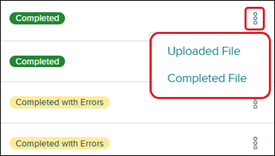
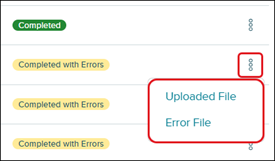
The Uploaded File is the exact file that you uploaded (minus account passwords if you included those on your original file). It's available so that you can access it later if needed.
The Completed File is a summary of all student, teacher, and class information that was processed successfully.
Each account created via the import process now has a system-generated User GUID.
If you left the username and password columns blank, the file contains the system-generated usernames along with a temporary password for each account.
The temporary password will expire when it is initially used; the student will be required to set their own permanent custom password once they log in to their account.
If the student(s) don't access their account within 90 days of the temporary password being set, an administrator or teacher will need to manually reset their password.
Share the username (and password, if applicable) on this file with the teachers so they can access their accounts as well as provide the students with their logins.
The Error File is a summary of the students, teachers, and/or classes that did not process successfully. It shows the rows that triggered the error and the specific reason why these rows failed in the Error column on the far right.
If the data was partially processed and a student, teacher, and/or class was created, the Error file will include the relevant GUIDs for those student(s), teacher(s), and/or class(es).
You can review the error message(s) and correct the information. Correct the issues described in the error message, save the updated file to your computer, and re-import it.
- You do not need to remove the Error column from the file to re-import it.
Refer to the Import Users/Rosters - Errors and Resolution Steps document for details on each error received and how to resolve them.
