Archive Classes as an Administrator
Instructions on how to archive classes within the Administrator Tools.
- SSO & Manual-Rostering
- Customer Support
- Direct Login & Auto-Rostering
- Middle School
- Direct Login & Manual-Rostering
- High School
- SSO & Auto-Rostering
- PreK-12
- School Administrator
- Preschool
- Elementary School
- Core
- Intervention
- Supplemental
- AP, Honors & Electives
- Literacy
- Math
- Science
- Social Studies
- Health
- Visual & Performing Arts
- World Languages
- Reveal Math (K-12)
- AP Biology
- AP Chemistry
- AP History & Geography
- AP Psychology
- AP Economics
- AP African American Studies
- AP Precalculus
- AP Statistics
- AP Computer Science
- AP Language and Composition
- AP Public Speaking
- AP Music Theory
- 5 Steps to a 5 - AP Test Prep
- Glencoe Health 2022
- Teen Health 2021
- Arrive Math
- Building Blocks 2024
- Building Blocks PreK 2025
- Number Worlds 2024
- SRA Reading Laboratory 2025
- SRA Reading Mastery Transformations
- Achieve3000 Literacy
- Actively Learn
- McGraw Hill Literacy Emerge!
- McGraw Hill Literacy Summit!
- McGraw Hill Literacy Soar!
- Open Court Reading 2025
- Redbird
- StudySync 2021
- ALEKS
- ALEKS Adventure
- CA Reveal Math (K-12)
- Illustrative Math
- Redbird Math
- CA Inspire Science 2020
- FL Science 2025 (K-12)
- Inspire Science 2020
- TN Science (K-12)
- TX Science 2025 (K-12)
- CA Impact 2019
- FL Social Studies 2024 (K-12)
- Impact Social Studies
- McGraw Hill Social Studies
- All Sorts 2026 (K-5)
- Asi se Dice 2024
- CTE - Health Science
- CTE - Agriculture
- CTE - Computing and Technology
- CTE - Culinary Arts
- CTE - Early Childhood Education
- CTE - Business, Marketing, and Finance
- CTE - Criminal Justice
- Glencoe Health 2014
- McGraw Hill Health 2014
- 2Inform
- Building Blocks 2015
- Connecting Math Concepts
- Number Worlds 2015
- Corrective Reading
- Early Interventions in Reading
- Spelling Mastery
- WonderWorks 2022 & 2014
- Maravillas 2020 & 2017
- OCR Foundational Skills Kit
- OCR Word Analysis Kit
- Open Court Reading 2016, 2018, 2023
- StudySync
- StudySync 2015 & 2017
- Wonders
- Wonders 2014
- Wonders 2023 2020 2017
- Wonders Balanced Literacy 2016
- Wonders EL 2016
- Core Plus Math 2015
- Everyday Mathematics 4 (K-6)
- Glencoe Algebra 1 2014
- Glencoe Algebra 2 2014
- Glencoe Algebra 1 2018
- Glenoce Algebra 2 2018
- Glencoe Math
- Glencoe Geometry 2014
- Glencoe Geometry 2018
- Glencoe Math Course 1
- Glencoe Math Course 2
- Glencoe Math Course 3
- Glencoe Math Accelerated
- McGraw Hill My Math
- McGraw Hill My Math 2013 & 2016
- McGraw Hill My Math 2018
- Pre-Algebra 2012
- Glencoe Science
- Glencoe Science 2017
- Inspire Science 2017
- iScience 2017
- Networks
- Networks 2018
- Networks 2014 (K-5)
- Networks 2014 & 2016
- Music! Its Role
- Spotlight on Music
- Asi se Dice 2016
- Texas Math
- Class Management
- Account Management
- Products & Licenses


This article walks administrators through how to archive classes.
For a full page view of the demo, click here.
For a Spanish version of the demo, click here.
Administrators can archive individual classes from the Manage Class Rosters page in their Admin Tools. Archived classes are hidden from students and teachers, although teachers can access archived classes from their dashboard and reactivate them at any time.
Archiving a class releases all teacher and student licenses that were consumed by those enrolled in the class. However, students will lose access to the class immediately. Only archive a class once it has reached its end date or you're certain that students no longer need access to class materials.
Note: Students do not need to be removed from the class to be able to archive it. It is recommended to leave students associated to the classes so that teachers can still access student reports.
1. SSO or log in at my.mheducation.com.
If you have dual roles as a teacher and an administrator, navigate to your Administrator view.
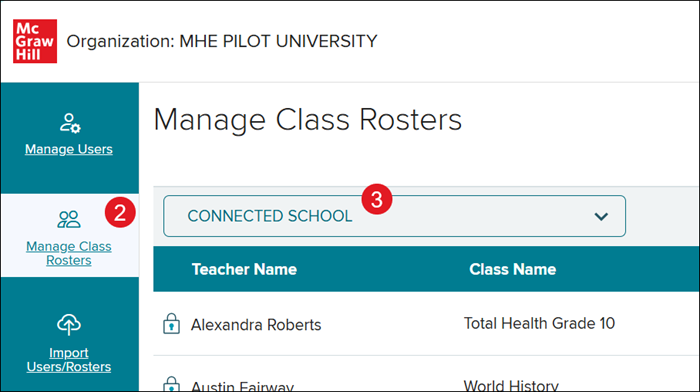
2. Click Manage Class Rosters on the navigation menu.
3. For District Organization Administrators, select the school where the class is associated from the drop-down.
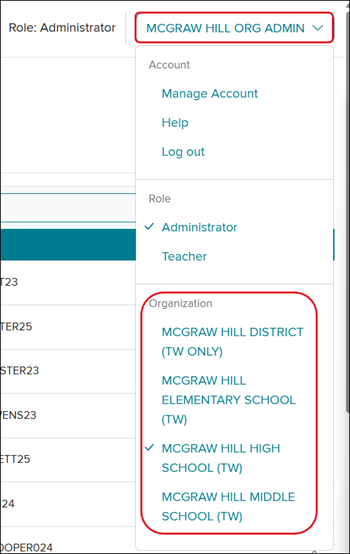
For School Organization Administrators, click on your Profile button at the top-right and select the correct school from the Organization section.
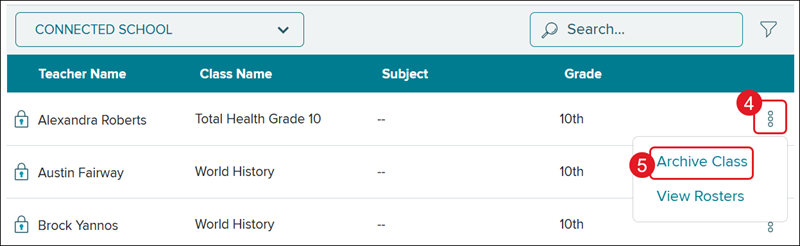
4. Click the kebob icon to the right of the class name.
5. Click Archive Class from the menu.
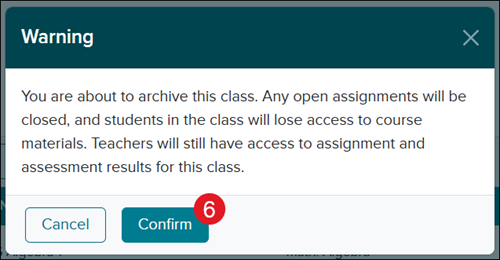
6. On the Warning pop-up, click the Confirm button.