Share ConnectED Resources and Assessments to Google Classroom™
Learn how to share ConnectED resources to Google Classroom™ for student access.
- Customer Support
- PreK-12
- Classroom Teacher
- Preschool
- Elementary School
- Middle School
- High School
- Direct Login & Auto-Rostering
- Direct Login & Manual-Rostering
- SSO & Auto-Rostering
- SSO & Manual-Rostering
- Core
- Intervention
- Supplemental
- AP, Honors & Electives
- Literacy
- Math
- Science
- Social Studies
- Health
- Visual & Performing Arts
- World Languages
- Glencoe Health 2014
- McGraw Hill Health 2014
- Building Blocks 2015
- Number Worlds 2015
- WonderWorks 2022 & 2014
- Maravillas 2020 & 2017
- OCR Foundational Skills Kit
- OCR Word Analysis Kit
- Open Court Reading 2016, 2018, 2023
- Wonders
- Wonders 2014
- Wonders 2023 2020 2017
- Wonders Balanced Literacy 2016
- Wonders EL 2016
- World of Wonders 2017
- Core Plus Math 2015
- Everyday Mathematics 4 (K-6)
- Glencoe Algebra 1 2014
- Glencoe Algebra 1 2018
- Glencoe Algebra 2 2014
- Glenoce Algebra 2 2018
- Glencoe Math
- Glencoe Geometry 2014
- Glencoe Geometry 2018
- Glencoe Math Course 1
- Glencoe Math Course 2
- Glencoe Math Course 3
- Glencoe Math Accelerated
- McGraw Hill My Math 2013 & 2016
- McGraw Hill My Math 2018
- McGraw Hill My Math
- Pre-Algebra 2012
- Glencoe Science 2017
- Glencoe Science
- Inspire Science 2017
- iScience 2017
- Networks
- Networks 2014 (K-5)
- Networks 2014 & 2016
- Networks 2018
- Music! Its Role
- Spotlight on Music
- Asi se Dice 2016
- CTE - Business, Marketing, and Finance
- Level Up K–5
- Level Up 6–8
- Level Up 9–12
- Google Classroom™
- Tools & Resources
- Plan & Present
- Online Assessments


To easily share resources to your Google Classroom, you'll first want to pair your McGraw Hill teacher account with your Google account. To do this, follow the steps on the Pair/Unpair Your McGraw Hill Teacher Account with Your Google Account article.
Article Contents
Create a Google Classroom Class
Share Resources to Google Classroom
Share Assessments to Google Classroom
Create a Google Classroom Class
These steps only need to be followed if you do not have existing classes already in Google Classroom.
- Navigate to Google Classroom.
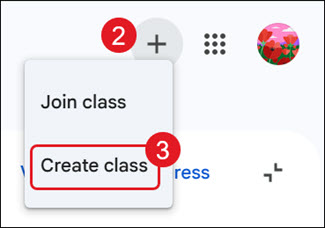
- Click the Create or join a class (plus icon) button.
- Click Create class from the menu.
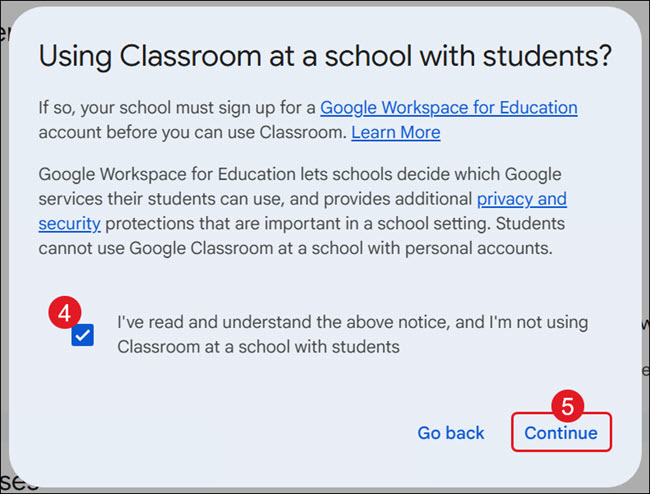
- On the pop-up, check the box indicating that you have read the notice.
- Click the Continue button.
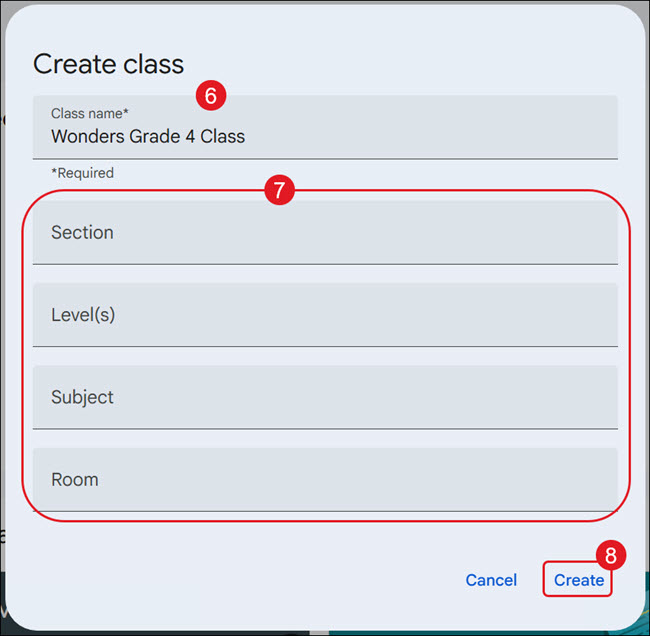
- Enter a Class Name.
- Enter a Section name, Level(s), Subject, and/or Room in the provided fields. These are optional.
- Click the Create button.
Share Resources to Google Classroom
Note: Not all resources will have the option to share them to Google Classroom.
- On your My Programs page, click on the class tile.
- Locate the resource you would like to share to Google Classroom.
- Click on the Tools (gear) icon.
- Click Share with Google Classroom from the menu.
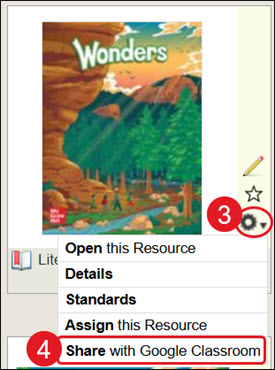
The Google Classroom page will open in a new browser tab.
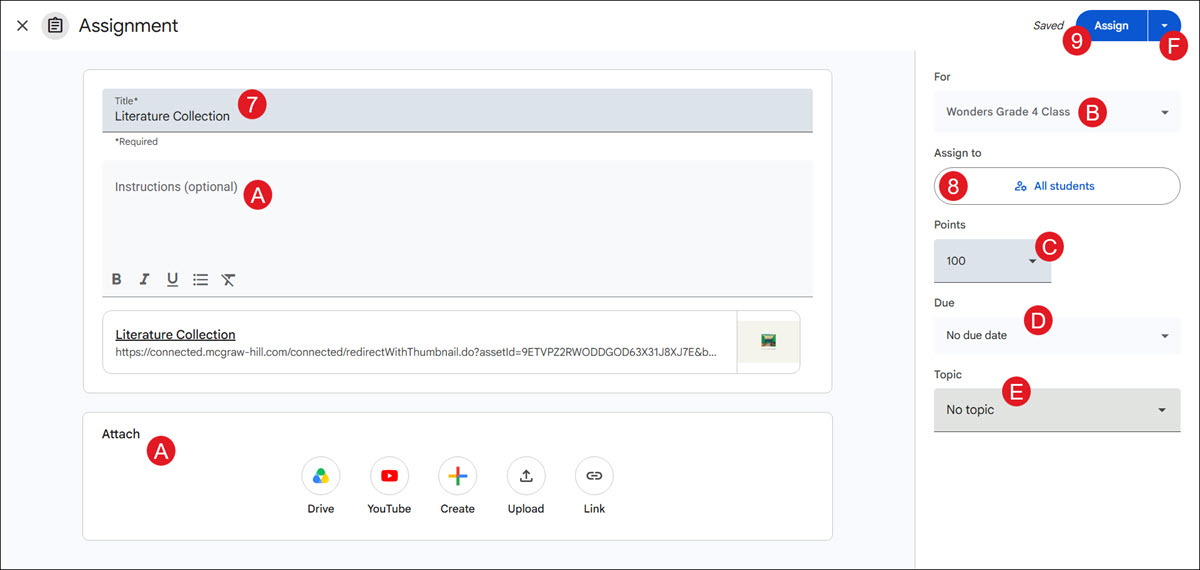
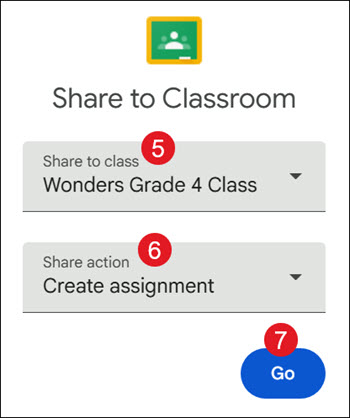
- From the Share to class drop-down, select the class you want to attach the resource to.
- Select a Share action from the drop-down.
- Click the Go button.
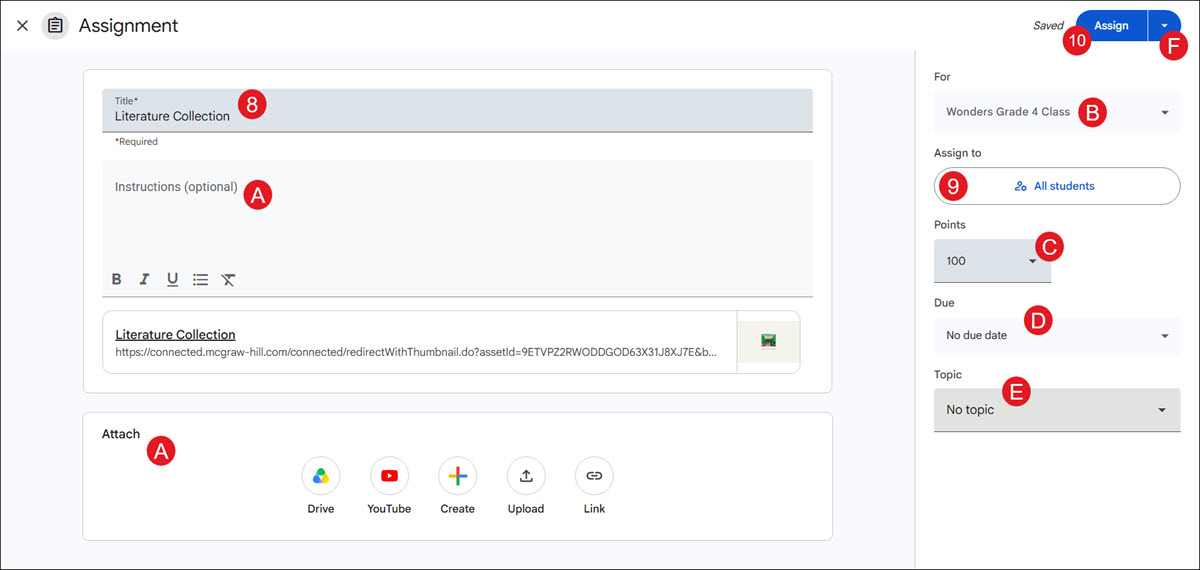
- Enter a Title for the selected action.
A. Enter a Description and add additional attachments, if needed.
B. Click the For drop-down to select additional classes if you want to assign it to multiple classes at once.
- The resource is assigned to All students by default. Click the button to assign it to selected students.
C. If you selected to create an Assignment or Ask question, select the Points from the drop-down for what the assignment is worth.
D. If you selected to create an Assignment or Ask question, select a Due date from the drop-down.
E. Enter a Topic. This is optional.
- Click the Post button.
F. To schedule the resource for a later date and time, or to save a draft of the post, click the arrow next to the Post button.
Share Assessments to Google Classroom
Note: The only programs that will be able to share to Google Classroom are those that use McGraw Hill Assess. This will not work with programs that use eAssessment.
You will need to first assign an assessment before you can share it to Google Classroom. For steps on assigning assessments to students, see the Assign McGraw Hill Assessments article.
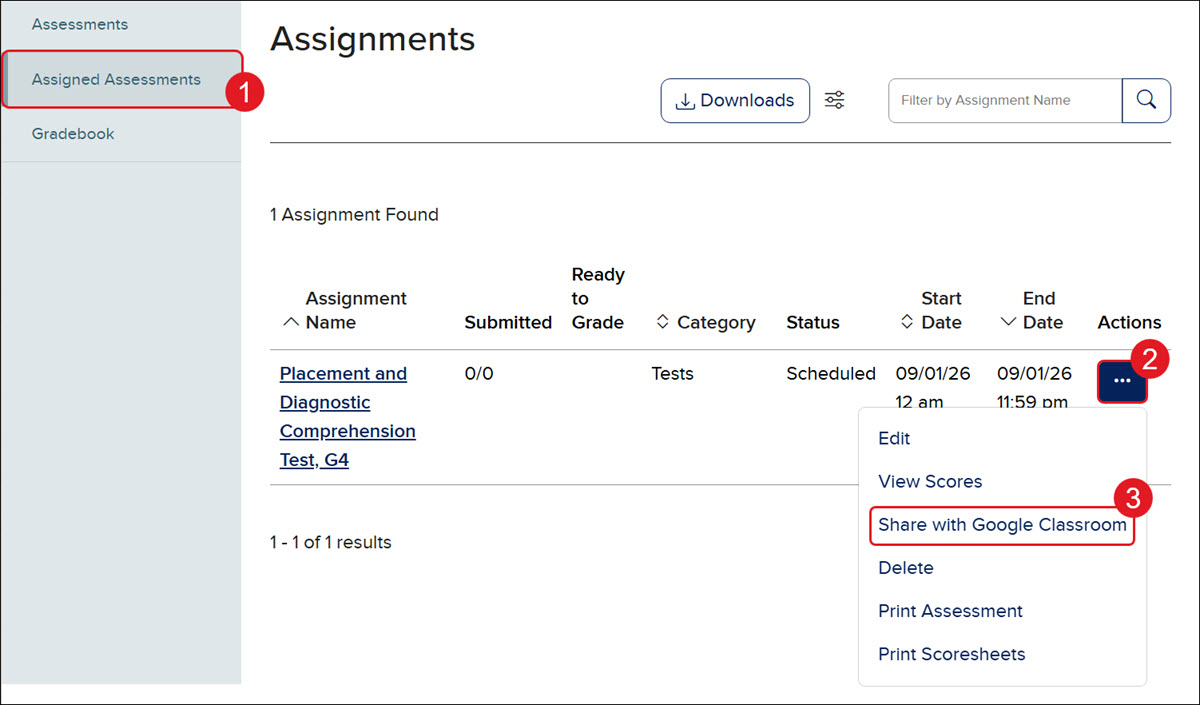
- From the assessments page within your course, click the Assigned Assessments tab.
- Click on the Options button in the Actions column.
- Click Share with Google Classroom from the menu.
Google Classroom will open in a new browser window.
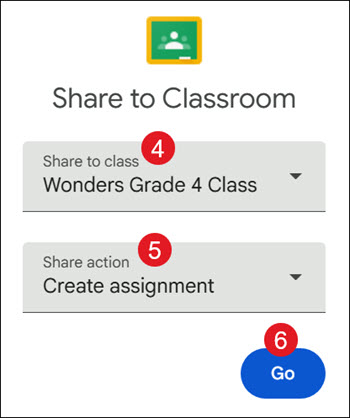
- From the Share to class drop-down, select the class you want to attach the resource to.
- Select a Share action from the drop-down.
- Click the Go button.
- Enter a Title for the selected action.
A. Enter a Description and add additional attachments, if needed.
B. Click the For drop-down to select additional classes if you want to assign it to multiple classes at once.
- The resource is assigned to All students by default. Click the button to assign it to selected students.
C. If you selected to create an Assignment or Ask question, select the Points from the drop-down for what the assignment is worth.
D. If you selected to create an Assignment or Ask question, select a Due date from the drop-down.
E. Enter a Topic. This is optional.
- Click the Post button.
F. To schedule the resource for a later date and time, or to save a draft of the post, click the arrow next to the Post button.