
How to Clear Cache and Cookies
Clear browser cache and cookies to resolve loading, login, or display issues in McGraw Hill platforms.
- Customer Support
- PreK-12
- School Administrator
- Classroom Teacher
- School Student
- School Parent
- Preschool
- Elementary School
- Middle School
- High School
- Direct Login & Auto-Rostering
- Direct Login & Manual-Rostering
- SSO & Auto-Rostering
- SSO & Manual-Rostering
- Core
- Intervention
- Supplemental
- AP, Honors & Electives
- Career & Technical Education
- Literacy
- Math
- Science
- Social Studies
- Health
- Visual & Performing Arts
- World Languages
- AP Biology
- AP Chemistry
- AP History & Geography
- AP Psychology
- AP Economics
- AP African American Studies
- AP Precalculus
- AP Statistics
- AP Computer Science
- AP Language and Composition
- AP Public Speaking
- AP Music Theory
- 5 Steps to a 5 - AP Test Prep
- Glencoe Health 2022
- Teen Health 2021
- Arrive Math
- Building Blocks 2024
- Building Blocks PreK 2025
- Number Worlds 2024
- SRA Reading Laboratory 2025
- SRA Reading Mastery Transformations
- Achieve3000 Literacy
- Actively Learn
- McGraw Hill Literacy Emerge!
- McGraw Hill Literacy Summit!
- McGraw Hill Literacy Soar!
- Open Court Reading 2025
- Redbird
- StudySync 2021
- ALEKS
- ALEKS Adventure
- CA Reveal Math (K-12)
- Illustrative Math
- Redbird Math
- Reveal Math (K-12)
- Texas Math
- CA Inspire Science 2020
- FL Science 2025 (K-12)
- Inspire Science 2020
- TN Science (K-12)
- TX Science 2025 (K-12)
- CA Impact 2019
- FL Social Studies 2024 (K-12)
- Impact Social Studies
- McGraw Hill Social Studies
- All Sorts 2026 (K-5)
- Asi se Dice 2024
- CTE - Health Science
- CTE - Computing and Technology
- CTE - Agriculture
- CTE - Culinary Arts
- CTE - Early Childhood Education
- CTE - Criminal Justice
- Glencoe Health 2014
- McGraw Hill Health 2014
- 2Inform
- Building Blocks 2015
- Connecting Math Concepts
- Number Worlds 2015
- Corrective Reading
- Early Interventions in Reading
- Spelling Mastery
- WonderWorks 2022 & 2014
- Maravillas 2020 & 2017
- OCR Foundational Skills Kit
- OCR Word Analysis Kit
- Open Court Reading 2016, 2018, 2023
- StudySync 2015 & 2017
- Wonders
- Wonders 2014
- Wonders 2023 2020 2017
- Wonders Balanced Literacy 2016
- Wonders EL 2016
- World of Wonders 2017
- Core Plus Math 2015
- Everyday Mathematics 4 (K-6)
- Glencoe Algebra 1 2014
- Glencoe Algebra 1 2018
- Glencoe Algebra 2 2014
- Glenoce Algebra 2 2018
- Glencoe Math
- Glencoe Geometry 2014
- Glencoe Geometry 2018
- Glencoe Math Course 1
- Glencoe Math Course 2
- Glencoe Math Course 3
- Glencoe Math Accelerated
- McGraw Hill My Math 2013 & 2016
- McGraw Hill My Math
- McGraw Hill My Math 2018
- Pre-Algebra 2012
- Glencoe Science
- Glencoe Science 2017
- Inspire Science 2017
- iScience 2017
- Networks
- Networks 2014 (K-5)
- Networks 2014 & 2016
- Networks 2018
- Music! Its Role
- Spotlight on Music
- Asi se Dice 2016
- Troubleshooting


Cookies are small files that websites use to store data about you and your activity on the site. Clearing your cache and cookies can help fix page display issues, remove adware, and protect your privacy. In most computer-based web browsers, to open menus used to clear your cache, cookies, and history, you can press Ctrl-Shift-Delete (Windows) or Command-Shift-Delete (Mac). If this doesn't work, follow the appropriate instructions below.
If you don't see the instructions below for your specific version or browser, search your browser's Help menu for "clear cache". If you're unsure what browser version you're using, from your browser's menu, select Help.
McGraw Hill System Requirements
View McGraw Hill Whitelist information
Article Contents
Google Chrome
View the demo in a separate tab.
View the Spanish version of the demo.
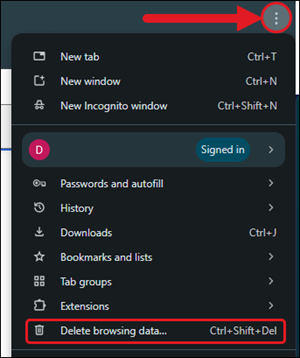
1. Click the Customize and control Google Chrome icon (three vertical dots) in the top right corner of the browser.
2. Click on Delete browsing data... from the menu.
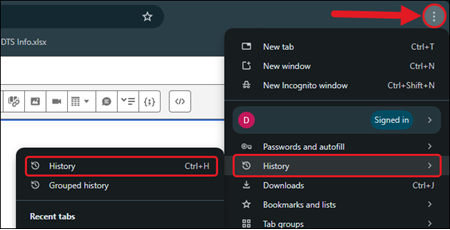
Another option would be to hover over History on the menu and then click on History on the second menu. Then, click on Delete browsing data on the left.
4. On the Delete browsing data pop-up, click on the Basic tab.
5. Click on the Time range drop-down and select All time.
6. Check the following boxes:
- Browsing history
- Clears history from all synced devices
- Cookies and other site data
- Signs you out of most sites.
- Cached images and files
- Frees up space
7. Click the Delete data button.
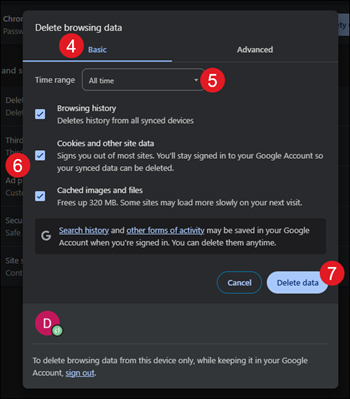
It may take a few minutes for everything to clear. Once the Delete browsing data box disappears, close all your browser windows/tabs and relaunch.
Safari on Mac
View the demo in a separate tab.
View the Spanish version of the demo.
1. Click on Safari in your browser menu.
2. Click on Clear History on the menu.
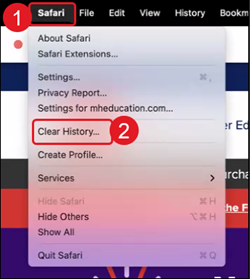
3. Select All History from the Clear drop-down.
4. Click the Clear History button.
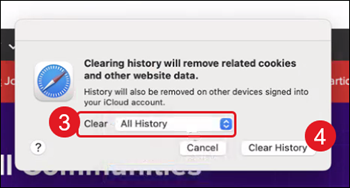
It may take a few minutes for everything to clear. Once the pop-up box disappears this means everything has cleared successfully.
Safari on iPad
View the demo in a separate tab.
View the Spanish version of the demo.
1. Click on the Settings button on your iPad.
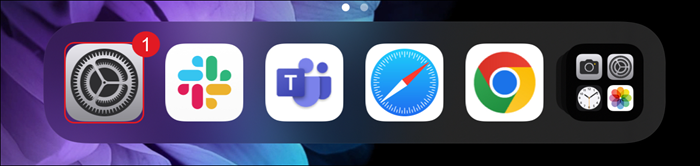
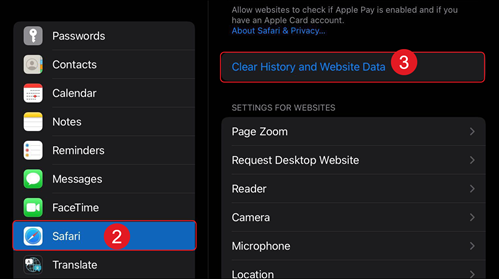
2. Click on Safari in the left-hand menu.
3. Click the Clear History and Website Data link.
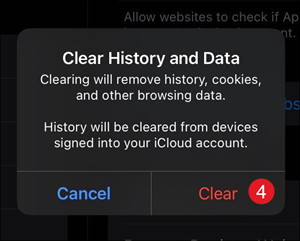
4. On the Clear History and Data pop-up, click the Clear button.
5. Click the Clear Tabs button.
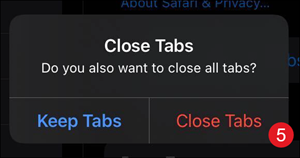
It may take a few minutes for everything to clear. Once the Clear History and Data box disappears this means everything has cleared successfully.
Microsoft Edge
View the demo in a separate tab.
View the Spanish version of the demo.
1. Click the Settings and more icon (three horizontal dots) in the top right corner of the browser.
2. Click on History from the menu.
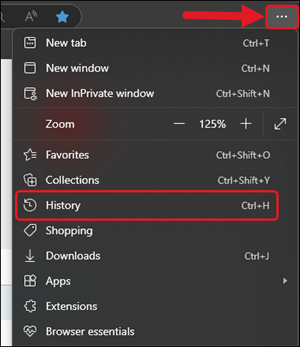
3. Click the trash can icon on the History menu.
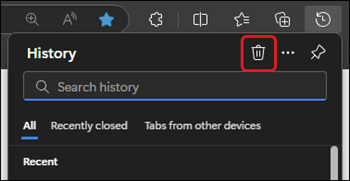
4. On the Delete browsing data pop-up, select All time from the Time range drop-down.
5. Check the following boxes:
- Browsing history
- Clears history from all synced devices
- Cookies and other site data
- Signs you out of most sites.
- Cached images and files
- Frees up space
6. Click the Clear now button.
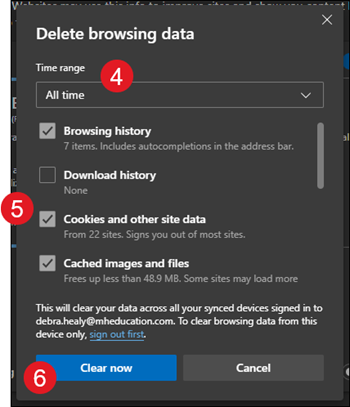
It may take a few minutes for everything to clear. Once the Delete browsing data box disappears, close all your browser windows/tabs and relaunch.
Firefox
View the demo in a separate tab.
View the Spanish version of the demo.
1. Click on the Open application menu icon at the top-right of the browser.
2. Click on History on the menu.
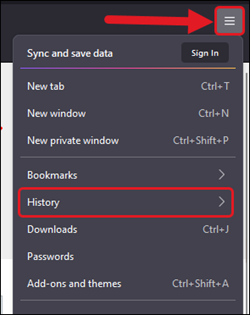
3. Click on Clear recent history....
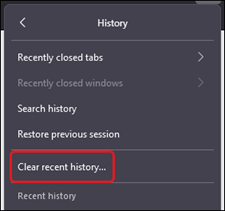
4. On the Clear browsing data and cookies pop-up, select Everything from the When drop-down menu.
5. Check the following boxes:
- History
- Clears history from all synced devices
- Cookies and site data
- Signs you out of most sites.
- Temporary cached files and pages
- Frees up space
6. Click the Clear button.
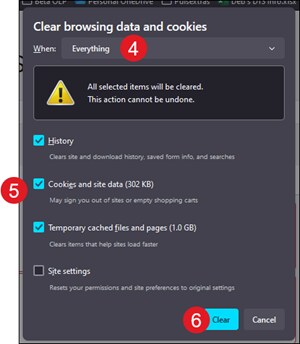
It may take a few minutes for everything to clear. Once the Clear browsing data and cookies box disappears, close all your browser windows/tabs and relaunch.
Internet Explorer
Due to the changing requirements of our programs, we no longer support this browser. However, we do still support the other options listed above.
