StudySync 2015 & ©2017 Administrator Reports
Learn how to access administrator reports in StudySync 2015 and 2017 versions.
- Direct Login & Manual-Rostering
- High School
- SSO & Auto-Rostering
- SSO & Manual-Rostering
- PreK-12
- Customer Support
- School Administrator
- Direct Login & Auto-Rostering
- Middle School
- Reports & Analytics
- Supplemental
- Literacy


This article explains how to access and run administrator reports in StudySync ©2015 and ©2017. In order to access admin reports, you will need the Reporting Administrator role enabled for your account. If you are a teacher or a Curriculum Administrator, you will need to contact an Organization Administrator as only they will be able to make this change for you. If you are an Organization Administrator, you can enable the Reporting role for your own account. For instructions on this process, click here.
Note: StudySync ©2015 and ©2017 are accessed through the ConnectED. If you access StudySync through the Open Learning Platform, click here .
The ©2015 and ©2017 versions of StudySync have two separate assessment tools. Therefore, there are 2 different types of assessment reports. We will cover how to access both types of reports in this article.
StudySync Assessment Reports
StudySync Assessments are created directly within the StudySync platform, after it has been launched from ConnectED. Reporting for these assessments is only accessible from within StudySync.
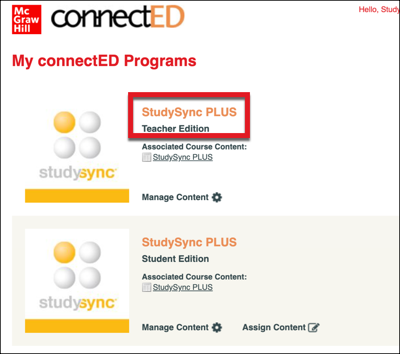
1. Launch your StudySync teacher edition from My ConnectED Programs.
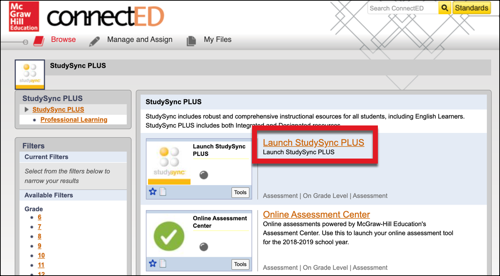
2. Select Launch StudySync from your teacher dashboard.
3. Select the name of your school at the top right.
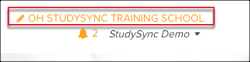
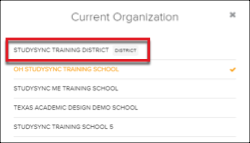
4. Select the name of your district from the Organization list
Note: You should see the DISTRICT tag displayed next to your district name, as shown below.
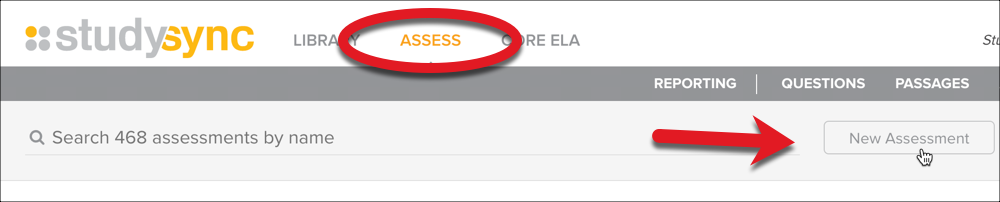
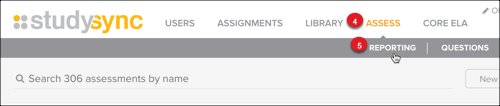
5. Select Assess at the top of the page.
5. Select Reporting.
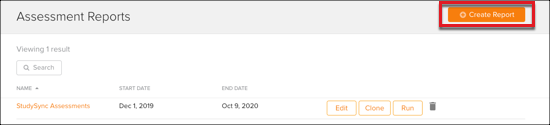
6. On your main Reports page, you can access previously saved assessment reports. To build a new report, select Create Report at the top right.
7. Select the following parameters for your report:
- Name: Enter a name for your report.
- Results By: Select how you would like results organized in your report.
- Date Range: Select a date range for the assessment data.
- Assessment(s): Select a specific assessment.
- Scores By: Select the type of score you wish to view in the report.
8. Select one of the available filters for your report, if desired.
- Organization Filter: You can choose to filter assessment data by specific schools.
- Question Filter: You can filter questions by tag and/or select a specific question to view data for.
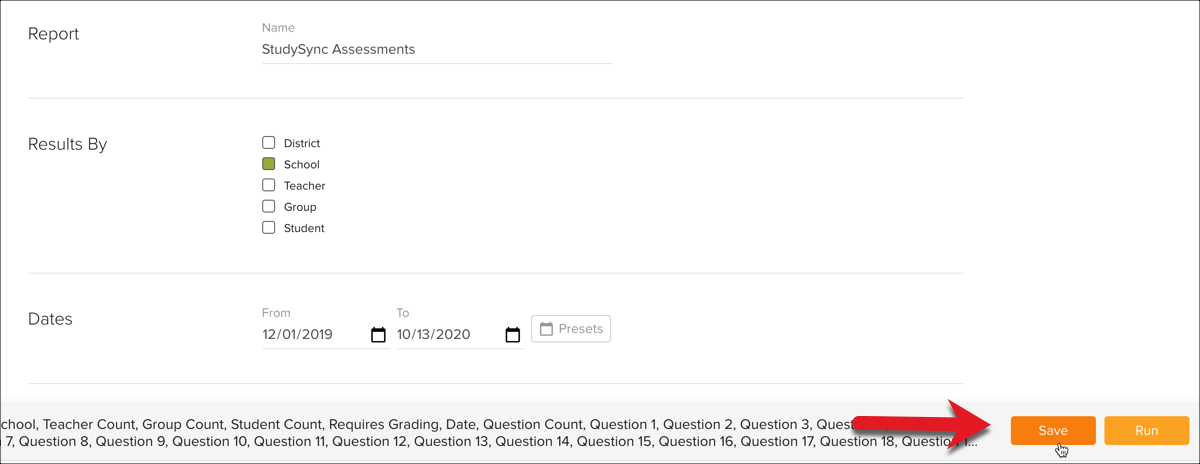
9. Click Run to view your report in browser. From here you can export the report as a .xslx or .csv file.

Alternatively, you can click Save to save the report to your reports list. Saved reports can be accessed and modified at any time.
Online Assessment Center Reports
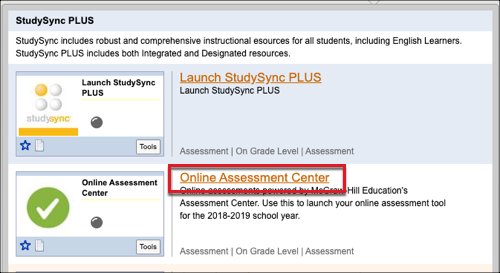
The Online Assessment Center is accessed directly from ConnectED. Once you launch your teacher edition, the Online Assessment Center is accessible from the teacher dashboard as shown in the below image. Reporting for assessments created and launched from the Online Assessment Center is accessible from the Performance Reports section in Admin Tools.
1. Log in to your account at my.mheducation.com.
Note: If you land in your teacher role when you log in, navigate to your Admin Tools. Read this article for more information.
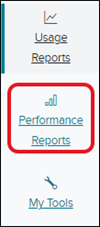
2. Select Performance Reports from the left side menu.
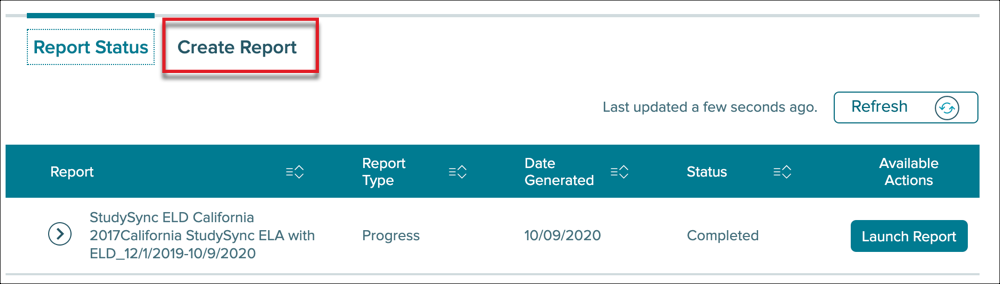
3. On your main Reports page, you can access previously saved assessment reports. To build a new report, select Create Report.
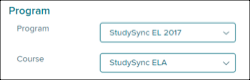
4. From the Program and Course drop-down menus, select your version of StudySync.
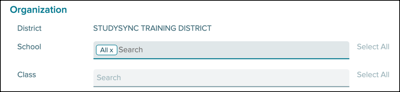
5. Select a specific School and/or Class if desired. Otherwise, you can leave the default 'All" selected.
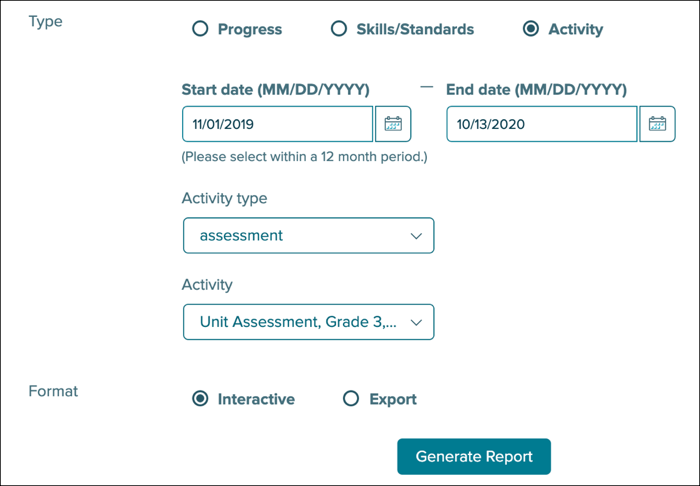
6. Select the Activity bubble.
7. Enter a date range for the assessment data you wish to view.
8. From the Activity Type drop-down, select Assessment.
9. Select the specific assessment you wish to view data for.
10. Click Interactive to view the report from your browser window. Alternatively, you can select Export to download a copy of the report.