
How Single Sign-On (SSO) Users Access the Google App
Learn how teachers and students access McGraw Hill tools using the Google app.
- Networks 2014 (K-5)
- McGraw Hill Social Studies
- ALEKS Adventure
- Asi se Dice 2024
- Arrive Math
- Actively Learn
- Customer Support
- Inspire Science 2020
- StudySync 2015 & 2017
- Middle School
- ALEKS
- Glencoe Algebra 1 2014
- High School
- Open Court Reading
- Glencoe Health 2022
- CA Impact 2019
- Glencoe Algebra 1 2018
- Building Blocks 2015
- Wonders 2023 2020 2017
- Networks 2018
- CA Inspire Science 2020
- SSO & Auto-Rostering
- Pre-Algebra 2012
- PreK-12
- Everyday Mathematics 4 (K-6)
- Redbird
- Wonders EL 2016
- Supplemental
- Visual & Performing Arts
- Inspire Science 2017
- Health
- Literacy
- Social Studies
- Glencoe Math Course 1
- Wonders 2014
- WonderWorks 2022 & 2014
- Glencoe Math Course 2
- Glencoe Math Course 3
- Number Worlds 2015
- Core
- Core Plus Math 2015
- AP, Honors & Electives
- Teen Health 2021
- FL Social Studies 2024 (K-12)
- Building Blocks PreK 2025
- McGraw Hill My Math 2013 & 2016
- 2Inform
- Glencoe Algebra 2 2014
- Networks 2014 & 2016
- OCR Foundational Skills Kit
- TX Science 2025 (K-12)
- StudySync 2021
- SSO & Manual-Rostering
- World of Wonders 2017
- iScience 2017
- Number Worlds 2024
- Maravillas 2020 & 2017
- Spotlight on Music
- Classroom Teacher
- Glencoe Science 2017
- Elementary School
- FL Science 2025 (K-12)
- World Languages
- Math
- Asi se Dice 2016
- Direct Instruction
- Glenoce Algebra 2 2018
- Intervention
- OCR Word Analysis Kit
- Glencoe Health 2014
- Building Blocks 2024
- Wonders Balanced Literacy 2016
- Log-In & Passwords
- McGraw Hill My Math 2018
- Science
- Preschool
- Achieve3000 Literacy
- Music! Its Role
- Google Classroom™
- Auto-Rostered SSO Resources
- School Student
- School Parent
- Reveal Math (K-12)
- AP Biology
- AP Chemistry
- AP History & Geography
- AP Psychology
- AP Economics
- AP African American Studies
- AP Precalculus
- AP Statistics
- AP Computer Science
- AP Language and Composition
- AP Public Speaking
- AP Music Theory
- 5 Steps to a 5 - AP Test Prep
- SRA Reading Laboratory 2025
- SRA Reading Mastery Transformations
- McGraw Hill Literacy Emerge!
- McGraw Hill Literacy Summit!
- McGraw Hill Literacy Soar!
- Open Court Reading 2025
- CA Reveal Math (K-12)
- Illustrative Math
- Redbird Math
- Texas Math
- TN Science (K-12)
- Impact Social Studies
- All Sorts 2026 (K-5)
- CTE - Health Science
- CTE - Agriculture
- CTE - Computing and Technology
- CTE - Culinary Arts
- CTE - Early Childhood Education
- CTE - Business, Marketing, and Finance
- CTE - Criminal Justice
- McGraw Hill Health 2014
- Connecting Math Concepts
- Corrective Reading
- Early Interventions in Reading
- Spelling Mastery
- Open Court Reading 2016, 2018, 2023
- Wonders
- Glencoe Math
- Glencoe Geometry 2014
- Glencoe Geometry 2018
- Glencoe Math Accelerated
- McGraw Hill My Math
- Glencoe Science
- Networks


This article applies to districts that use the SSO and Auto-Rostering Access Service and Single Sign-On (SSO) and Manual Rostering Access Service.
SSO applies to districts that use an SSO portal, district website, or Learning Management System (LMS) to access McGraw Hill digital programs, and Direct Login means that teachers, students, and administrators log in at my.mheducation.com. Auto-Rostering means that account creation, class setup, and roster management are automated through a process handled by your district.
Not sure which Access Service your district uses? Click here to learn more about the four Access Services that we support.
Introduction
This guide explains how teachers and students access McGraw Hill platforms using the McGraw Hill Google app. The McGraw Hill Google app will appear with other G Suite™ for education apps.
How to Access the McGraw Hill Google App
Teachers and students follow these steps to sign in and access the McGraw Hill Google app:
1. Go to https://www.google.com/.
2. If you are not currently signed in, Select Sign In in the upper right corner of the page. If you are already signed in to your district Google account, go to step 5.
3. Select an existing Google account or select Use another account.
4. Enter the district credentials you use for Google Apps or G Suite™ for Education and sign in.
5. Select the grid or waffle icon  on the upper right corner of the page. Continue with the steps below to access the McGraw Hill Google app.
6. Select any Google app, such as GMail™, Google Docs™, or Google Drive. G Suite™ should appear next to your profile icon.
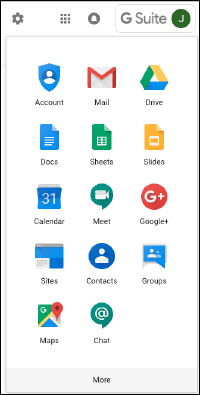
7. Select the grid or waffle icon  again. If the McGraw Hill Google app does not appear on the top section, select More to display additional apps. The McGraw Hill Google app should appear on the list of apps as shown below. The apps you see are likely different from what you see in the image.
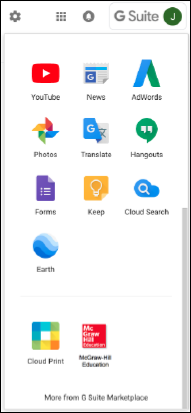
8. Select the McGraw Hill app to access your McGraw Hill programs landing page. Students access the My Classes landing page.
