How Single Sign-On (SSO) Users Access the Google App
Learn how teachers and students access McGraw Hill tools using the Google app.
Tags
Networks 2014 (K-5)
McGraw Hill Social Studies
ALEKS Adventure
Asi se Dice 2024
Arrive Math
Actively Learn
Customer Support
Inspire Science 2020
StudySync 2015 & 2017
Middle School
ALEKS
Glencoe Algebra 1 2014
High School
Open Court Reading
Glencoe Health 2022
CA Impact 2019
Glencoe Algebra 1 2018
Building Blocks 2015
Wonders 2023 2020 2017
Networks 2018
CA Inspire Science 2020
SSO & Auto-Rostering
Pre-Algebra 2012
PreK-12
Everyday Mathematics 4 (K-6)
Redbird
Wonders EL 2016
Supplemental
Visual & Performing Arts
Inspire Science 2017
Health
Literacy
Social Studies
Glencoe Math Course 1
Wonders 2014
WonderWorks 2022 & 2014
Glencoe Math Course 2
Glencoe Math Course 3
Number Worlds 2015
Core
Core Plus Math 2015
AP, Honors & Electives
Teen Health 2021
FL Social Studies 2024 (K-12)
Building Blocks PreK 2025
McGraw Hill My Math 2013 & 2016
2Inform
Glencoe Algebra 2 2014
Networks 2014 & 2016
OCR Foundational Skills Kit
TX Science 2025 (K-12)
StudySync 2021
SSO & Manual-Rostering
World of Wonders 2017
iScience 2017
Number Worlds 2024
Maravillas 2020 & 2017
Spotlight on Music
Classroom Teacher
Glencoe Science 2017
Elementary School
FL Science 2025 (K-12)
World Languages
Math
Asi se Dice 2016
Direct Instruction
Glenoce Algebra 2 2018
Intervention
OCR Word Analysis Kit
Glencoe Health 2014
Building Blocks 2024
Wonders Balanced Literacy 2016
Log-In & Passwords
McGraw Hill My Math 2018
Science
Preschool
Achieve3000 Literacy
Music! Its Role
Google Classroom™
Auto-Rostered SSO Resources
School Student
School Parent
Reveal Math (K-12)
Share:
This article applies to districts that use the SSO and Auto-Rostering Access Service and Single Sign-On (SSO) and Manual Rostering Access Service.
SSO applies to districts that use an SSO portal, district website, or Learning Management System (LMS) to access McGraw Hill digital programs, and Direct Login means that teachers, students, and administrators log in at my.mheducation.com. Auto-Rostering means that account creation, class setup, and roster management are automated through a process handled by your district.
Not sure which Access Service your district uses? Click here to learn more about the four Access Services that we support.
Introduction
This guide explains how teachers and students access McGraw Hill platforms using the McGraw Hill Google app. The McGraw Hill Google app will appear with other G Suite™ for education apps.
How to Access the McGraw Hill Google App
Teachers and students follow these steps to sign in and access the McGraw Hill Google app:
2. If you are not currently signed in, Select Sign In in the upper right corner of the page. If you are already signed in to your district Google account, go to step 5.
3. Select an existing Google account or select Use another account.
4. Enter the district credentials you use for Google Apps or G Suite™ for Education and sign in.
5. Select the grid or waffle icon on the upper right corner of the page. Continue with the steps below to access the McGraw Hill Google app.
6. Select any Google app, such as GMail™, Google Docs™, or Google Drive. G Suite™ should appear next to your profile icon.
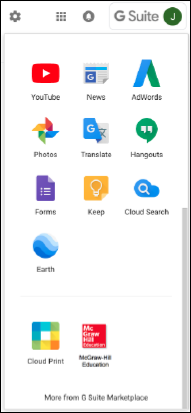
7. Select the grid or waffle icon again. If the McGraw Hill Google app does not appear on the top section, select More to display additional apps. The McGraw Hill Google app should appear on the list of apps as shown below. The apps you see are likely different from what you see in the image.
8. Select the McGraw Hill app to access your McGraw Hill programs landing page. Students access the My Classes landing page.
networks
mh-social-studies
aleks-adventure
asi-se-dice
arrive-math
actively-learn
inspire-science
studysync
aleks
glencoe-math
open-court-reading
glencoe-health
impact
building-blocks
wonders
mcgraw-hill-pre-algebra
everyday-math
redbird
wonderworks
number-worlds
core-plus-math
teen-health
my-math
2inform
ocr-foundational-skills-kit
mcgraw-hill-science
wow
iscience
maravillas
spotlight-on-music
glencoe-science
direct-instruction
achieve3000-literacy
music-its-role
reveal-math
instructor
student
school-parent
prek-12
Networks 2014 (K-5), McGraw Hill Social Studies, ALEKS Adventure, Asi se Dice 2024, Arrive Math, Actively Learn, Customer Support, Inspire Science 2020, StudySync 2015 & 2017, Middle School, ALEKS, Glencoe Algebra 1 2014, High School, Open Court Reading, Glencoe Health 2022, CA Impact 2019, Glencoe Algebra 1 2018, Building Blocks 2015, Wonders 2023 2020 2017, Networks 2018, CA Inspire Science 2020, SSO & Auto-Rostering, Pre-Algebra 2012, PreK-12, Everyday Mathematics 4 (K-6), Redbird, Wonders EL 2016, Supplemental, Visual & Performing Arts, Inspire Science 2017, Health, Literacy, Social Studies, Glencoe Math Course 1, Wonders 2014, WonderWorks 2022 & 2014, Glencoe Math Course 2, Glencoe Math Course 3, Number Worlds 2015, Core, Core Plus Math 2015, AP, Honors & Electives, Teen Health 2021, FL Social Studies 2024 (K-12), Building Blocks PreK 2025, McGraw Hill My Math 2013 & 2016, 2Inform, Glencoe Algebra 2 2014, Networks 2014 & 2016, OCR Foundational Skills Kit, TX Science 2025 (K-12), StudySync 2021, SSO & Manual-Rostering, World of Wonders 2017, iScience 2017, Number Worlds 2024, Maravillas 2020 & 2017, Spotlight on Music, Classroom Teacher, Glencoe Science 2017, Elementary School, FL Science 2025 (K-12), World Languages, Math, Asi se Dice 2016, Direct Instruction, Glenoce Algebra 2 2018, Intervention, OCR Word Analysis Kit, Glencoe Health 2014, Building Blocks 2024, Wonders Balanced Literacy 2016, Log-In & Passwords, McGraw Hill My Math 2018, Science, Preschool, Achieve3000 Literacy, Music! Its Role, Google Classroom™, Auto-Rostered SSO Resources, School Student, School Parent, Reveal Math (K-12)
dts
2026-03-24T18:49:57.584-03:00
This article applies to districts that use the SSO and Auto-Rostering Access Service and Single Sign-On (SSO) and Manual Rostering Access Service. SSO applies to districts that use an SSO portal, district website, or Learning Management System (LMS) to access McGraw Hill digital programs, and Direct Login means that teachers, students, and administrators log in at my.mheducation.com. Auto-Rostering means that account creation, class setup, and roster management are automated through a process handled by your district. Not sure which Access Service your district uses? Click here to learn more about the four Access Services that we support. Introduction This guide explains how teachers and students access McGraw Hill platforms using the McGraw Hill Google app. The McGraw Hill Google app will appear with other G Suite™ for education apps. How to Access the McGraw Hill Google App Teachers and students follow these steps to sign in and access the McGraw Hill Google app: 1. Go to https://www.google.com/. 2. If you are not currently signed in, Select Sign In in the upper right corner of the page. If you are already signed in to your district Google account, go to step 5. 3. Select an existing Google account or select Use another account. 4. Enter the district credentials you use for Google Apps or G Suite™ for Education and sign in. 5. Select the grid or waffle icon on the upper right corner of the page. Continue with the steps below to access the McGraw Hill Google app. 6. Select any Google app, such as GMail™, Google Docs™, or Google Drive. G Suite™ should appear next to your profile icon. 7. Select the grid or waffle icon again. If the McGraw Hill Google app does not appear on the top section, select More to display additional apps. The McGraw Hill Google app should appear on the list of apps as shown below. The apps you see are likely different from what you see in the image. 8. Select the McGraw Hill app to access your McGraw Hill programs landing page. Students access the My Classes landing page.
Top
Regional Page Available
It looks like you're outside the United States. Do you want to see your regional version of this page?



 on the upper right corner of the page. Continue with the steps below to access the McGraw Hill Google app.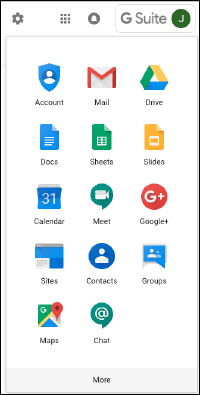
 again. If the McGraw Hill Google app does not appear on the top section, select More to display additional apps. The McGraw Hill Google app should appear on the list of apps as shown below. The apps you see are likely different from what you see in the image.