Curriculum Administrator - Add McGraw Hill Assessments to District Bank
Add McGraw Hill provided assessments to a district assessment bank.
- Direct Login & Manual-Rostering
- High School
- SSO & Auto-Rostering
- SSO & Manual-Rostering
- PreK-12
- Customer Support
- Online Assessments
- School Administrator
- Direct Login & Auto-Rostering
- Preschool
- Middle School
- Elementary School


This article walks Curriculum Administrators through adding and removing McGraw Hill created assessments to a custom District Bank.
For a full page view of the demo, click here.
For a Spanish version of the demo, click here.
You will need to assigned the Curriculum Administrator role to have access to the assessment banks. If you do not yet have an existing account, or if you have an account but not the proper role, reach out to an Organization Administrator in your district. District Organization Administrators can create new accounts and add roles to existing accounts at the district and school levels. School Organization Administrators can only create accounts and add roles for teachers and administrators for the school(s) they are associated with.
To add assessments to a District Bank, you will first need to create a new District Bank as you will not be able to add assessments to a McGraw Hill created bank. For steps on creating District Banks, refer to the Curriculum Administrator - Create/Delete District Banks article.
Article Contents
Add Assessments to District Bank
Remove Assessments from District Bank
Add Assessments to District Bank
1. SSO or sign into your Administrator account at my.mheducation.com.
For users that have a Teacher and Administrator role, you will land on your Teacher profile.
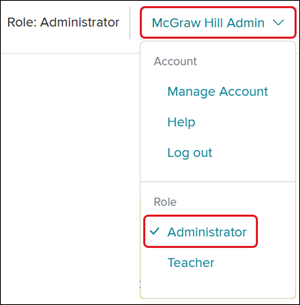
To access the Admin Tools, click on the Profile button and select Administrator from the menu.
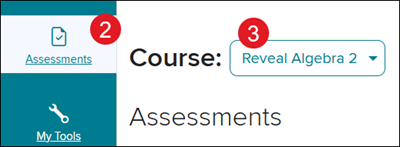
2. Click on Assessments from the navigation menu.
3. Select the program from the Course drop-down.
4. Click on the Title of the custom District Bank.

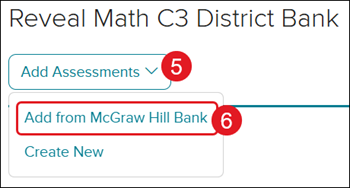
5. Click the Add Assessments button.
6. Click Add from McGraw Hill Bank from the menu.
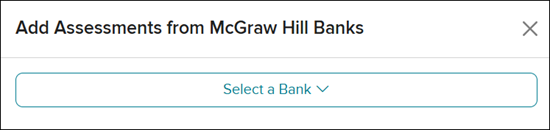
7. On the Add Assessments panel, click the Select a Bank drop-down and select a bank option.
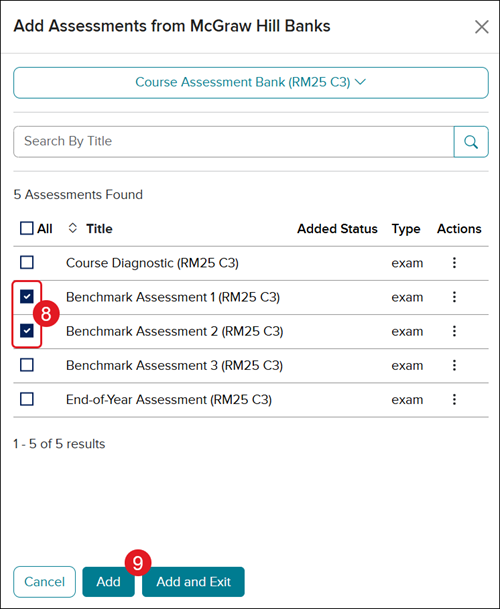
8. Checkmark the assessment(s) you want to add to the District Bank.
9. Click Add or Add and Exit.
Clicking Add adds the selected assessments to the bank and leaves the panel open for you to add additional assessments from another assessment bank easily.
Clicking Add and Exist adds the selected assessments to the bank and closes the assessment panel.
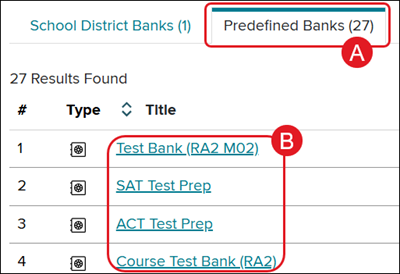
You can also add assessments by clicking on the Predefined Banks (A) tab, then click on the Title (B) of a McGraw Hill bank.
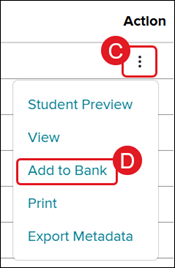
Click on the Options (C) menu icon in the Actions column and click on Add to Bank (D) from the menu.
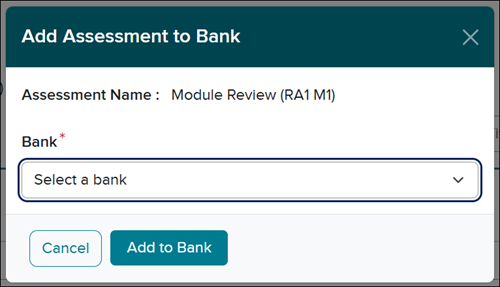
On the Add Assessment pop-up, select a bank you want to add the assessment to and click the Add to Bank button.
Remove Assessment from District Bank
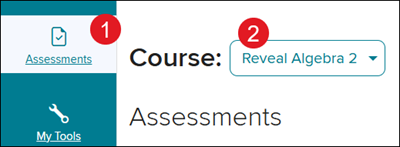
1. Click on Assessments from the navigation menu.
2. Select the program from the Course drop-down.
3. Click on the Title of the Bank you want to access.

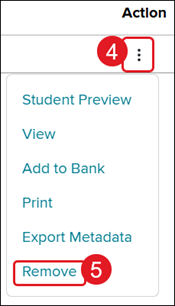
4. Click on the Options menu icon in the Action column.
5. Click Remove from the menu.
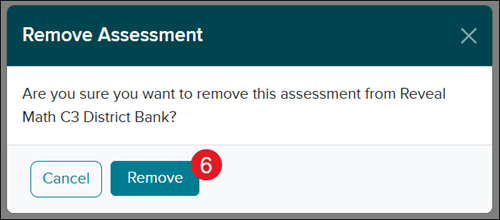
6. On the Remove Assessment pop-up, click the Remove button to confirm.