Create Custom New ALEKS Adventure Administrator Reports
Create and review custom administrator reports in ALEKS Adventure to analyze student progress.
- PreK-12
- Customer Support
- School Administrator
- Elementary School
- Direct Login & Auto-Rostering
- Direct Login & Manual-Rostering
- SSO & Auto-Rostering
- SSO & Manual-Rostering
- Supplemental
- Math
- ALEKS Adventure
- Reports & Analytics


Custom Reports allow you to tailor a report specific to your progress monitoring needs by creating a template and choosing the data to include in your report. You can schedule a one-time report or automate a report to run daily, weekly, or monthly to ensure that you save time and receive the most up-to-date information.
Article Contents
Access Custom Reports
1. SSO or sign in at my.mheducation.com.
You may need to toggle between roles and organizations to get to your administrator tools.
2. Launch ALEKS from the navigation menu.
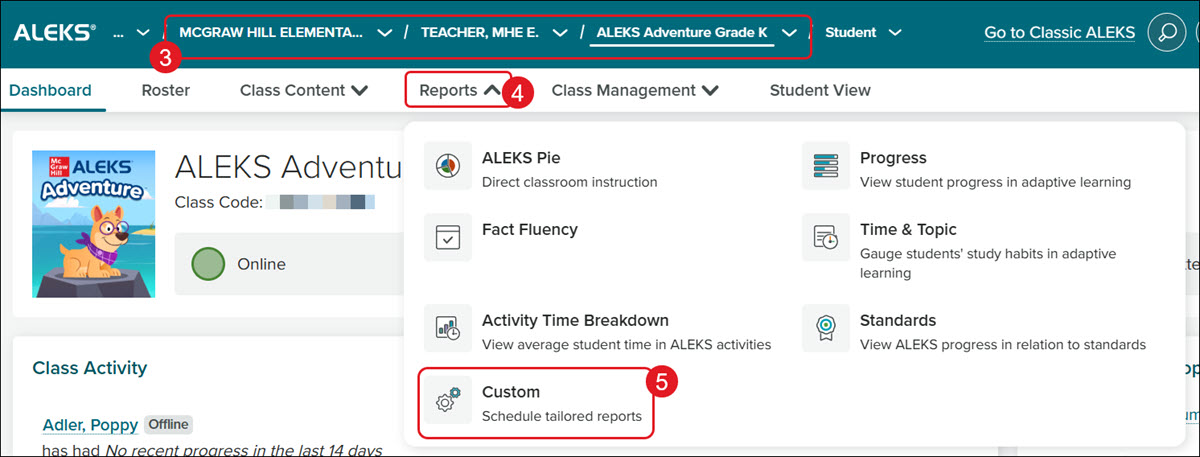
3. Select to create the report at the District, School, Teacher, or Class level.
4. Click on Reports.
5. Click Custom from the menu.
Create Report Template
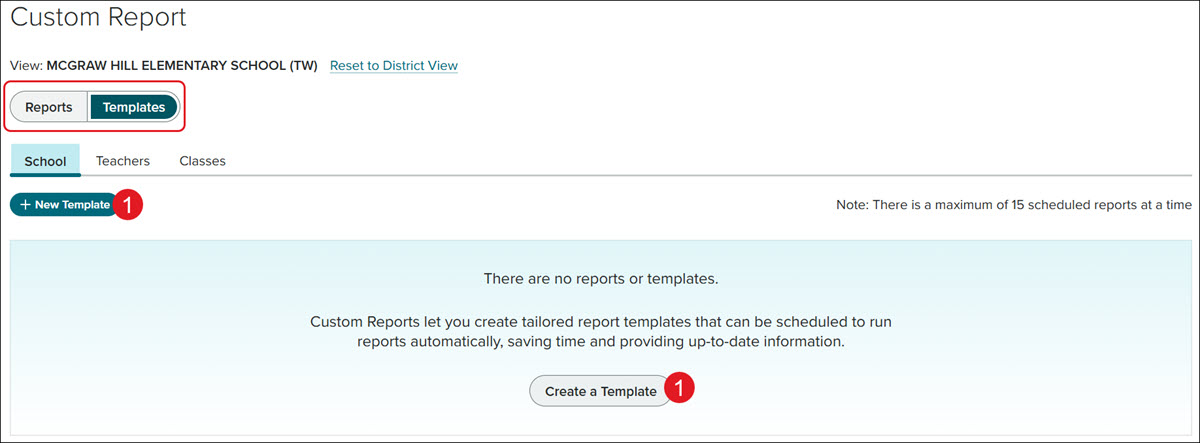
1. Click the Create a Template button.
If you do not see the Create a Template button, it's because you have already created reports. Toggle over to the Templates option and click the Create a Template or New Template button.
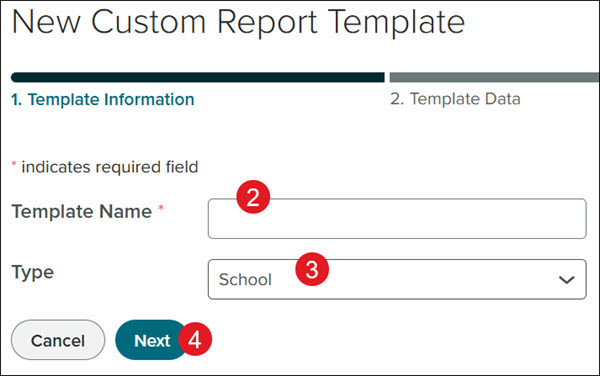
2. Enter a Template Name.
3. The Type will be automatically selected based on the level of the report creation (district, school, teacher, or class).
4. Click the Next button.
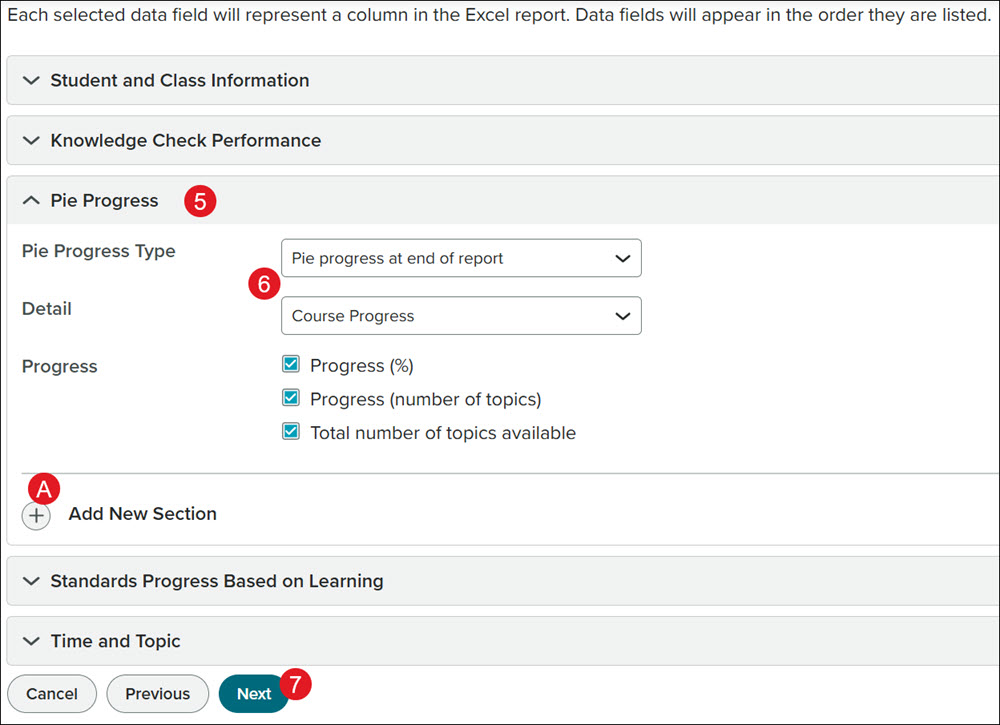
5. Click on the blades to expand the section.
6. Check the box(es) and/or select options from the drop-downs in the sections that you want to include in the report.
A. Click the Add New Section to include additional options in the report.
7. Click the Next button.
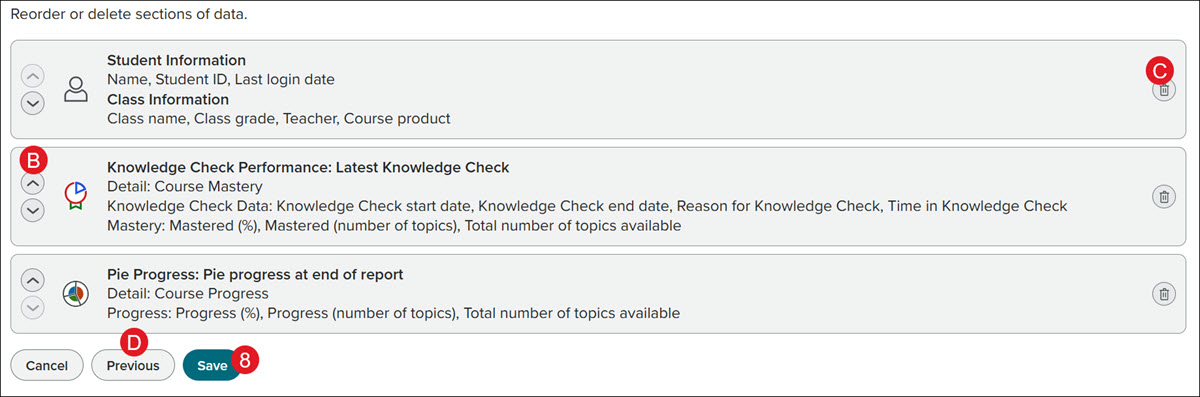
B. Click the up/down arrows next to the section to reorder how the data will show in the report.
C. Click the trash can icon to the right of the section to remove it from the report template.
D. Click the Previous button to add more selections to the report template.
8. Click the Save button.
Schedule Report
After creating a report template, you'll be prompted to schedule when the report should generate.
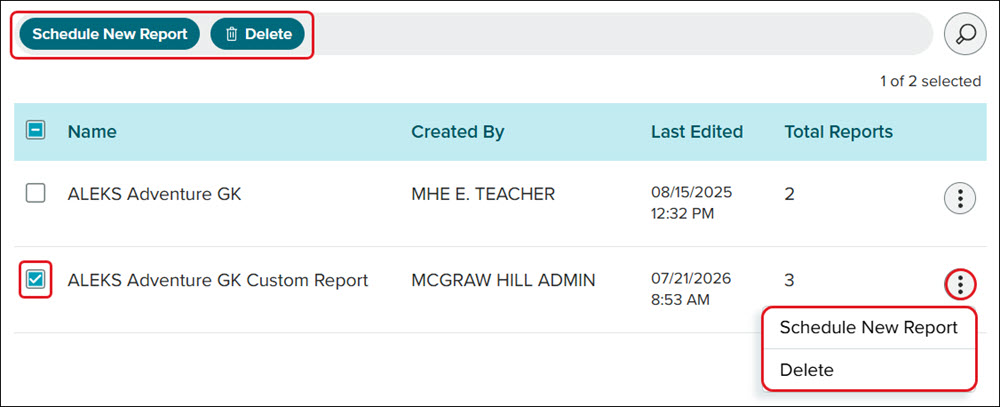
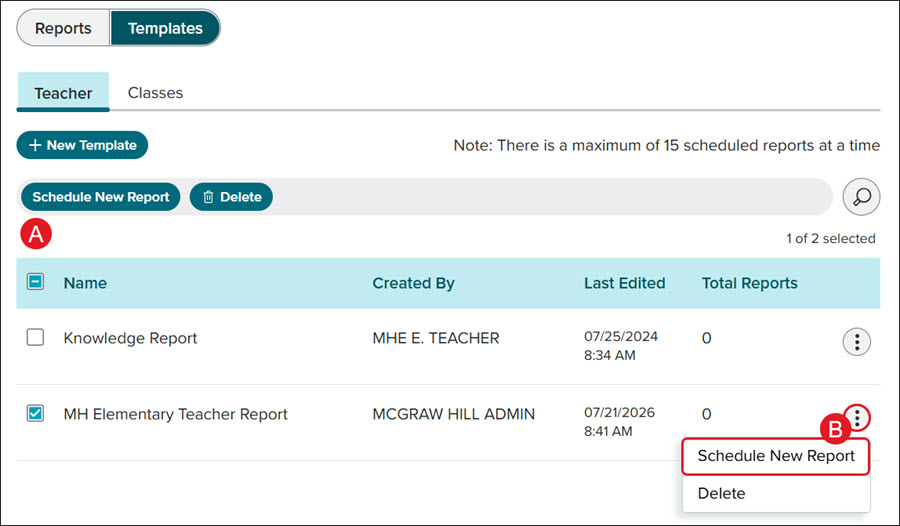
To schedule a report for an existing template, on the Templates page, check the box next to the report template you want to schedule and click the Schedule New Report button (A). You can also click the options button (kebob icon) and select Schedule New Report from the menu (B).
As an administrator, you will be able to see all templates created by teachers and other administrators.
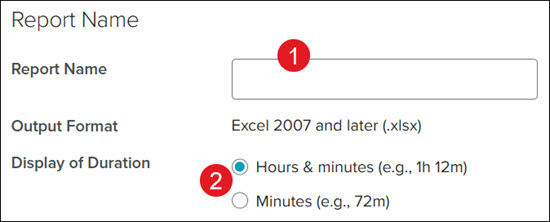
1. Enter a Report Name.
2. Select the preferred Display of Duration radio button for Hours & minutes or only Minutes.
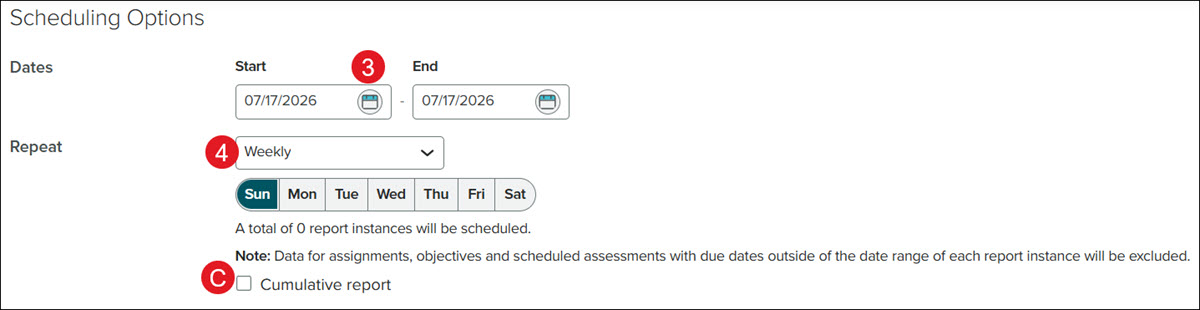
3. Select the Start and End Dates by clicking on the calendar icon for each field.
4. Select the Repeat option from the drop-down.
Depending on the option selected, additional selections may be required, such as the day(s) of the week or the day of the month you want the report to generate.
C. Check the box if you want a Cumulative report.
Note: Data for assignments, objectives, and scheduled assessments with due dates outside of the date range of each report instance will be excluded.
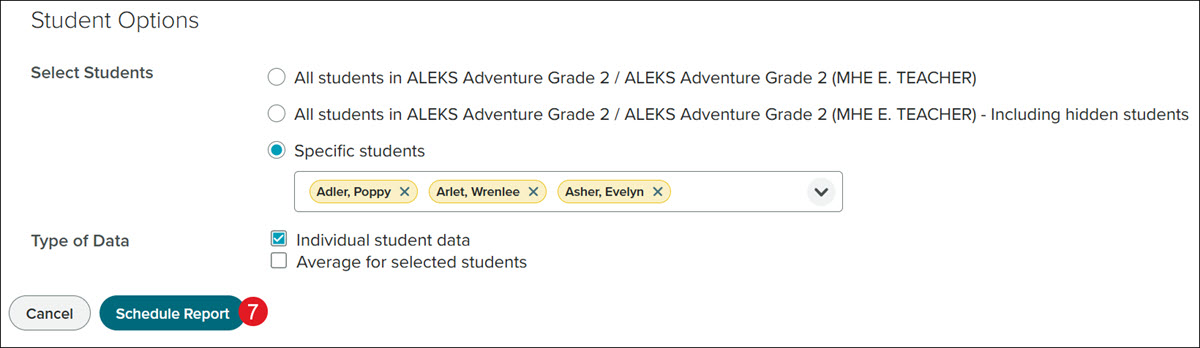
5. Click the preferred Select Students radio button to include All Students, include All Students - including Hidden students, or only Specific Students.
If Specific students is selected, click on the drop-down and check the student(s) you want included in the report.
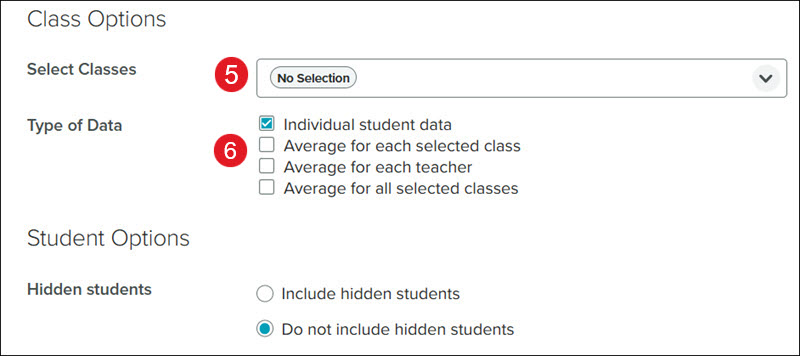
6. Check the Type of Data box(es) to include Individual student data and/or Average for selected students.
Note: Options will vary based on the level (district, school, teacher, or class) of the report. For district, school, and teacher level reports, a Select Classes option and additional Type of Data options will be available, as well as an option to include or do not include Hidden students.
7. Click the Schedule Report button.
Manage Reports & Templates
All created reports and templates can be located on the Custom Report page under their respective buttons and tabs. A tab will be available for each level of custom report templates that were created.
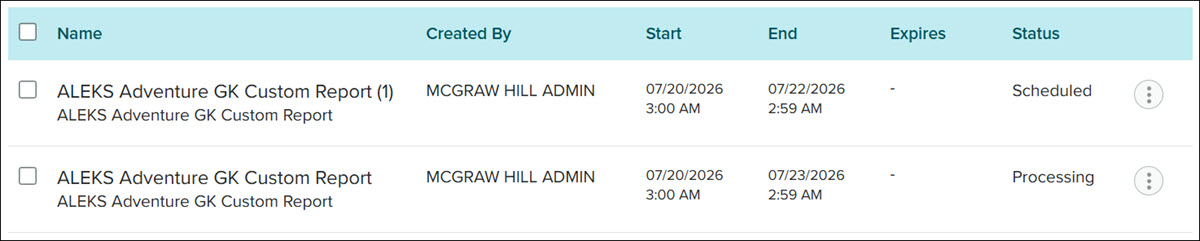
If a report has been Scheduled or is Processing, there is no further action that can be taken until the report has been generated at the selected Start and End dates.
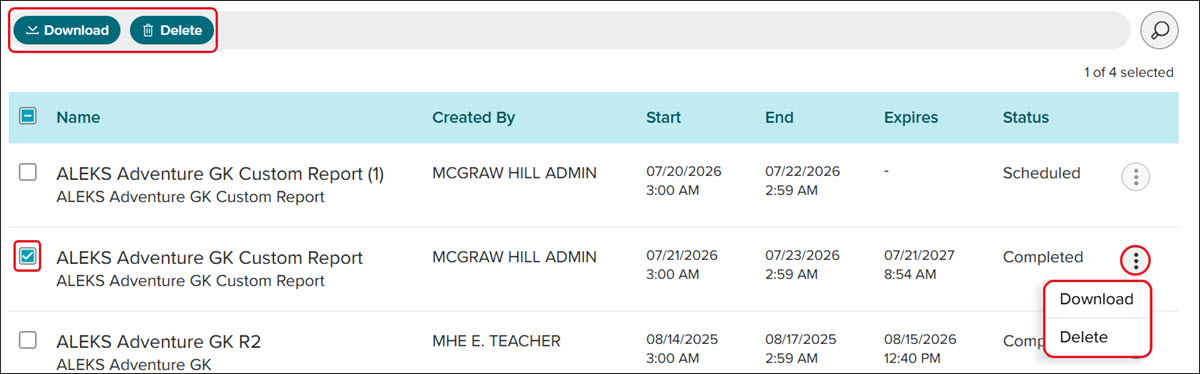
If the report has been Completed, you can check the box next to the report to Download or Delete the report. You can also click on the options (kebob) icon to the right of the report to Download or Delete the report.
For Templates, check the box next to the template to Schedule New Report or Delete the template. You can also click on the options (kebob) icon to the right of the template to Schedule New Report or Delete it.