Adjust or Create a New Redemption Code End Date for Student Editions
Learn how to change the Redemption Code end date or create a new code for one that has expired.
- Customer Support
- PreK-12
- Classroom Teacher
- Preschool
- Elementary School
- Middle School
- High School
- Direct Login & Auto-Rostering
- Direct Login & Manual-Rostering
- SSO & Auto-Rostering
- SSO & Manual-Rostering
- Core
- Intervention
- Supplemental
- AP, Honors & Electives
- Career & Technical Education
- Literacy
- Math
- Science
- Social Studies
- Health
- Visual & Performing Arts
- World Languages
- Glencoe Health 2014
- McGraw Hill Health 2014
- Building Blocks 2015
- Connecting Math Concepts
- Number Worlds 2015
- Corrective Reading
- Early Interventions in Reading
- Spelling Mastery
- WonderWorks 2022 & 2014
- Maravillas 2020 & 2017
- OCR Foundational Skills Kit
- OCR Word Analysis Kit
- Open Court Reading 2016, 2018, 2023
- StudySync 2015 & 2017
- Wonders
- Wonders 2014
- Wonders 2023 2020 2017
- Wonders Balanced Literacy 2016
- Wonders EL 2016
- World of Wonders 2017
- Core Plus Math 2015
- Everyday Mathematics 4 (K-6)
- Glencoe Algebra 1 2014
- Glencoe Algebra 1 2018
- Glencoe Algebra 2 2014
- Glenoce Algebra 2 2018
- Glencoe Math
- Glencoe Geometry 2014
- Glencoe Geometry 2018
- Glencoe Math Course 1
- Glencoe Math Course 2
- Glencoe Math Course 3
- Glencoe Math Accelerated
- McGraw Hill My Math 2013 & 2016
- McGraw Hill My Math
- McGraw Hill My Math 2018
- Pre-Algebra 2012
- Glencoe Science
- Glencoe Science 2017
- Inspire Science 2017
- iScience 2017
- Networks
- Networks 2014 (K-5)
- Networks 2014 & 2016
- Networks 2018
- Music! Its Role
- Spotlight on Music
- Asi se Dice 2016
- Products & Licenses
- Class Management


The Redemption Code end date is the last day your students will have access to the Student Edition before the content is removed from their account so you want to make sure it corresponds with the last day of class. To set the Redemption Code date and assign the Student Edition to the class, you first need to redeem the student expierence to your teacher account. See the Redeem a ConnectED Master Code article for details. For steps on assigning the Student Edition, refer to the Assign the ConnectED Student Edition article.
Note: If you are not able to select the preferred end date for the program, this is most often because of when the subscription for the Student Edition is before the date that is being selected. To verify the end date of the subscription, reach out to your Organization Administrator. If you continue to have problems changing the end date, and it has been confirmed that the subscription is still current for some time, please reach out to our PreK-12 Support Team.
Article Contents
Change Redemption Code End Date
Change Redemption Code End Date
- SSO or log in at my.mheducation.com.
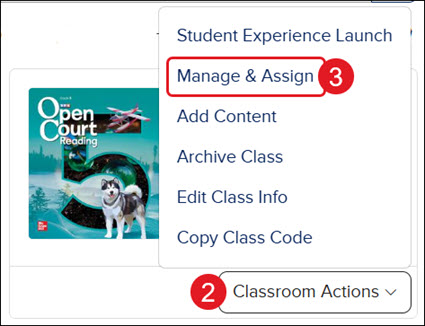
- Click Classroom Actions on the class card.
- Click on Manage & Assign from the menu.
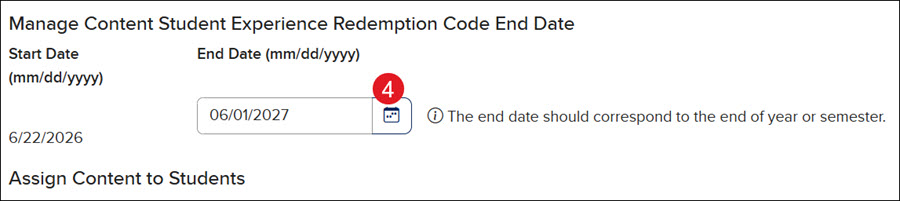
- In the Manage Content Student Experience Redemption Code End Date section, click on the calendar icon.
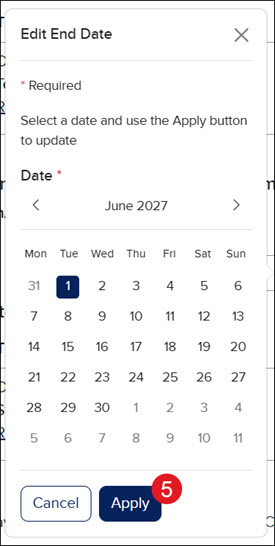
- On the Edit End Date pop-up, select the end date and click the Apply button.
Create a New Redemption Code
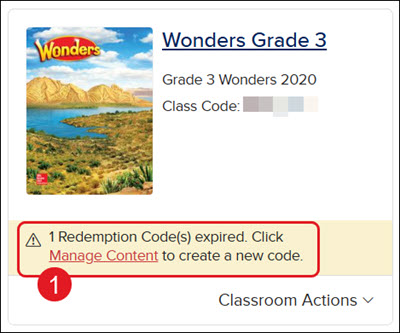
- If the Redemption Code has expired, you'll see a message on the class card. Clicking on the Manage Content link in the message will automatically navigate you to the Assign Content to Students section.
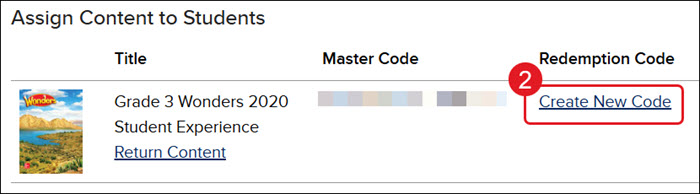
- Click the Create New Code link in the Redemption Code column.
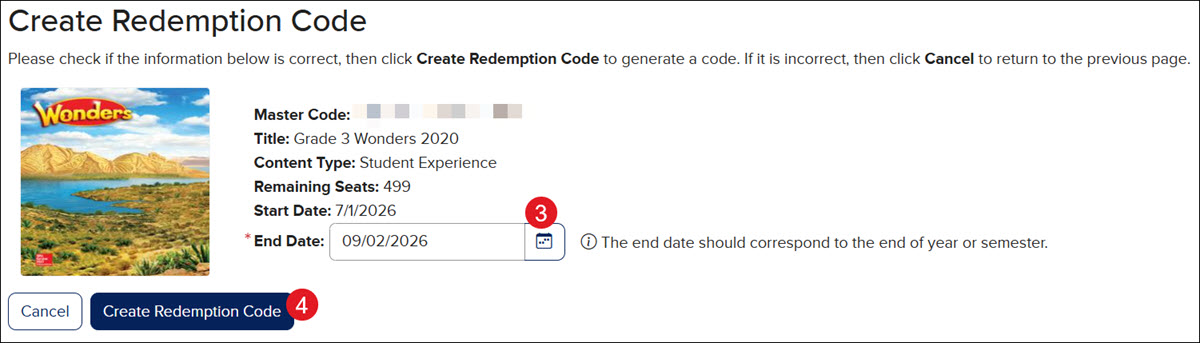
- Click on the calendar icon and select an end date.
- Click the Create Redemption Code button.