
Share ConnectED Classes with Teachers
Manage shared classes in ConnectED to collaborate with co-teachers.
Tags
- Customer Support
- PreK-12
- Classroom Teacher
- Preschool
- Elementary School
- Middle School
- High School
- Direct Login & Auto-Rostering
- Direct Login & Manual-Rostering
- SSO & Auto-Rostering
- SSO & Manual-Rostering
- Core
- Literacy
- Math
- Science
- Social Studies
- Health
- Visual & Performing Arts
- World Languages
- Networks 2014 (K-5)
- iScience 2017
- Glencoe Science 2017
- Inspire Science 2017
- Asi se Dice 2016
- Glenoce Algebra 2 2018
- Glencoe Math Course 1
- Glencoe Math Course 2
- Glencoe Math Course 3
- Glencoe Math Accelerated
- Glencoe Math
- Core Plus Math 2015
- Glencoe Health 2014
- McGraw Hill My Math 2013 & 2016
- McGraw Hill My Math 2018
- Glencoe Algebra 1 2014
- Glencoe Algebra 2 2014
- Glencoe Algebra 1 2018
- Glencoe Geometry 2014
- Glencoe Geometry 2018
- Class Management


View the demo in a separate tab.
View the Spanish version of the demo.
Depending on the roles you have assigned, you may have the additional options to share by District or School. If you do not see these options, you will need to have the Organization Administrator role assigned to your account.
You will need to first create a class before you will be able to share with other teachers. See the Create and Edit a Class article for these steps.
Article Contents
Share a Class by Teacher
Note: When sharing a class with individual teachers, those teachers have to be using the same program and be in the same school.
- SSO or sign in at my.mheducation.com.
- Click on the class.
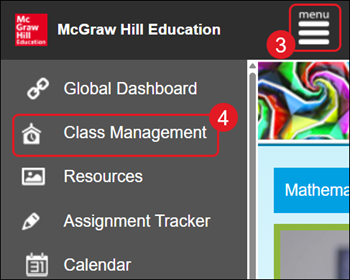
- Click on the Menu button at the top-left.
- Click on Class Management.
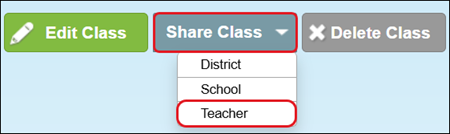
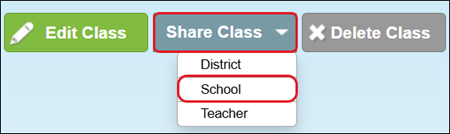
- Click the Share Class button.
For those with extra permissions will need to click on the Teacher option from the menu.
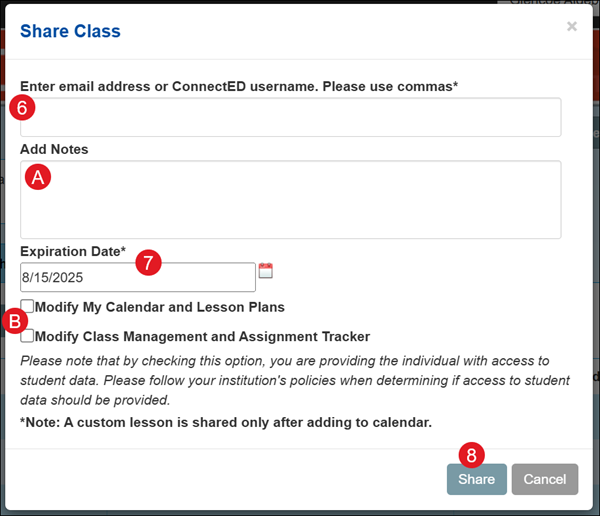
- On the Share Class pop-up, enter the email address or ConnectED username for the teacher(s) you want to share the class with. Separate each entry with a comma.
A. Add Notes if needed.
- Select an Expiration Date. This will be the date the teacher(s) you share the class with will no longer have access.
B. Check the box next to any Modify option(s) you would like the teacher(s) to have for the class.
Note: These options do allow the teacher(s) to access student data.
- Click the Share button.
Share a Class by School
- SSO or sign in at my.mheducation.com.
- Click on the class.
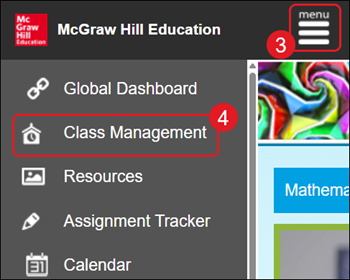
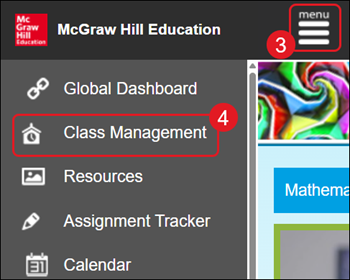
- Click on the Menu button at the top-left.
- Click on Class Management.
- Click the Share Class button.
- Click School from the menu.
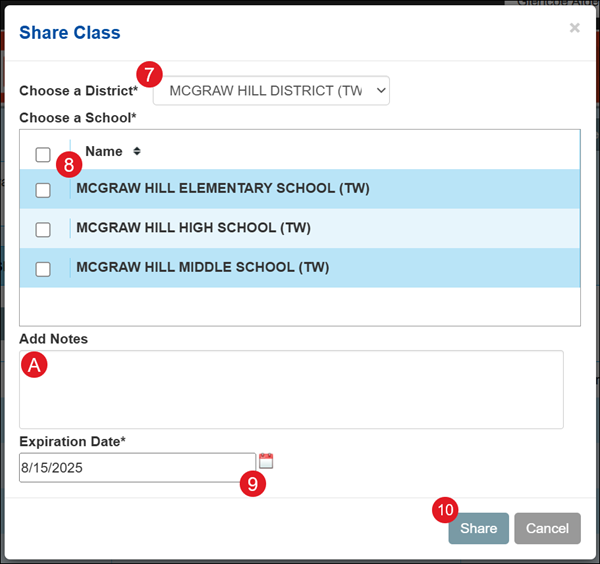
- On the Share Class pop-up, Choose a District from the drop-down if you're assigned to more than one.
- Check the box next to the School(s) you want to share with.
A. Add Notes if needed.
- Select an Expiration Date. This will be the date the teacher(s) you share the class with will no longer have access.
- Click the Share button.
Share a Class by District
- SSO or sign in at my.mheducation.com.
- Click on the class.
- Click on the Menu button at the top-left.
- Click on Class Management.
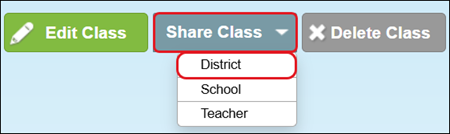
- Click the Share Class button.
- Click District from the menu.
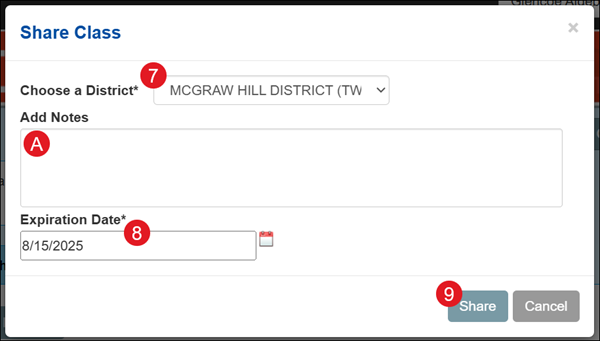
- On the Share Class pop-up, select a District from the drop-down menu if you're assigned to more than one.
A. Add Notes if needed.
- Select an Expiration Date. This will be the date the teacher(s) you share the class with will no longer have access.
- Click the Share button.
Manage Shared Classes
- SSO or sign in at my.mheducation.com.
- Click on the class.
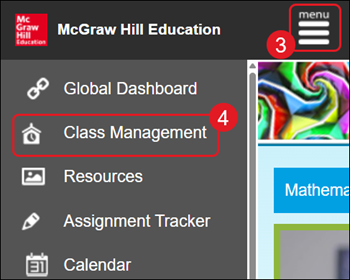
- Click on the Menu button at the top-left.
- Click on Class Management.
- Click the Shared tab.
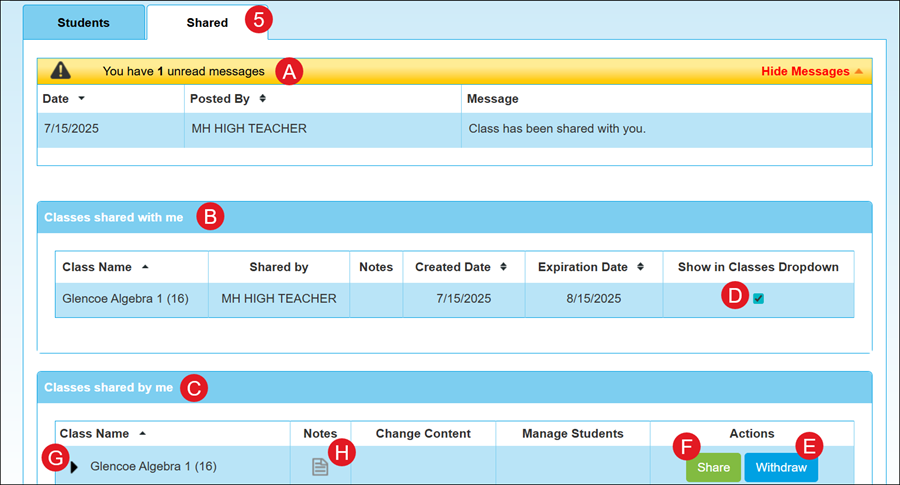
A. If any classes have been shared with you, you will see any unread messages at the top, advising a class has been shared with you.
B. Any classes a teacher has shared with you will show in the Classes shared with me section.
C. Any classes you have shared with the district, school, or another teacher will show in the Classes shared by me section.
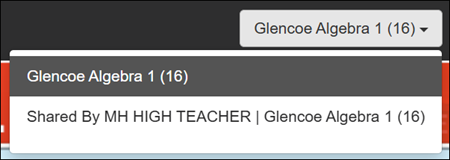
D. Any classes shared with you, the Show in Classes Dropdown is automatically checked. Uncheck the box if you do not want it to show in your class drop-down.
E. In the Classes shared by me section, click the Withdraw button if you no longer want to share the class.
F. Click the Share button to add schools or teachers to those you shared the class with.
G. Click the arrow next to the Class Name to see which teachers, school, or district the class is shared with.
H. Click the Notes icon to add or remove any notes for the shared class.
