
Request a Knowledge Check for the Class in Classic ALEKS
Learn how teachers request a Knowledge Check for an entire ALEKS class.
- Customer Support
- PreK-12
- Classroom Teacher
- Elementary School
- Middle School
- High School
- Direct Login & Auto-Rostering
- Direct Login & Manual-Rostering
- SSO & Auto-Rostering
- SSO & Manual-Rostering
- Supplemental
- Math
- ALEKS
- Online Assessments


Follow these steps to assign a Knowledge Check to the entire class. If you want to assign a Knowledge Check to an individual student, refer to the Request a Knowledge Check for an Individual Student in Classic ALEKS article. To have a Knowledge Check reset, you will need to contact the ALEKS support team.
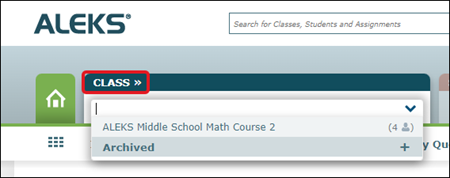
1. From the ALEKS homepage, under Class at the top of the page, select the class you want to assign the Knowledge Check to.
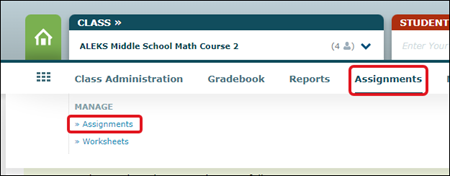
2. Hover over Assignments and select the Assignments link from the menu.
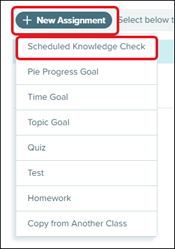
3. Click on the +New Assignment button. Select Scheduled Knowledge Check from the menu.
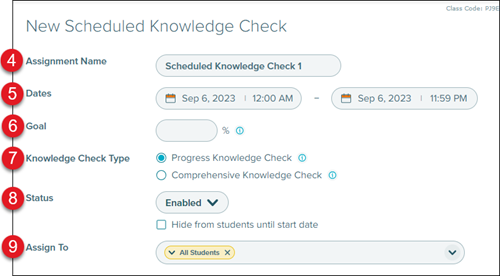
4. Enter an Assignment Name for the Knowledge Check, or leave the default title.
5. Enter the Dates for when the students will be able to access the Knowledge Check.
6. Enter a Goal percentage that should be met for the Knowledge Check.
7. Click the radio button next to the Knowledge Check Type you want it to be.
A Progress Knowledge Check consists of approximately 20 questions that cover their individual learning histories, or a Comprehensive Knowledge Check that consists of approximately 25 questions that cover the students on all material in the class.
8. The Status is defaulted to Enabled. Click the drop-down to select to Disable the Knowledge Check. You can also check the box to Hide the Knowledge Check from students until the start date.
9. The Knowledge Check is automatically assigned to all students in the class. To select specific students, click on the Assign To drop-down and check the box next to the student(s) you want the Knowledge Check assigned to.
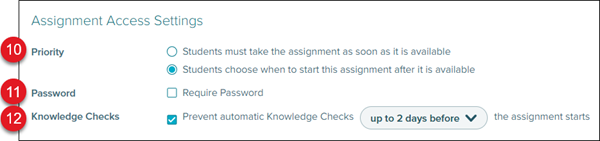
10. Select the radio button next to the Priority for the Knowledge Check. You have the option to select between the students taking the Knowledge Check as soon as it's available, or students can choose when to start the assignment after it's available.
11. Check the box if it requires a Password to access the Knowledge Check.
12. Uncheck the box if you do not want to Prevent automatic Knowledge Checks before the assignment starts.
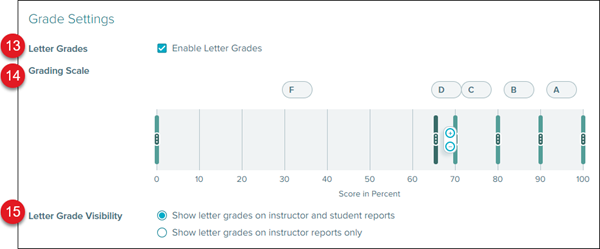
13. For the Grade Settings, the box next to Letter Grades is automatically checked. If you do not want the students to see a Letter Grade, uncheck the box.
14. If the box is checked, you have the option to make adjustments to the Grading Scale by entering a different Grade Letter in the available fields, and/or adding or removing additional Grade Letters to the scale.
15. Select the radio button next to the Letter Grade Visibility. You have the option for the letter grade to show on the student and instructor reports, or only the instructor reports.
16. Check the box next to Save Settings if you would like to apply the same selected options to all future assignments in the Scheduled Knowledge Check category.
17. Click the Create Assignment button.

