Request a Knowledge Check for an Individual Student in Classic ALEKS
Learn how to request a Knowledge Check for an individual ALEKS student.
- Customer Support
- PreK-12
- Classroom Teacher
- Elementary School
- Middle School
- High School
- Direct Login & Auto-Rostering
- Direct Login & Manual-Rostering
- SSO & Auto-Rostering
- SSO & Manual-Rostering
- Supplemental
- Math
- ALEKS
- Online Assessments


A teacher may wish to manually request a knowledge check for an individual student. Follow the steps below to request a Knowledge Check for a student to complete. If you want to assign a Knowledge Check to the entire class or a group of students, refer to the Request a Knowledge Check for the Class in Classic ALEKS article. If you are looking to reset a student's Knowledge Check, you'll need to reach out to the ALEKS support team.
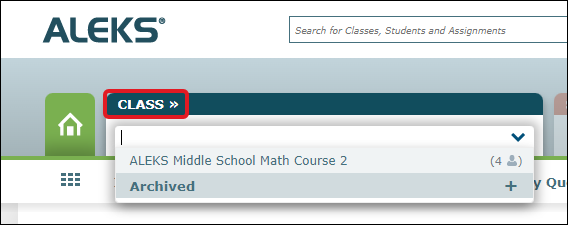
1. From the Class drop-down, select the class the student is associated with.
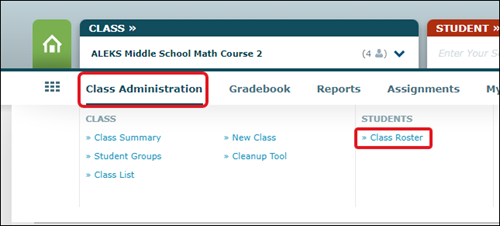
2. Hover over Class Administration and select Class Roster from the menu.
3. Click on the student's name.
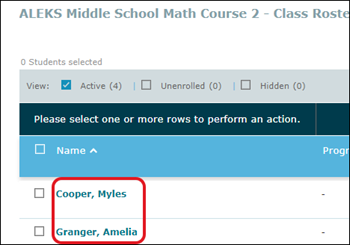
Another option is to select a class from the Class drop-down and then select a student from the Student drop-down.

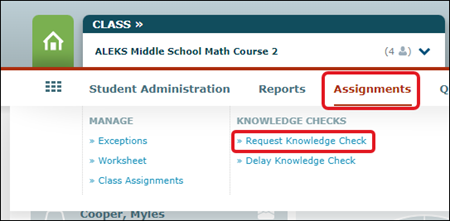
4. Hover over Assignments and select Request Knowledge Check from the menu.
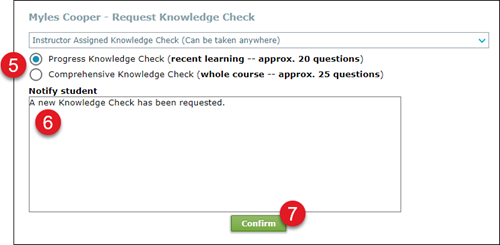
5. Select the radio button to request a Progress Knowledge Check that covers their recent learning, or a Comprehensive Knowledge Check that covers the whole course.
6. Enter any notes or instructions you want the student to read in the Notify Student box.
7. Click the Confirm button.