View and Manage the Classic ALEKS Master Template Summary Page
How to access the Master Template summary page to view and make adjustments to selections.
- Customer Support
- PreK-12
- School Administrator
- Elementary School
- Middle School
- High School
- Direct Login & Auto-Rostering
- Direct Login & Manual-Rostering
- SSO & Auto-Rostering
- SSO & Manual-Rostering
- Supplemental
- Math
- ALEKS
- ALEKS Adventure
- Class Management
- Tools & Resources


View the demo in a separate tab.
View the Spanish version of the demo.
Note: If you are making adjustments for an ALEKS Adventure Master Template, you want to keep in mind that there are fewer sections than an ALEKS 3-12 course on the Class Summary.
1. SSO or log in at my.mheducation.com.
You may need to toggle between roles and organizations to get to your administrator tools.
2. In the navigation menu, click the menu option for ALEKS.
You will only see this menu option if you are an Administrator and your organization has licenses for ALEKS on Open Learning.
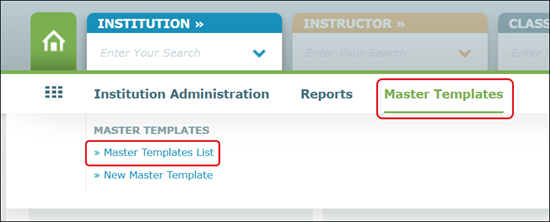
3. Hover over Master Templates in the navigation menu and select Master Template List.
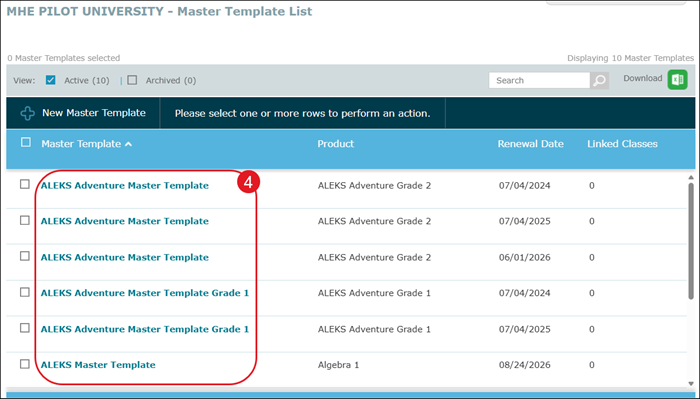
4. Click on the name of the Master Template you want to edit.
5. Click the Edit link to make changes to any of the sections.
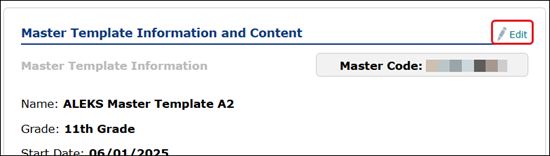
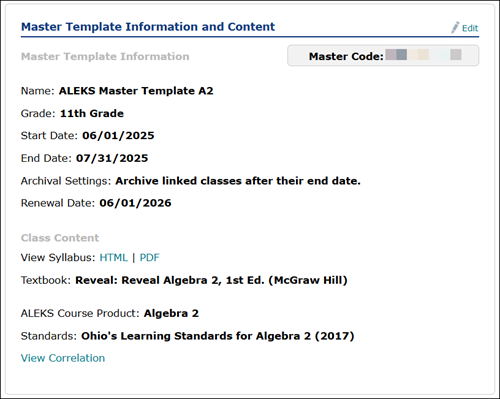
The Master Template Information and Content section provides the template Name, selected Grade, Start and End Date, Archival Settings, and the template Renewal Date.
This section also provides the associated Syllabus, attached Textbook, the selected ALEKS Course Product, and the attached Standards.
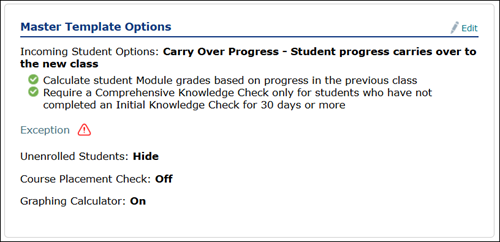
The Master Template Options show the selections that were made for incoming Student Options, Unenrolled Students, Course Placement Check, and Graphing Calculator.
These options differ depending on the ALEKS Course Product selected.
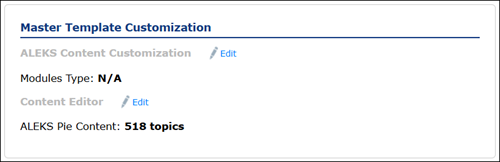
The Master Template Customization section lists the Modules Type, Modules, Class Content, and if the Post Module Knowledge Check is activated or not.
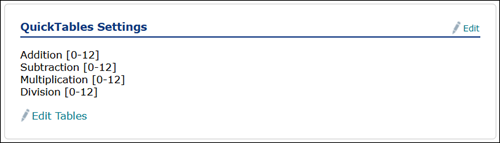
The QuickTables Settings section provides information on the selected QuickTables, if applicable.
Not available for ALEKS Adventure.
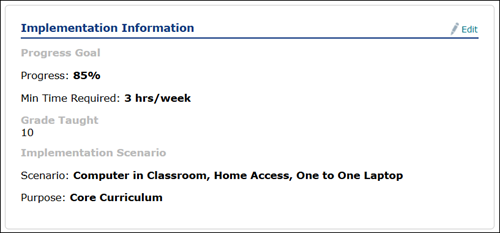
The Implementation Information section provides the Progress Goal percentage, Minimum Time Required that students have to work in the program each week, the Grade level the class is geared towards, and the Implementation information for the course.
Not available for ALEKS Adventure.
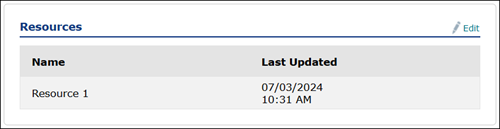
If any Resources have been attached to the template, they will be listed here with the Name of the resource and the date when it was last updated/attached.
Not available for ALEKS Adventure.
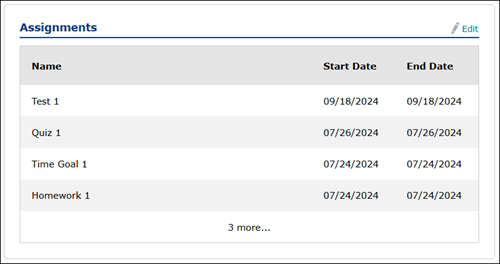
If any Assignments were created and attached to the template, they will be listed with the assignment Name and Start and End Date.
For information on creating ALEKS assignments, refer to the Classic ALEKS Assignment Management Guide article.
Not available for ALEKS Adventure.
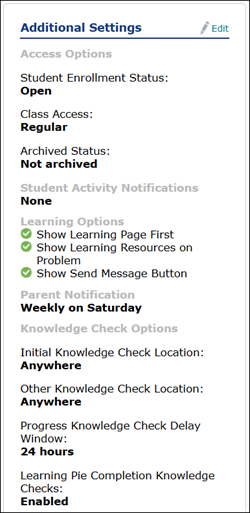
The Additional Settings include information on if Student Enrollment is active or inactive, the Class Access type, and the Archived Status.
It also provides information such as when Parent Notifications are sent out every week and Knowledge Check details.
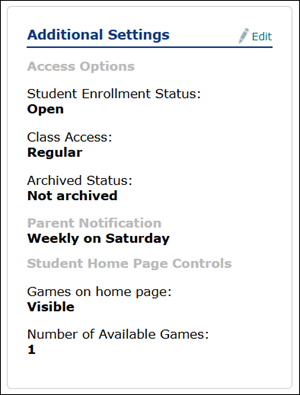
For ALEKS Adventure, the Additional Settings include information on whether Student Enrollment is active or inactive, the Class Access type, and the Archived Status.
It also provides information on Parent Notifications, if Games are accessible to students, and how many games are available to them.
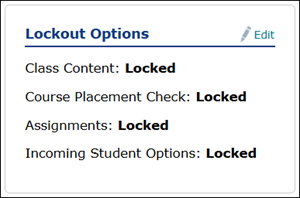
The Lockout Options show if certain sections can be edited by teachers or not.
If the sections are locked, instructors of linked classes to the template cannot make changes to the Class Content, Assignments, and/or Incoming Student Options.
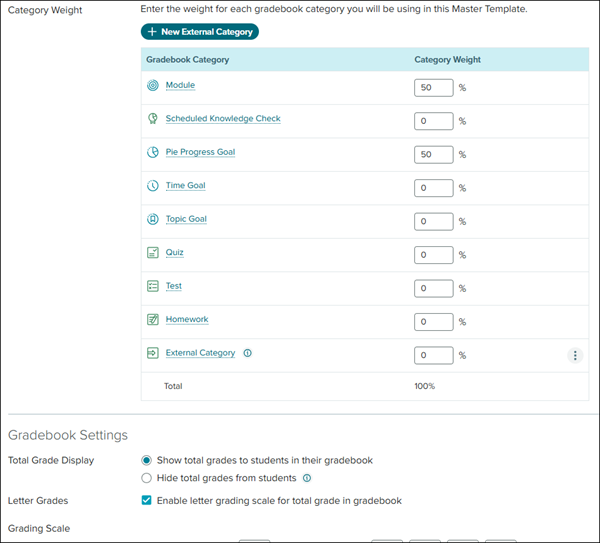
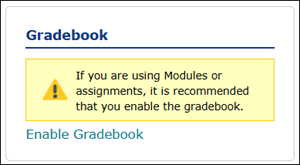
The Gradebook section allows you to create/attach a gradebook for any classes attached to the template.
Not available for ALEKS Adventure.
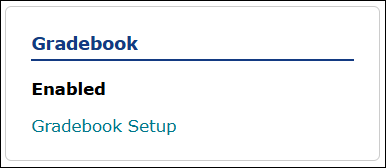
Click the Enable Gradebook link to activate the option for any classes that will be assigned to the template.
Click the Gradebook Setup link to make adjustments to the gradebook categories and settings.