
Edit Default Behavior for Incoming ALEKS Student Progress as an Administrator Using the Classic View
Edit default behavior for incoming student progress in ALEKS to control placement and data handling.
- Customer Support
- PreK-12
- School Administrator
- Elementary School
- Middle School
- High School
- Direct Login & Auto-Rostering
- Direct Login & Manual-Rostering
- SSO & Auto-Rostering
- SSO & Manual-Rostering
- Supplemental
- Math
- Class Management
- Tools & Resources


View the demo in a separate tab.
View the Spanish version of the demo.
The default behavior in ALEKS 3-12 and ALEKS Adventure will be to carry over student progress when students move between classes using products/resources from the same Course Product Family.
1. SSO or log in at my.mheducation.com.
You may need to toggle between roles and organizations to get to your administrator tools.
2. In the navigation menu, click the menu option for ALEKS.
You will only see this menu option if you are an Administrator and your organization has licenses for ALEKS on Open Learning.
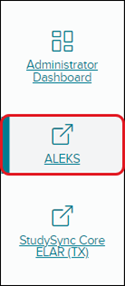
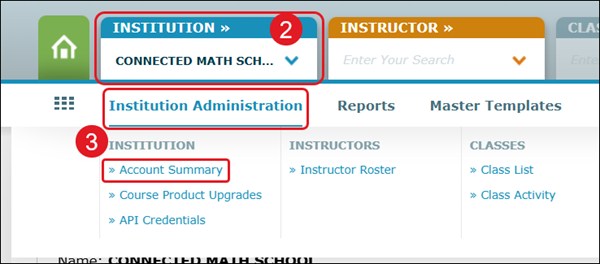
2. Select an Institution from the drop-down if you want to adjust a specific school's settings.
Leaving the option blank will allow you to adjust the settings at the district level.
3. Hover over Institution Administration and select Account Summary from the menu.
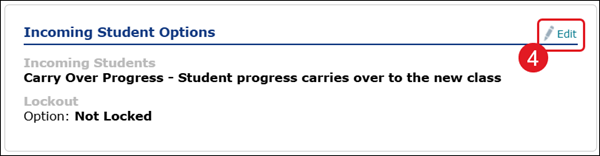
4. Click Edit on the Incoming Student Options section.
5. Select the radio button next to Carry Over Progress or New Initial Knowledge Check.
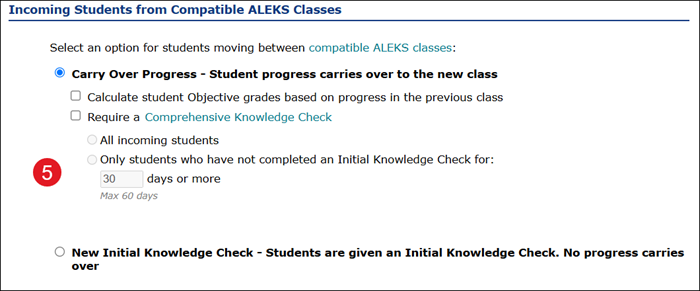
If Carry Over Progress is selected, check the box next to any additional options you want included in the template.
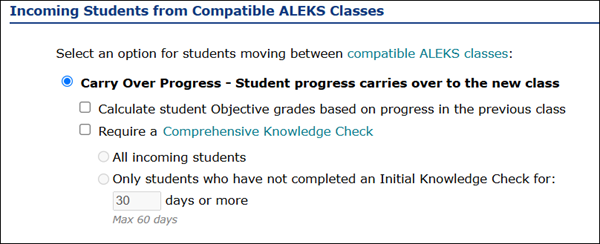
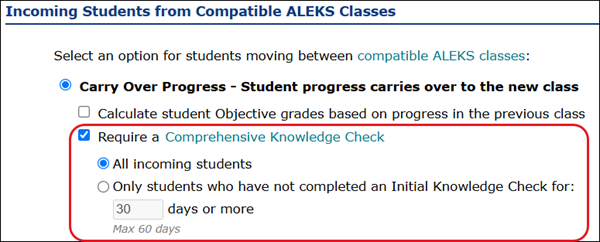
If Require a Comprehensive Knowledge Check is marked, you will want to select the radio button next to if you want all students to complete the Knowledge Check or only if they have not completed an Initial Knowledge Check after a certain number of days.
This setting can also be edited at the level of individual classes by instructors on the Class Summary page. If you do not want instructors to have this ability, you can lock them out of editing by checking the Lockout box.

6. Click the Save button to confirm changes.
Notes and Recommendations:
This school-level setting will only apply to newly created classes. Any classes created before this edit was made will retain their previous behavior.
The Incoming Student Options only apply when students first enter their ALEKS class. Editing the option after students have already been enrolled in the class will have no effect.
Note: Because of this, allowing teachers to edit the setting at the class level is not an effective option for auto-rostering districts. If your district's classes are managed through the roster data, classes are created and rostered at the same time, so teachers will not be able to edit the setting before students are rostered into the class.
Requiring a Comprehensive Knowledge Check is similar to requiring a New Initial Knowledge Check. The distinction is that when ALEKS gives an Initial Knowledge Check, it assumes a complete blank slate for the student's prior knowledge.
When ALEKS gives a Comprehensive Knowledge Check, it will still assess the student to determine their overall placement in the course material, but the Comprehensive Knowledge Check will take the student’s previously existing knowledge state as relevant information when the ALEKS assessment engine determines the student’s current level of knowledge.
The experience will be very similar from the students’ perspective, but districts that want the results of their entry knowledge checks to be more directly reflective of students’ work from the previous year may prefer to require a Comprehensive Knowledge Check instead of the Initial Knowledge Check.
Even if you want students to get a new knowledge check when the new school year begins, it might be a good idea to change the setting back to Carry Over Progress later. Otherwise, students will be required to take a new Initial Knowledge Check or Comprehensive Knowledge Check even if they are transferred between sections during the school year, which can be frustrating for students and teachers.
This change will need to be made by the instructors at the class level to be updated for existing classes or sub-classes. If instructors create a new sub-class, they can edit the setting before moving students into the new sub-class.
Incoming Student Options are always overridden by a special exception if students are being moved between classes tied to the same Master Template.
If instructors create sub-classes using a Master Template, the Incoming Students Option selected on the Master Template will be applied instead if it is different from the institution-level setting.