Assign ALEKS Master Templates in Access Manager
Assign ALEKS master templates in Access Manager to streamline course creation.
- Customer Support
- PreK-12
- School Administrator
- Elementary School
- Middle School
- High School
- Direct Login & Auto-Rostering
- Direct Login & Manual-Rostering
- SSO & Auto-Rostering
- SSO & Manual-Rostering
- Supplemental
- Math
- ALEKS
- ALEKS Adventure
- Class Management
- Tools & Resources
- Auto-Rostered SSO Resources
- Access Manager


Direct Login and Auto-Rostering
Single Sign-On (SSO) and Auto-Rostering
This article applies to Auto-Rostering districts. Auto-Rostering means that account creation, class setup, and roster management are automated through a process handled by your district.
Direct Login means that teachers, students, and administrators log in at my.mheducation.com.
Single Sign-On applies to districts that use an SSO portal, district website, or Learning Management System (LMS) to access McGraw Hill digital programs.
Not sure which Access Service your district uses? View the Access Service Descriptions article to learn more about the four Access Services that we support.
View the demo in a separate tab.
View the Spanish version of the demo.
1. SSO or log in at my.mheducation.com.
You may need to toggle between roles and organizations to get to your Admin Tools.
2. Click on Access Manager from your navigation menu.
You will only see this menu option if you are an Administrator and your organization is set up with Auto-Rostering.
Depending on how your login was created, some users may need to go to access.mheducation.com to sign in.
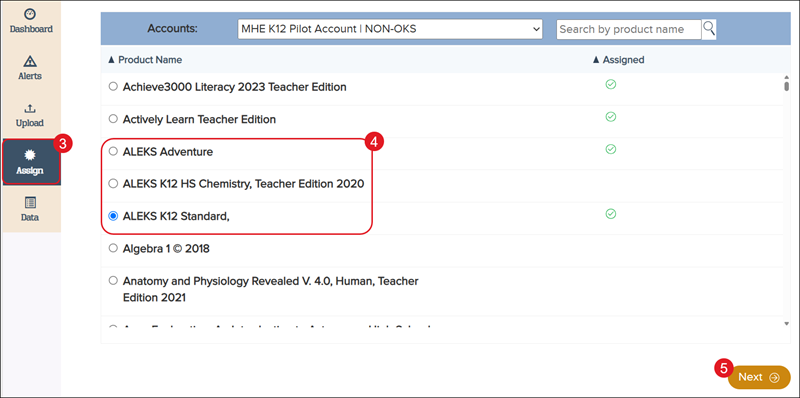
3. Click Assign in the navigation menu.
4. Select the radio button next to the ALEKS course.
5. Click the Next button.
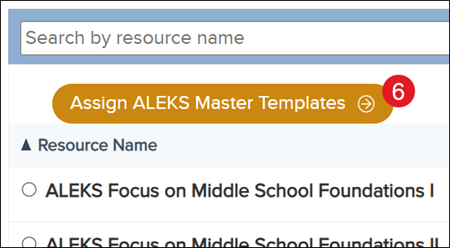
6. Click the Assign ALEKS Master Templates button.
You will not see this button if you have not yet created an ALEKS Master Template and/or if you did not check the Allow this Master Template to be accessed during rostering through Access Manager box.
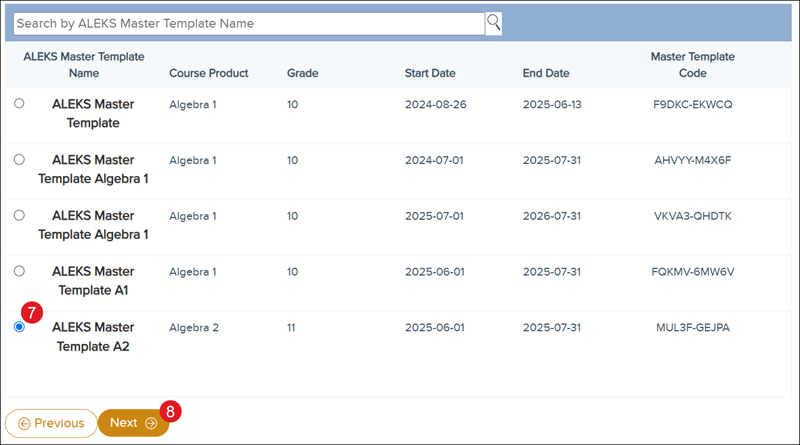
7. Select the radio button next to the ALEKS Master Template Name you want to assign.
8. Click the Next button.
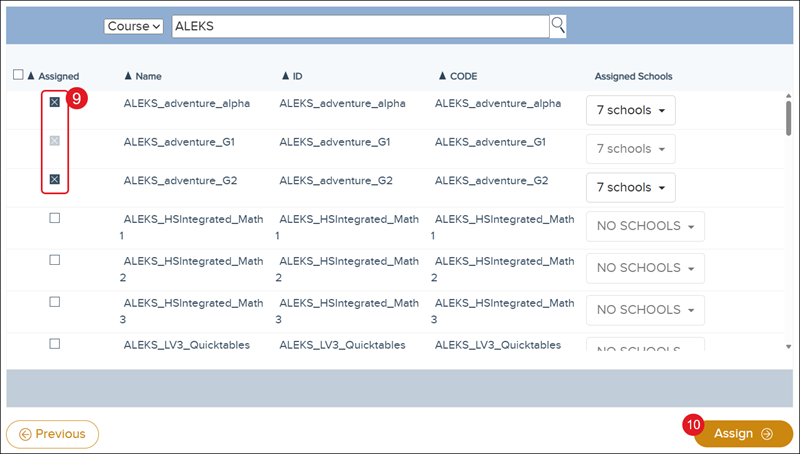
9. Check the box next to the Course or Class you want to assign the template to.
10. Click the Assign button.