
Completing ALEKS Adventure Lesson Questions
Learn how to answer questions in ALEKS Adventure lessons.
- Supplemental
- ALEKS Adventure
- Math
- Dashboard & Navigation Overview
- SSO & Manual-Rostering
- Customer Support
- Direct Login & Auto-Rostering
- School Student
- Direct Login & Manual-Rostering
- School Parent
- SSO & Auto-Rostering
- PreK-12
- Elementary School


For a full page view of the demo, click here.
For a Spanish version of the demo, click here.
Article Contents
Topic Navigation
During the Knowledge Check, guided practice, and independent practice, students must interact with questions to show what they know.
Below is an example image of a question from the independent practice.
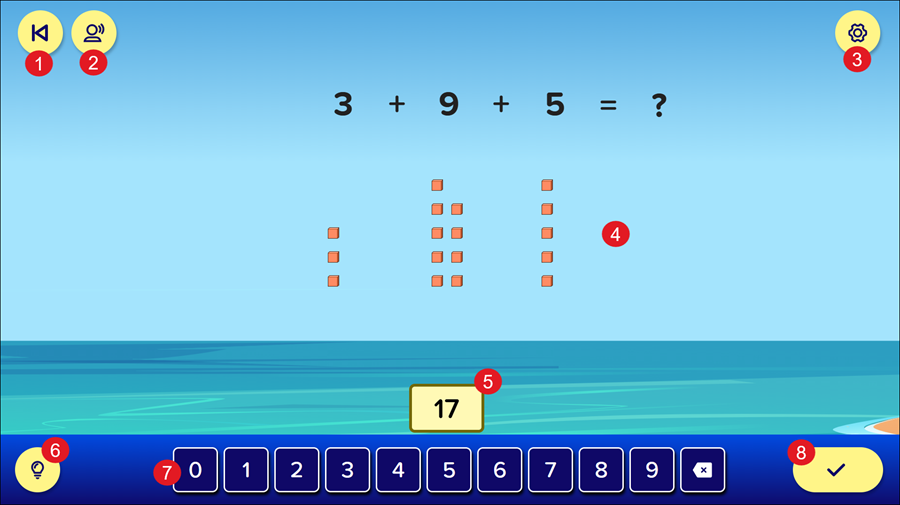
1. Back Button: During independent practice, this button resembles a “previous” button and returns students to the guided practice portion of the topic so they can review the instructions. During guided practice, this button resembles a map and returns students to the land. During the Initial Knowledge Check, this button resembles an X and returns students to the ALEKS Adventure Start page.
Independent Practice Back Button

Guided Practice Back Button

Initial Knowledge Check Back Button
2. Respeak Button: Replays the spoken audio on the page.
3. Settings: Opens the Settings panel where students can toggle buttons on and off to change their environment in ALEKS Adventure. The Settings button is available in the top-right corner of every page in ALEKS Adventure.
4. Instructions: Instructions are provided for each question. Sometimes, questions are a mix of an equation and a text explanation of what students are supposed to do.
5. Answer Field(s): Students answer each question by inputting the answer into the numeric input field. Some questions have multiple answer fields that all need to be filled out before students can submit their answer. Most questions can be filled out using either the numbers on the keyboard of their device or the button bar on the bottom of the screen.
Most Answer Fields have four states:
- Filled Out - Students have added an answer to the field and the answer is displayed.
- Selected - The field students have selected shows a cursor and is active for answer submission. If students do not have a field selected, the cursor does not show.
- Blank - The field appears blank, indicating students need to add an answer to it.
- Hover - When students hover their mouse over a field, the field has a yellow glow to help them see which field they are hovering over.
Note: Only numbers can be entered into the answer fields. Selecting keys for non-number characters on a device keyboard does not populate text in the field.
6. Hint Button/I Don’t Know Button: Hints are available for each topic during independent practice, but are not present during guided practice, the Initial Knowledge Check, or the Progress Knowledge Check. Students can select the Hint button to receive a hint on the question.
The I don’t know button is only available during the Initial Knowledge Check and the Progress Knowledge Check. Students select the button when they don’t know the answer to a question. Selecting the I don’t know button progresses them to the next question.
7. Numeric Input Pad (Grades 1-3) : Certain problem types have a button bar where students can select numbers, symbols, or items to answer the question. They select these buttons using their mouse or a touch screen. They can also navigate through them using tab on their keyboard to move to the right and shift + tab on their keyboard to move to the left, and then pressing Enter when they have highlighted the appropriate button.
Kindergarten Button Bar
The button bar in Kindergarten contains enhanced number buttons that are visually larger with a voice that reads the number aloud when selected.

8. Submit Answer Button: Students select this button to submit their answer. This button is inactive until students provide an answer for the question.
Submitting Answers
Once they submit their answer, they progress to the next question. During the guided practice and independent practice, students receive immediate feedback from Digit if their answer is correct or incorrect through a banner at the bottom of the page.
Note: Unlike during the topics, students do not receive automatic feedback on their answers during the Initial Knowledge Check.
Once all questions are answered, the Submit Answer button progresses students to the next step.
- During the Initial Knowledge Check, students progress to the Ship Lab.
- During guided practice, students progress to the next part of the narrative that leads them to the independent practice.
- During independent practice, students progress to the next topic depending on whether they pass or fail the questions. Scoring is adaptive, with one point being awarded for a correct answer, then two points for each consecutive correct answer.
- In order to pass, students must correctly answer enough questions to total five points. When students correctly answer a question, Digit provides positive feedback (e.g., “You’re doing great!”, “Nice work!”, or “Correct!”).
- When students incorrectly answer a question, they are provided with a hint and have to try it again. They are not awarded points for questions they retry after receiving a hint, and the next question they correctly answer without using a hint is worth one point instead of two.
- When they correctly answer a question after receiving a hint, Digit provides feedback indicating the answer attempt was practice (e.g., “That was good practice!”) for the first two questions that the student gets incorrect. If the student gets three problems incorrect, they do not pass the topic.
Hints
When students fail to correctly answer a question during independent practice, Digit provides them with a hint and suggests they try the question again. Students can also select the Hint button in the lower left of the screen to get a hint from Digit.
Students can access hints up to three times per topic attempt. This number includes both the hints provided by Digit and the hints accessed by selecting the Hint button.
If students receive a hint for a particular question, they can access that hint multiple times before they complete the question without it counting against their total number of hints.
For example, if students submit an incorrect answer on the first question they attempt during independent practice and then receive a hint from Digit, they can select the Hint button to access the hint again even after they close the hint, and it still only counts as them accessing the hints one time. After they submit their answer and start a new question, if they select the Hint button again, it counts as the second of the three times they can access hints for the lesson.
If multiple hints are available for a topic, students can navigate through them using the arrow buttons. There is no penalty for accessing hints and then answering the question correctly. If students use a hint and then answer a question correctly, the answer they provide is treated as neither correct nor incorrect. However, if students answer a question incorrectly and are then prompted with a hint, or access the hint and then answer incorrectly, the question is marked as incorrect.