
ALEKS Adventure Student Settings
Explore ALEKS Adventure student settings that control gameplay preferences, accessibility options, and learning experience.
- Customer Support
- PreK-12
- School Student
- School Parent
- Elementary School
- Direct Login & Auto-Rostering
- Direct Login & Manual-Rostering
- SSO & Auto-Rostering
- SSO & Manual-Rostering
- Supplemental
- Math
- ALEKS Adventure
- Student Resources
- Dashboard & Navigation Overview
- Browser Device Compatibility


View the demo in a separate tab.
View the Spanish version of the demo.
After selecting the Settings button, a panel slides open from the right-hand side. The panel contains settings that control the student environment in ALEKS Adventure.

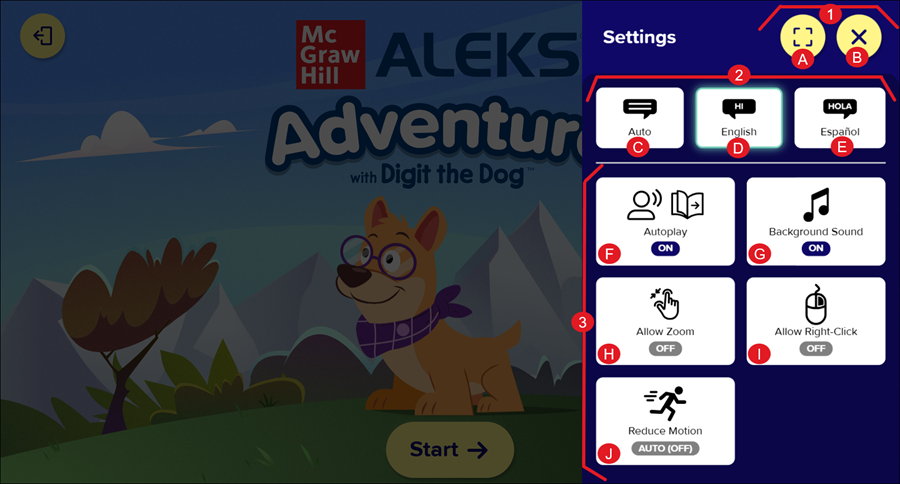
1. Top Buttons: The top of the panel contains buttons to control full screen and exit the Settings panel.
A. Full Screen (Default OFF): Turning this setting on changes the screen view from standard screen mode to full screen mode.
B. Exit: To exit the Settings panel, students click the X button or click outside the panel.
2. Language Settings: This part of the Settings panel contains settings for language options. Students can switch between English and Spanish at any time. They can toggle the language settings on or off from any page without interrupting their current work session.
C. Auto (Default Setting): ALEKS detects if the user’s selected browser language is set to English or Spanish and automatically defaults all onscreen text and spoken audio in ALEKS Adventure to that language. If the user’s language is set to a language other than English or Spanish, ALEKS defaults to the language set at the district level for the market.
D. English: Turning this setting on sets the on-screen text and spoken audio in ALEKS Adventure to English.
E. Español: Turning this setting on sets the on-screen text and spoken audio in ALEKS Adventure to Spanish.
3. Additional Settings: The bottom part of the Settings panel contains other settings used to control the environment in ALEKS Adventure.
F. Voice (Grades 1-3) / Autoplay (Kindergarten): For grades 1-3 classes, the Voice setting is available in the Settings panel. For Kindergarten, the Autoplay setting replaces the Voice setting in the Student Settings panel. Autoplay is not available for grades 1-3. The voice option allows increased accessibility for students who are pre-readers. Screen-reader users can disable the platform voice to avoid having two voices playing at the same time.
- Voice: (Default ON for grades 1-2, Default OFF for grades 3+): When this setting is on, spoken audio accompanies the text on the page. Turning this setting off disables the spoken audio from reading the onscreen text. The setting allows students to adapt to different environments, such as when they’re working in the classroom, when they’re at home, or when they’ve forgotten their headphones.
There is no spoken audio when the student’s internet browser is muted, but the Voice setting is turned on in ALEKS Adventure.
When the student turns the Voice setting off, any spoken audio that is being played on the page is immediately silenced.
When the Voice setting is turned off, the Respeak button replays the spoken audio on the page unless the student’s internet browser is muted.
- Autoplay: This feature reduces the amount of mouse-clicking for kindergarten students by enabling an audio component to read the onscreen text and automatically advancing pages that do not require student interaction to the next page.
There are three options available for the Autoplay setting:
- ON (Default setting): Turning this setting on enables an audio component to read the onscreen text and automatically advances students to the next page when the page does not require student interaction.
- VOICE ONLY: Turning this setting on enables an audio component to read the onscreen text, but disables advancing students to the next page. After the voice reads the onscreen text, navigation buttons appear on the bottom corners of the page (where available), and students manually navigate forward or backward the same way as students in other grade levels do.
- OFF: This setting turns off both the audio component that reads the onscreen text and the automatic advancing of students to the next page. Students navigate through ALEKS Adventure by reading the text on the page, then using the navigation buttons at the bottom of the page (where available) to manually navigate forward or backward the same way as students in other grade levels do.
G. Background Sound (Default ON): Turning this setting off turns off the background music in ALEKS Adventure, but when students submit answers, the sounds for correct and incorrect answers still remain audible, along with any corresponding dialog. The onscreen text in the Lesson Plan remains audible.
H. Allow Zoom (Default OFF): Turning this setting on allows students using a desktop computer or an iPad to zoom in on the current page to help with difficulty reading the onscreen text.
I. Allow Right-Click (Default OFF): This setting is turned off by default to prevent students from accidentally opening the mouse right-click menu and making a selection. Turning this setting on enables the mouse right-click functionality, allowing students to access the right-click menu.
J. Reduce Motion (AUTO Default (OFF)): Turning this setting on freezes all animation in ALEKS Adventure so that any swiping or looping motion becomes inactive.
