
Add and Remove Students from ALEKS Class Roster
Manage class rosters in ALEKS by adding, removing, or moving students.
- Customer Support
- PreK-12
- Classroom Teacher
- Elementary School
- Middle School
- High School
- Direct Login & Auto-Rostering
- Direct Login & Manual-Rostering
- SSO & Auto-Rostering
- SSO & Manual-Rostering
- Supplemental
- Math
- ALEKS
- ALEKS Adventure
- Class Management
- Getting Started & Orientation
- Back-to-School Setup


View the demo in a separate tab.
View the Spanish version of the demo.
Teachers need to roster their students to their ALEKS classes from the McGraw Hill platform before they will show in the roster within ALEKS.
Note: If you are associated with a managed account, if you need students added or removed from classes created for you by the district, you will need to reach out to your Organization Administrator. You will only be able to add and remove students from classes you have manually created.
Article Contents
Add Students to Roster
For district-created classes, to have a student added to the class, you will need to reach out to your Organization Administrator.
1. SSO or sign in at my.mheducation.com.
2. Create a class.
3. Click on Classroom Actions.
4. Click on Manage Class Roster from the menu.
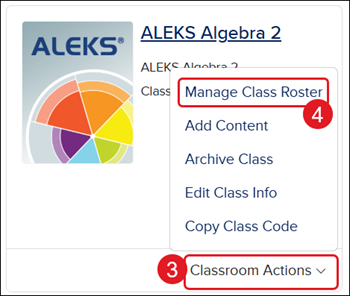
5. Click the Edit Student Roster link.
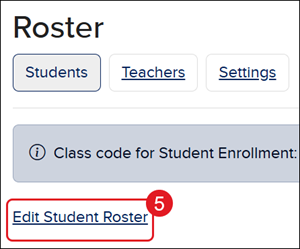
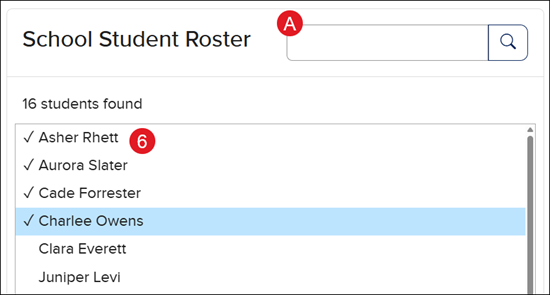
6. In the School Student Roster section, select the student(s) you want to add to the class.
A. Use the search field to locate a specific student.
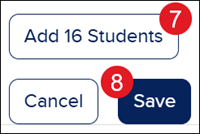
7. Click the Add Student button.
8. Click the Save button.
Create New Student
Manual Roster teachers also have the option to use the Import Students/Rosters to create new student accounts. Teachers that have their classes created for them will not have access to this feature.
1. SSO or sign in at my.mheducation.com.
2. Create a class.
3. Click on Classroom Actions.
4. Click on Manage Class Roster from the menu.
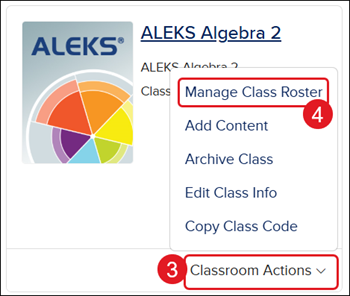
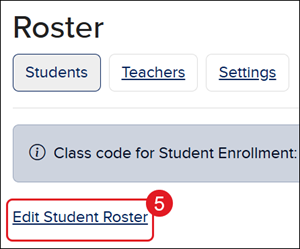
5. Click the Edit Student Roster link.
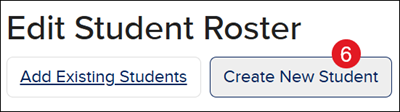
6. Click the Create New Student button.
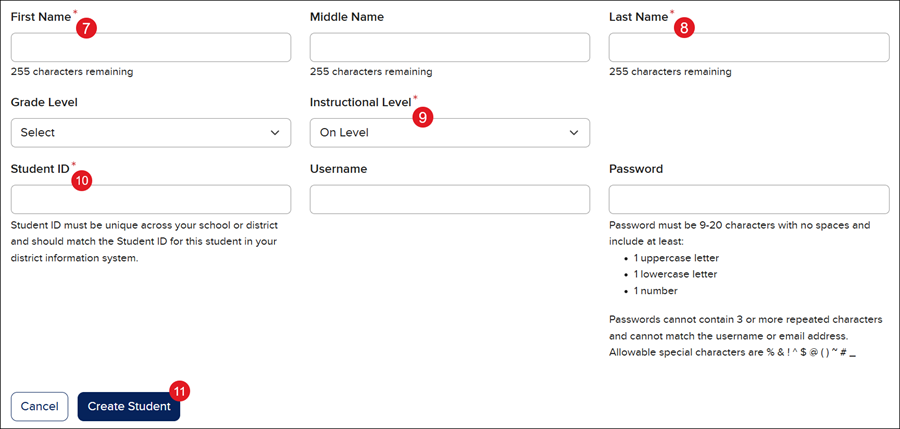
7. Enter a First Name.
8. Enter a Last Name.
9. Select an Instructional Level from the drop menu.
10. Enter a Student ID. This has to be unique to the district.
The Middle Name, Grade Level, Username, and Password are optional fields.
If you are wanting the student to have a specific Username and Password, you will want to fill in these fields or the system will generate one for them.
11. Click the Create Student button.
The student is added automatically to the class roster.
Edit Student Profile
For students that are created and rostered by the district, teachers will only be able to edit certain options within the student profile.
1. SSO or sign in at my.mheducation.com.
2. Click on Classroom Actions.
3. Click on Manage Class Roster from the menu.
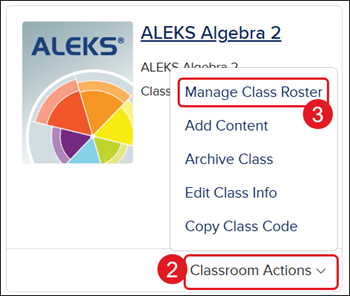
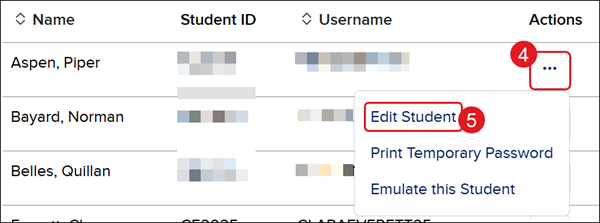
4. Click the Options button in the Actions column for the student.
5. Click Edit Student from the menu.
6. Make preferred changes.
Note: Making changes to the Name, Grade Level, Student ID, Username, and Password fields changes them in the entire system for that student.
For more information about the IEP Settings section, refer to the Set Student IEP Settings for an Open Learning Class article.
7. Click the Update button at the bottom.
Remove Students from Roster
Note: Removing a student from the roster will also remove all of their data. Adding the student back to the roster will also add the data back to the class reports.
For classes managed by the district, if the student is assigned to a class the district created class, you will need to reach out to the Organization Administrator to have the student removed.
1. SSO or sign in at my.mheducation.com.
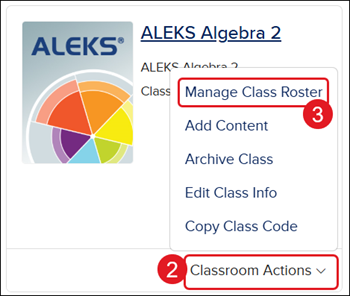
2. Click on Classroom Actions.
3. Click on Manage Class Roster from the menu.
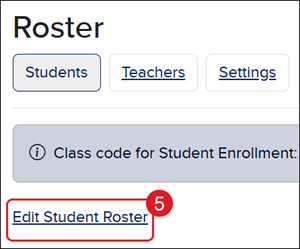
5. Click the Edit Student Roster link.
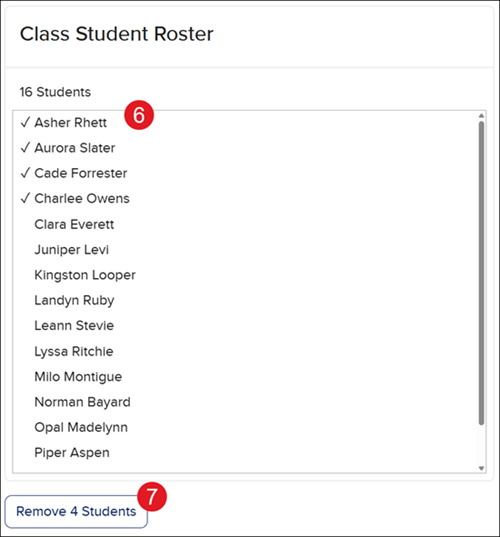
6. In the Class Student Roster section, select the student(s) you want to remove.
7. Click the Remove Students button.
8. Click the Save button.
