Create and Edit an ALEKS Class
Create and edit ALEKS classes, including names, dates, and settings.
- Customer Support
- PreK-12
- Classroom Teacher
- Elementary School
- Middle School
- High School
- Direct Login & Auto-Rostering
- Direct Login & Manual-Rostering
- SSO & Auto-Rostering
- SSO & Manual-Rostering
- Supplemental
- Math
- ALEKS
- ALEKS Adventure
- Class Management
- Back-to-School Setup
- Getting Started & Orientation


View the demo in a separate tab.
View the Spanish version of the demo.
Article Contents
Create a New Class
1. SSO or sign in at my.mheducation.com.
If you're assigned to multiple schools, you will need to toggle to the school you want the class associated with.
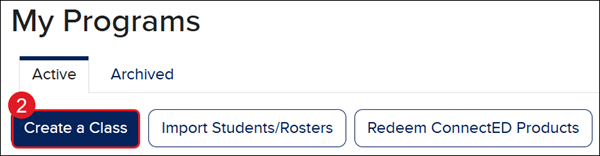
2. Click the Create a Class button.
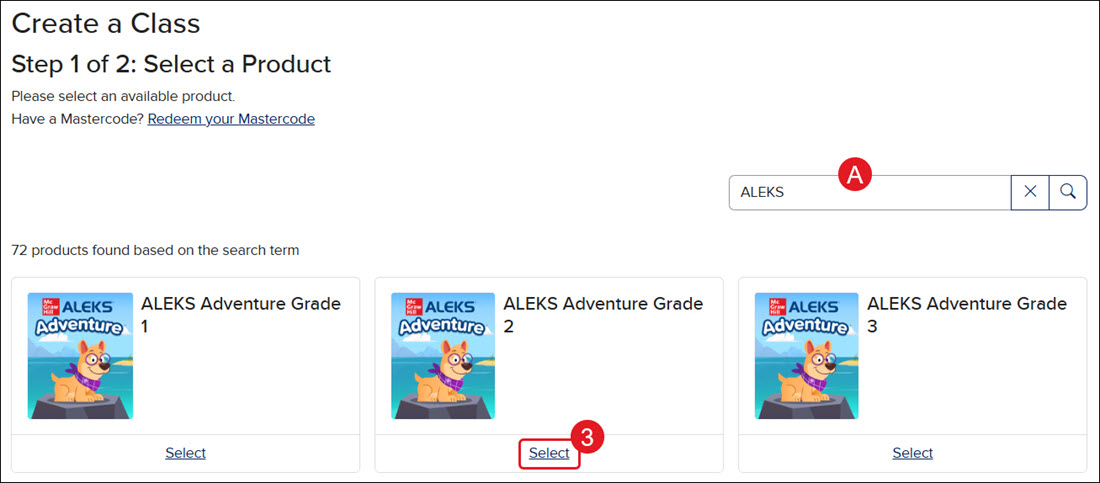
3. Click the Select link for the program you need.
A. Use the search field to locate a specific program.
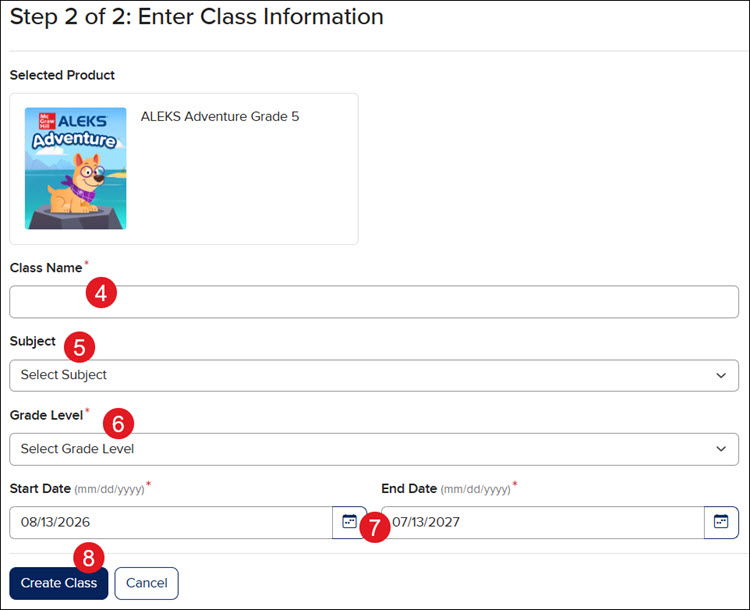
4. Enter a Class Name.
5. Select a Subject from the drop menu.
6. Select a Grade Level. This can be different from the grade level the students are assigned to.
7. Select a Start and End Date for the class.
Note: Students will be able to access the class three days before the selected start date. We suggest selecting an end date that is the last day of class or close to it.
8. Click the Create Class button.
Edit an Existing Class
1. SSO or sign in at my.mheducation.com.
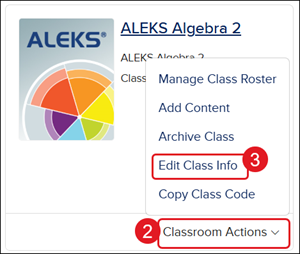
2. Click on Classroom Actions.
3. Click on Edit Class Info from the menu.
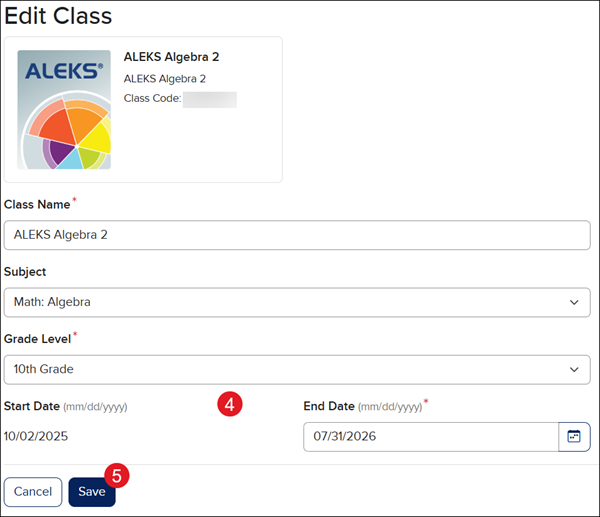
4. Make any preferred changes.
Note: If you need to select a new Start Date you have to create a new class.
5. Click the Save button.
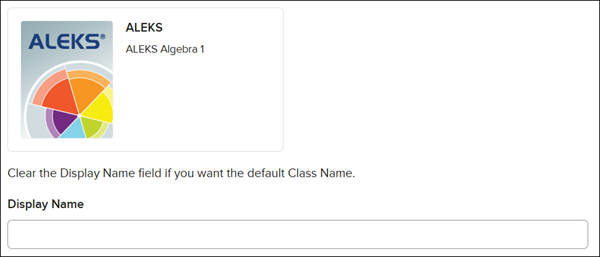
If you're associated with a managed district, for any classes created by your district that are active, you will only be able to change the Display Name for the class.
Edit Class Settings
1. SSO or sign in at my.mheducation.com.
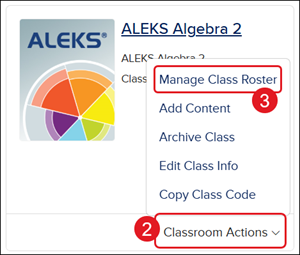
2. Click on Classroom Actions.
3. Click on Manage Class Roster from the menu.
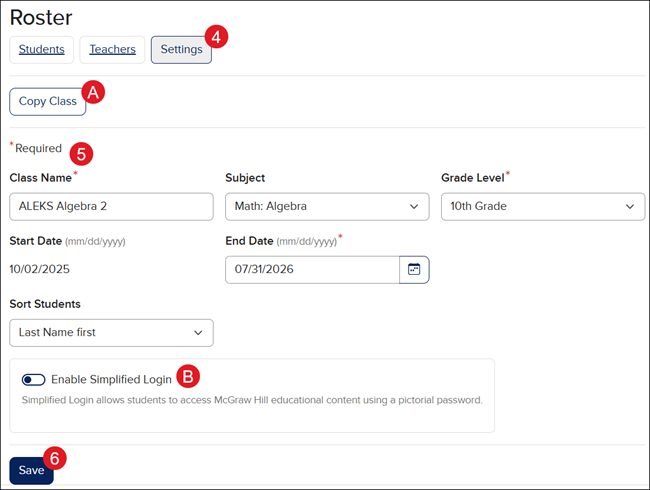
4. On the Roster page, click the Settings button.
5. Make preferred changes.
A. For information on the Copy Class option, refer to the Copy Class article.
B. For additional information on enabling Simplified Login, refer to the Enable/Disable Simplified Login article.
6. Click the Save button.