
Copy an ALEKS Class
Copy an ALEKS class to reuse content and structure for a new term.
- Supplemental
- ALEKS Adventure
- Math
- SSO & Manual-Rostering
- Customer Support
- Middle School
- Class Management
- ALEKS
- Direct Login & Manual-Rostering
- High School
- Classroom Teacher
- PreK-12
- Getting Started & Orientation
- Back-to-School Setup


Single Sign-On (SSO) and Manual Rostering
This article applies to Manual Rostering districts. Manual Rostering means that teachers manually redeem program content and roster their own classes.
SSO applies to districts that use an SSO portal, district website, or Learning Management System (LMS) to access McGraw Hill digital programs, and Direct Login means that teachers, students, and administrators log in at my.mheducation.com.
Not sure which Access Service your district uses? Click here to learn more about the four Access Services that we support.
This article walks teachers through making a copy of their ALEKS class on the McGraw Hill platform.
For a full page view of the demo, click here.
For a Spanish version of the demo, click here.
1. SSO or sign in at my.mheducation.com.
2. Create a class.
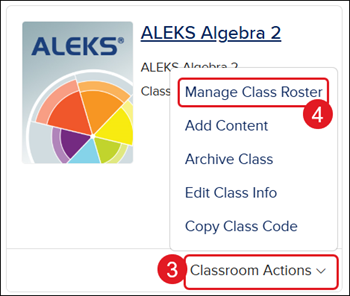
3. Click on Classroom Actions.
4. Click on Manage Class Roster from the menu.
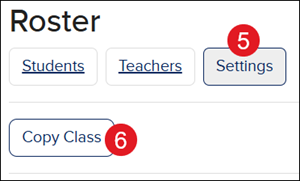
5. On the Roster page, click the Settings button.
6. Click the Copy Class button.
Note: For classes managed by the district, even though you have a Copy button, ALEKS classes cannot be copied.
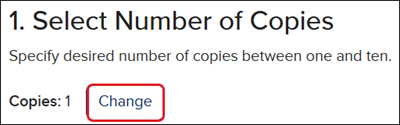
7. The default number of Copies is set to one. If you would like more than one copy, click the Change button.
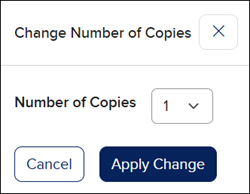
Select the number of preferred copies from the drop-down and click the Apply Change button.
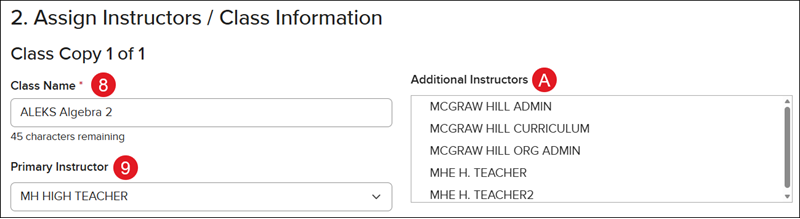
8. Enter a Class Name if you want something different from the class you're copying.
9. Select the Primary Instructor from the drop-down.
A. If you want to add co-teachers, select the teacher(s) from the Additional Instructors box.
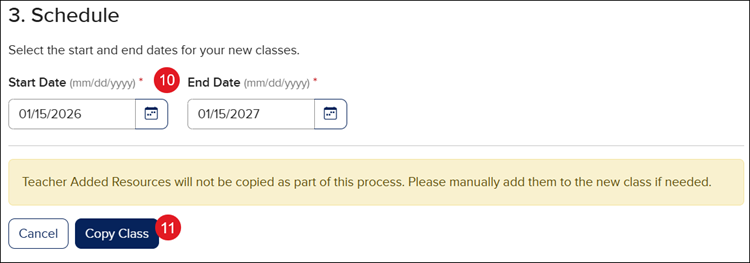
10. Select the Start and End Date for the class.
Note: Due to how the ALEKS resources and assignments are managed within the program, you will not be able to copy any assignments over to the copied class with this process.
11. Click the Copy Class button.
It may take a few minutes for the copy of the class to show on your My Programs page.