Unassign, Archive, or Delete Actively Learn Assignments
Unassign, archive, or delete assignments in Actively Learn to keep classes organized and up to date.
- Customer Support
- PreK-12
- Classroom Teacher
- Elementary School
- Middle School
- High School
- Direct Login & Auto-Rostering
- Direct Login & Manual-Rostering
- SSO & Auto-Rostering
- SSO & Manual-Rostering
- Supplemental
- Science
- Social Studies
- Actively Learn
- Grades & Assignments


Article Contents
Archive or Unarchive Assignment
Unassign Assignment
Note: Unassigning an assignment from a class/student will result in all assignment data and student responses to also be deleted. To remove the assignment from class view while keeping all saved student work and data, archive the assignment instead.
1. Click on Menu.

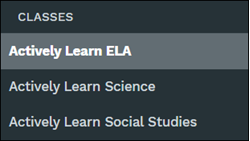
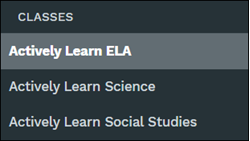
2. In the Classes section, select the class.
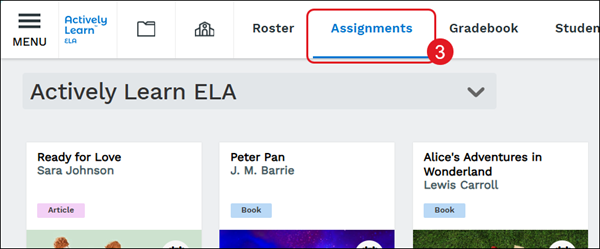
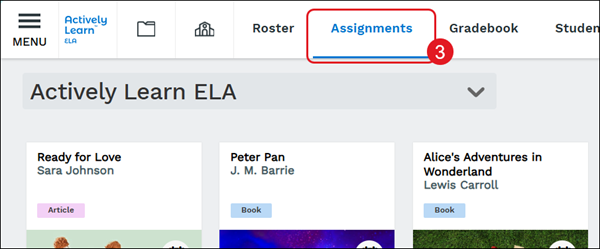
3. Click on Assignments.
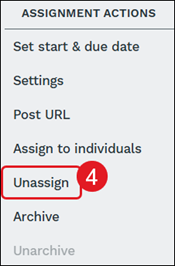
4. Under Assignment Actions on the right-hand panel, click Unassign.
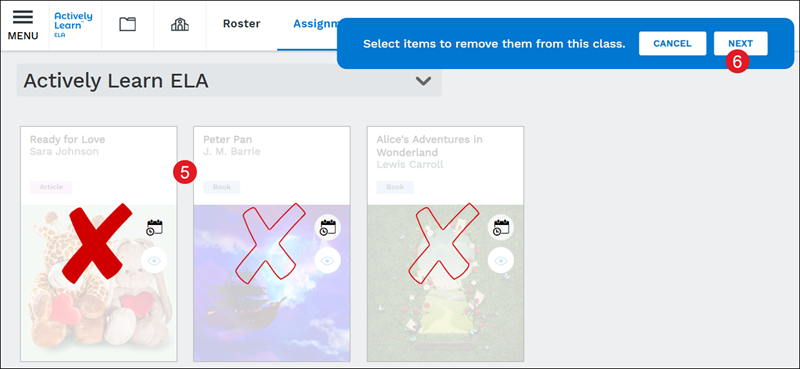
5. Select the assignment(s) to unassign.
6. Click the Next button.
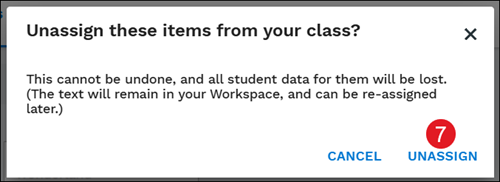
7. Click the Unassign button.
Archive or Unarchive Assignment
1. Click on Menu.

2. In the Classes section, select the class.
3. Click on Assignments.
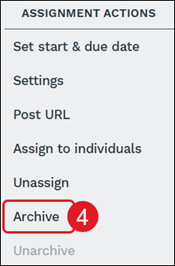
4. Under Assignment Actions on the right-hand panel, click Archive.
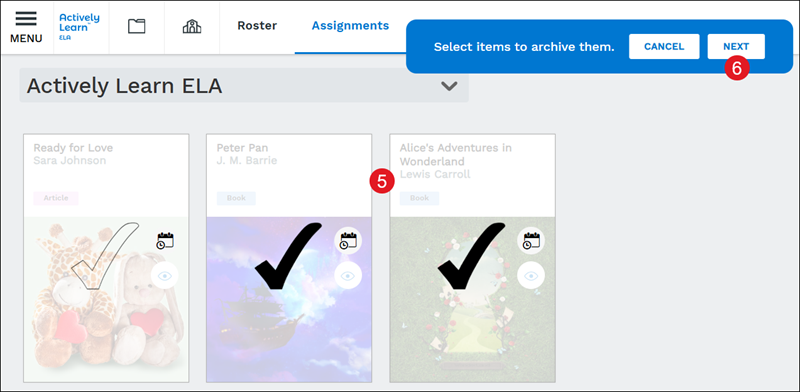
5. Select the assignment(s) to archive.
6. Click the Next button.
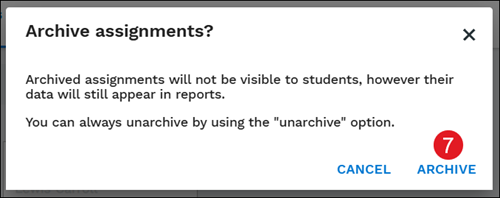
7. Click the Archive button.
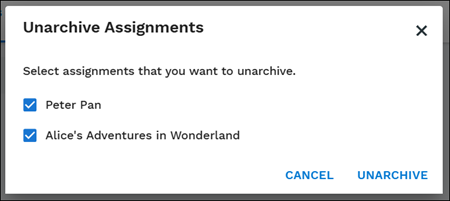
To unarchive an assignment, click Unarchive under the Assignment Actions.
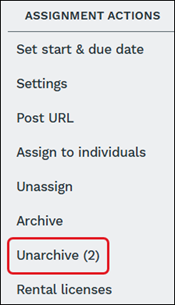
On the pop-up, checkmark the articles and click the Unarchive button.
Delete Assignment
Note: Deleting an assignment will also remove all student work and data. To remove the assignment from class and teacher view while keeping all saved student work and data, archive the assignment instead. To remove it only from the teacher view, it's recommended to move it into a folder instead of deleting the assignment.
There are two options when it comes to deleting an assignment:
Option 1:
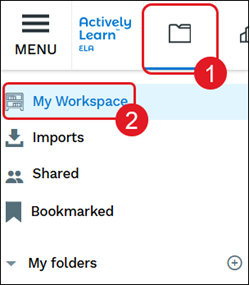
1. Click on the My Workspace & Imports (folder) button.
2. Click on My Workspace on the left panel.
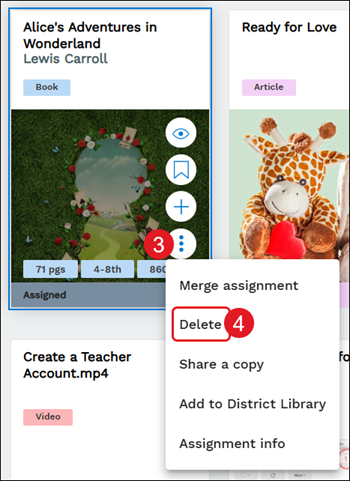
3. Hover over the assignment tile and click on the kebob icon.
4. Click on Delete from the menu.
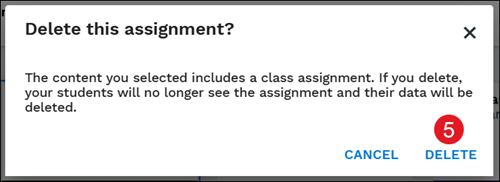
5. On the pop-up, click the Delete button.
Option 2:
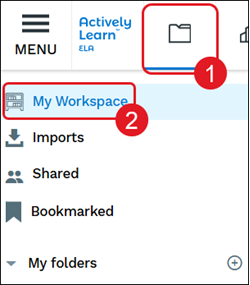
1. Click on the My Workspace & Imports (folder) button.
2. Click on My Workspace on the left panel.
3. Click on the assignment tile.
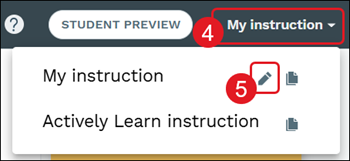
4. Click on My instruction at the top-right.
5. Click the pencil icon for the assignment you want to remove.
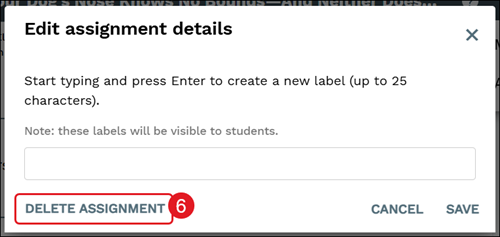
6. Click the Delete Assignment button.