
Access and Navigate the Actively Learn My Workspace & Imports Page
An overview of how to navigate and organize the My Workspace & Imports page.
- Customer Support
- PreK-12
- Classroom Teacher
- Elementary School
- Middle School
- High School
- Direct Login & Auto-Rostering
- Direct Login & Manual-Rostering
- SSO & Auto-Rostering
- SSO & Manual-Rostering
- Supplemental
- Literacy
- Science
- Social Studies
- Actively Learn
- Dashboard & Navigation Overview
- Plan & Present
- Tools & Resources
- Grades & Assignments
- Online Assessments


My Workspace & Imports is where teachers can find all of their assignments, customized texts and videos, imported resources, any resources shared with you by other teachers, and bookmarked items.
Article Contents
Access & Navigate My Workspace & Imports
Access & Navigate My Workspace & Imports
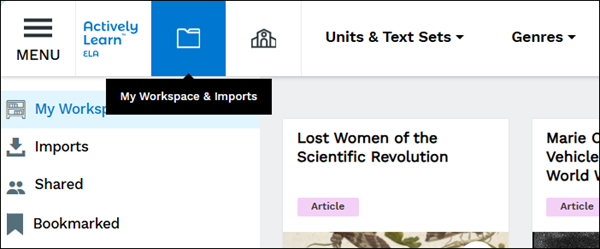
To access My Workspace, click on the My Workspace & Imports (folder) icon in the navigation menu.
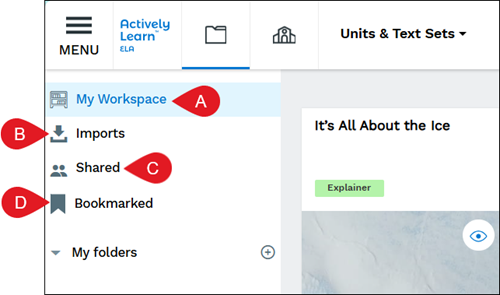
A. All assignments and customizations are located on the My Workspace page.
B. Imports is where all the resources you have imported into Actively Learn can be found.
C. The Shared page contains all resources and assignments that have been shared with you by other teachers.
D. The Bookmarked page has all favorited items from the catalog.
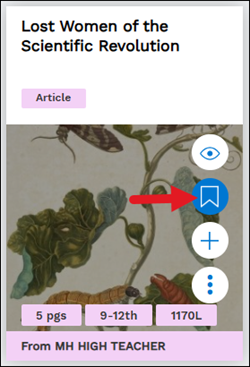
To bookmark a resource, hover over a resource tile and click the ribbon icon.
Folder Management
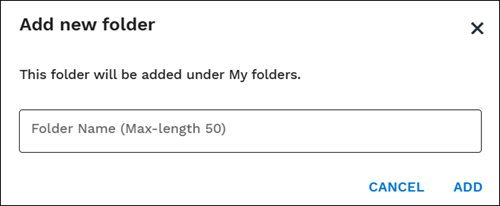
To create new folders, click the add folder (plus) icon.
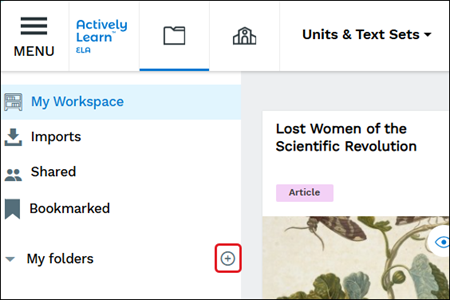
On the pop-up, enter a Folder Name and click the Add button.
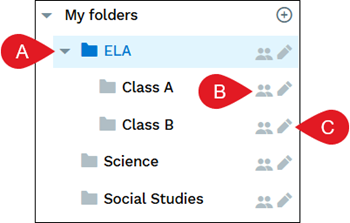
A. Subfolders can also be added by selecting the parent folder you want the subfolder associated with and clicking the add folder button.
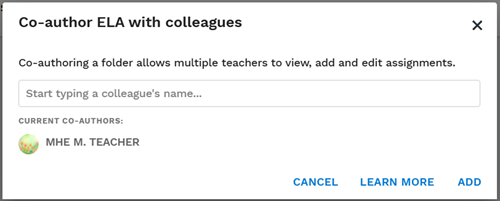
B. Click the Co-author Folder (person) icon to share the folder with other teachers.
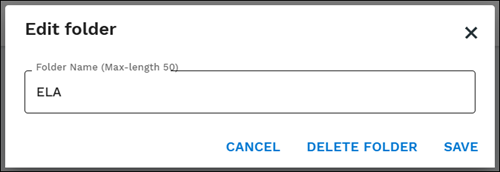
C. Click the Edit Folder (pencil) icon to edit the folder name or delete the folder.
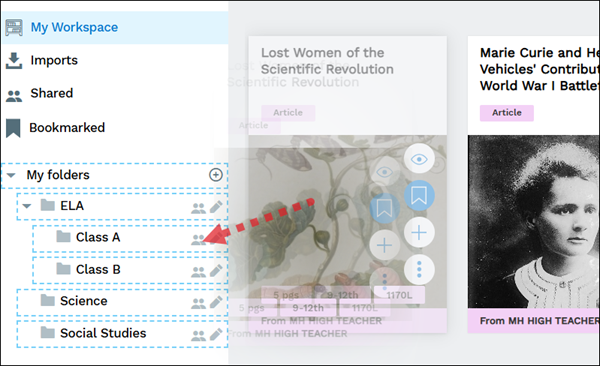
To add resources to a folder, click and drag the resource to the folder.
Associated Articles
Customize Actively Learn Text Assignments
Customize Actively Learn Video Assignments
Create, Duplicate, Merge, and Import Actively Learn Assignments
