Actively Learn TUVA Interactive Data Sets
Engage students with TUVA interactive data sets that support data literacy and inquiry-based learning in Actively Learn.
- Customer Support
- PreK-12
- Classroom Teacher
- Middle School
- High School
- Direct Login & Auto-Rostering
- Direct Login & Manual-Rostering
- SSO & Auto-Rostering
- SSO & Manual-Rostering
- Supplemental
- Science
- Actively Learn
- Plan & Present
- Tools & Resources
- Grades & Assignments


As a discipline, science relies on supporting theories and laws with experimental evidence. As such, students should be afforded the opportunity to engage with scientific concepts and phenomena through hands-on investigations and activities whenever possible in the classroom.
Article Contents
Benefits of Blending Actively Learn and Hands-On Investigations
Benefits of Blending Actively Learn and Hands-On Investigations
Challenge
In a typical laboratory (lab) investigation, students follow a procedure and perform specified actions after each step. As a result, students think about what they are doing at a surface level, simply moving one step to the next.
How AL Addresses Challenge
With Actively Learn, teachers can embed questions to force students to think about why they are doing a particular step or to predict what will happen after another, before they can move on.
Challenge
Equipment and materials may be unfamiliar to students, and they may not know how to handle them accurately or safely.
How AL Addresses Challenge
Teachers can insert notes, with descriptions, links to text, or videos demonstrating how to properly use equipment. Students can reference these notes, saving the teacher from repeating the same instruction multiple times.
Thinking About Building Out Labs in Actively Learn? Keep These Tips in Mind:
- It is okay to have your students use a hard copy and an assignment on Actively Learn during a hands-on activity (e.g., have students follow a procedure in an assignment on Actively Learn, but record the data from their investigation on a hard-copy of a data table).
- Establish clear expectations for how your students should use materials and equipment around their devices (e.g., explicitly state to students that their computer should remain at least 2 feet away from all glassware, like beakers, or solutions, like acids).
- Pair a relevant text with your investigation that students read prior to or after conducting the hands-on activity, in order to draw connections and encourage the application of concepts learned in the activity beyond the scope of the activity itself.
TUVA Interactive Data Sets
Actively Learn is proud to partner with Tuva Labs to bring authentic, engaging, and real-world Interactive Data Sets to our Science catalog.
What is an Interactive Data Set assignment?
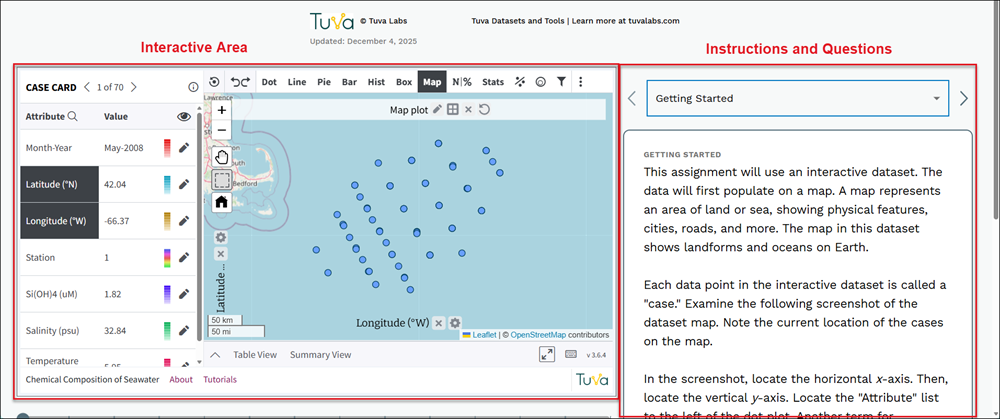
Each Interactive Data Set assignment includes a curated real-world data set, interactive graphing and statistical tools, and rigorous pre-built instruction that supports guided-inquiry. Students will use the interactive tools to organize, manipulate and analyze the data set as they progress through each assignment.
How do students use an Interactive Data Set assignment?
The data set and interactive tools are placed alongside the pre-built instruction so students can quickly and easily move back and forth between the data and each question. Each data set has a number of different tools that students can use to analyze data.
Teachers and students can move between the directions and questions within the assignment through the drop down menu or with the left and right arrows in the Instructions and Questions area.
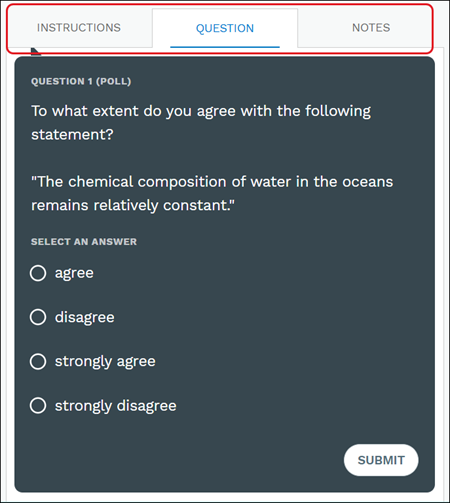
Each Question consists of three different tabs: Instructions, Question, and Notes.
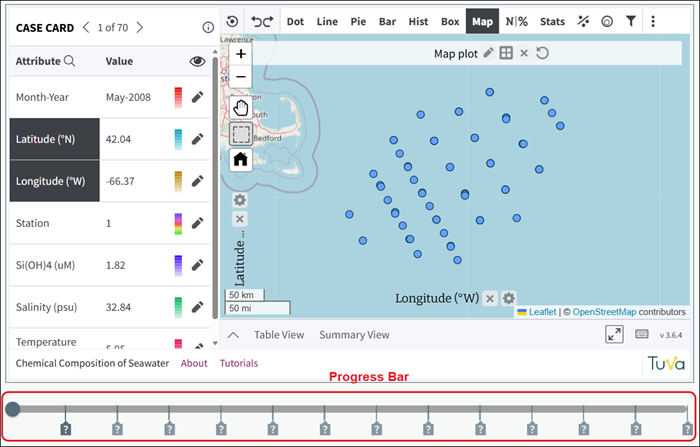
There is a progress bar below the interactive area for all Tuvas that will show one icon per question. Please note that only question icons are used whether or not instructions or notes have been added to the question, and icons are always equally spaced along progress bar.
Access Interactive Data Sets
1. Click on Menu in the top-left corner.
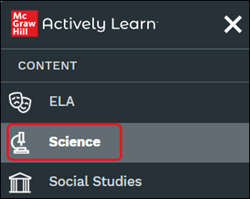
2. In the Content section, click on Science.
If there is a lock next to Science, this means the district did not purchase access to this option.
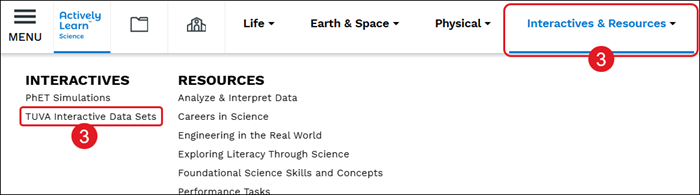
3. Hover over Interactives & Resources and select TUVA Interactive Data Sets from the menu.
Instructions
Teachers can make changes to the Getting Started and Assignment Directions for any of the Interactive Data Sets before assigning the lab to the students.
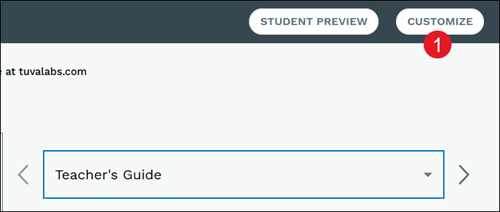
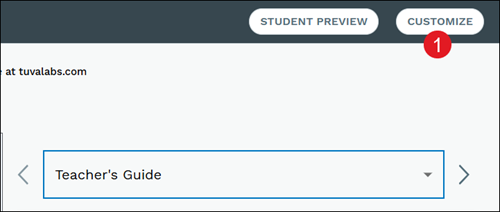
1. Click the Customize button at the top-right.
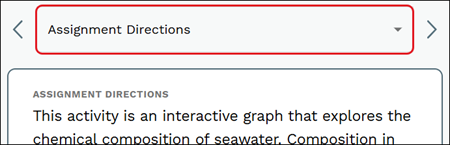
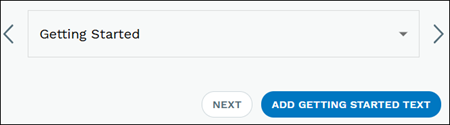
2. Select Getting Started or Assignment Directions from the drop-down depending on what you want to make changes to.
3. If there is no current text for the option, click the Add Text button.
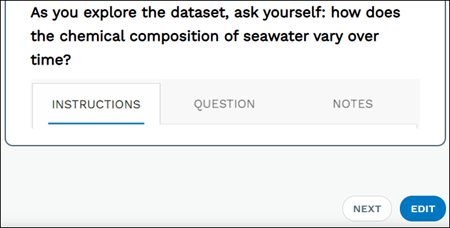
Click the Edit button to make changes to the existing text.
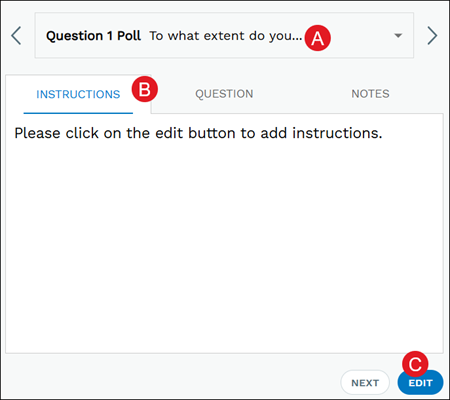
Teachers can also add instructions for each individual question in the assignment by navigating to the Question (A), clicking the Instructions tab (B), and then click the Edit button (C).
Questions
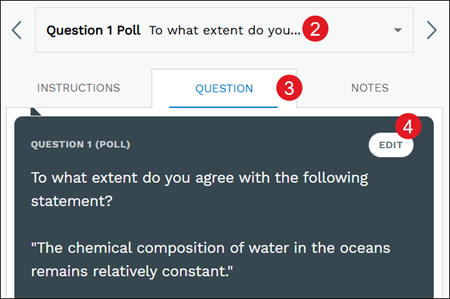
Teachers can also edit existing questions and add new questions to the assignment.
1. Click the Customize button at the top-right.
2. Select the Question from the drop-down.
3. Click the Question tab.
4. Click the Edit button.
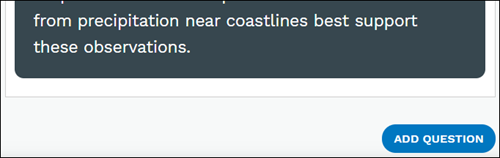
To add new questions, navigate to the last question in the drop-down and click the Add Question button at the bottom.
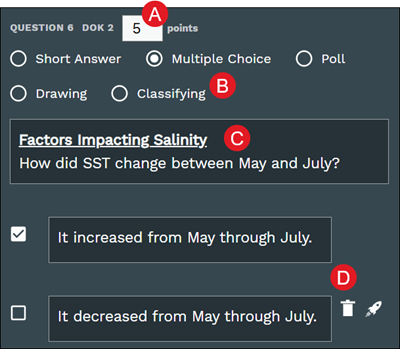
A. Enter the points value.
Poll questions are an unscored question type so it will not show a points value field.
B. Select the radio button for the question type.
C. Enter the question text.
If Multiple Choice, Poll, or Classifying was selected as the question type, choice text will also need to be added.
D. Depending on the question type selected, add/remove answer choices that are provided.
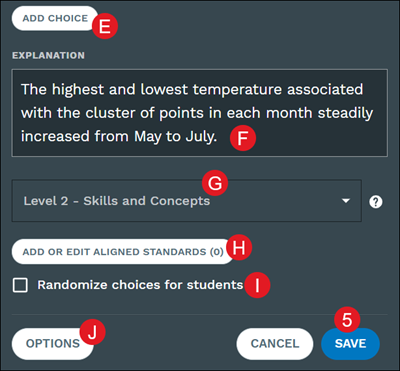
E. Depending on the question type, click the Add Choice button to include additional answer choices.
F. Some questions will include an Explanation that can be adjusted if preferred.
G. Select a Depth of Knowledge level from the drop-down.
DOK levels reflect the complexity of a question, ranging from recall to extended thinking.
H. Click the Add or Edit Aligned Standards button to associate standards to the question.
On the pop-up, Select Standard Set from the drop-down and click the Choose Standard button. Check the box next to the standards you would like to add and click the Done button at the bottom-right. Click the Save button to confirm associations.
Note: Depth of Knowledge and Add or Edit Aligned Standards is not an option for Poll questions due to those question types not being a graded question.
I. For Multiple Choice questions, click the Randomize choices for students box to mix answer choices for each student.
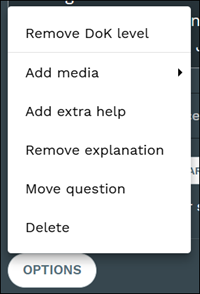
J. Click the Options button to Add media, Add/Remove extra help, Add/Remove explanation, Move question, or Delete the question.
The options available vary based on the question type selected.
5. Click the Save button to confirm changes.
Notes
Each question in the assignment will have a Notes tab that teachers and students can add notes to the question. Notes act as that digital 'tap on the shoulder' for students as they are reading through the text. Teachers can add notes into text where they'll be most helpful for their students.
Tips on maximizing notes:
- Ask open-ended questions - This will generate conversation and debate among students.
- Fill knowledge gaps - There may be complex ideas that require some background knowledge or further explanation to help students understand the reading.
- Highlight important dates or facts - Pause students reading to point out important facts that will be important later or recall/connect important facts from prior readings.
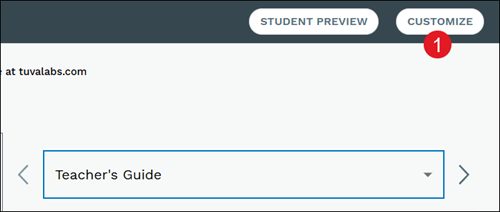
1. Click the Customize button at the top-right.
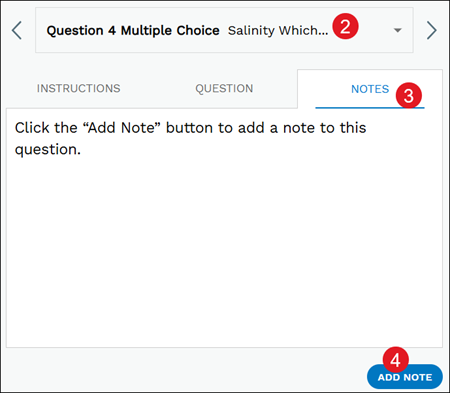
2. Select the Question from the drop-down.
3. Click on the Notes tab.
4. Click the Add Note button.
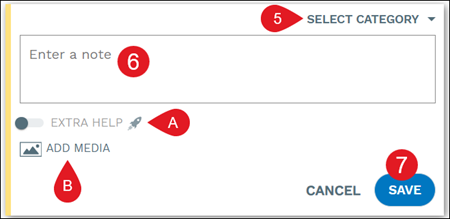
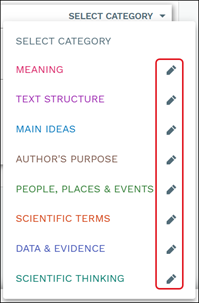
5. Click Select Category and select an option from the menu.
Click the pencil icon to the right of a category to edit the name or delete the category.
6. Enter a note in the provided field.
A. Toggle on to add Extra Help.
Extra Help allows teachers to differentiate and provide additional scaffolds for their students. Since students need different levels of support, you can easily offer assistance to those who need more help.
B. Click the Add Media button to include an image or URL.
7. Click the Save button.
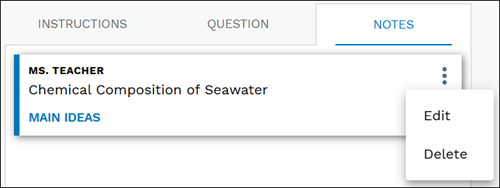
Click the kebob menu on the note to Edit or Delete the note.
Teacher Guides
Teachers can also add Teacher's Guides and Extra Help Summaries to TUVA Interactive assignments.
Note: Only teachers with permissions to add Teacher's Guides will be able to add them to these assignments.
1. Click the Customize button at the top-right.
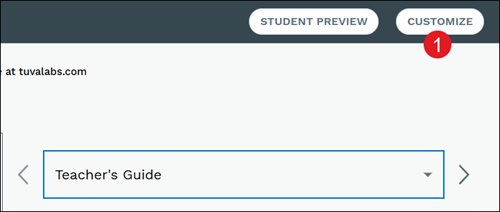
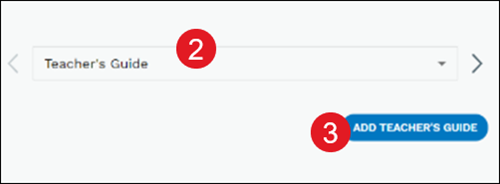
2. Select Teacher's Guide from the drop-down.
3. Click the Add Teacher's Guide or Edit button.
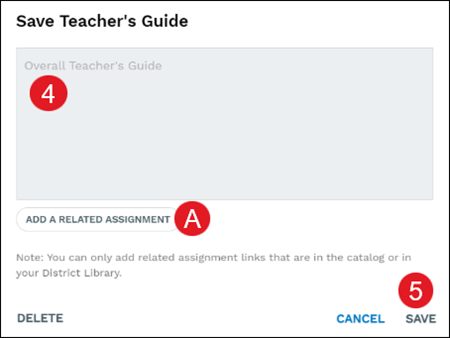
4. Enter the preferred details in the Overall Teacher's Guide field.
A. Click the Add a Related Assignment to attach an assignment link.
Note: You can only add related assignment links that are in the catalog or in your District Library.
5. Click the Save button.
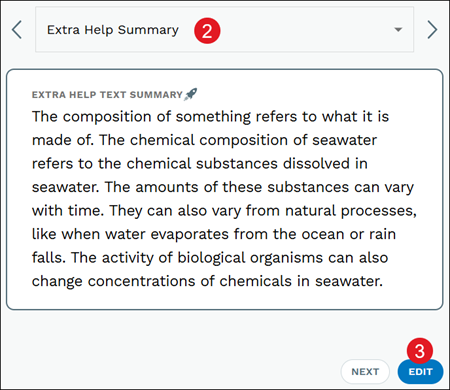
Extra Help Summary
The Extra Help Summary will appear after the assignment directions.
1. Click the Customize button at the top-right.
2. Select Extra Help Summary from the drop-down.
3. Click the Add Extra Help Summary or Edit button.