
Navigating the Actively Learn Roster Page
Learn how to easily navigate around the Actively Learn roster page.
- PreK-12
- Customer Support
- Classroom Teacher
- Elementary School
- Middle School
- High School
- Direct Login & Auto-Rostering
- Direct Login & Manual-Rostering
- SSO & Auto-Rostering
- SSO & Manual-Rostering
- Supplemental
- Literacy
- Science
- Social Studies
- Actively Learn
- Getting Started & Orientation
- Class Management
- Dashboard & Navigation Overview


The student roster within Actively Learn is synced with the student roster from your My Programs page for the program. For steps on adding students to the roster, refer to the Add and Remove Students From an Open Learning Class Roster article.
1. Click on Menu at the top-left.
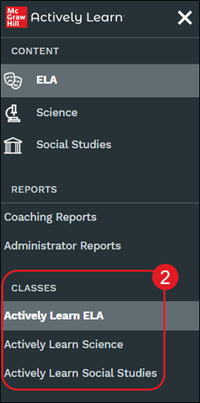
2. Select the class from the Classes section of the menu.
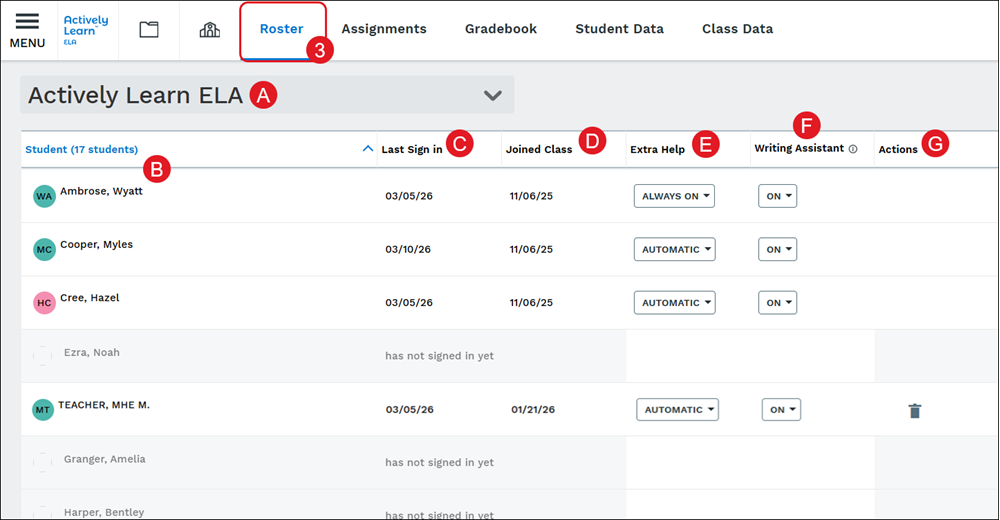
3. Click the Roster tab.
A. If you have multiple classes, click the drop-down menu to toggle between the different class rosters.
B. All students assigned to the roster will be listed in the Student column. This will include your teacher account if you have joined the class using the Student Mode option.
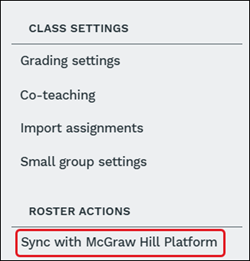
If you are missing a student in the Actively Learn roster, but they show on your roster within My Programs, click the Sync with McGraw Hill Platform button to the right of the Actively Learn roster page.
C. The Last Sign in column shows the latest date the student has launched Actively Learn.
D. Joined Class is the date the student first launched Actively Learn.
E. For each student, you can set Extra Help to always on or off, or let our algorithm determine who receives it automatically.
F. For the Writing Assistant, click the drop-down to turn the feature On or Off for each student. This will allow students access to the AI-powered tool for short answer/essay type questions.
For more information on the Writing Assistant, refer to the Using the Actively Learn Writing Assistant article.
Note: If you do not have this option it may be turned off for the district. You will need to reach out to your Organization Administrator about this access.
G. The Actions column will be blank for each student as all student management options have to be done through the My Programs rostering page. The only user that will show an Action option will be if you used the Student Mode option and joined the class. This provides the Remove student (trash can icon) action for that user account.
