Manage Actively Learn Users and Permissions as an Administrator
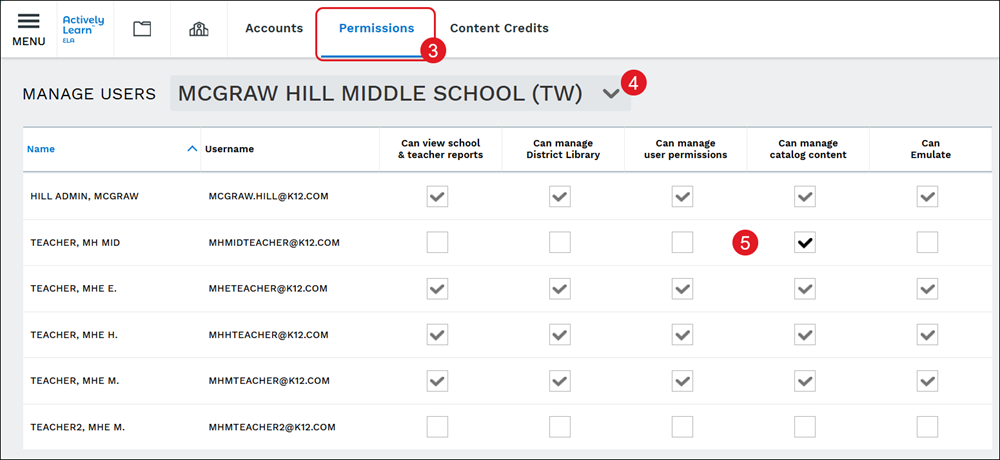
Manage user permissions for the Actively Learn to view reports, manage the District Library, and manage catalog content.
- Customer Support
- PreK-12
- School Administrator
- Elementary School
- Middle School
- High School
- Direct Login & Auto-Rostering
- Direct Login & Manual-Rostering
- SSO & Auto-Rostering
- SSO & Manual-Rostering
- Supplemental
- Literacy
- Science
- Social Studies
- Actively Learn
- Account Management
- User Management


Article Contents
View User Accounts
If you're needing to remove teachers from the school/district, change their school access, or are needing to manage their role access, this will need to be done through the Administrator Tools. For more information on managing users through the Admin Tools, refer to the Manage User Accounts article.
1. Click Menu at the top-left.
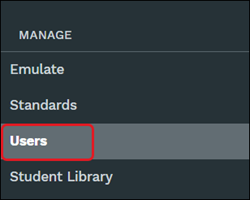
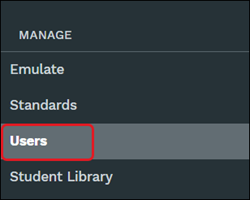
2. Under Manage, click Users from the menu.
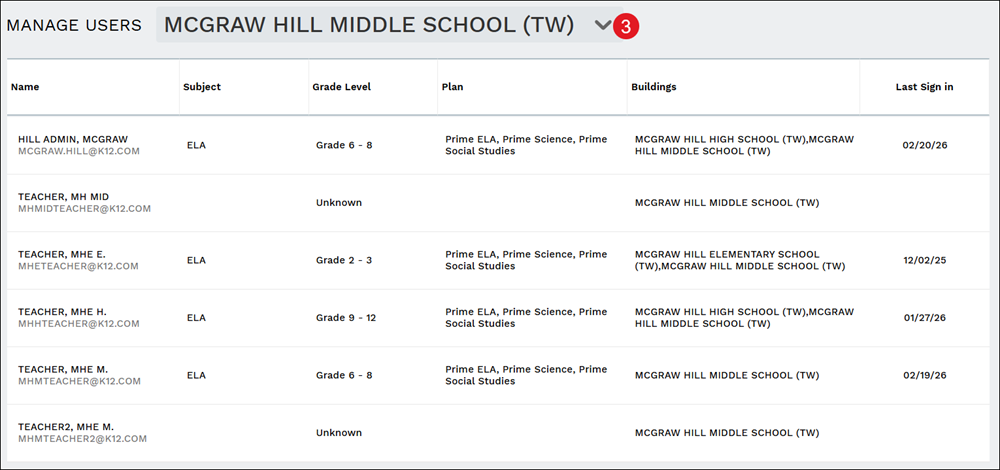
3. Select the school from the Manage Users drop-down.
The information that is provided will include the teacher's Name and email address, the Subject and Grade Level they're teaching, the Plan they have access, the Buildings they're assigned to, and the Last Sign in date.
Manage User Permissions
If a user has dual roles as a teacher and an administrator they will automatically have permissions set to their accounts to manage the District Library within Actively Learn. To manage add or remove a role from a teacher account, refer to the Manage User Accounts article.
1. Click Menu at the top-left.
2. Under Manage, click Users from the menu.
3. Click on Permissions on the navigation bar.
4. Select the school from the drop-down.
5. For users with only the teacher role, check/uncheck the box to add/remove permissions to view school & teacher reports, manage District Library, manager user permissions, manage catalog content, and/or be able to emulate.