Edit Your Achieve3000 Literacy Teacher Profile
Instructions on how to make edits to a teacher profile within Achieve3000 Literacy.
- Customer Support
- PreK-12
- Classroom Teacher
- Elementary School
- Middle School
- High School
- Direct Login & Auto-Rostering
- Direct Login & Manual-Rostering
- SSO & Auto-Rostering
- SSO & Manual-Rostering
- Supplemental
- Literacy
- Achieve3000 Literacy
- Account Management
- User Management


Teachers are able to make changes to their Title, TE Display Name, Lexile Level, and Scaffolds within their Achieve3000 Literacy profile as well as additional information.
Note: To make changes to your First name or Last name, this will need to be done by making changes to your McGraw Hill profile. Refer to the Access Assigned Roles, View Organizations, and Change Profile Settings article for these steps. To make adjustments to your assigned school, teachers will need to reach out to their Organization Administrator.
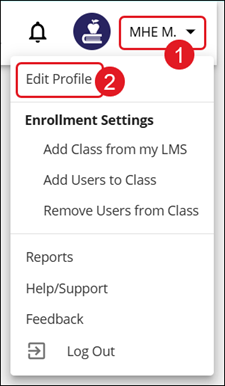
1. Click the Profile/Settings button at the top-right of the page.
2. Click Edit Profile on the menu.
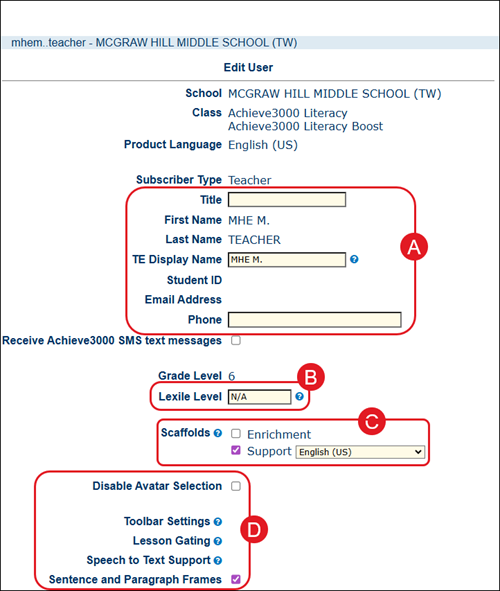
A. Enter a Title, make changes to your TE Display Name, and Phone number in the provided fields. These are optional.
B. Enter a preferred Lexile Level for the class. Click the question mark icon to download a list of Lexiles.
C. Check/uncheck the box for the available Scaffold options of Enrichment and Support. If Support is selected, select the preferred language.
Scaffold Settings: Support
- Content ranging from PRE level (i.e., 150L or lower with 4 multiple choice questions) to Adult Reader level (i.e., 1350L or higher with 8 multiple choice questions).
- Vocab preview pop-up screen at start of lesson.
- Extra time for activity completion (at 250L and below).
- Initial LevelSet assessment set to two grade levels below actual.
- Access to full translation in Spanish if selected.
- Access to partial translation in Spanish if selected.
- In Spanish: Hero/title & article summary; Ready/Reflect and Reflect Results; Write prompt and Writing Tips; Rubric.
- In English: Read & Respond (Both Lexile and Stretch); Puzzle; Map.
- In Both: Tabs roll from English to Spanish when hovered; Vocab & Concept Preview: Description in English; Vocabulary is in both; Audio Support in Spanish and English. Students can write in either English or Spanish.
Scaffold Settings: Enrichment
Extension activities and related outside links for additional exploration.
D. Check/uncheck the Disable Avatar Selection and/or Sentence and Paragraph Frames.
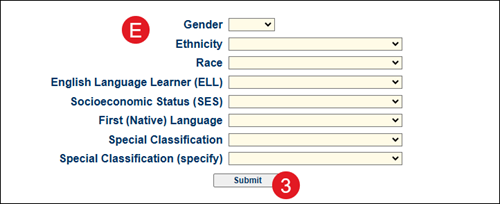
E. Click on the available drop-downs to select options for the Gender, Ethnicity, Race, English Language Learner (ELL), Socioeconomic Status (SES), First (Native) Language, Special Classification, and Special Classification (specify) options.
3. Click the Submit button to confirm changes.