Manage Achieve3000 Literacy Class and Student Settings
Adjust class and student settings for Achieve3000 Literacy courses.
- Customer Support
- PreK-12
- Classroom Teacher
- Elementary School
- Middle School
- High School
- Direct Login & Auto-Rostering
- Direct Login & Manual-Rostering
- SSO & Auto-Rostering
- SSO & Manual-Rostering
- Supplemental
- Literacy
- Achieve3000 Literacy
- Getting Started & Orientation
- Back-to-School Setup
- Class Management


For steps on how to create and manage classes, refer to the Open Learning Class Management Resources article.
Article Contents
Individual Student Setting Changes
Multiple Student Setting Changes
Adjust Supervised Student Work Time
Class Setting Changes
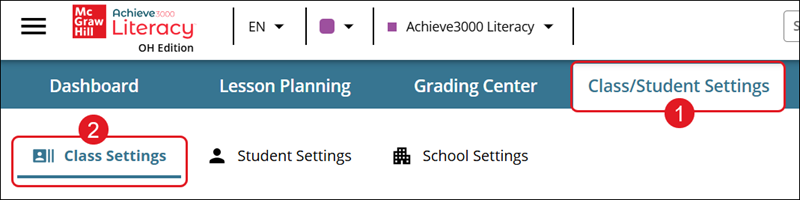
1. Click on the Class/Student Settings tab from the Achieve3000 Literacy home page.
2. Click the Class Settings tab.
The Class Program Information section includes:
A. The Class name.
B. Dual Language: Toggle Yes or No to select if the class is a combination of English and Spanish or No if it is English only.
C. Select the Supervised Student Work Time for the class.
These are default times for supervised student work, including LevelSet assessments and activities that count toward updating students' Lexiles.

D. Check/uncheck the box(es) to Disable Avatar Selection and/or Disable Celebration Messages for the class.

E. Check the box to enable/disable:
- Enable Student Videos During School Hours (marked as default)
- Disable Invalid Multiple Choice Activity Detection
- Disable Reflect Comment Feed
- Disable Lexile Tracker
- Disable Writing Assistant

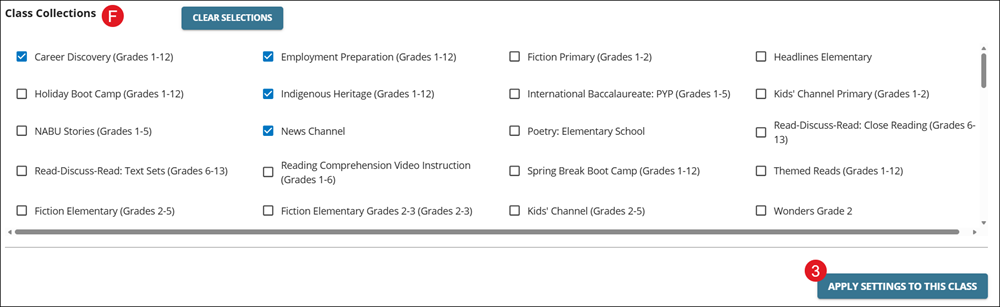
F. Check/uncheck the boxes next to the Class Collections you students to have access/not have access to. For more information on lesson collections, refer to the Create and Assign Achieve3000 Literacy Lesson Collections article.
3. Click the Apply Settings to This Class button to confirm changes.
Individual Student Setting Changes
Note: Student Lexile levels can only be adjusted within the first three weeks of the student completing the LevelSet Pre-Test.
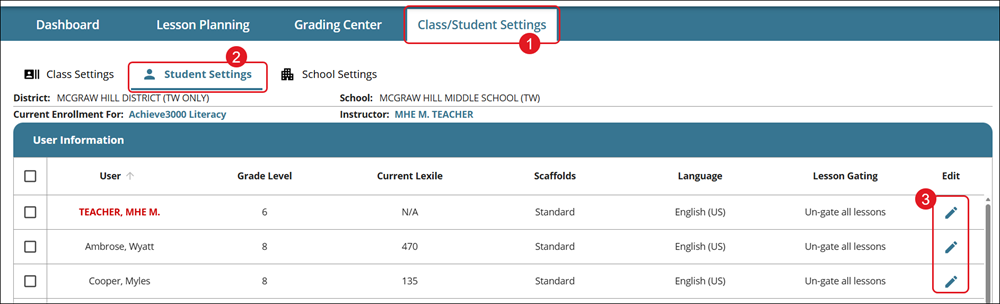
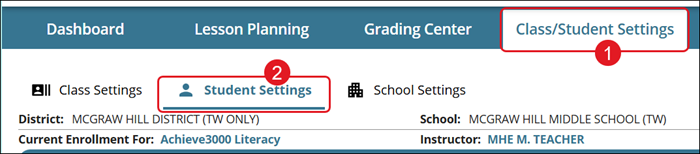
1. Click on the Class/Student Settings tab from the Achieve3000 Literacy home page.
2. Click the Student Settings tab.
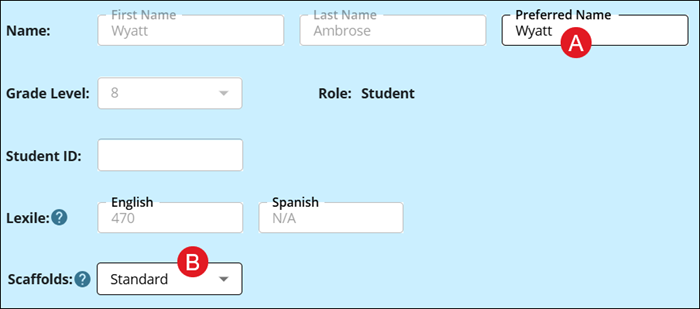
3. Click the pencil icon in the Edit column to adjust the settings for that student.
A. The Preferred Name defaults to the student's first name. Type in the provided field to change, if needed.
B. Select the Scaffolds option needed from the drop-down. For more information on scaffolds, refer to the Setting Student Scaffolds for Achieve3000 Literacy Lessons article.
If the First Name, Last Name, Grade Level, and/or Student ID needs to be changed, refer to the Open Learning Class Management Resources article.
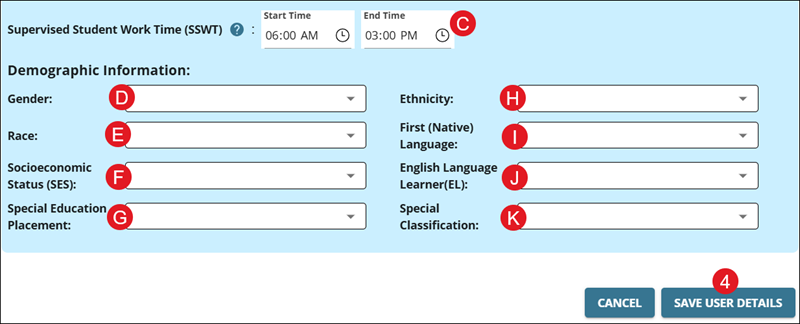
C. Select the Supervised Student Work Time for the student.
D. Select the preferred Gender from the drop-down.
E. Select the preferred Race.
F. Select the Socioeconomic Status (SES), if needed.
G. Select the Special Education Placement, if needed.
H. Select the Ethnicity for the student.
I. Select the First (Native) Language, if needed.
J. Select if English Language Learner (EL) is needed.
K. Select a Special Classification.
4. Click the Save User Details button to confirm changes.
Multiple Student Setting Changes
1. Click on the Class/Student Settings tab from the Achieve3000 Literacy home page.
2. Click the Student Settings tab.
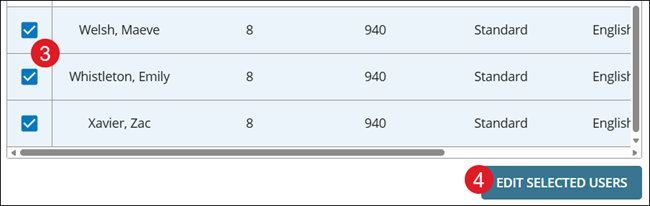
3. Check the box next to all students you want to adjust at once.
4. Click the Edit Selected Users button at the bottom.
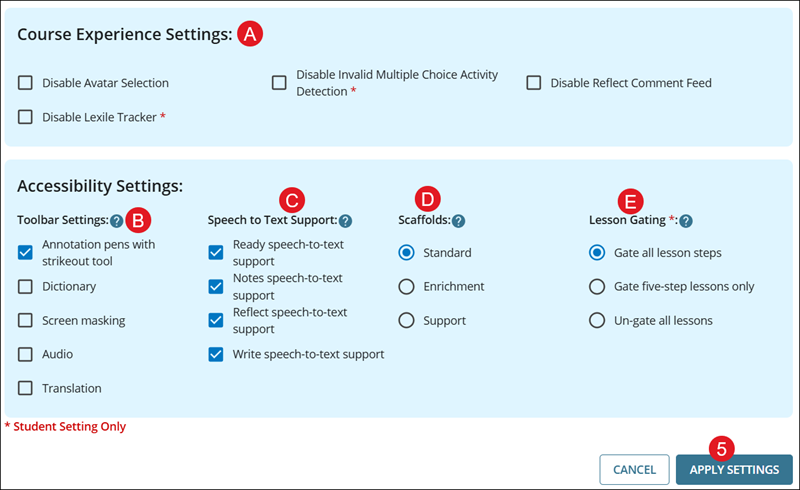
A. Check the box to disable to following for the selected students:
- Avatar Selection
- Lexile Track
- Invalid Multiple Choice Activity Detection
- Reflect Comment Feed
B. Check the box next to the Toolbar Settings that are needed.
- Annotation pens with strikeout tool
- Dictionary
- Screen masking
- Audio
- Translation
Please use caution when providing students with audio support tools. While audio support can be helpful to students with poor word recognition skills, it may affect the student’s Lexile measure (which would have to be seen as a mix of their reading and listening skills).
C. Uncheck the box to disable the Speech to Text Support options that you're not wanting the selected student(s) to access.
- Ready speech-to-text support
- Notes speech-to-text support
- Reflect speech-to-text support
- Write speech-to-text support
Note: Speech to Text is an experimental feature and may not work or appear on your browser.
D. Select the radio button next to the needed Scaffolds option: Standard, Enrichment, or Support.
E. Select the radio button next to the preferred Lesson Gating option: Gate all lesson steps, Gate five-step lessons only, or Un-gate all lessons.
By default, students must complete one step of a lesson before moving on to the next step. You can adjust the settings to limit this gating feature to five-step lessons only, or remove it entirely, for individual students or an entire class.
5. Click the Apply Settings button to confirm changes.