Create and Assign Achieve3000 Literacy Lesson Collections
Learn how to manage lesson collections in Achieve3000 Literacy, including assigning, creating, importing, and controlling student access.
- PreK-12
- Customer Support
- Classroom Teacher
- Elementary School
- Middle School
- High School
- Direct Login & Auto-Rostering
- Direct Login & Manual-Rostering
- SSO & Auto-Rostering
- SSO & Manual-Rostering
- Supplemental
- Literacy
- Achieve3000 Literacy
- Tools & Resources
- Plan & Present
- Grades & Assignments


Lesson collections are groups of lessons that are focused on a key topic or interest with a variation of lesson collections available for different grade levels. Teachers have full control over the lessons that their students see and can activate or deactivate lesson collections as needed.
Customers using Wonders and Achieve3000 Literacy can take advantage of paired reading texts! Teachers in grades 2-6 can now use the Wonders lesson collection to connect Achieve3000 Literacy lessons to Wonders reading texts. The alignment document also provides discussion questions to support class conversations and connect the two texts. If you use Wonders and Achieve3000 Literacy in your classroom, be sure to activate the Wonders collection for your class!
Article Contents
Assign or Unassign Lesson Collections
Default Lesson Collections
Achieve3000 Literacy automatically provisions some content to all teacher accounts, providing a starting point for the school year. This also enables students to begin reading and interacting with the lesson content even if their teachers have not yet logged in or assigned specific lessons.
By default, the following lesson collections are automatically provisioned for all elementary classes:
- News Channel
- Kids Channel
- Fiction Elementary Grades 2-3
- Fiction Elementary Grades 4-5
- Wonders 2017 Grades 2-6
The following lesson collections will be automatically provisioned for all middle and high school classes:
- News Channel
- The Scoop
- Teen Channel
- Fiction (Middle School)
- Fiction (High School)
- Creating Connections
- StudySync 2021(7 collections mapped by grade)
- WordStudio Grades 6-12
Additional collections, such as Creating Connections, WordStudio, Poetry, and NABU, are optional and can easily be activated by following the steps in the Class Collections section.
Class Collections
Teachers have the ability to add or remove certain class collections from student view with a few simple steps.
1. Click Class/Student Settings on the navigation menu.
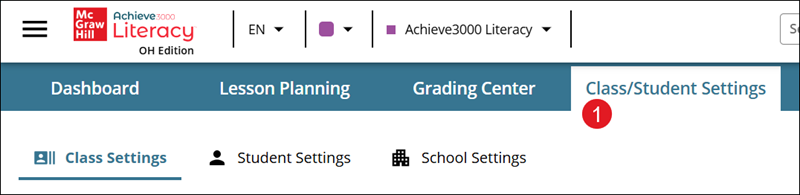
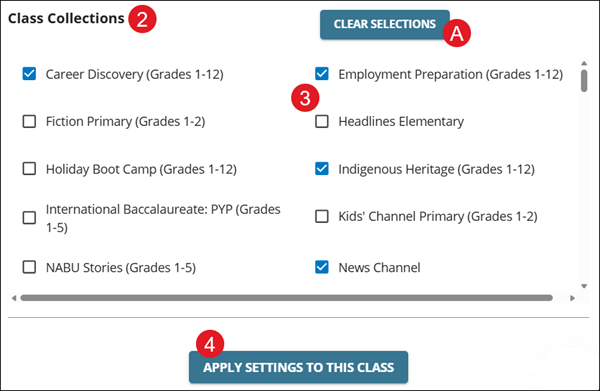
2. On the Class Settings page, navigate to the Class Collections section at the bottom.
3. Check any collections you want students to have access to and uncheck any you don't want them to see.
A. Click the Clear Selections button to remove all checkmarks.
4. Click the Apply Settings To This Class button.
Assign or Unassign Lesson Collections
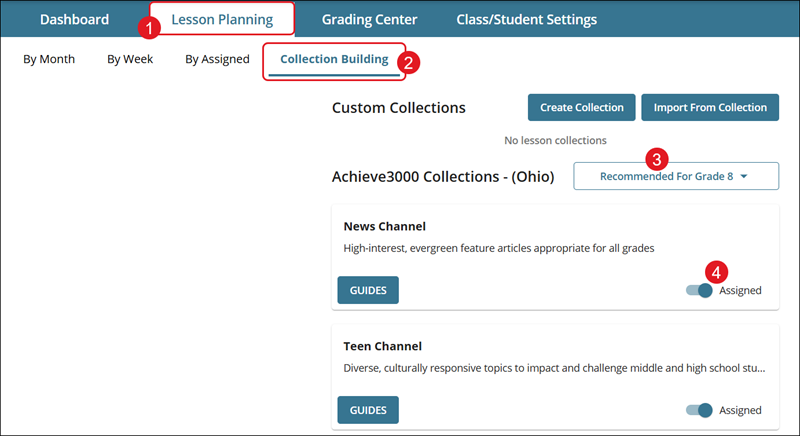
1. Click Lesson Planning on the navigation menu.
2. Click on Collection Building.
3. Select a Grade level from the drop-down.
4. Toggle on/off the collection to add it to the assigned lessons.
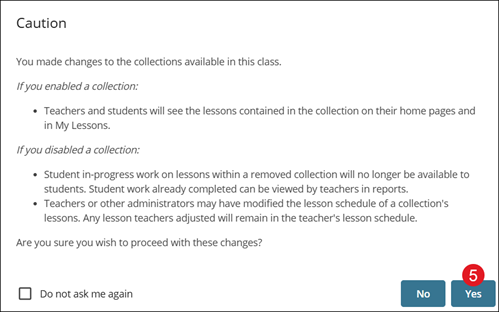
5. On the pop-up, click the Yes button to confirm.
Create Collection
1. Click Lesson Planning on the navigation menu.
2. Click on Collection Building.
3. Click the Create Collection button.

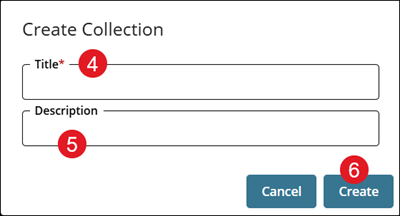
4. On the pop-up, enter a Title.
5. Enter a Description. This is optional.
6. Click the Create button.
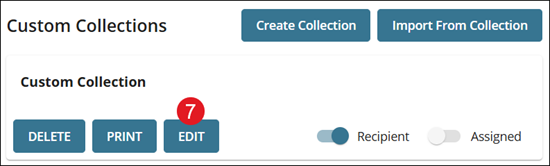
7. Click the Edit button on the newly created collection.
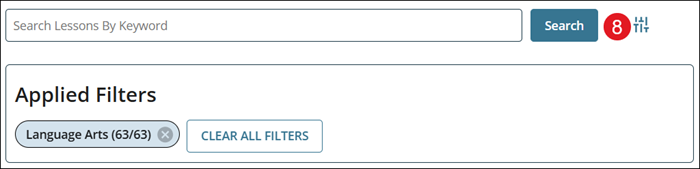
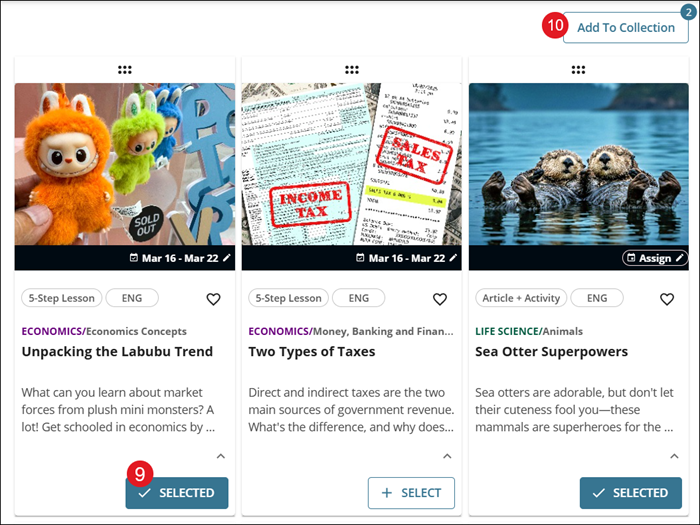
8. Use the Search and Filter options to locate lessons.
9. Click the +Select button on a lesson to add it to the collection.
10. Click the Add To Collection button at the top-right.
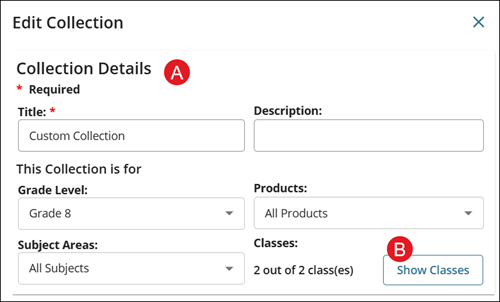
A. In the Edit Collection panel, the following selections are optional changes:
- Description
- Grade Level
- Products
- Subject Areas
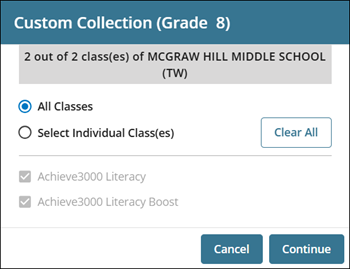
B. Click Show Classes to assign the collection to All Classes or Select Individual Class(es).
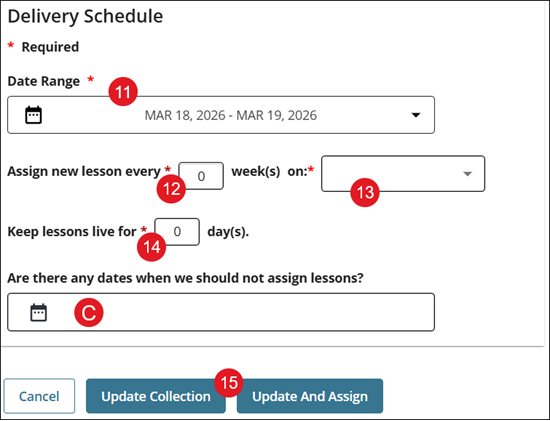
11. In the Delivery Schedule section, select a Date Range for the collection to be available.
12. Enter a number of week(s) for the lessons to be assigned from the collection.
13. Select the day(s) to assign the lesson from the drop-down.
14. Enter the day(s) to Keep lessons live.
C. If there are any days you do not want a lesson to be assigned on, such as a non-teaching day or a holiday, click in the provided field to select those days on the calendar.
15. Click the Update Collection or Update and Assign button.
Update and Assign will save the changes made and also provide it for student access.
Update Collection will only save the changes that were made to the collection and not assign it for students to access.
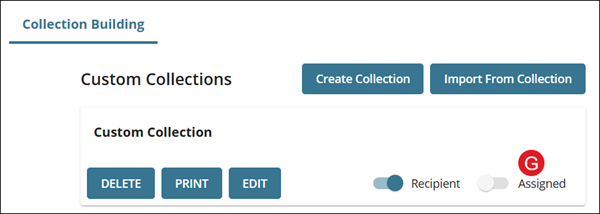
All custom-made collections can be found at the top of the Collection Building page. To assign the collection at a later time, toggle on/off the Assign button (D) for the collection.
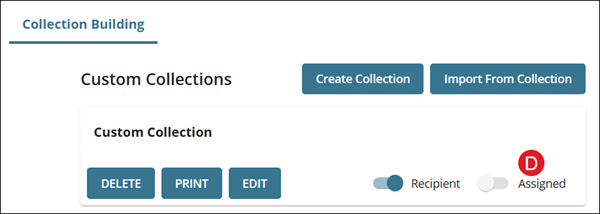
Import From Collection
1. Click Lesson Planning on the navigation menu.
2. Click on Collection Building.
3. Click the Import From Collection button.

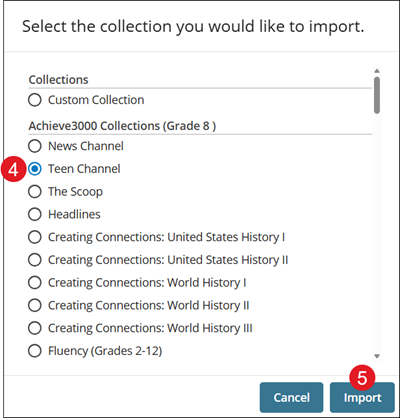
4. Select the radio button next to the collection you want to import.
5. Click the Import button.
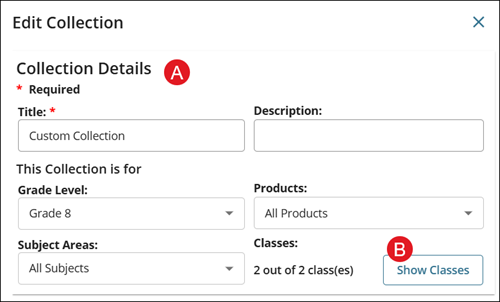
A. In the Edit Collection panel, the following selections are optional changes:
- Description
- Grade Level
- Products
- Subject Areas
B. Click Show Classes to assign the collection to All Classes or Select Individual Class(es).
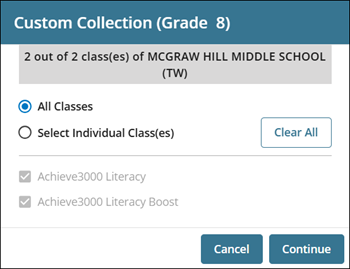
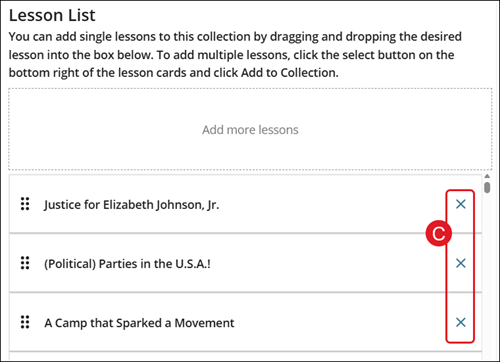
C. All lessons for the selected collection will show in the Lesson List. Click the X to the right of the lesson to remove it from the collection.
Note: Removing the lesson will only delete it from the custom collection and not the original collection it was copied from.
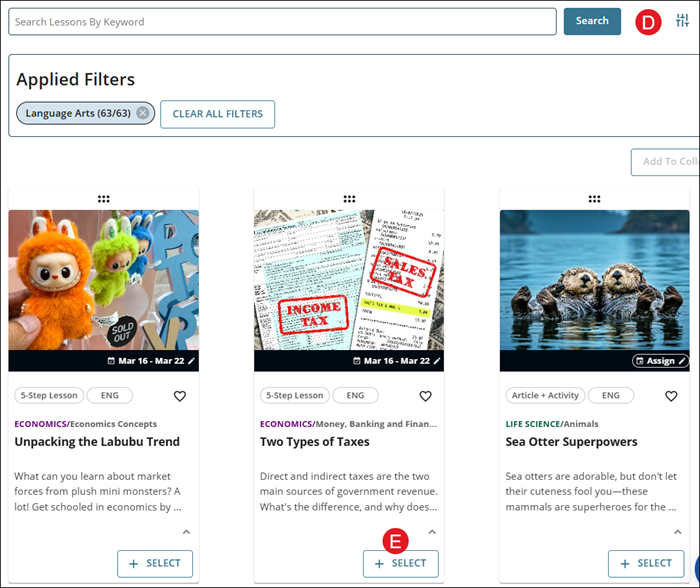
Extra lessons can also be added to the collection by using the Search and Filter (D) options and clicking the +Select button (E) on the lesson tile.
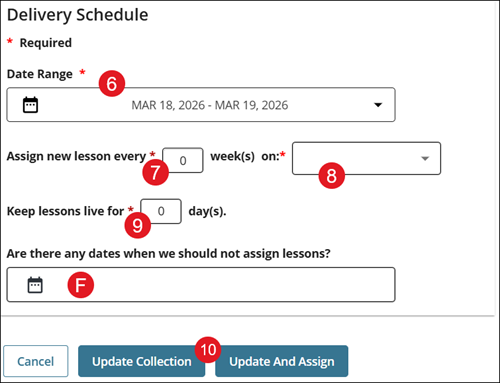
6. In the Delivery Schedule section, select a Date Range for the collection to be available.
7. Enter a number of week(s) for the lessons to be assigned from the collection.
8. Select the day(s) to assign the lesson from the drop-down.
9. Enter the day(s) to Keep lessons live.
F. If there are any days you do not want a lesson to be assigned on, such as a non-teaching day or a holiday, click in the provided field to select those days on the calendar.
10. Click the Save To Collection or Update and Assign button.
Update and Assign will save the changes made and also provide it for student access.
Save To Collection will only save the changes that were made to the collection and not assign it for students to access.
All custom made and imported collections can be found at the top of the Collection Building page. To assign a collection at a later time, toggle on/off the Assign button (G) for the collection.