
Achieve3000 Literacy - Adjust Supervised Student Work Time (Administrator)
Adjust supervised student work time settings in Achieve Literacy at the administrator level.
Tags
- Supplemental
- Literacy
- SSO & Manual-Rostering
- Customer Support
- User Guides & Account Management
- Direct Login & Auto-Rostering
- Middle School
- Direct Login & Manual-Rostering
- High School
- SSO & Auto-Rostering
- PreK-12
- School Administrator
- Preschool
- Achieve3000 Literacy
- Elementary School


As Achieve3000 administrators, you will have access to certain reports and features. Administrators have the ability to give users access to manager features, too!
Note: If you need administrator access in Actively Learn, you will need to reach out to our K-12 Technical Support team to have this activated. You will then receive direct login information for the Achieve3000 site.
Sections Covered:
Access School List
Edit by School
Edit by Class
Additional Class Settings
Access School List
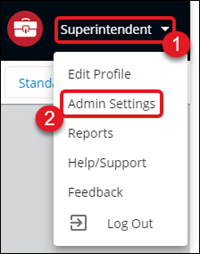
1. From the Dashboard, click on your name at the top right of the page.2. Select Admin Settings from the menu.
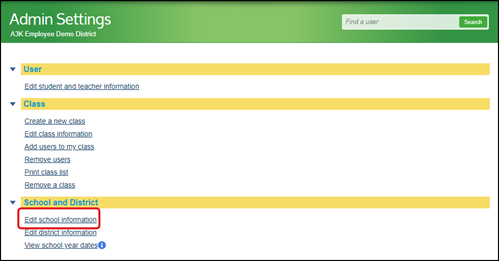
3. From the Admin Settings page, click the Edit school information link under the School and District blade.
Edit by School
1. To adjust the Student Work Time at the School level, click the School Code link next to the school you want to adjust.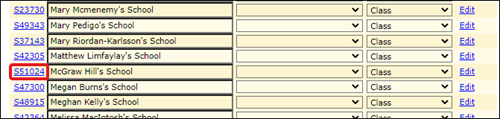
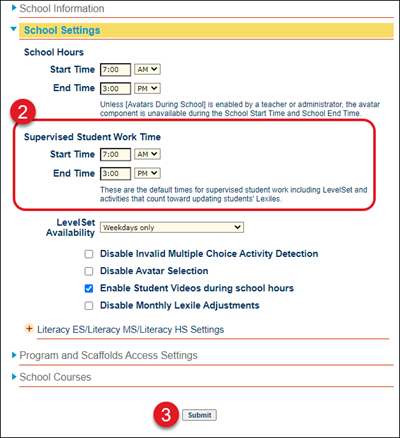
2. Under the School Settings blade, select the Start and End Time.
3. Click the Submit button to save any changes.
Edit by Class
1. To adjust the Student Work Time at the Class level, click the Edit link next to the school the teacher is associated with.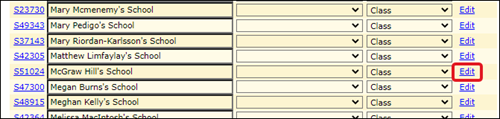
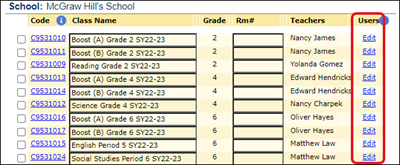
2. Under the Users column, click Edit next to the class you want to adjust the settings for.
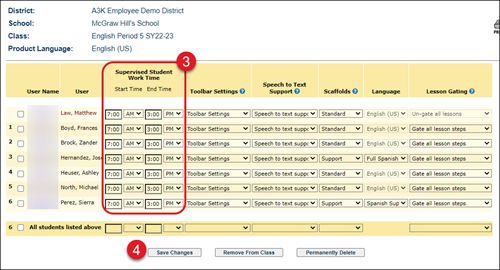
3. In the Supervised Student Work Time column, enter the Start and End Date you want the students to have.
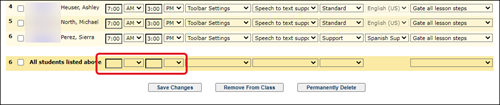
To change the entire class at once, enter the Start and End Dates in the All students listed above row at the bottom.
4. Click the Save Changes button.