
Access Manager Overview
Explore Access Manager tools and resources for managing users, roles, and digital access.
- PreK-12
- Customer Support
- School Administrator
- Preschool
- Elementary School
- Middle School
- High School
- Direct Login & Auto-Rostering
- SSO & Auto-Rostering
- Core
- Intervention
- Supplemental
- AP, Honors & Electives
- Career & Technical Education
- Literacy
- Math
- Science
- Social Studies
- Health
- Visual & Performing Arts
- World Languages
- AP Biology
- AP Chemistry
- AP History & Geography
- AP Psychology
- AP Economics
- AP African American Studies
- AP Precalculus
- AP Statistics
- AP Computer Science
- AP Language and Composition
- AP Public Speaking
- AP Music Theory
- 5 Steps to a 5 - AP Test Prep
- Glencoe Health 2022
- Teen Health 2021
- Arrive Math
- Building Blocks 2024
- Building Blocks PreK 2025
- Number Worlds 2024
- SRA Reading Laboratory 2025
- SRA Reading Mastery Transformations
- Achieve3000 Literacy
- Actively Learn
- McGraw Hill Literacy Emerge!
- McGraw Hill Literacy Summit!
- McGraw Hill Literacy Soar!
- Open Court Reading 2025
- Redbird
- StudySync 2021
- ALEKS
- ALEKS Adventure
- CA Reveal Math (K-12)
- Illustrative Math
- Redbird Math
- Reveal Math (K-12)
- Texas Math
- CA Inspire Science 2020
- FL Science 2025 (K-12)
- Inspire Science 2020
- TN Science (K-12)
- TX Science 2025 (K-12)
- CA Impact 2019
- FL Social Studies 2024 (K-12)
- Impact Social Studies
- McGraw Hill Social Studies
- All Sorts 2026 (K-5)
- Asi se Dice 2024
- CTE - Business, Marketing, and Finance
- CTE - Health Science
- CTE - Computing and Technology
- CTE - Agriculture
- CTE - Culinary Arts
- CTE - Early Childhood Education
- CTE - Criminal Justice
- Level Up K–5
- Level Up 6–8
- Level Up 9–12
- Glencoe Health 2014
- McGraw Hill Health 2014
- 2Inform
- Building Blocks 2015
- Connecting Math Concepts
- Number Worlds 2015
- Corrective Reading
- Early Interventions in Reading
- Spelling Mastery
- WonderWorks 2022 & 2014
- Maravillas 2020 & 2017
- OCR Foundational Skills Kit
- OCR Word Analysis Kit
- Open Court Reading 2016, 2018, 2023
- StudySync 2015 & 2017
- Wonders
- Wonders 2014
- Wonders 2023 2020 2017
- Wonders Balanced Literacy 2016
- Wonders EL 2016
- World of Wonders 2017
- Core Plus Math 2015
- Everyday Mathematics 4 (K-6)
- Glencoe Algebra 1 2014
- Glencoe Algebra 1 2018
- Glencoe Algebra 2 2014
- Glenoce Algebra 2 2018
- Glencoe Math
- Glencoe Math Course 1
- Glencoe Math Course 2
- Glencoe Math Course 3
- Glencoe Math Accelerated
- McGraw Hill My Math 2013 & 2016
- McGraw Hill My Math 2018
- McGraw Hill My Math
- Pre-Algebra 2012
- Glencoe Science 2017
- Glencoe Science
- Inspire Science 2017
- iScience 2017
- Networks
- Networks 2014 (K-5)
- Networks 2014 & 2016
- Networks 2018
- Music! Its Role
- Spotlight on Music
- Asi se Dice 2016
- Access Manager
- Account Management
- User Management
- Products & Licenses


Direct Login and Auto-Rostering
Single Sign-On (SSO) and Auto-Rostering
This article applies to Auto-Rostering districts. Auto-Rostering means that account creation, class setup, and roster management are automated through a process handled by your district.
Direct Login means that teachers, students, and administrators log in at my.mheducation.com.
Single Sign-On applies to districts that use an SSO portal, district website, or Learning Management System (LMS) to access McGraw Hill digital programs.
Not sure which Access Service your district uses? View the Access Service Descriptions article to learn more about the four Access Services that we support.
Access Manager is a tool available to district-level Organization Administrators in auto-rostering districts. Use it to view and manage your district's roster data sent to McGraw Hill via API or SFTP, upload roster data, and assign content. This article provides a general overview of Access Manager along with links to additional support resources.
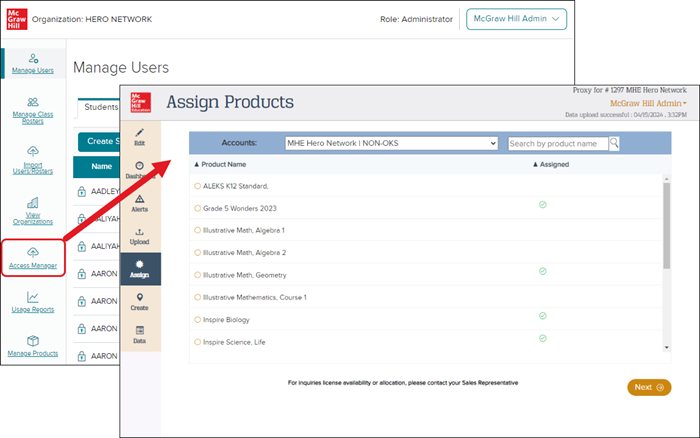
Setup Instructions
Your Digital Integration Services team will provide Access Manager instructions when setting up your integration service. During the district onboarding process, please contact your Integration Services representative with any questions or concerns.
Account Access
District-level Organization Administrators can launch Access Manager from within their administrator tools. If you need an account, a district-level Organization Administrator can create an account for you. Contact K-12 Technical Support if you are unable to identify someone in your district with this level of access.
Access Manager Pages
Below is a brief description of each Access Manager page and links to resources that provide more information.
Alerts
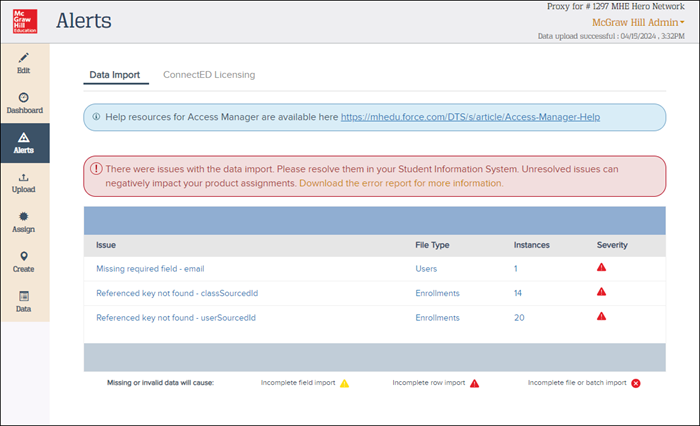
The Alerts page shows messages related to your data imports. If an import fails, you can review an error summary and download detailed error reports. For additional guidance, refer to the Fixing Common Errors in Access Manager article.
Upload
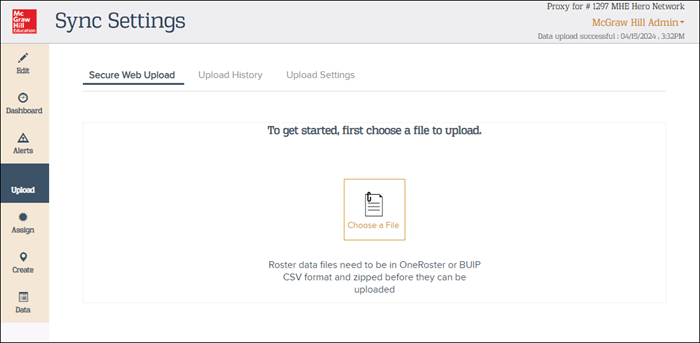
On the Upload page, you can load your data files manually into Access Manager. Be sure to upload the zipped file that contains your OneRoster® CSV files.
Assign
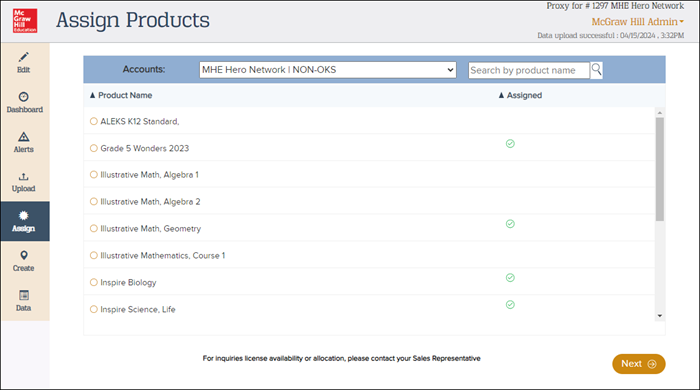
The Assign page shows content assignments for users and schools. If certain content isn't assigned through your roster data, you can manually assign it by course and class. This is typically done by a Curriculum Department member, as they are generally most familiar with McGraw Hill programs. Keep in mind that a district-level Organization Administrator account is required to assign content in Access Manager. For further details, see the Manage Content on Access Manager article.
Data
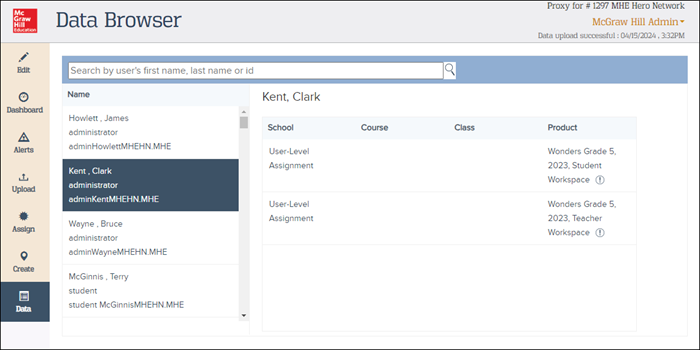
The Data page provides you with a view of your processed roster data. You can search for and view users by first name, last name, or ID number. Select a user to view the user’s school affiliation, course names, class names, teacher names, and content assigned.
OneRoster® is a trademark of the IMS Global Learning Consortium, Inc. (www.imsglobal.org)
