
Connect Student Registration - LTI Advantage
Review how students register for Connect courses through LTI Advantage integration.
- Higher Ed Student
- Higher Education
- Customer Support
- Connect


Before you can register for Connect through your school's website, your instructor must first pair the course. Depending on your school's preference, a shortcut link to Connect may be available in your course or you may need to find and launch a deployed Connect assignment. If it's your first time launching Connect from your school's website, you will be prompted to login (if you're a returning Connect student) or create a new account.
Step 1 Login to your school's Learning Management System (LMS) account and navigate to your course. If you are not sure how to login to the LMS or locate your LMS course, please reach out to your instructor or your school's Helpdesk.
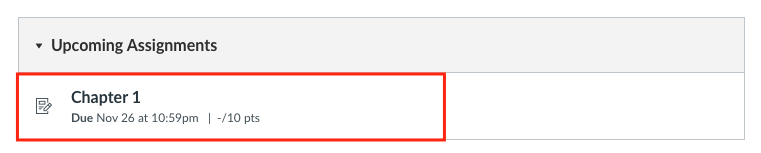
Step 2 In your LMS course, locate a Connect assignment and click on it. The interface and assignment icons will differ between different LMS' and may look slightly different. Below are examples of how the assignments will appear in Blackboard, D2L, Moodle, and Canvas.
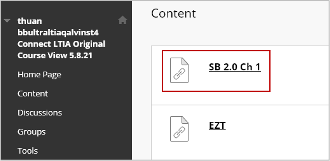
Blackboard Ultra Course View
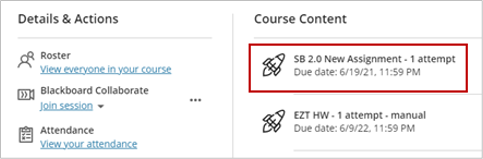
D2L Brightspace
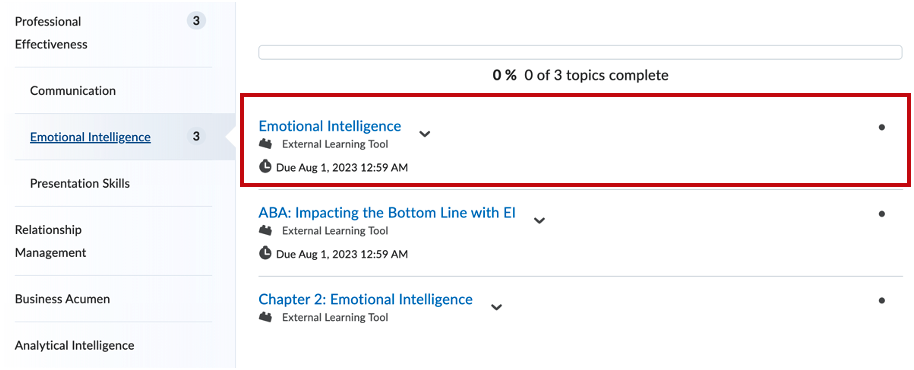
Moodle
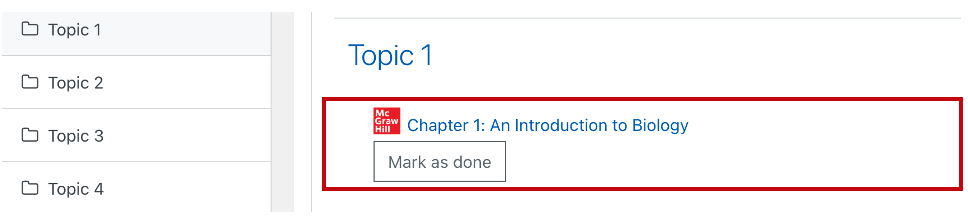
Canvas
Step 3 Click Begin to start the registration process.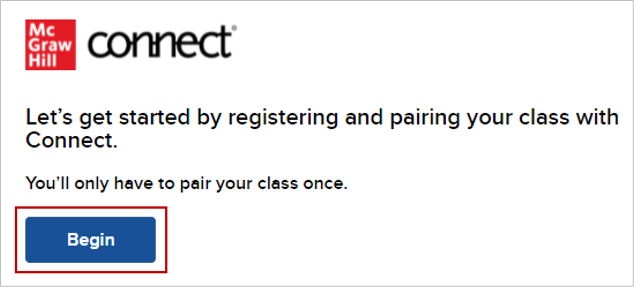
Step 4 Create a new Connect account if this is the first time you are using Connect. If you used Connect in the past or you already have a McGraw Hill login, you can pair your existing account instead. 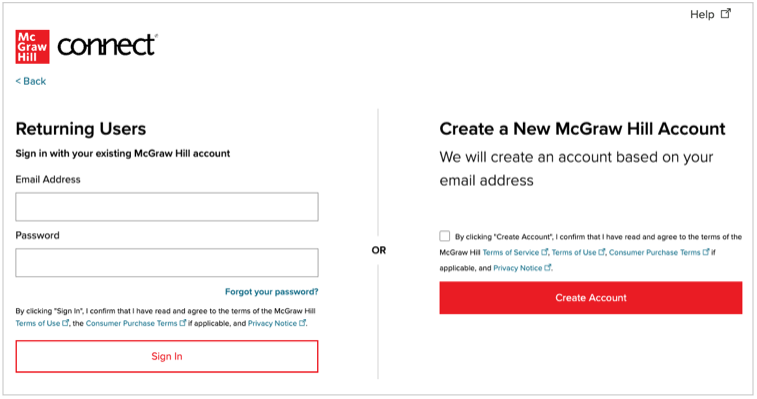
Follow the on-screen instructions to complete your registration.
If you accidentally created a new account but wanted to use an existing account, you can reset your account pairing and pair with a different account. Please refer to this article for instructions.
